![FMG_Logo_RGB_Small_Blk-1.png]](https://help.fmgsuite.com/hs-fs/hubfs/FMG_Logo_RGB_Small_Blk-1.png?width=75&height=49&name=FMG_Logo_RGB_Small_Blk-1.png)
At the bottom of every page in your admin, you will find SEO settings specific to that page under Advanced Settings:
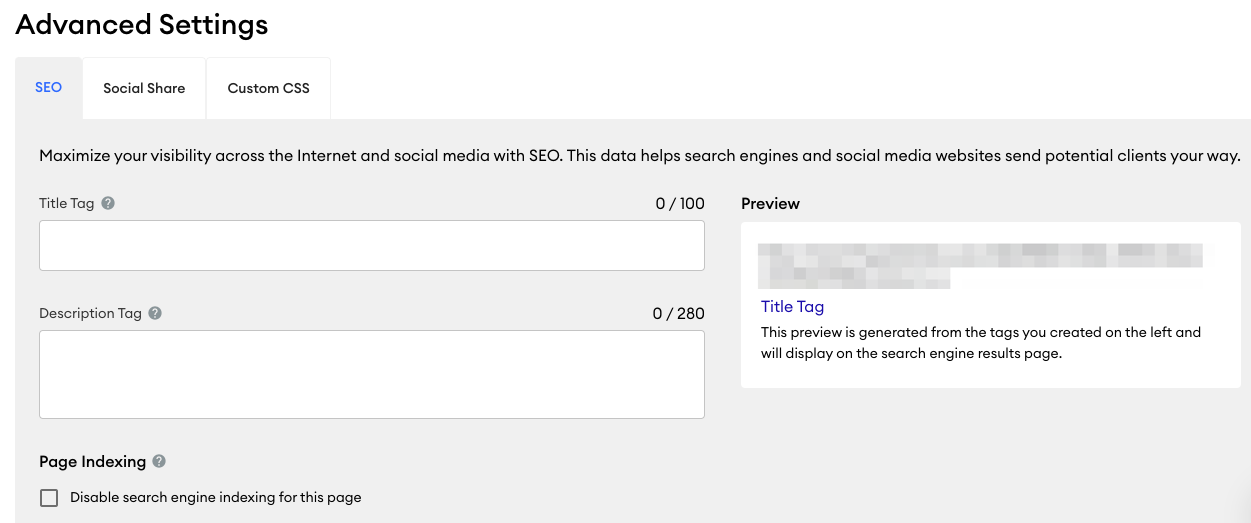
Here, you can add a custom Title Tag and Description Tag. When you create the page, this content is generated automatically, but you can override that metadata here with your own content.
What are title tags and description tags?
Title tags and description tags are pieces of metadata: information about your page that lives in the page's underlying code rather than in the content your visitors see. You will not find them anywhere on the page itself.
Search engines read them to understand what your page covers and to decide how to display it in search results. That makes them two of the most useful fields on this panel, even though they are invisible on your site.
Because FMG generates both automatically, your pages are never missing them. However, filling in these fields with your own wording replaces the autogenerated version, and gives you control over how your page is described in search results.
Page-Specific SEO Fields
Title Tag
-
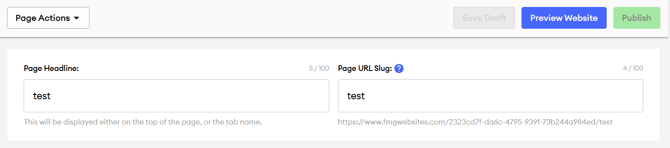
The Title Tag will automatically be populated with the "Page Headline" that you add when creating a page:
-
Where the title tag appears:
-
the page's name on your browser tab
-
on search engine results, where it will be the page's name
-
in the preview that appears when a link to your webpage is shared on social media
-
-
💡Search engines use the title tag as one of the signals in understanding what a page covers and how it ranks in search results, so try to include keywords about the page in your title tag.
-
Aim for 50 to 60 characters, since longer titles are usually cut off in search results.
Description Tag
-
Like the title tag, the meta Description Tag content is automatically generated. We will display the first few sentences on this page as your description tag. This content is only visible on search engine results.
-
Description tags do not directly affect your search ranking. What they affect is whether someone chooses your result over another one.
-
You may want to enter a custom description tag here to provide a summary of the content on the page, including any keywords or phrases that someone may search for, especially anything specific to your location. You can add up to 150 characters in your custom description.
-
For example, if a page was about financial planning, you could add a keyword phrase with "financial planning" in the description tag. You'll want to ensure your keyword phrase shows up at the beginning of the description tag as naturally as possible, such as "Let us help you with your financial planning process..."
-
-
Page Indexing
-
Under Page Indexing, you'll see a checkbox to Disable search engine indexing for this page. When this option is checked, it prevents search engines from crawling/indexing the page, and the page will not appear in search engine results.
-
-
You may want to do this if you're building a page that you only want specific clients to access: perhaps you're putting together a page full of helpful resources that you'd like to send to your clients.
-
💡Give Each Page Its Own Tags
Write a different title tag and description tag for every page you customize. Duplicate tags across multiple pages make it harder for search engines to tell your pages apart, which can work against the pages you most want people to find.
How Title Tags and Description Tags Appear on Search Engine Results
This is an example of how title tags and description tags will appear on search results:
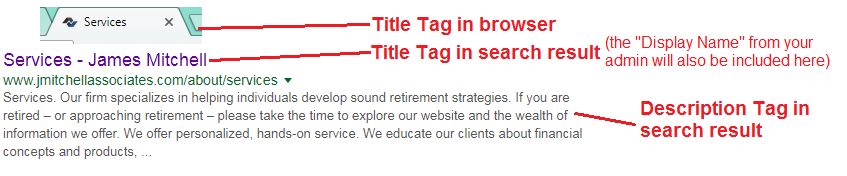
The above search results point to this page: https://www.jmitchellassociates.com/about/services