![FMG_Logo_RGB_Small_Blk-1.png]](https://help.fmgsuite.com/hs-fs/hubfs/FMG_Logo_RGB_Small_Blk-1.png?width=75&height=49&name=FMG_Logo_RGB_Small_Blk-1.png)
FMG's Web Content calculators are available as part of your Marketing Suite or Website Suite subscription. Use them to engage clients and prospects with interactive financial tools that include visuals directly on your website or landing page.
⚠️ Before you begin using calculators, make sure your website or landing page is live. If you have a Marketing Suite landing page, follow these instructions to turn the landing page live.
💡For a detailed overview of using all Web Content types, please refer to this help article: How to Use Web Content
Finding Calculators in the Content Library to Share on Social
- In your FMG, navigate to the Content Library and select Web Content.
.png?width=670&height=291&name=WebContent%20(1).png)
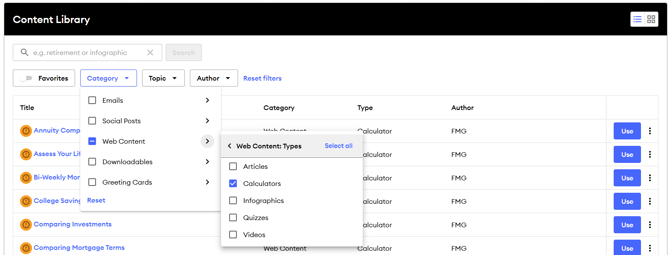
- Use the Category filter, then select Web Content to filter by type for Calculators and explore the available options.
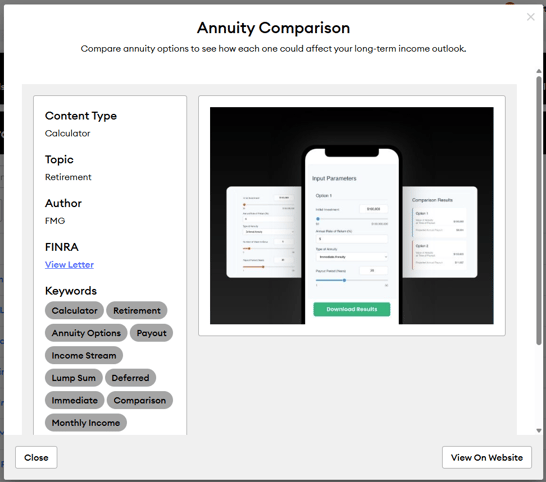
- To preview a calculator, click on the title, then select the “View on Website" button located in the bottom right corner.
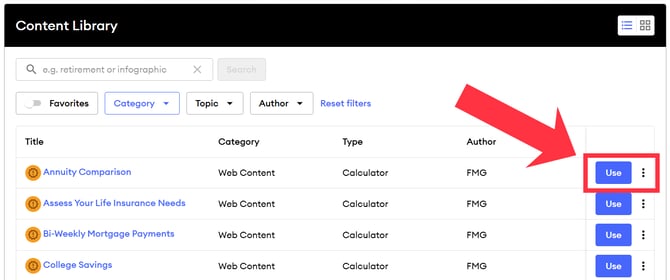
- To share a calculator on social media, select Use next to in the Content grid.
- You can schedule the social post right from there, or select Edit to make changes to the post text.
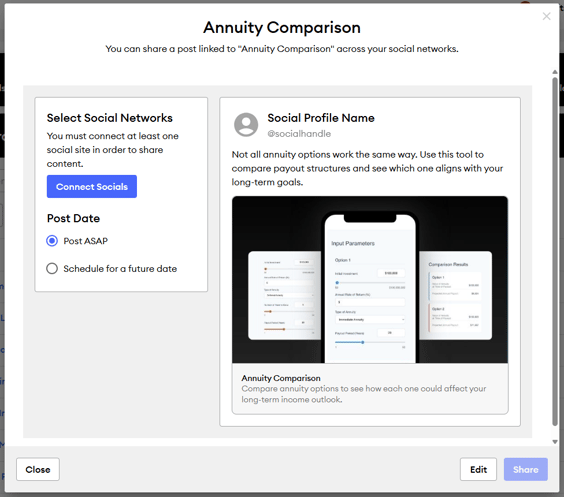
- You can schedule the social post right from there, or select Edit to make changes to the post text.
Calculators on Website System and Synced Pages
If you have a website with FMG, calculators automatically appear on some of your website pages; no setup required. They will appear on:
- Resource Center pages
- All Calculators page
- Synced Hub pages
These pages cannot be manually edited because they are synced and updated by FMG. If you'd like to hide a specific calculator from your website, follow the steps in this article: Removing Library Content From Your Website.
Adding a Calculator to a Custom Website Page
In the website editor, open an existing custom page or create a new one, then follow these steps to add a Calculator to a custom webpage:- Select the +Add Section button to add a new section to a page.
.gif?width=396&height=396&name=AddSectionWebPage%20(1).gif)
- Choose one of the Boxes section layouts and add it to the page.
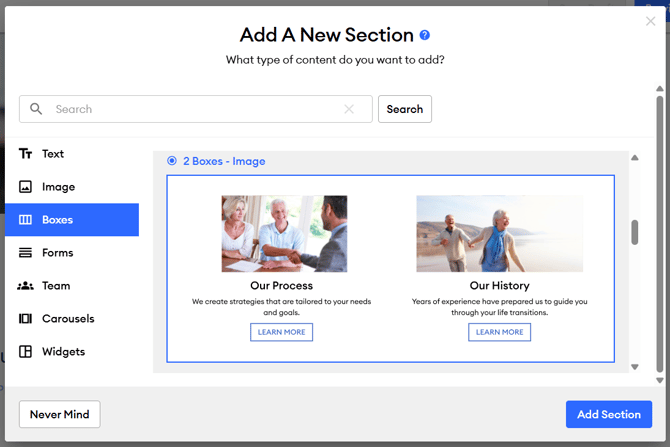
- In the sectional editing tools options, select "Choose some great website content."

- Choose which box to edit, then select either:
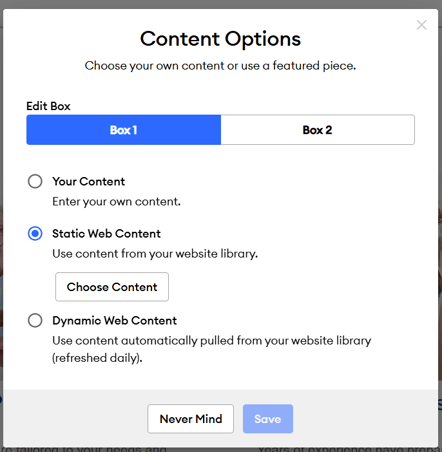
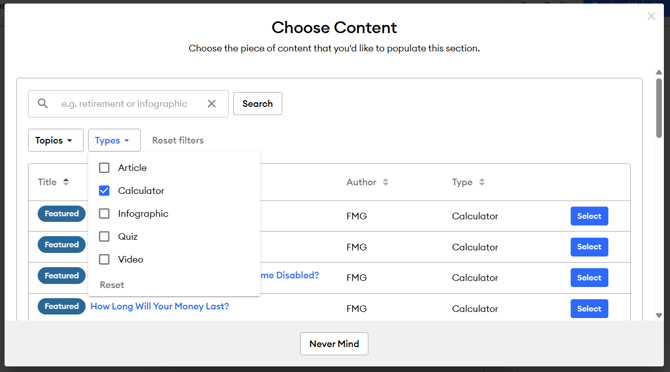
- Static Web Content: If you want to choose one specific calculator to display here.
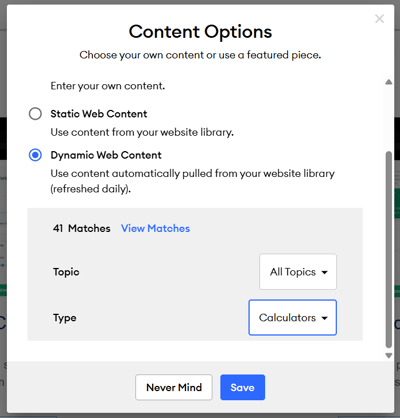
- Dynamic Web Content: If you want the calculators to automatically change daily. You can filter by type for Calculators so that only calculators are automatically displayed in the box.
- Static Web Content: If you want to choose one specific calculator to display here.
💡Check out these related help articles to learn more about website editing tools: