![FMG_Logo_RGB_Small_Blk-1.png]](https://help.fmgsuite.com/hs-fs/hubfs/FMG_Logo_RGB_Small_Blk-1.png?width=75&height=49&name=FMG_Logo_RGB_Small_Blk-1.png)
FMG offers an extensive Content Library that includes Emails, Social Posts, and Web Content. Web Content is hosted on your FMG website or Marketing Suite landing page, encouraging visitors to return to your site or landing page to engage with the content. In this article, we will guide you on accessing and using Web Content.
⚠️ To utilize Web Content, your Website or Marketing Suite landing page must be live. This content type is shared as a link, designed to direct visitors to your site or landing page. If your site is still under construction, you will need to delay using this content for now. Otherwise, refer to these articles for instructions on how to activate your website or landing page:
- Go Live Process (for websites)
- How to Set Your Landing Page Live (for Marketing tools only)
How to Use Web Content
To access and use Web Content:
-
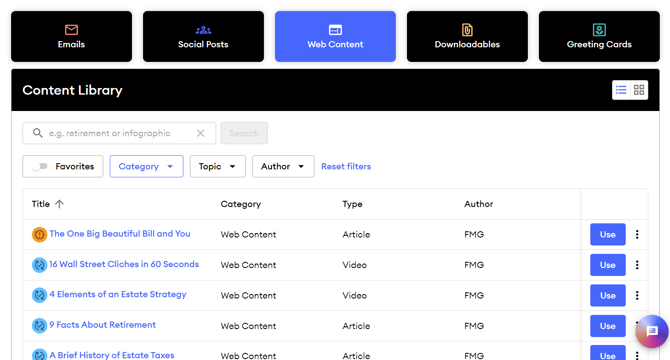
Accessing Web Content: To access Web Content, log into your FMG admin account and navigate to Content Library > Web Content.
.png?width=670&height=350&name=Untitled%20design%20(62).png)
-
Sorting and Filtering Web Content:
-
Use the "Topic" filter to find Web Content by specific topics, such as Tax, Estate, Insurance, Lifestyle, Retirement, and Money.
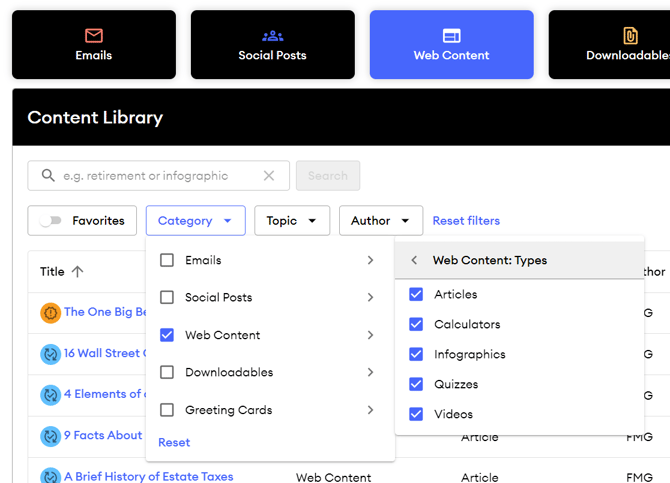
- Use the "Category" filter to filter Web Content by Type:
-
-
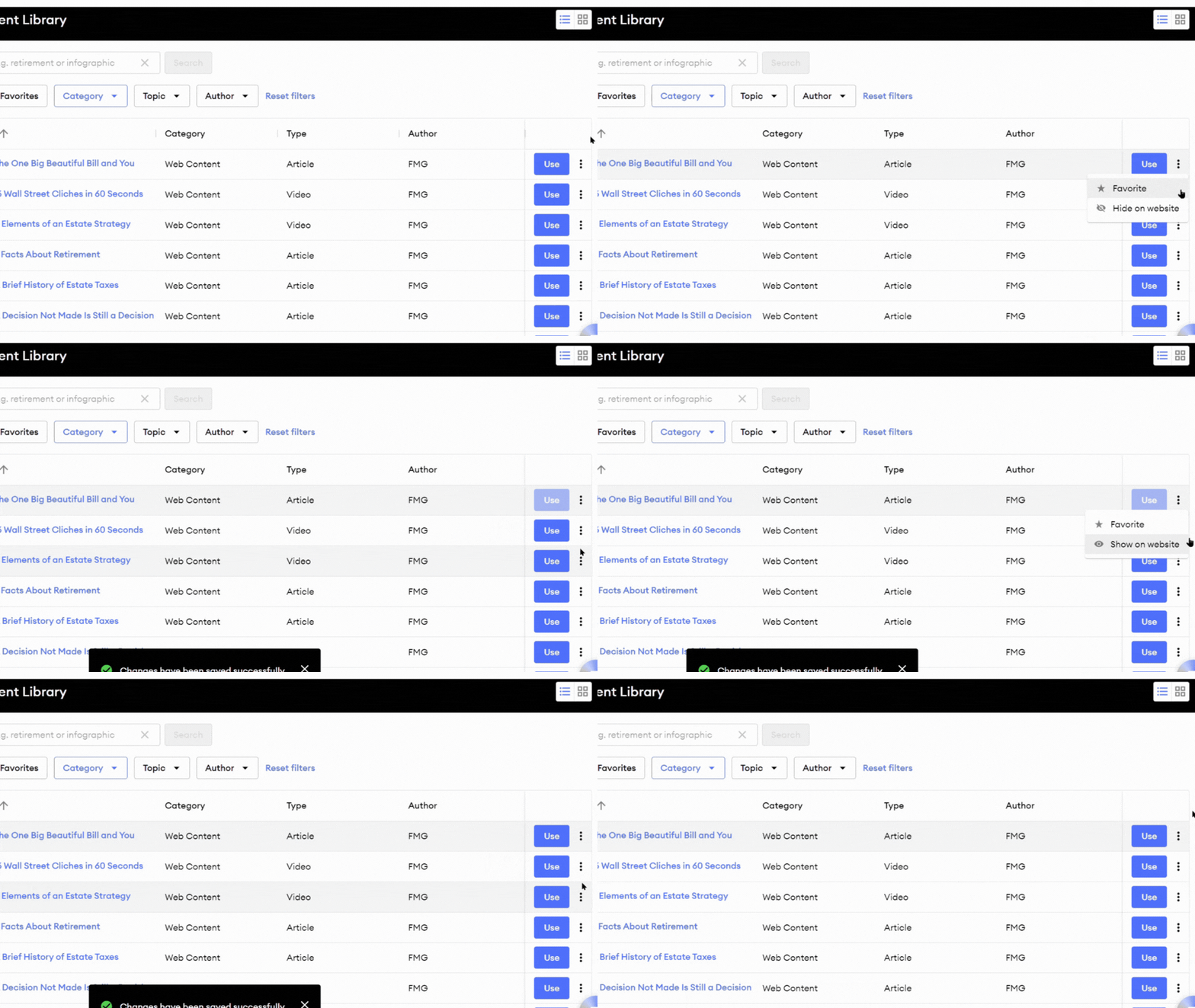
Turn Web Content On or Off: Enable or disable web content by clicking on the 3-dot menu icon and selecting "Hide on Website" to ensure it does not display anywhere on your website.
-
⭐ Favoriting Web Content: If there is a piece of content you love and share often, mark it as a Favorite by clicking the 3-dot menu icon and selecting "Favorite."
⚠️ Note: You can only favorite Web Content, not other content types such as emails or social posts.
-
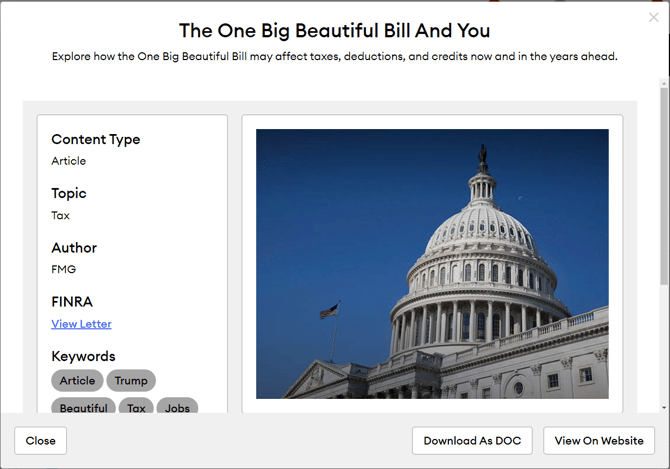
Exploring Web Content: To learn more about a specific piece of Web Content, click the content title. Here, you will see a short description, preview image, topic, author, and keywords associated with the piece.
-
View Letter: To view the FINRA letter, click "View Letter." You can view the letter and download it as a PDF.
-
View on Website: Click "View on Website" to see a preview of the piece on your website.
-
Sharing Web Content
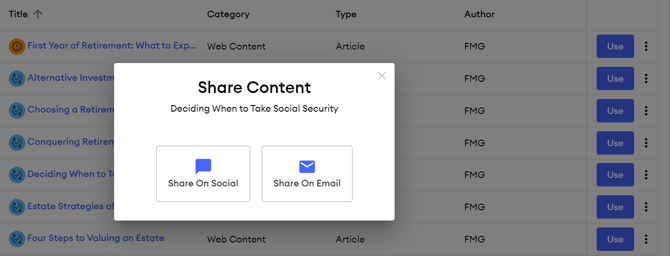
When you're ready to share a content piece, select "Use" next to it. You can then select to share the content via email or social post.
💡 Learn more about other types of content in your Content Library, such as Emails, Social Posts, and Downloadables.