![FMG_Logo_RGB_Small_Blk-1.png]](https://help.fmgsuite.com/hs-fs/hubfs/FMG_Logo_RGB_Small_Blk-1.png?width=75&height=49&name=FMG_Logo_RGB_Small_Blk-1.png)
What is a Subdomain?
A subdomain is an addition to an already existing domain name. For example:
yourname.yourwebsite.com
In this example, 'yourname' is the subdomain and 'yourwebsite' is the primary domain.
Subdomains are traditionally used to organize and navigate different sections of your website, but this may come in handy for your Marketing Suite account as well.
Why Should I Use a Subdomain?
With your FMG Marketing Suite, when you share Web Content or certain Automated Marketing campaigns, such as the Monthly Market Insights, with your contacts or on social media, the content will display on your landing page.
By default, your landing page will show a generic "library-messages" FMG URL. If you or your firm owns a domain, adding a subdomain lets your landing page URL reflect your brand. 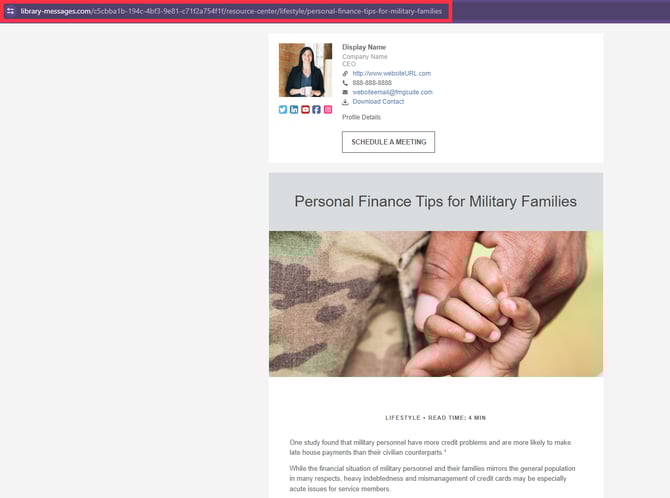
How to Set Up a Subdomain on Your Landing Page
Step 1: Update the CNAME
The CNAME needs to be updated in the DNS editor where your main domain is hosted. The CNAME consists of two parts, 'Name' and 'Points to'. Both fields need to be filled out in your DNS editor (e.g. Enom, GoDaddy, or Network Solutions) for the subdomain to function.
- Name: The name of your chosen subdomain.
- For example, if your domain is "yourdomain.com" and your chosen subdomain name is "yourname," the resulting subdomain would be yourname.yourdomain.com
- Points to: s26.domains.fmgsuite.com
Only one CNAME record needs to be set. For help accessing your DNS editor, please refer to the links below:
- How to access the DNS for Enom
- How to access the DNS for GoDaddy
- How to access the DNS for Network Solutions
Step 2: Add the Subdomain to Landing Page Settings
-
In your FMG Marketing Suite account, navigate to Landing Page > Settings in the left navigation menu.
-
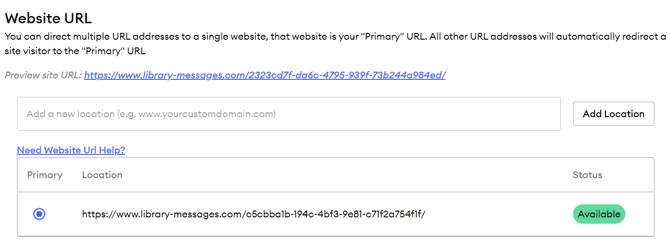
Enter your subdomain into the Website URL field (e.g., www.yourname.yourdomain.com) and click ADD LOCATION.
-
The newly added subdomain will initially show a Pending status. Once the DNS editor has updated, the status will change to Available. This typically takes at least a few hours.
-
Once the status shows as Available, select the Primary toggle next to your new subdomain.
The process is now complete! 🎉When you share content that uses your landing page, it will now display your subdomain as the URL.