
After creating your birthday message template, you can schedule it to send automatically at the right time each year.
How Do I Schedule a Birthday Message?
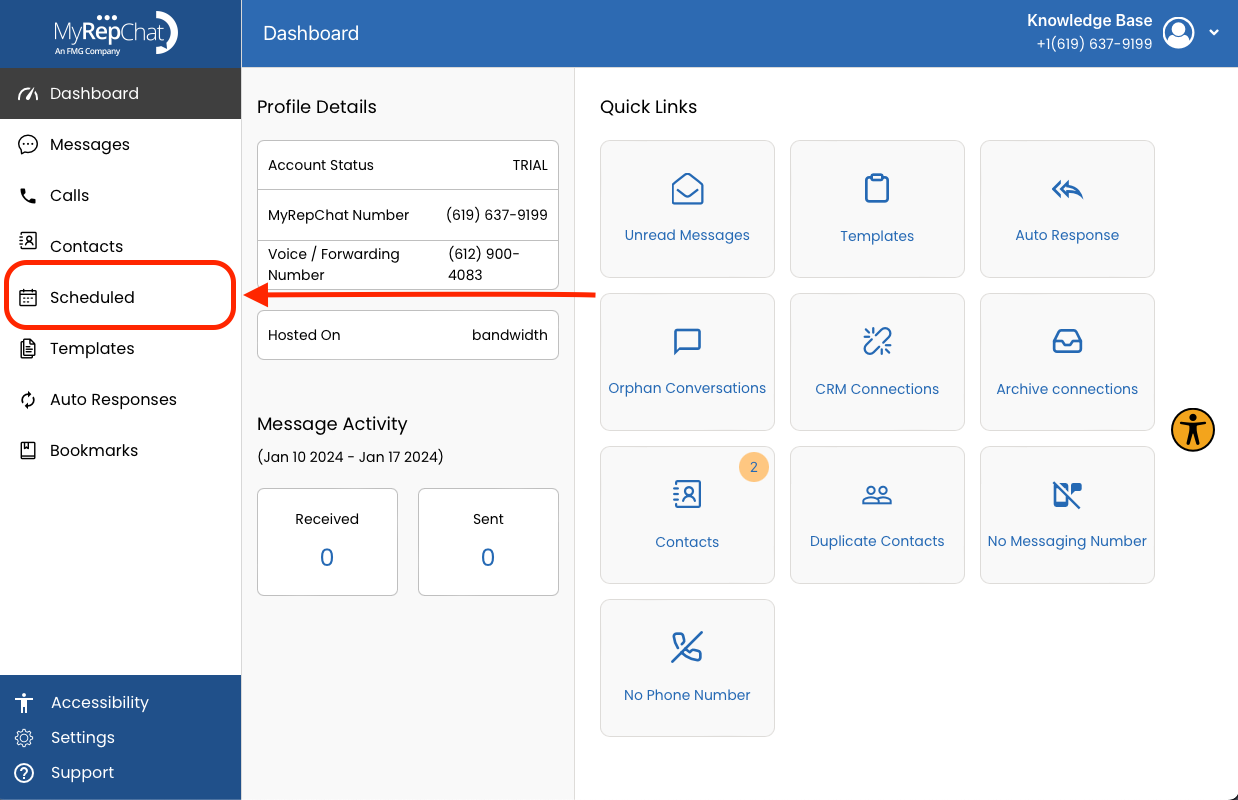
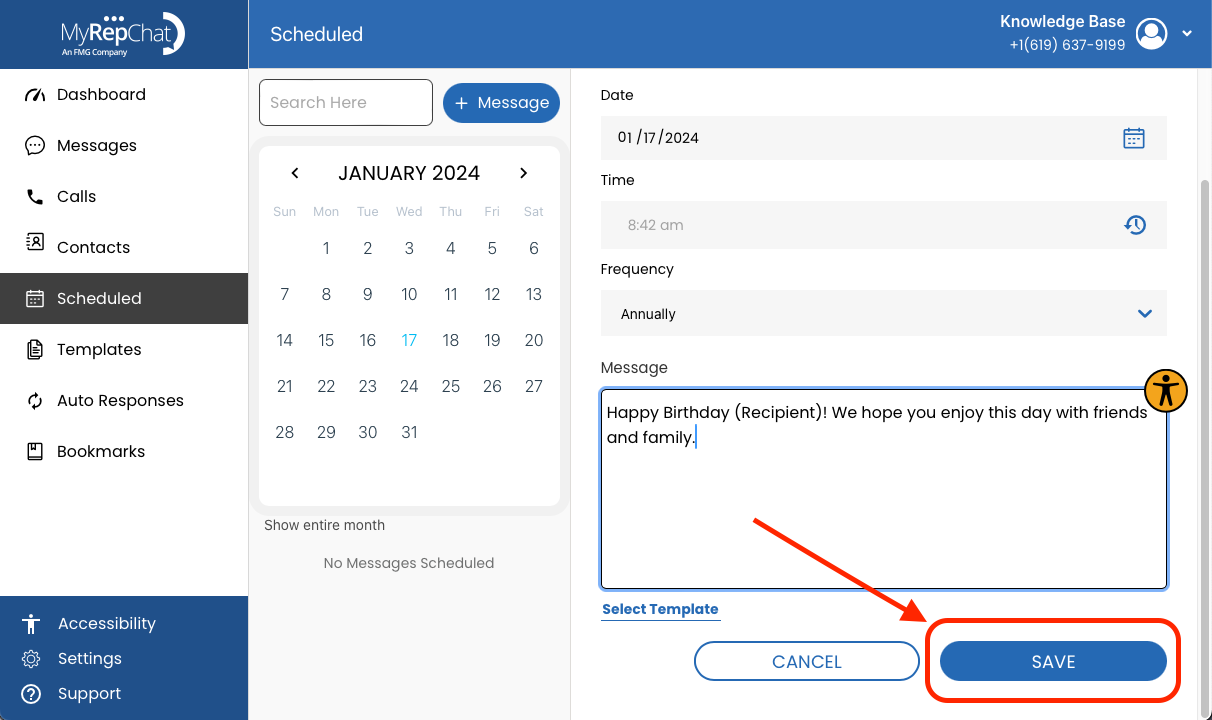
- In the menu on the left side of your Dashboard, select Scheduled.
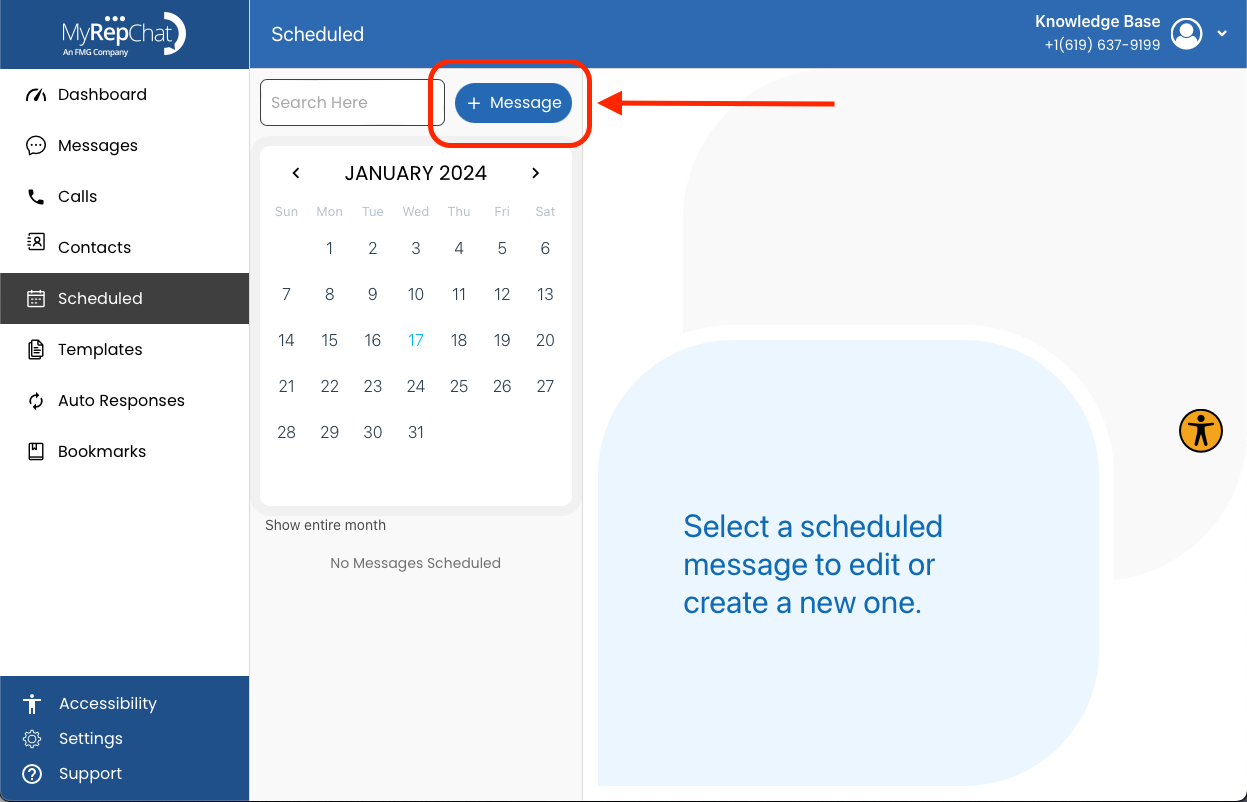
- Select an existing scheduled message to edit, or use + Message above the calendar to create a new one.
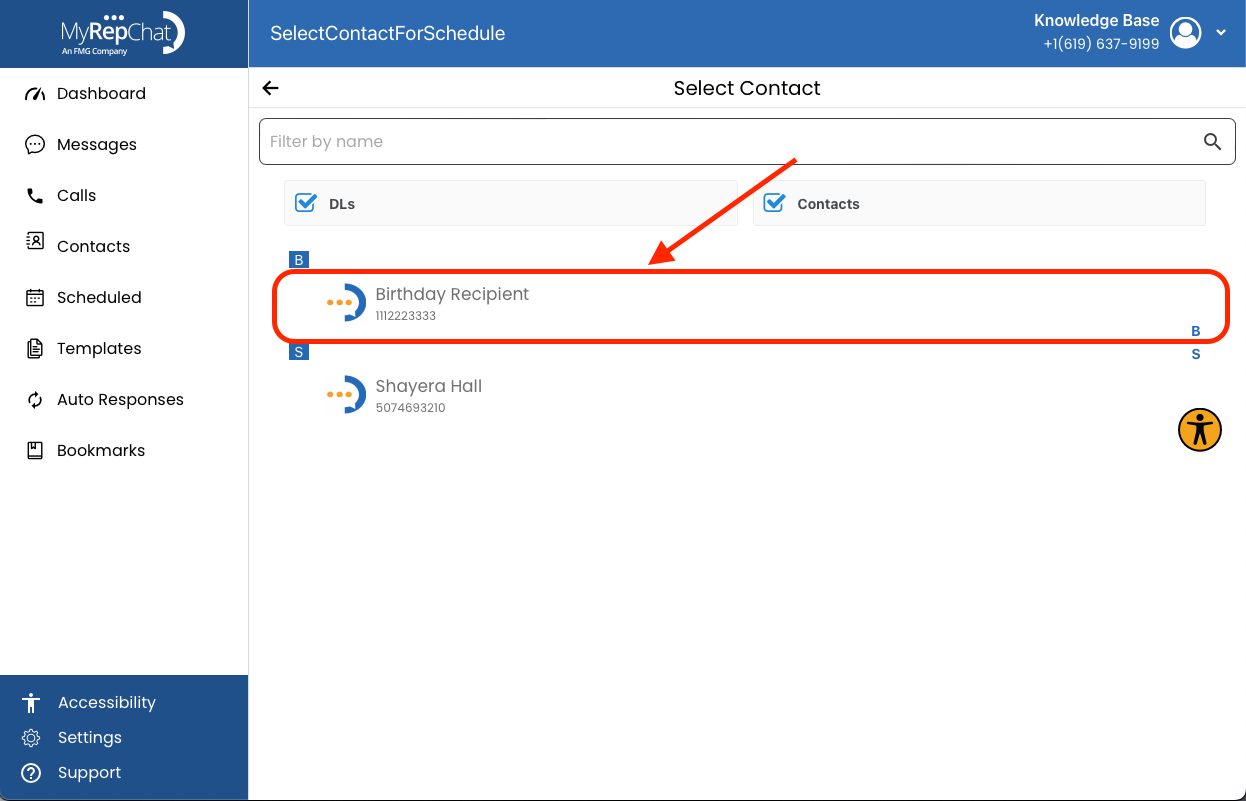
- Click the person icon in the To field to select the contact you want to send this to.
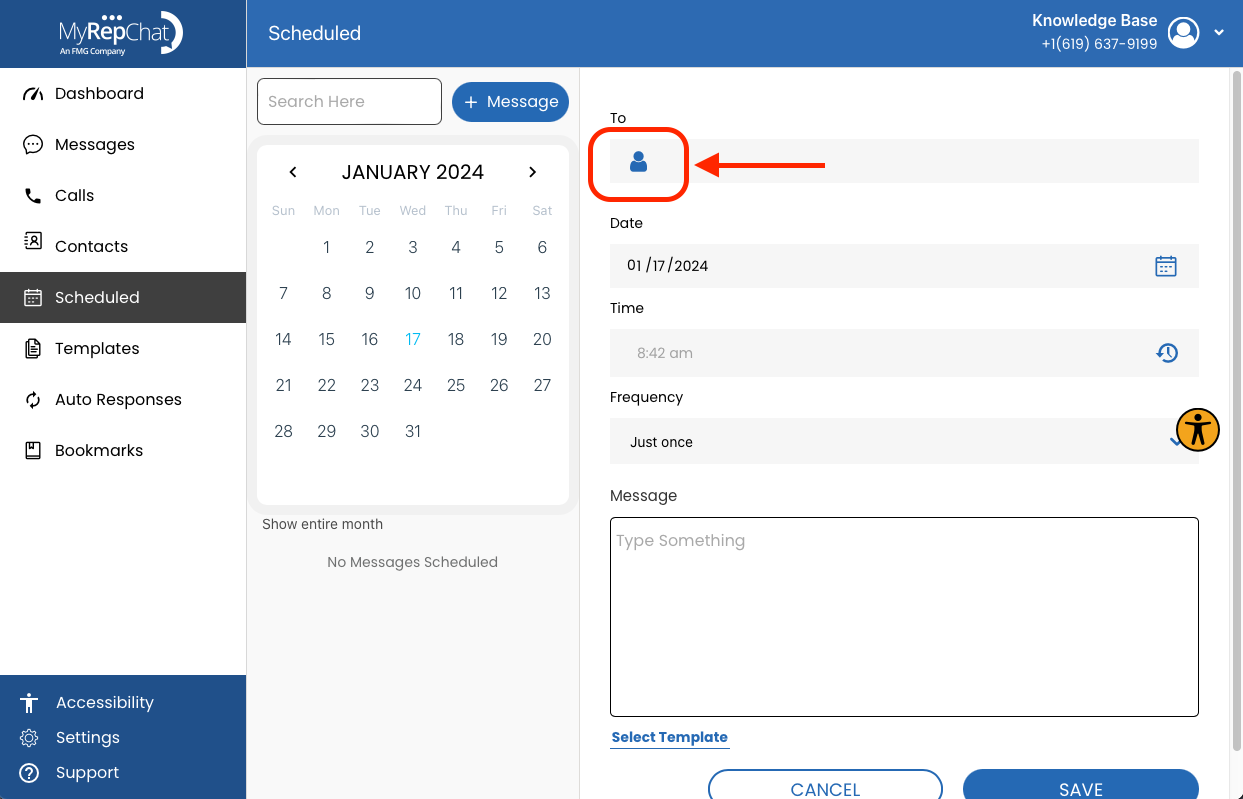
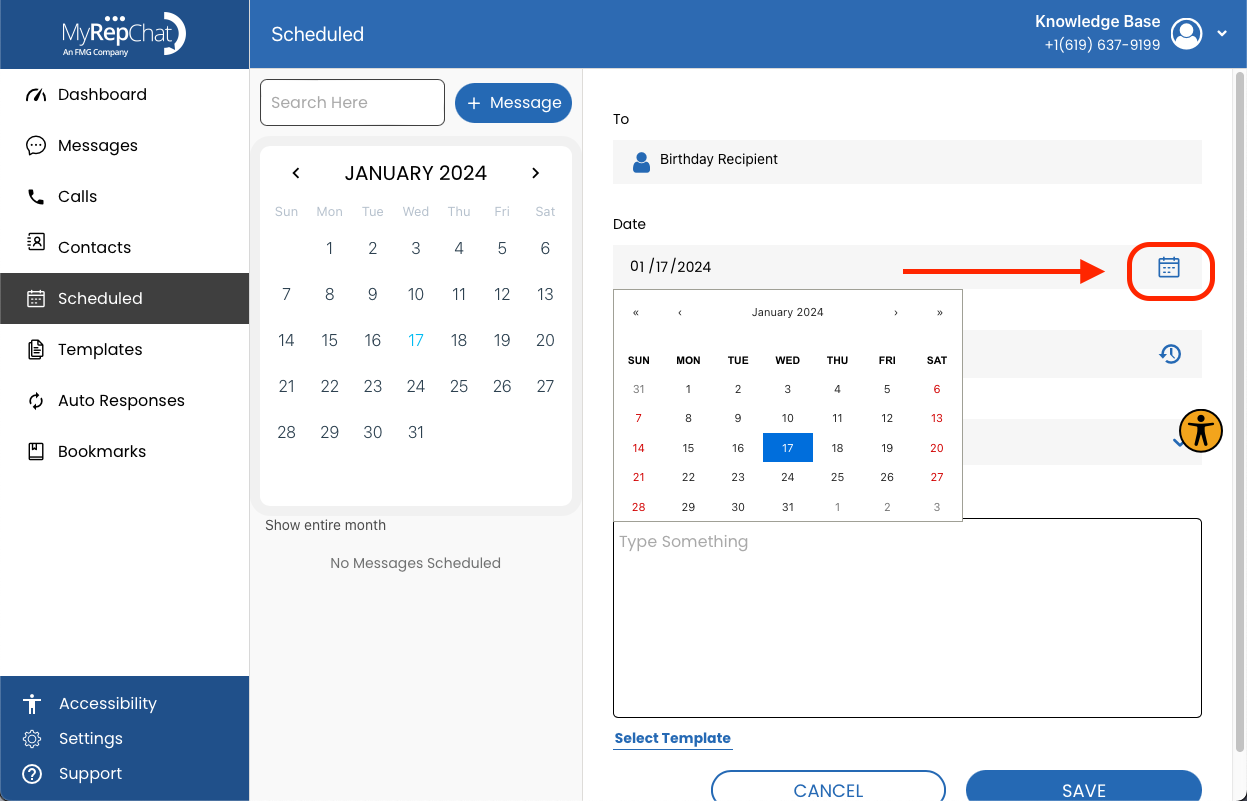
- Click the calendar icon in the Date field to choose the delivery date.
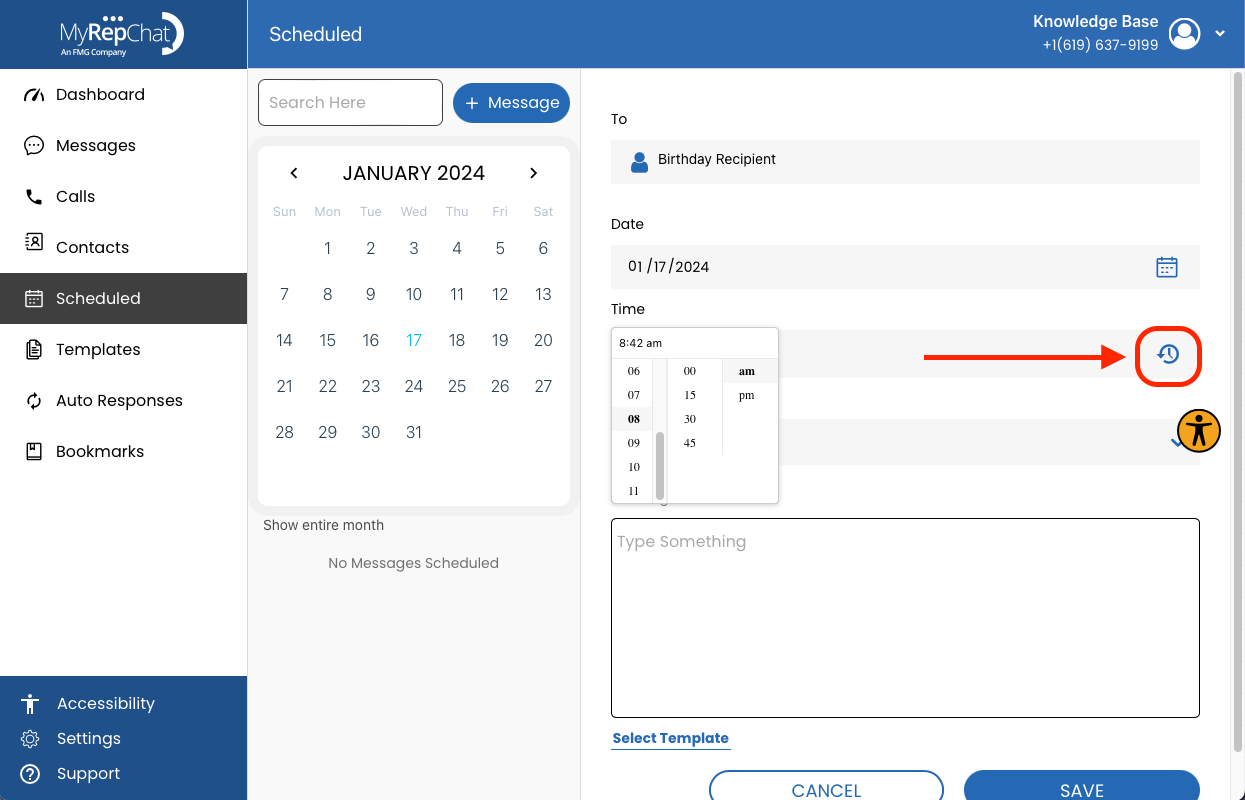
- Click the clock icon in the Time field to choose the delivery time.
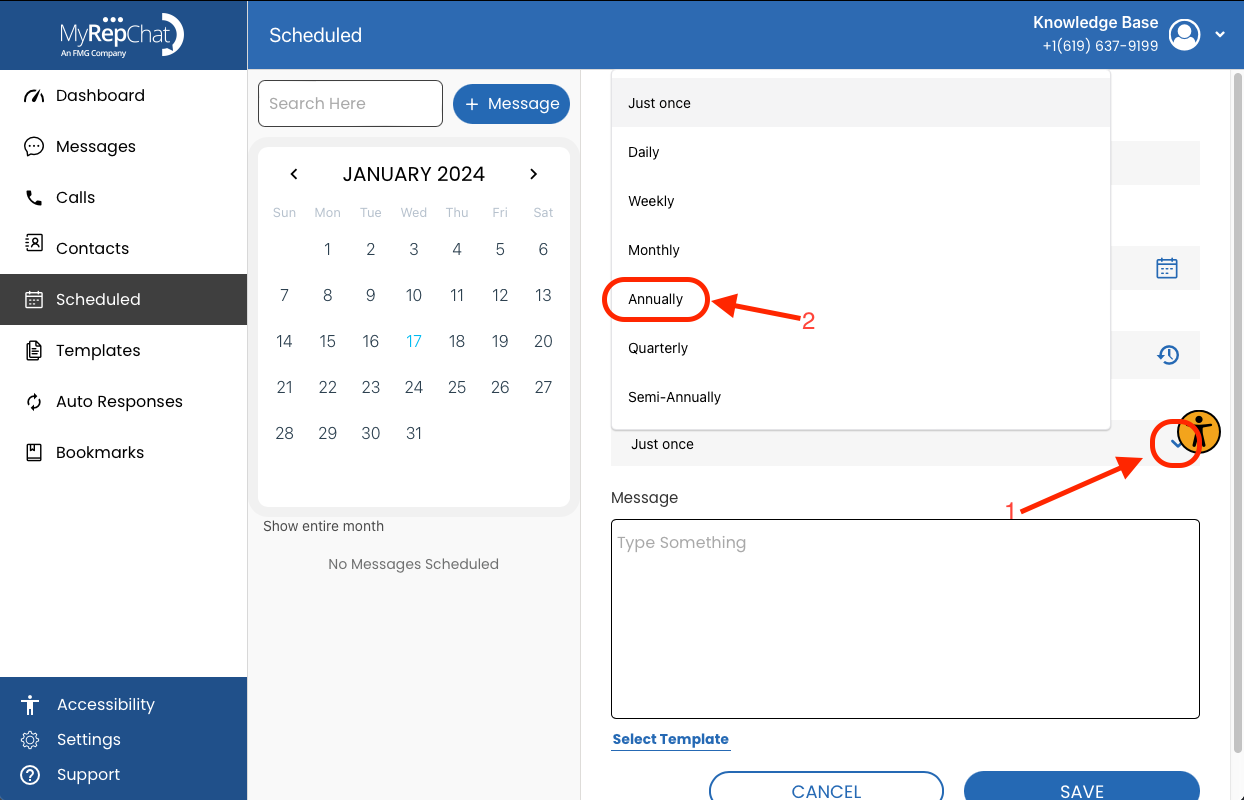
- Click the arrow in the Frequency field and select Annually, so the message delivers every year.
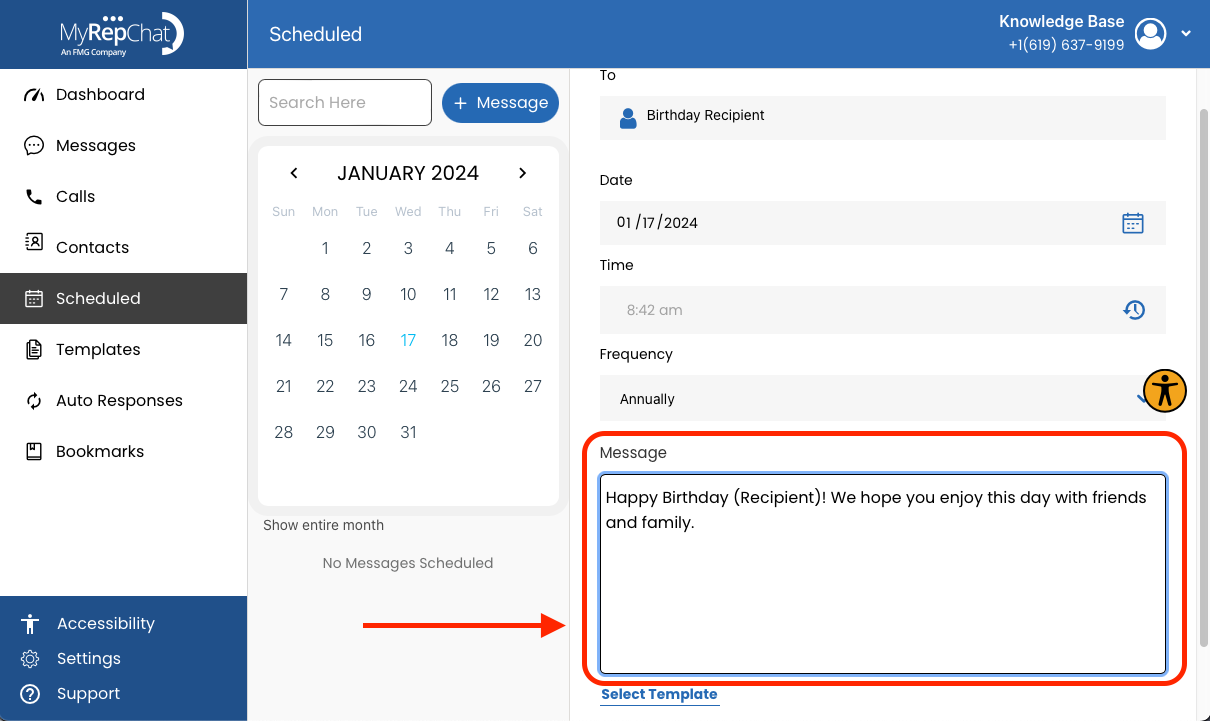
- Type your birthday message in the Message field.
- Click Save to schedule the message.
If an error appears saying the contact hasn't consented to receive texts, click Send Consent Now. Once they've consented, you can schedule the birthday message again.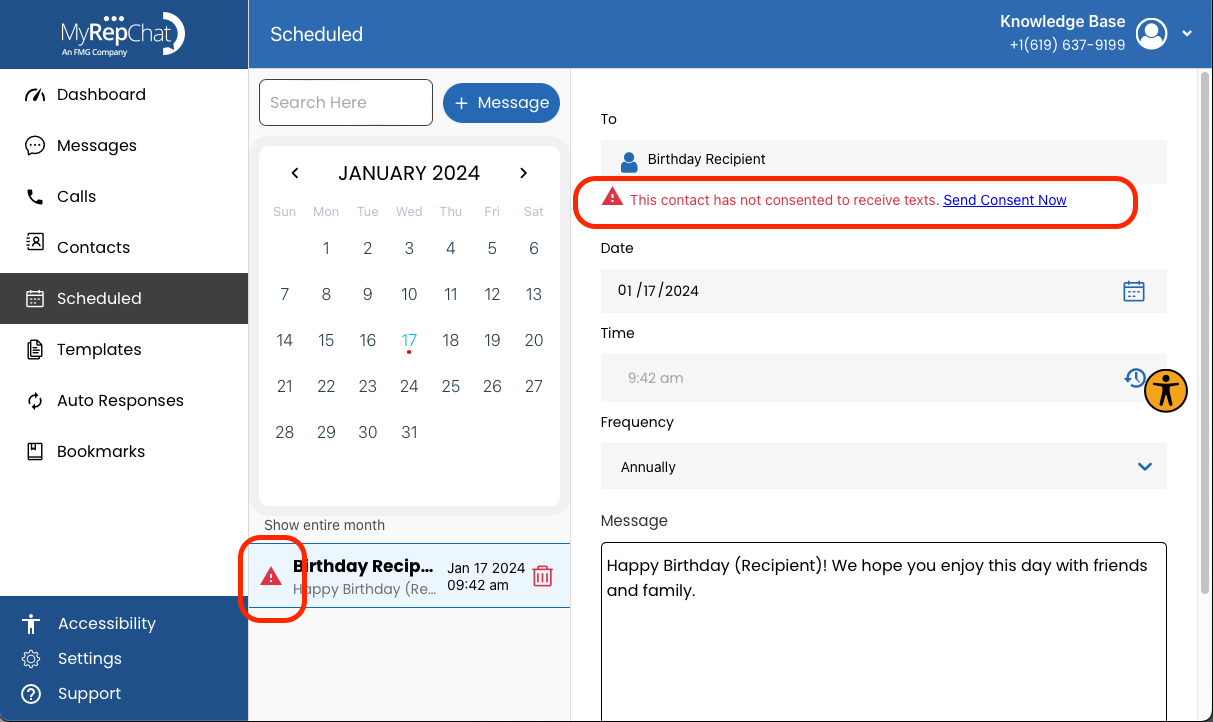
Need to create a birthday template first? See How Do I Create a Message Template? (Desktop).