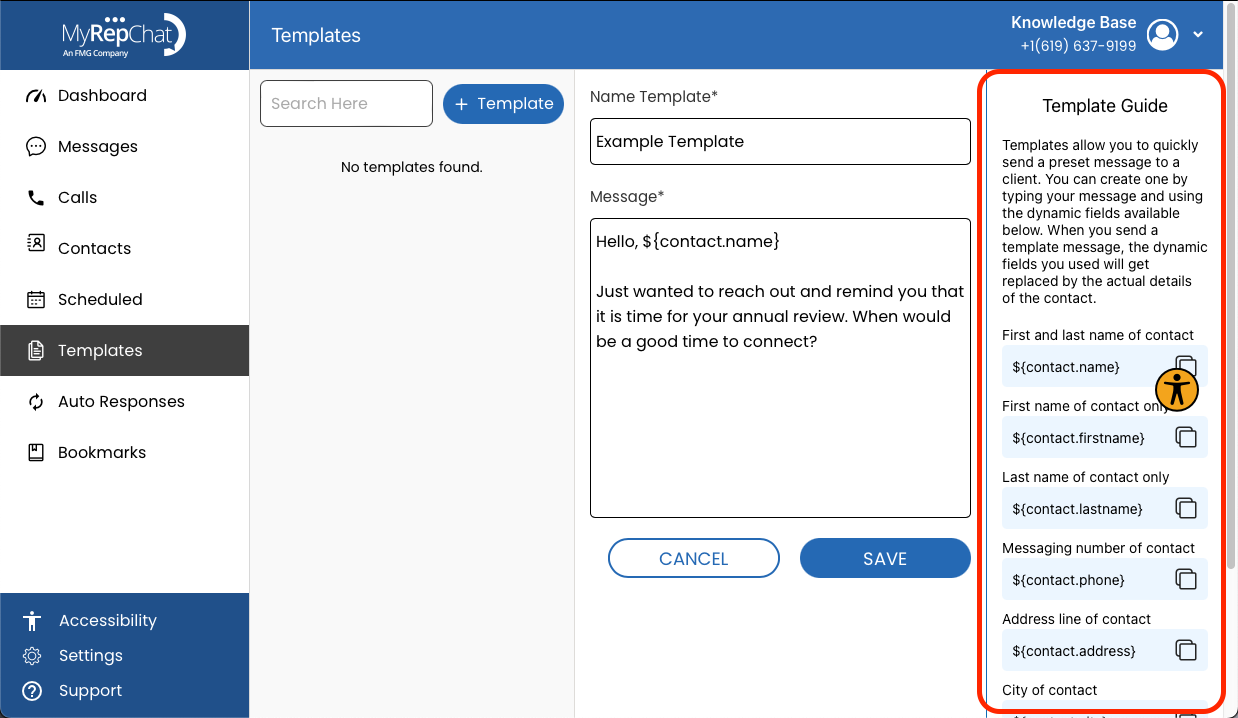
Creating message templates can speed up how quickly you send messages. Follow these steps to create one.
How Do I Create a Message Template?
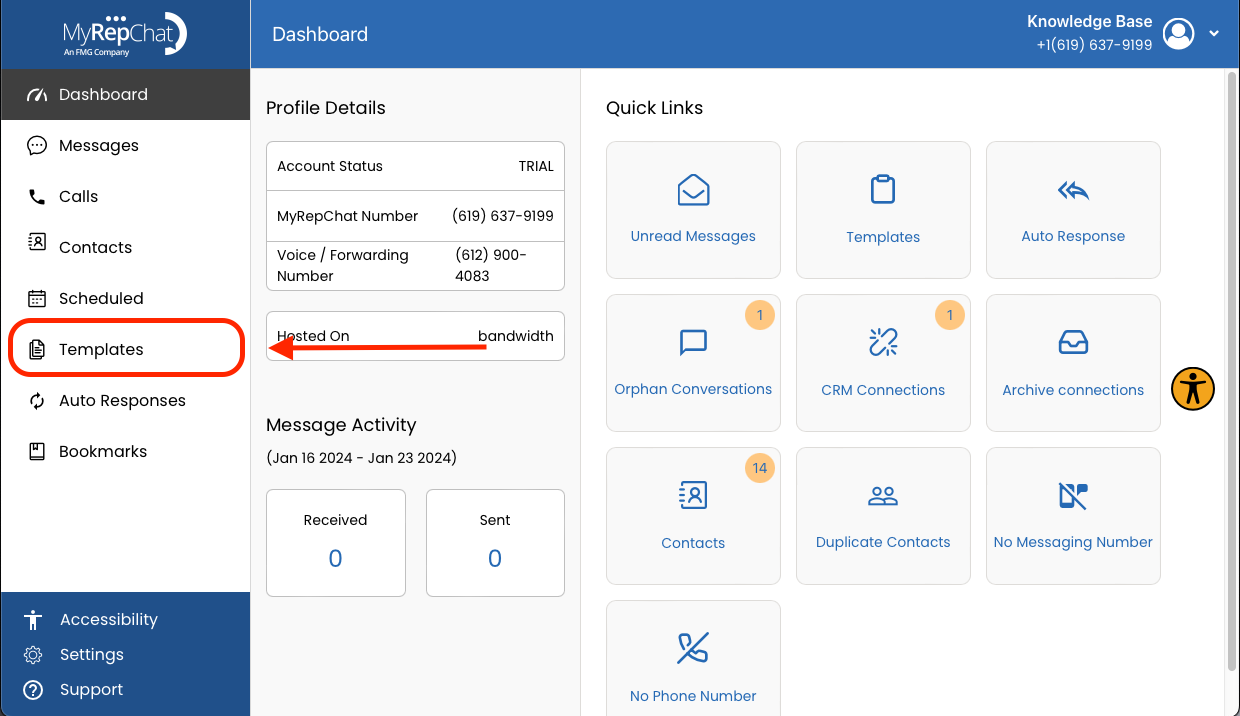
- In the menu on the left side of your Dashboard, click Templates.
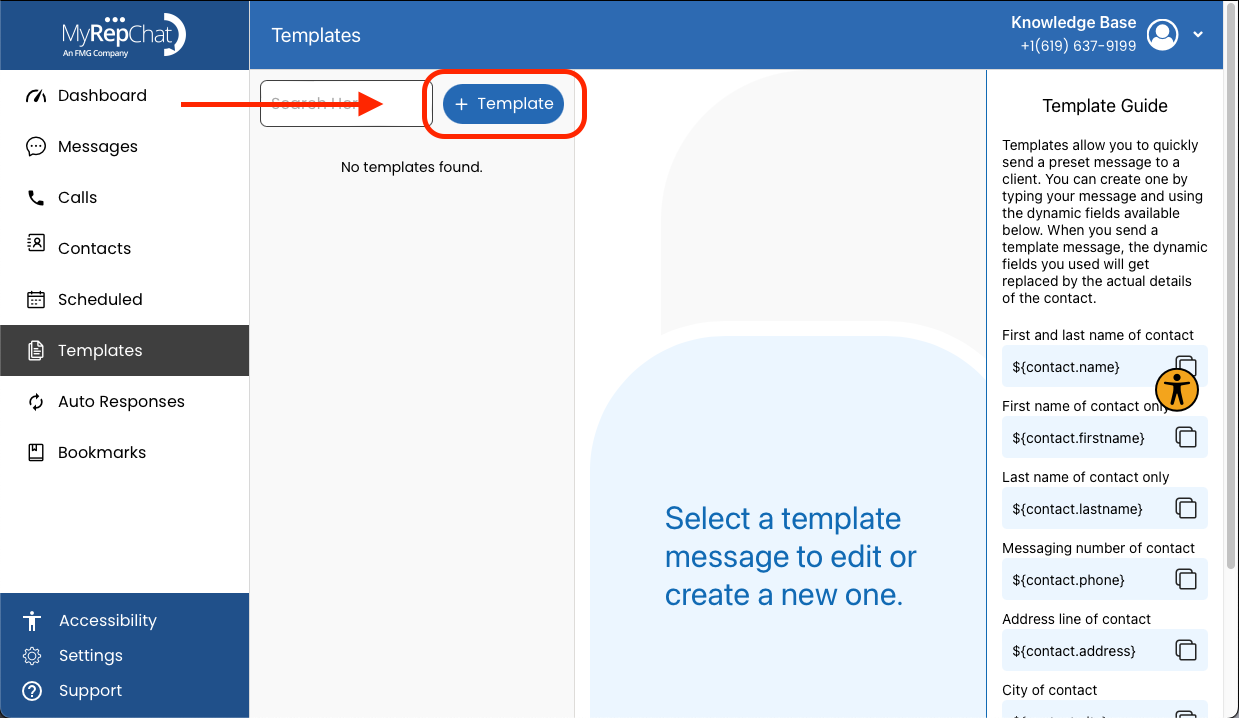
- Click + Template, found next to the search bar.
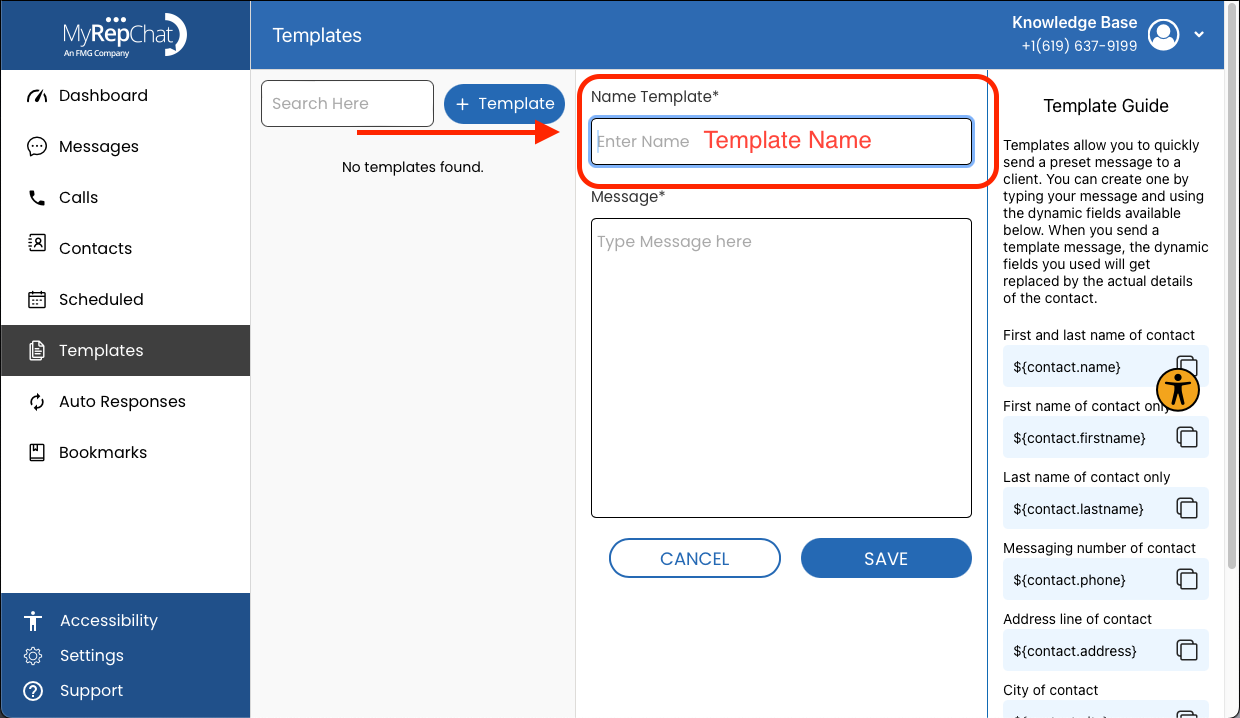
- Type a title for your template in the Name Template field.
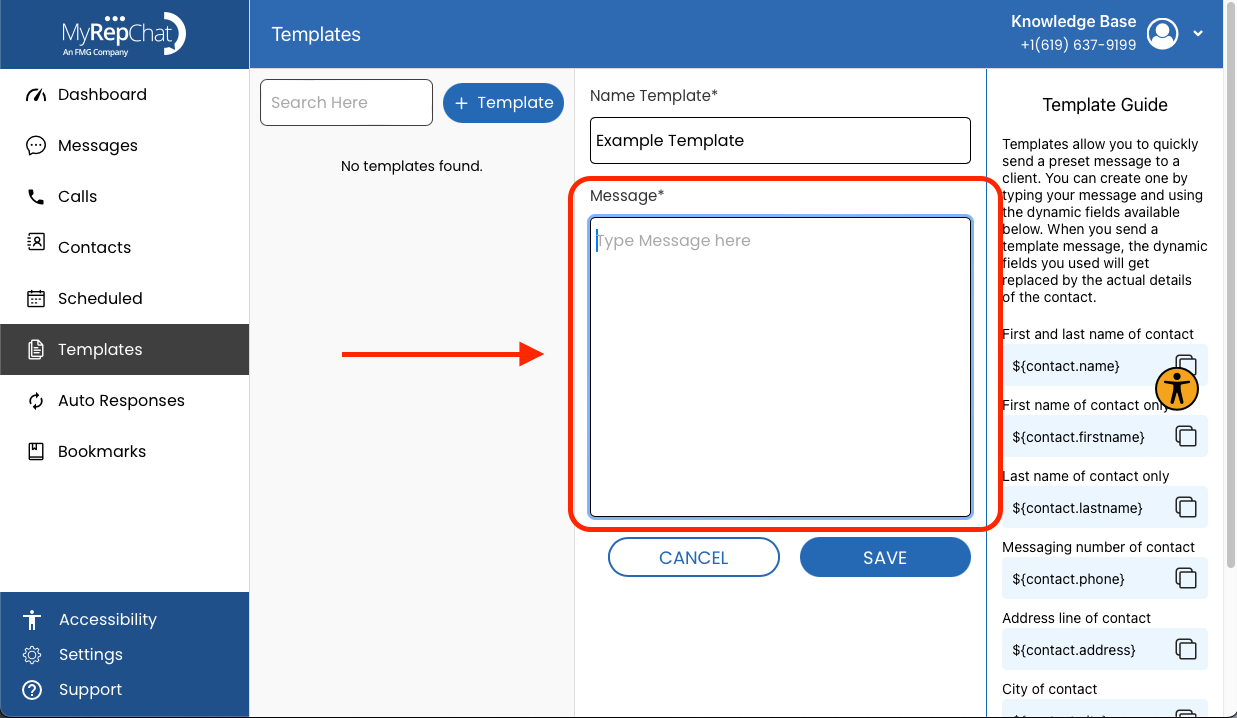
- Type your message content in the Message field.
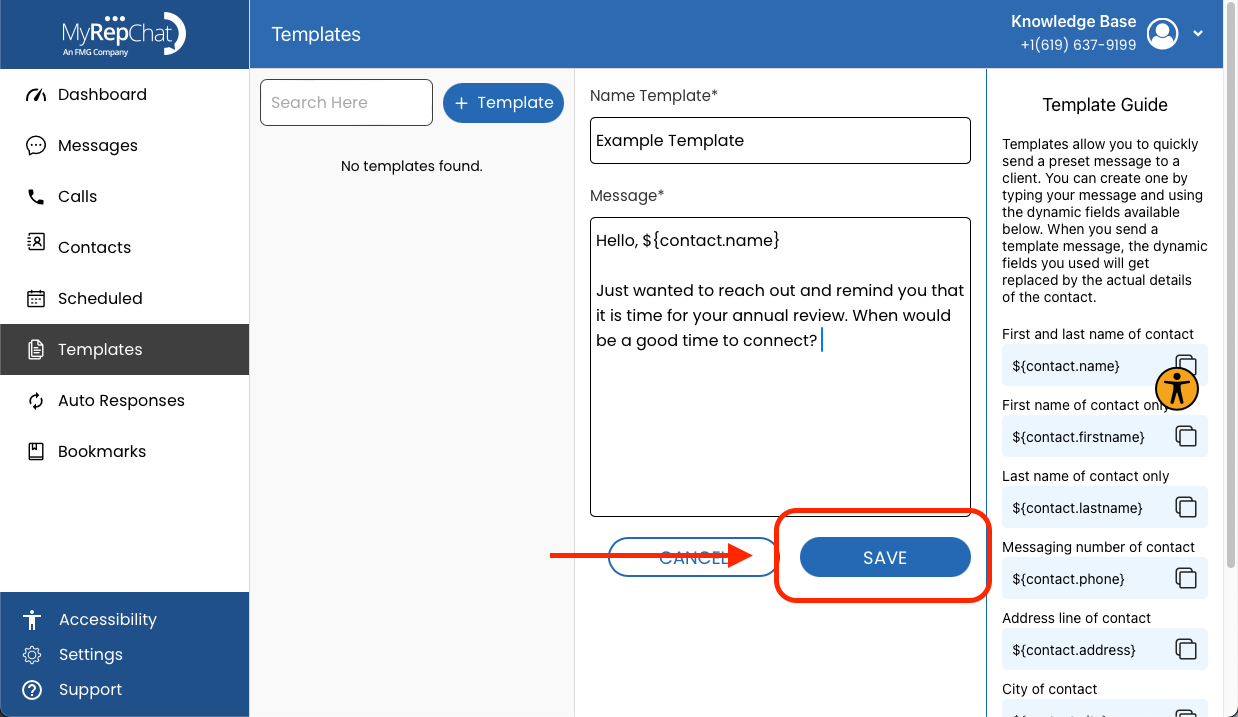
- Click Save in the bottom right to save your template.
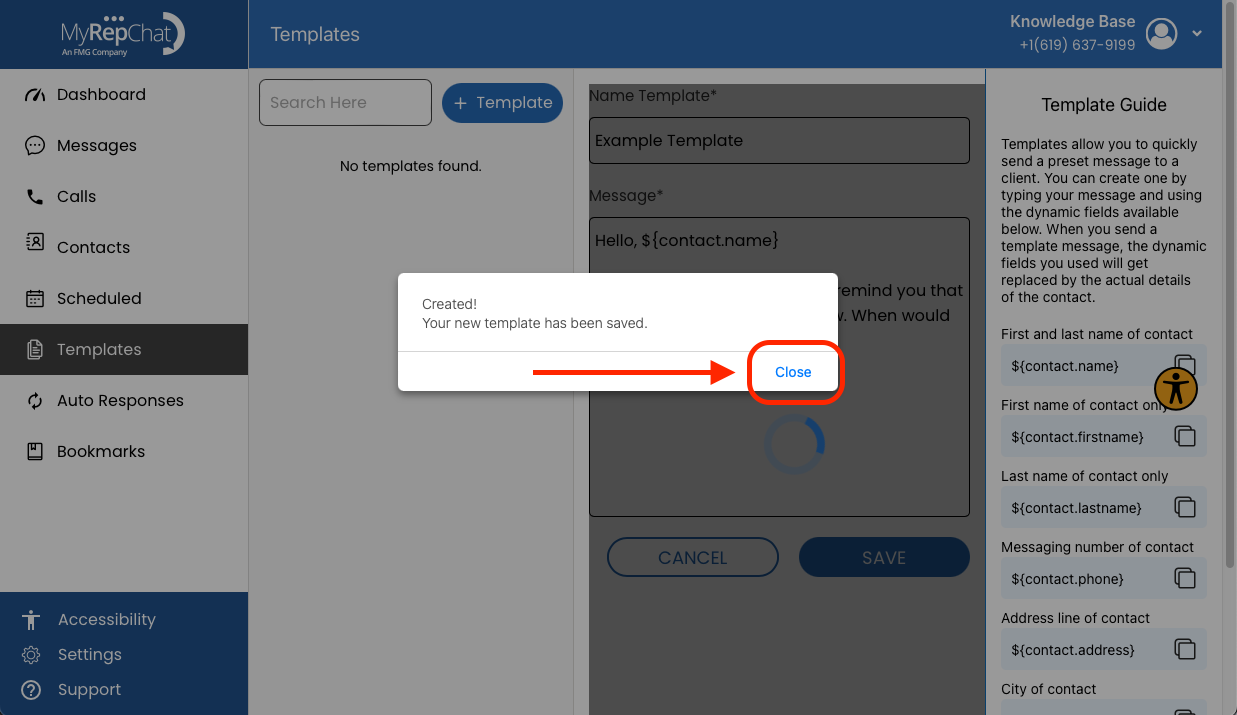
- A confirmation pop-up appears: "Created! Your new template has been saved." Click Close to exit.
While creating your template, use the tag guide on the right side of the screen to insert dynamic information (like a contact's name) into your message. Click the overlapping-squares icon next to a tag to copy it automatically, then paste it directly into your message.