
Text-enabling a landline happens entirely through the sign-up process. It takes about 6 steps to complete, and you'll need to be near the phone you're enabling.
How Do I Text-Enable My Landline?
- On the sign-up page, enter your email and create a password.
- Check the box to agree to the Terms of Use, then click Next. You'll land on the account details page — fields marked with an asterisk (*) are required.
- Fill out the required information and click Next. Choose Enable my landline number instead of a MyRepChat number.
Note: If you change phones or voice providers in the future, the change may interrupt texting — see What if I change my phone carrier/voice provider? (Hosted SMS) for details. - You'll be prompted to check whether your landline or VOIP number can be used. If it's eligible, you'll be prompted to read through the verification instructions.
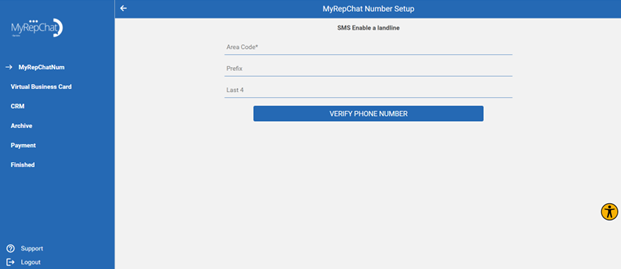
Read these instructions carefully before continuing.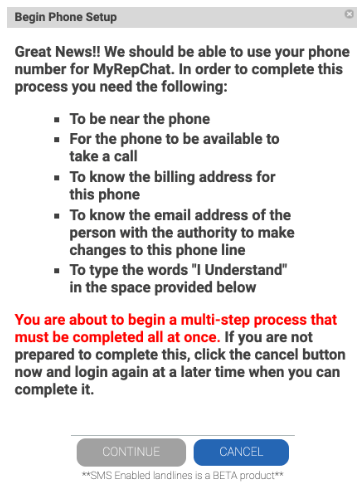
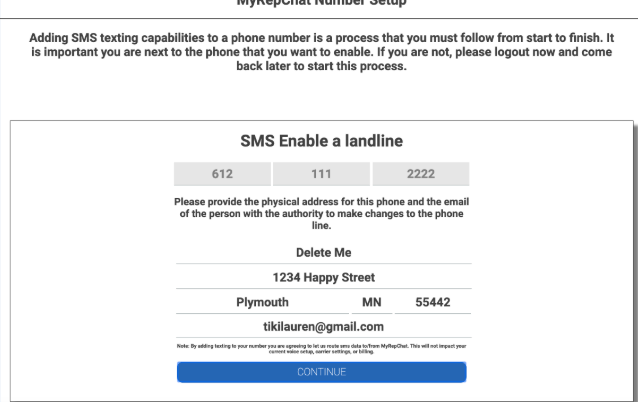
- Fill out the address information for the landline and click Continue.
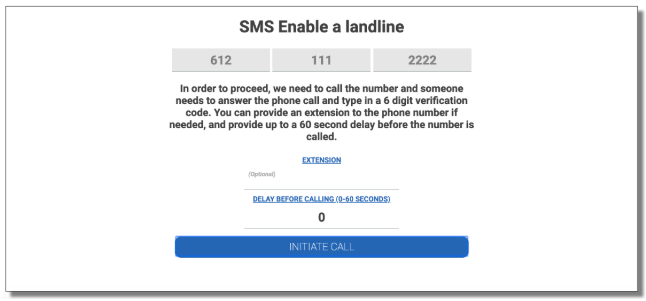
- You'll receive a call to your landline number with a validation code to verify the number belongs to you. You can add an extension or a short delay to the call if needed.
- A verification code appears on your screen. Enter this code on your landline's keypad during the call. Do not click Next until you've entered the code and the automated voice confirms your verification is complete.
Note: any example code shown in these instructions is a sample only — never use it for your actual authentication call.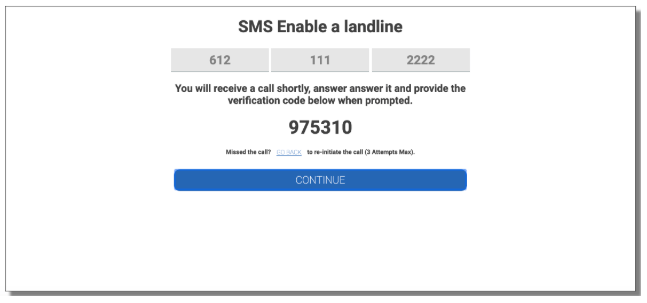
- Once the call confirms your number is verified, click Next.
- Complete the Letter of Authorization (LOA) and click Submit. Anyone present in your office — an assistant, admin, or other professional — can sign it on your behalf.
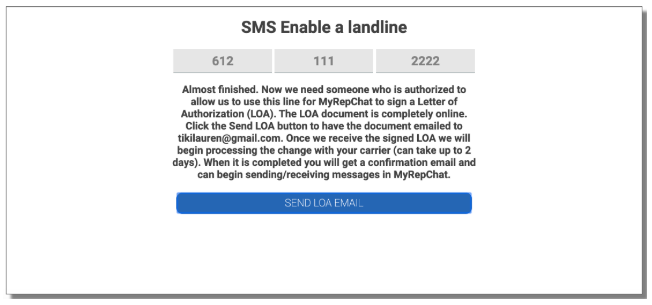
Tip: Need to re-submit your LOA? Use this link: Letter of Authorization.