
What is a Distribution List?
A distribution list is a feature that enables users to send messages to multiple recipients simultaneously while maintaining individual conversation histories with each contact. This ensures that recipients cannot view messages or responses sent to other recipients.
Notes:
- Important Information: Some Broker Dealer/Company Groups may not allow distribution lists or may set limits on the number of people allowed per list. Before sending a message to a distribution list, it is advisable to check for specific details and guidelines around your Broker-Dealer/Group.
- Best Practice: We recommend limiting lists to 100 people or less and sending no more than 200 total texts per day. Exceeding these limits may lead to your phone number being flagged as spam by phone carriers.
How Do I Send a Message to a Distribution List?
Option 1:
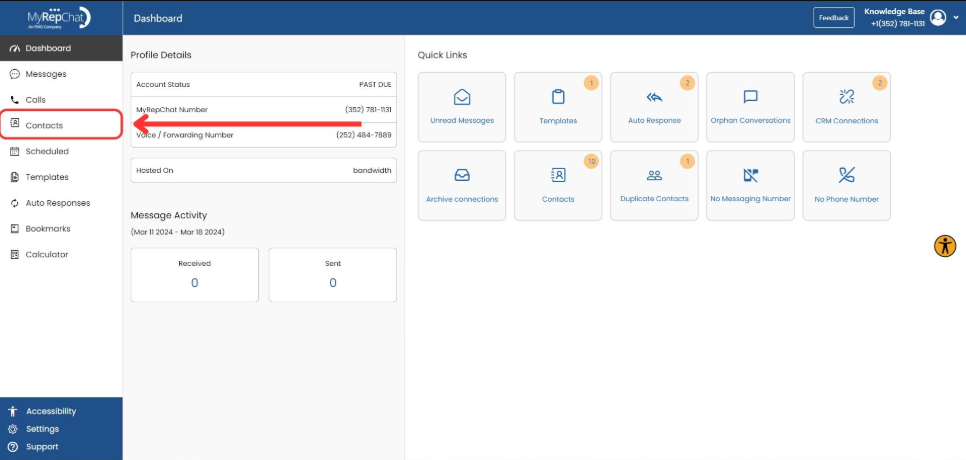
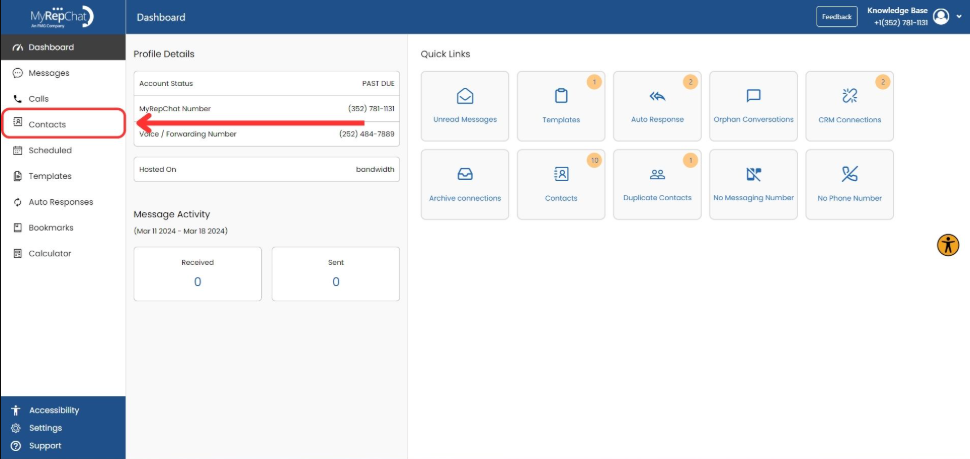
- In the menu on the left side of your Dashboard, click Contacts.
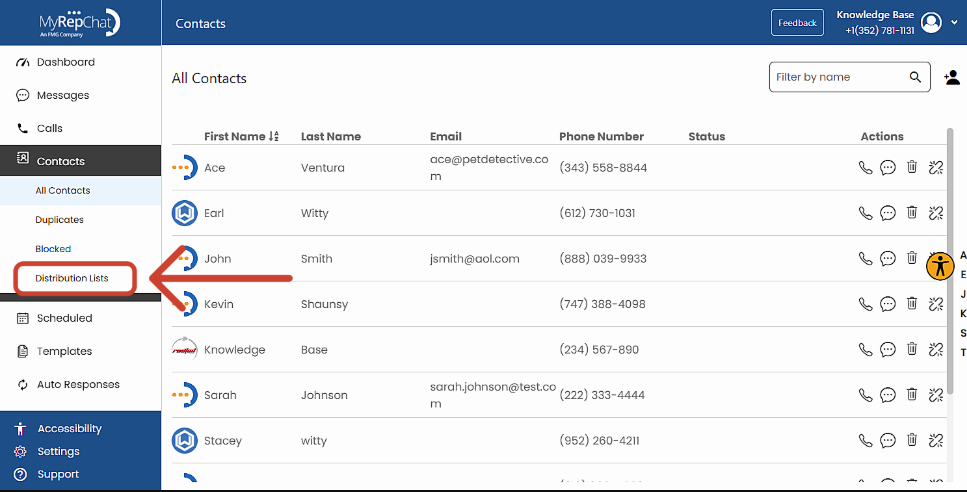
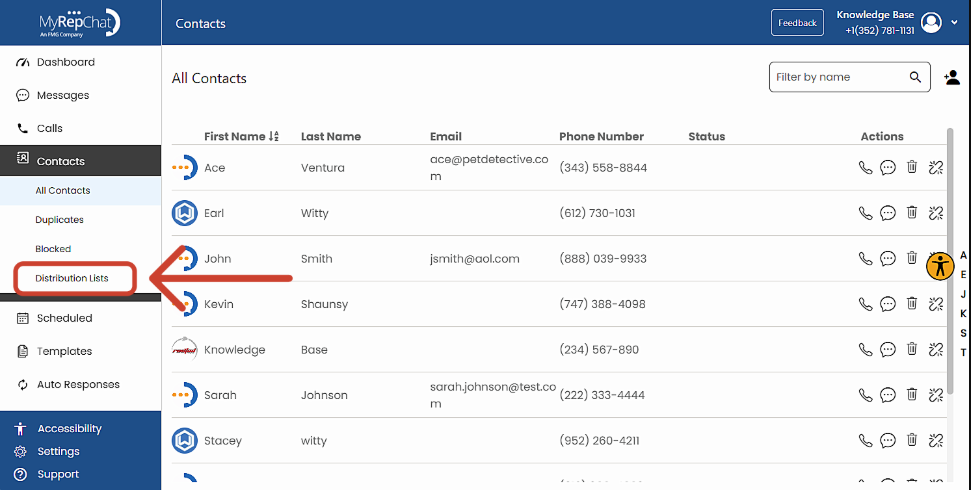
- Click Distribution Lists.
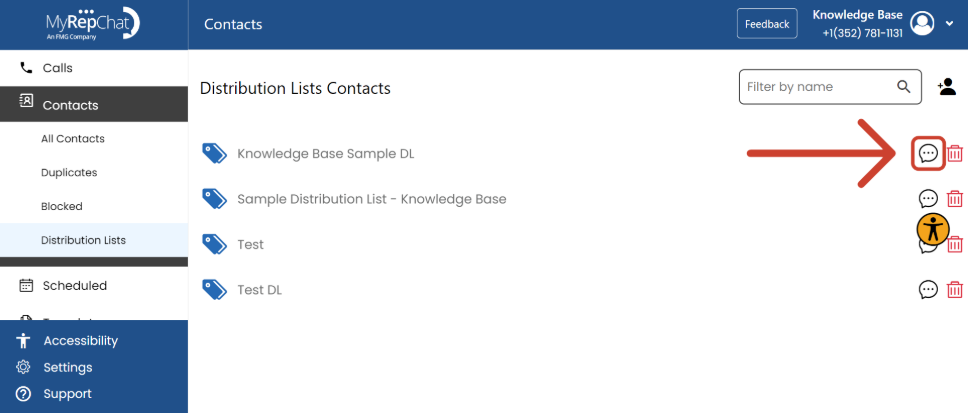
- Click the speech bubble icon next to the list you want to message.
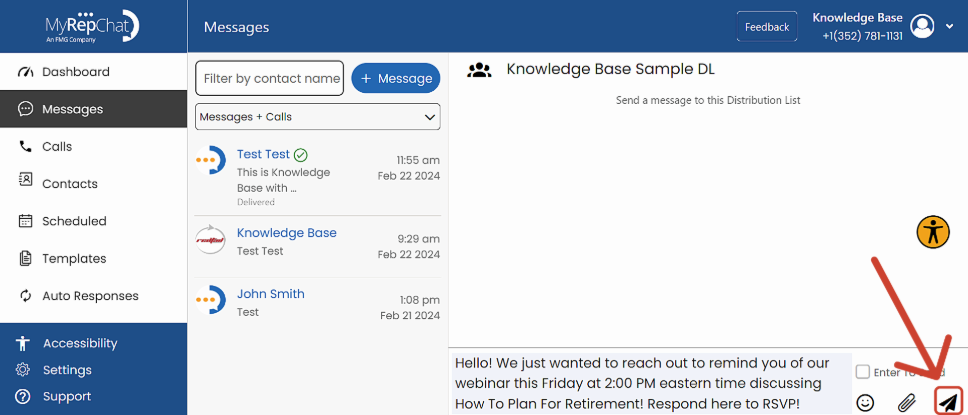
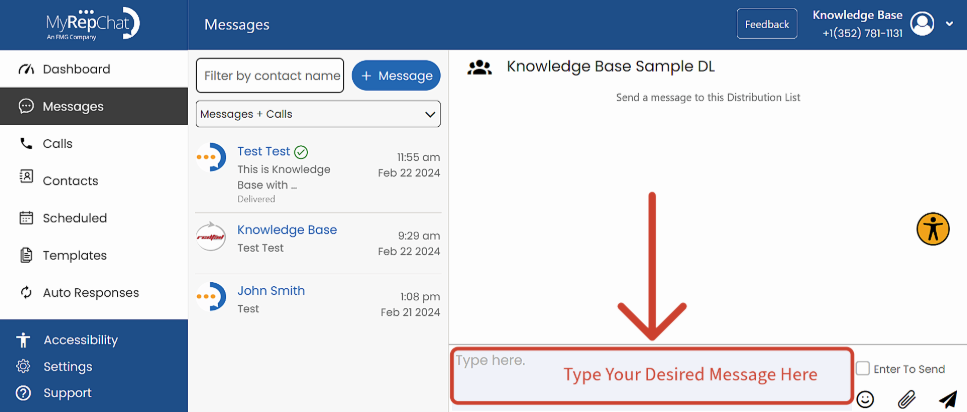
- Type your message in the text box.
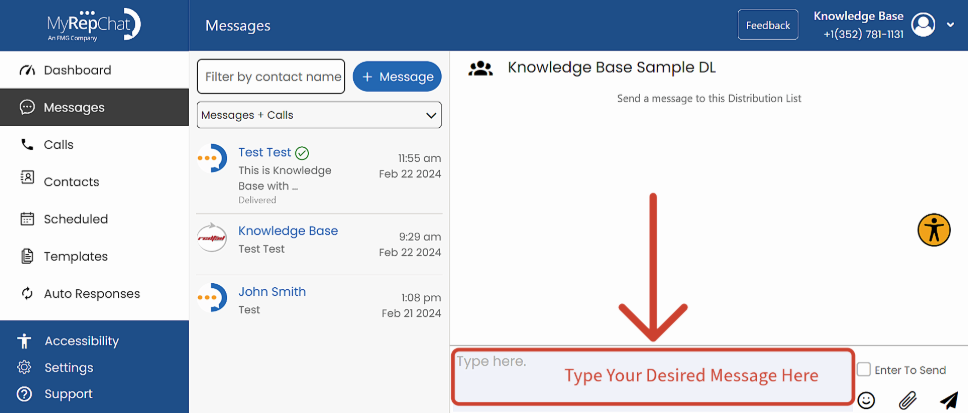
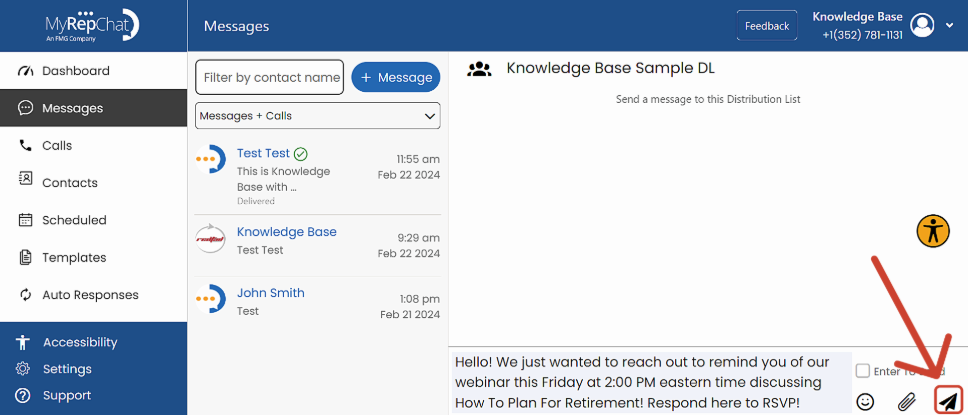
- Click the paper airplane icon to send.
Option 2:
- In the menu on the left side of your Dashboard, click Contacts.
- Click Distribution Lists.
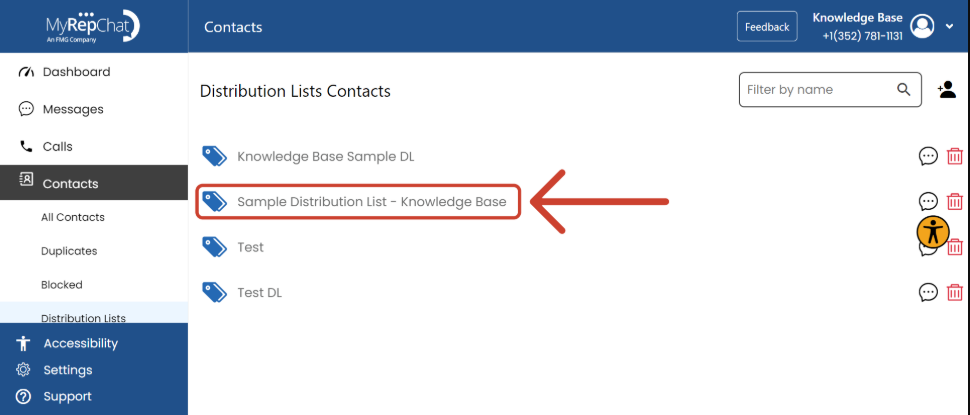
- Click the name of the list, or its tag icon.
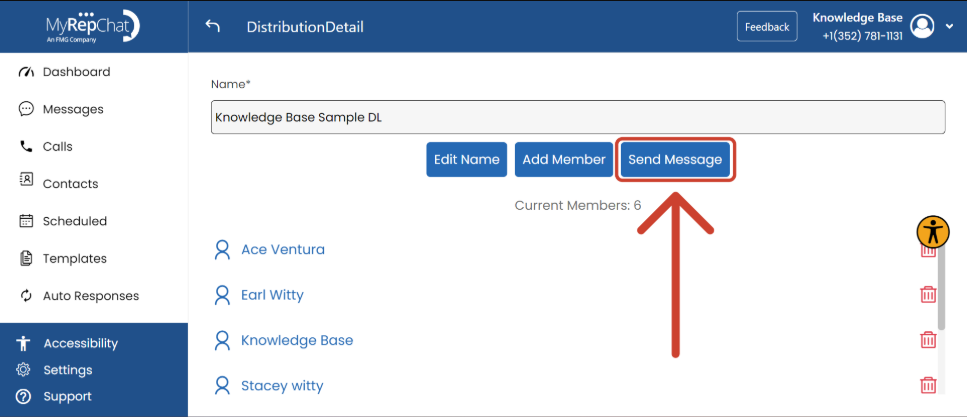
- Click Send Message in the top right.
- Type your message.
- Click the paper airplane icon to send.
New to distribution lists? See Creating a Distribution List (Desktop) for setup steps.