
Integrating with SmartOffice lets you import your contacts into MyRepChat, and lets MyRepChat log text messages as notes on your customers' SmartOffice profiles.
See How Do I Import Contacts From My CRM? for general CRM integration features and behavior that apply across providers.
SmartOffice is best set up starting from within SmartOffice itself, rather than from MyRepChat. The steps below are provided by SmartOffice.
How Do I Set Up User Access in SmartOffice?
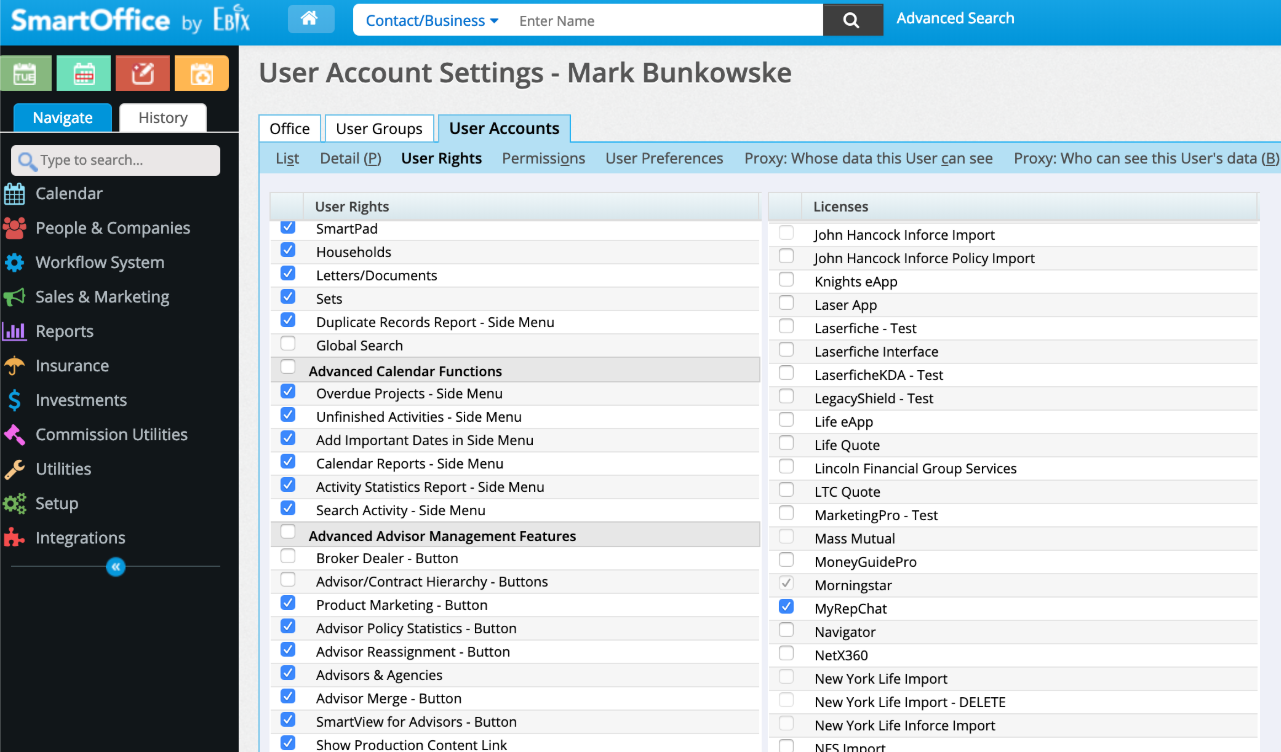
A SmartOffice administrator with license-assignment permissions must enable the MyRepChat license for each user who'll use the integration.
- Sign in to SmartOffice Pro.
- Depending on whose account you're setting up:
- Your own account: Click the profile menu in the upper-right corner and select Profile & Settings.
- Another user's account: Select Setup > User Accounts from the SmartOffice side menu, then search for that user.
- With the user account record open, click User Rights.
- Under Licenses > Integration, select MyRepChat.
- Select Menu > Save.
How Do I Link SmartOffice and MyRepChat?
- In SmartOffice, select Integrations > MyRepChat from the side menu — this opens the MyRepChat login page.
- Enter your MyRepChat username and password, then click Login.
- Once logged in, confirm the integration is enabled: from the Dashboard, go to Settings > Integrations > Connect to CRM, then scroll down and click the SmartOffice box.
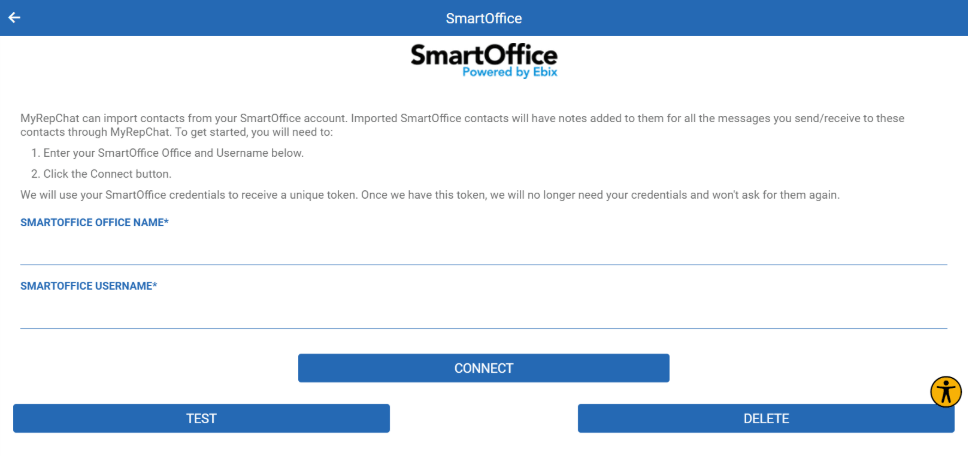
- Enter your SmartOffice username and password, then click Connect.
- If successful, the username/password fields disappear and a token appears in their place.
- Click Test to verify the connection.
- You can now search and import contacts.
- Toggle Activate Notes if you want your messages sent to SmartOffice as notes.
Questions about the SmartOffice side of setup? Contact SmartOffice support directly.
Several settings control which integration features are active. MyRepChat can send notes to SmartOffice, create or update SmartOffice contacts, or both.
What Is SmartOffice's Search Behavior?
Each CRM has different search behavior and limitations. For SmartOffice specifically:
- Name searches with no space check both the first and last name fields.
- Name searches with a space check the first name before the space and the last name after it.
- Phone number searches require an exact match, including punctuation. SmartOffice allows (but doesn't require) numbers to be split into country code, area code, and number — confirm your data matches one of the supported formats below.
Unless your phone numbers are entered consistently, we recommend searching by just the last 4 digits for the most reliable results. We currently search:
- Whole numbers in the Number field with dashes (e.g., 555-123-4567)
- Whole numbers in the Number field with no punctuation
- Area code and number separated by a dash
- Area code and number separated by a space, no punctuation
- Any entered country code is removed and ignored