Before starting, make sure your CRM is integrated with MyRepChat and you're signed in.
How Do I Import a Contact From My CRM?
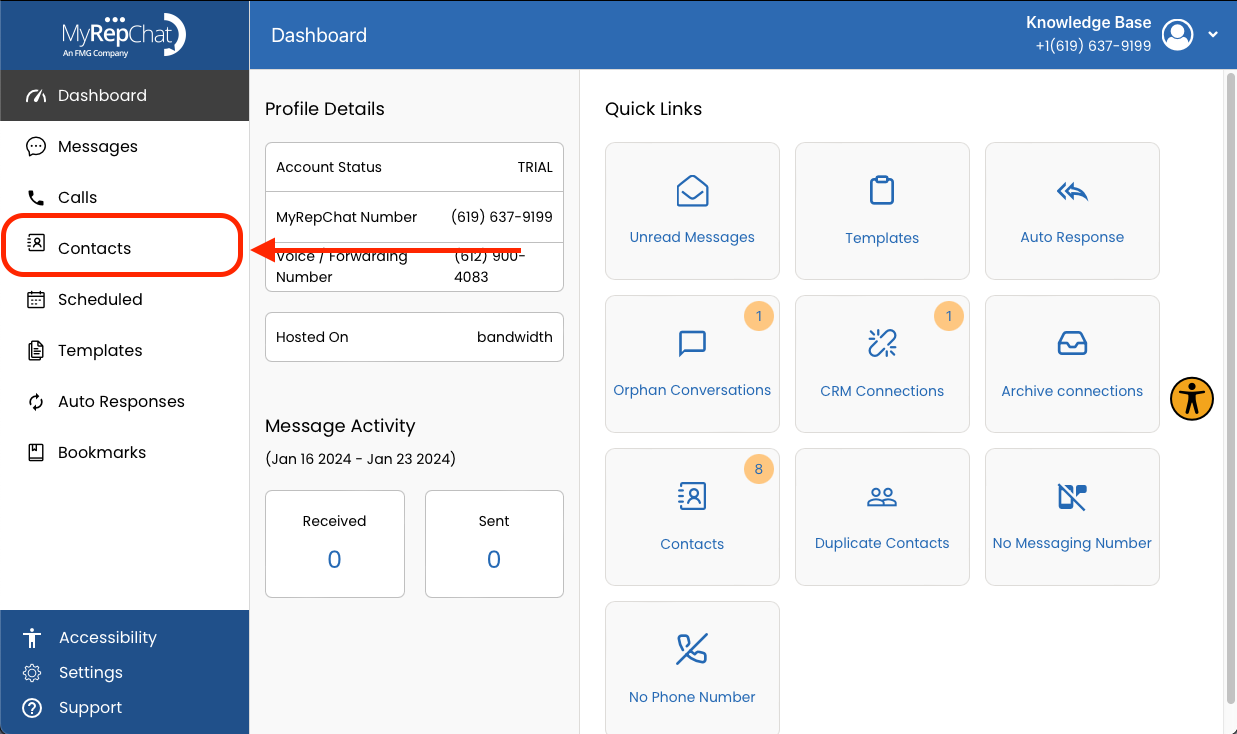
- In the menu on the left side of your Dashboard, click Contacts.
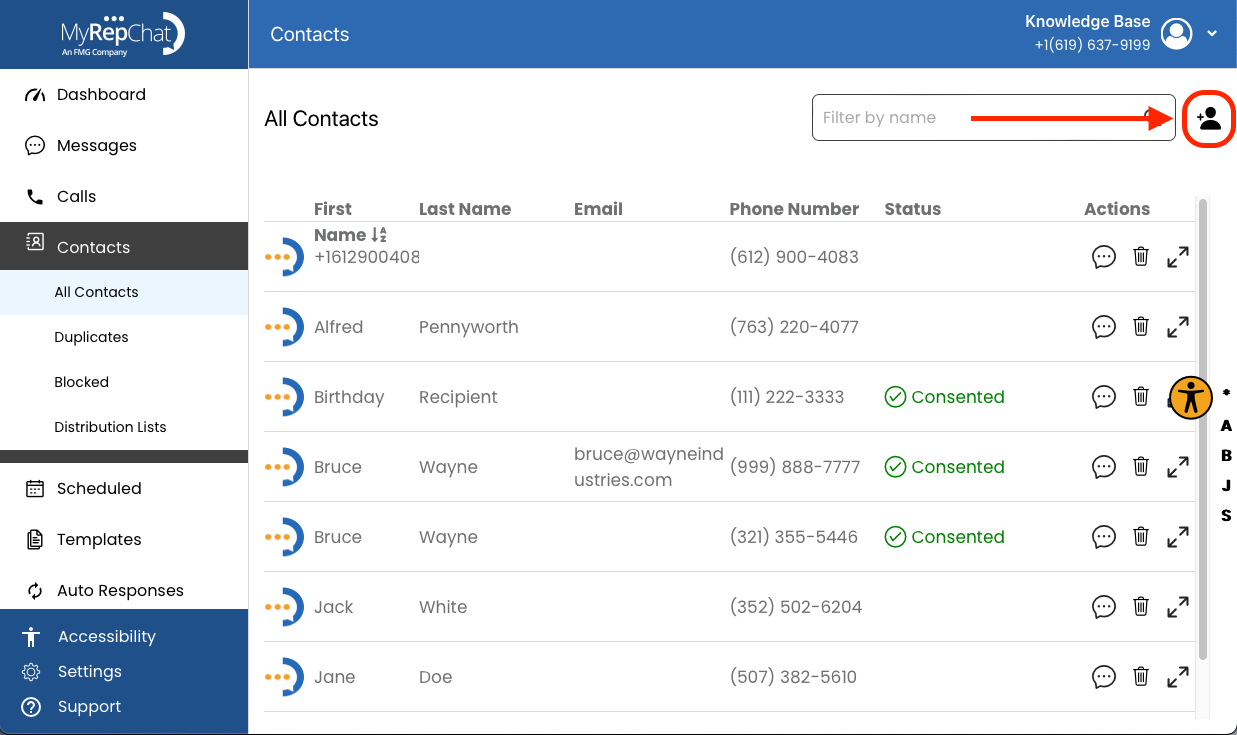
- In the top left of the Contacts page, click the person icon.
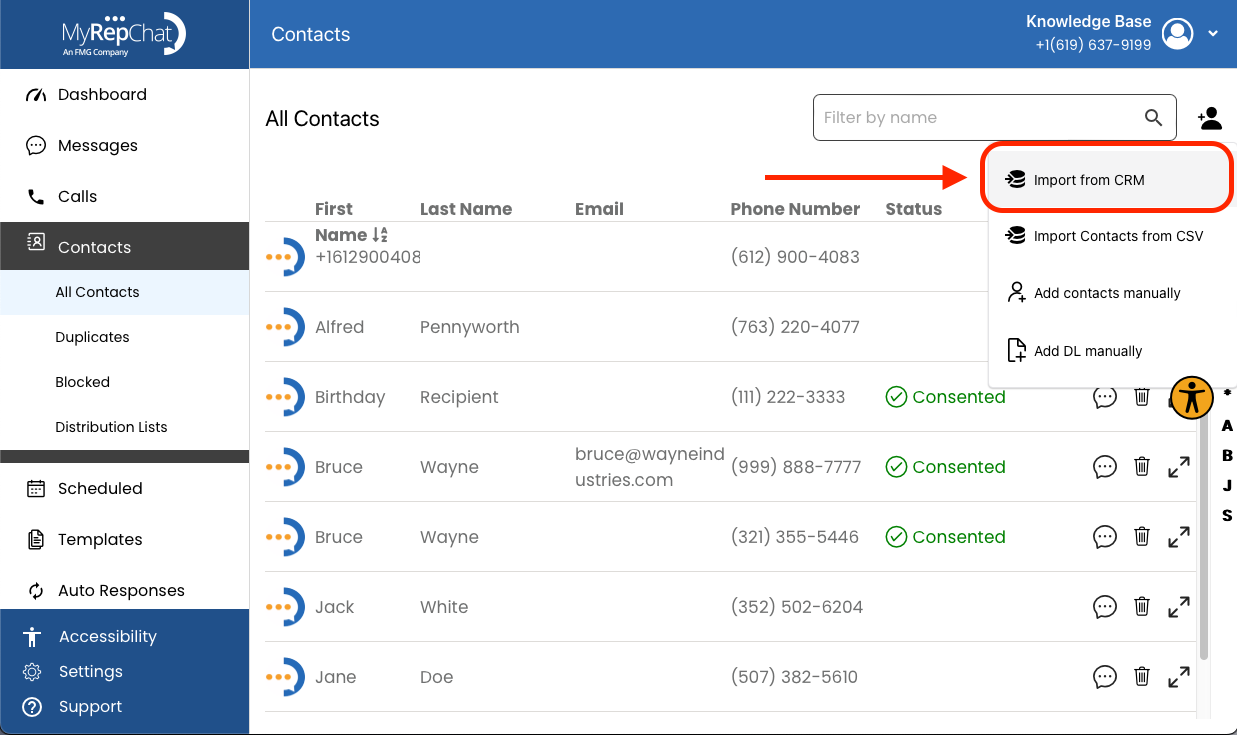
- In the dropdown menu, click Import from CRM.
- Type the name you want to import into the search bar.
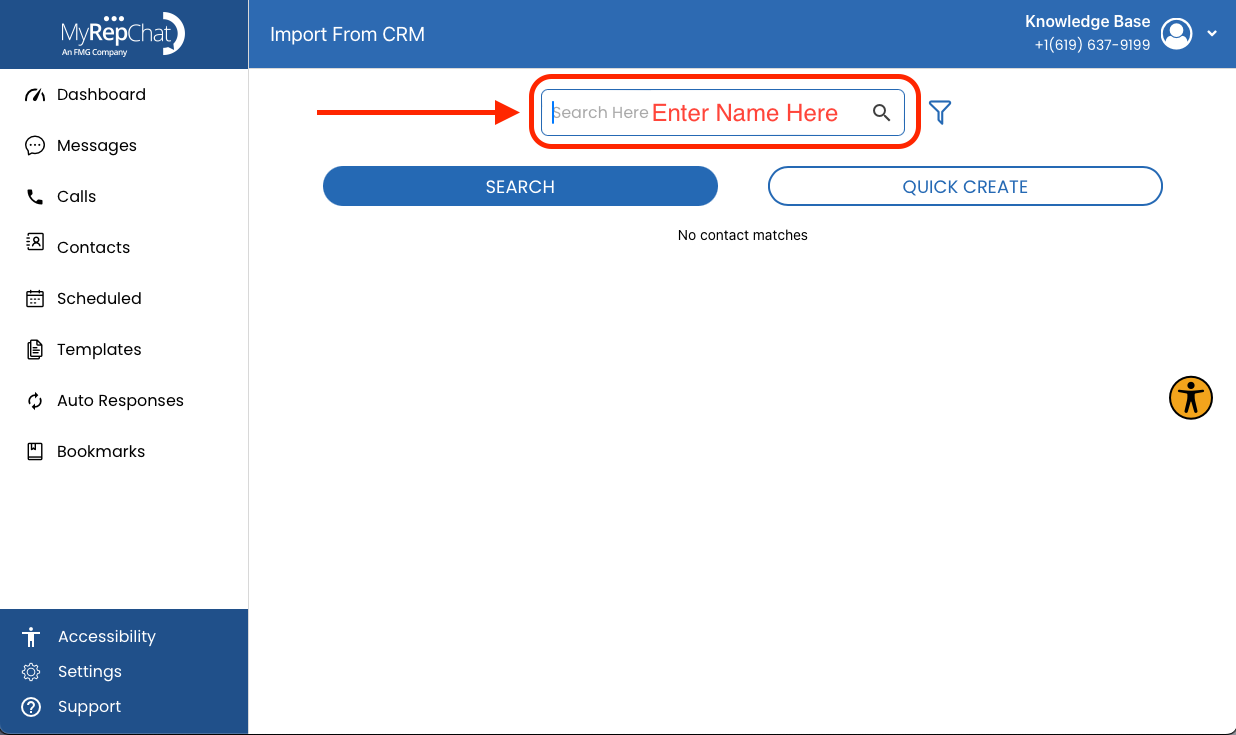
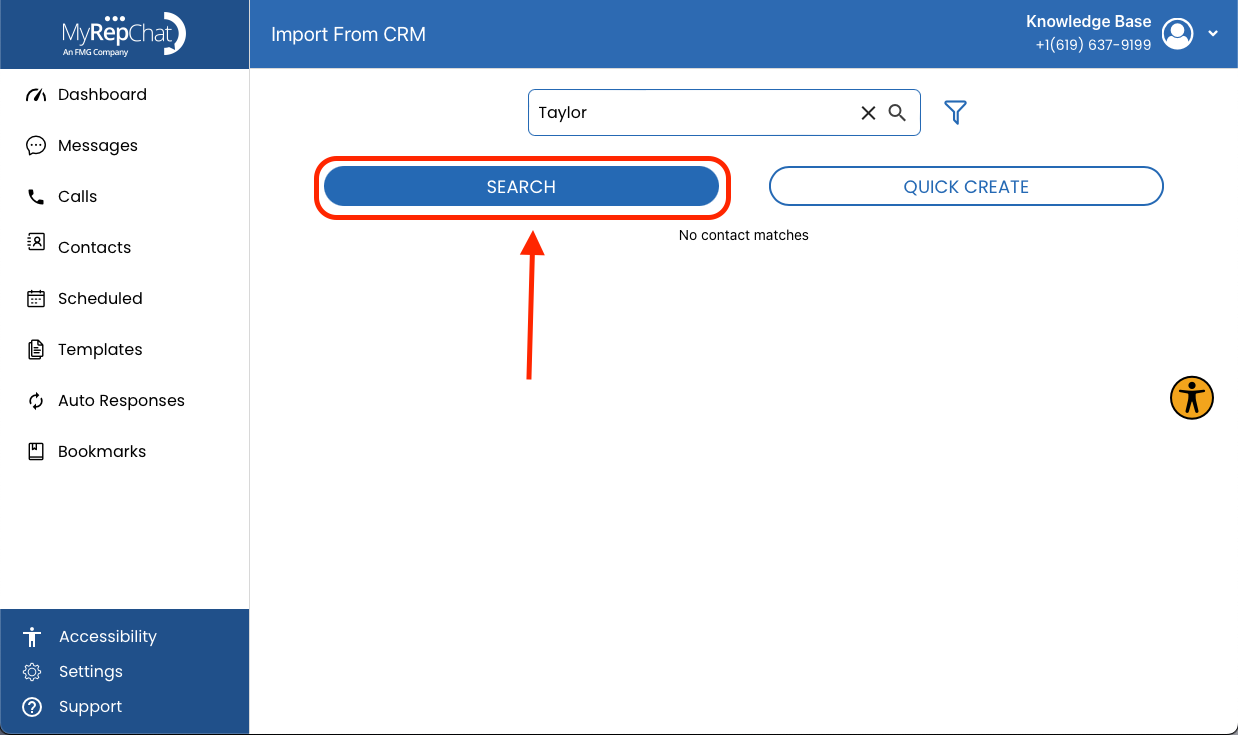
- Click Search.
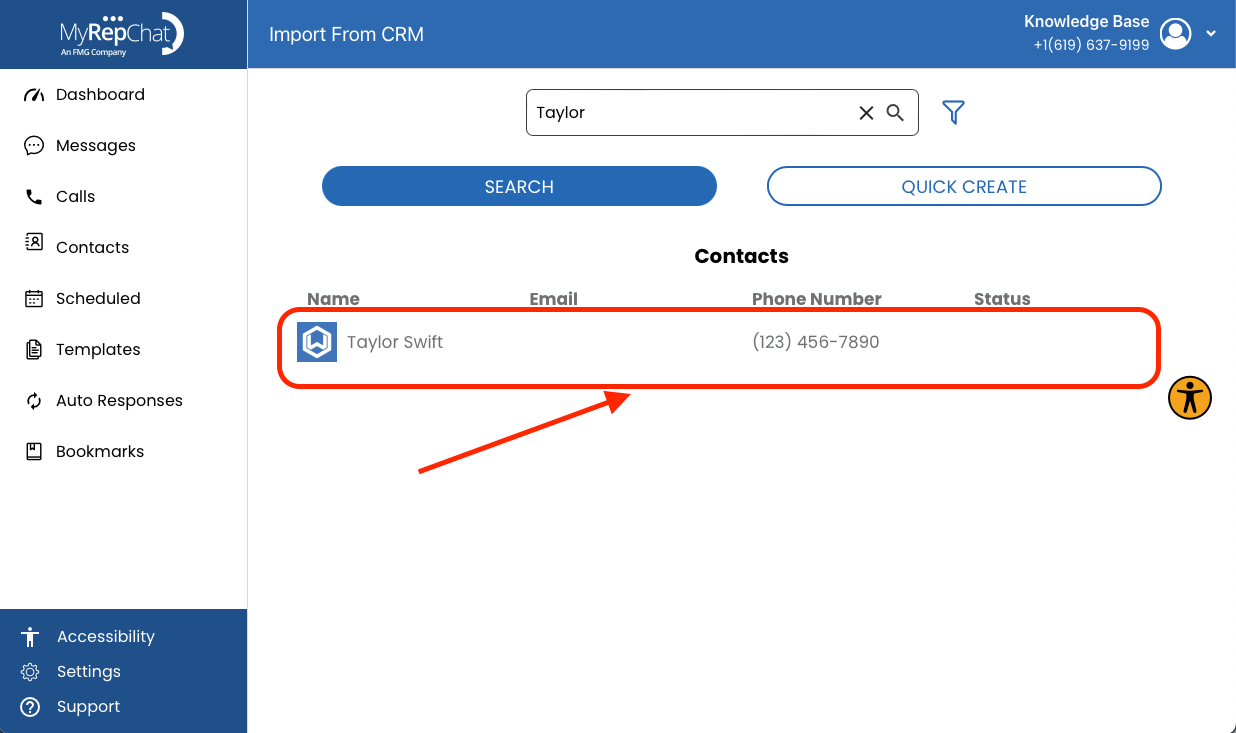
- Click the contact to open their profile page.
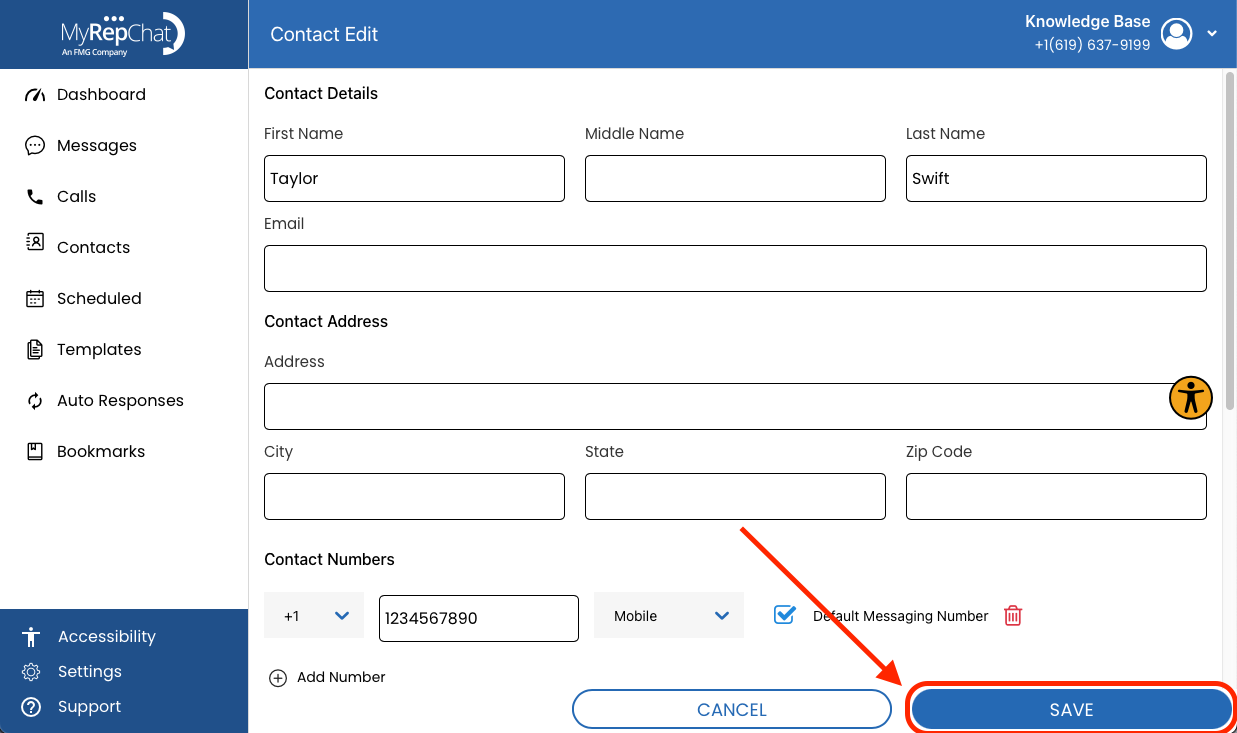
- Edit or add any information as needed, then click Save to add the contact to your MyRepChat account.
Repeat these steps for each additional contact you want to import.
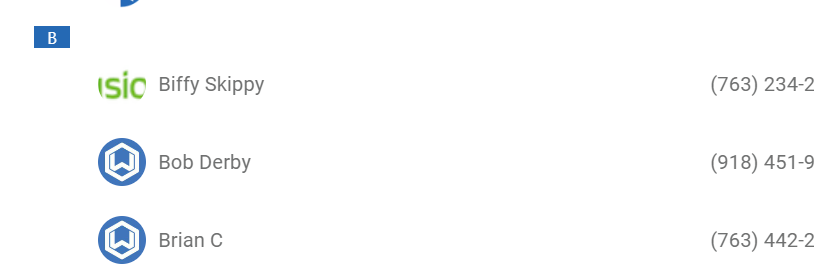
To confirm messages will sync back to your CRM, check that your CRM's logo appears next to the contact's name in MyRepChat: