
Connect your Omni CRM to import contacts and sync message notes
Integrating with Omni CRM lets you import your contacts into MyRepChat, and lets MyRepChat log SMS/text messages as notes on your customers' profiles in Omni CRM.
See How Do I Import Contacts From My CRM? for general CRM integration features and behavior that apply across providers.
How Do I Set Up the Integration?
- From the Dashboard, go to Settings > Integrations > Connect to CRM.
- Scroll down and click the Omni box — a secondary section with setup instructions will appear.

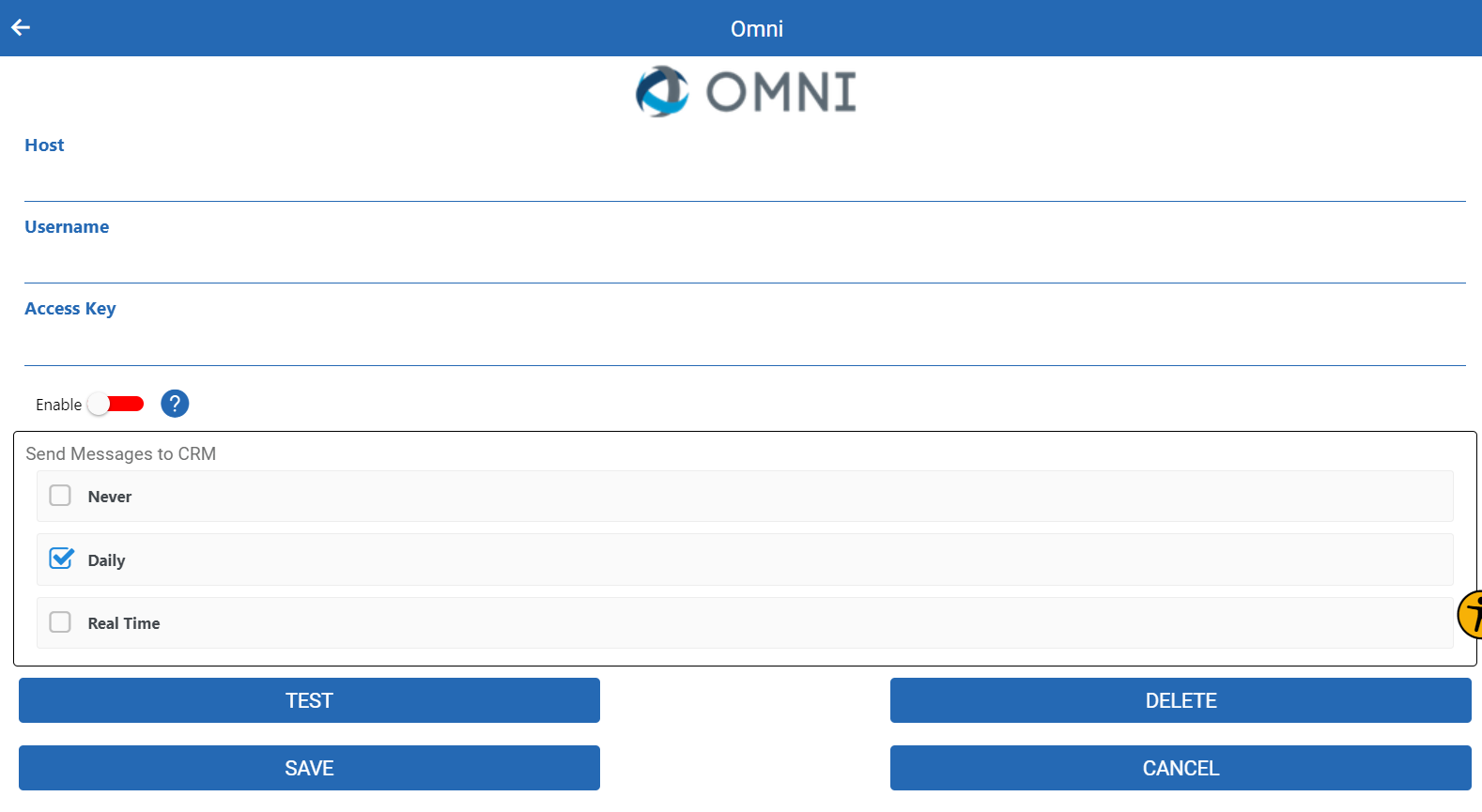
- Enter your Username (the same one you use to log into Omni CRM).
- Enter your Access Key, found under My Preferences after logging in.
Note: For questions about your Username or Access Key, contact Omni CRM support directly. - Move the Enable toggle to green.
- Under Send messages to CRM, select the appropriate checkbox.
- Click Save.
What Is Omni's Search Behavior?
Each CRM has different search behavior and limitations. For Omni specifically:
- Phone searches check all phone fields and ignore punctuation.
- Phone searches use a "contains" match, so searching just the last 4 digits will still find a match.
- Name searches check either the first or last name field.
- Don't search using both a first and last name together (e.g., "Tom Jones"). Since neither field contains the full name, this returns no results — search one name at a time instead.
- Group search isn't currently supported. Let us know if this is something you'd like added.