
Integrating with Copper CRM lets you import your contacts into MyRepChat, and lets MyRepChat log SMS messages as notes on your customers' profiles in Copper CRM.
See How Do I Import Contacts From My CRM? for general CRM integration features and behavior that apply across providers.
How Do I Set Up the Integration?
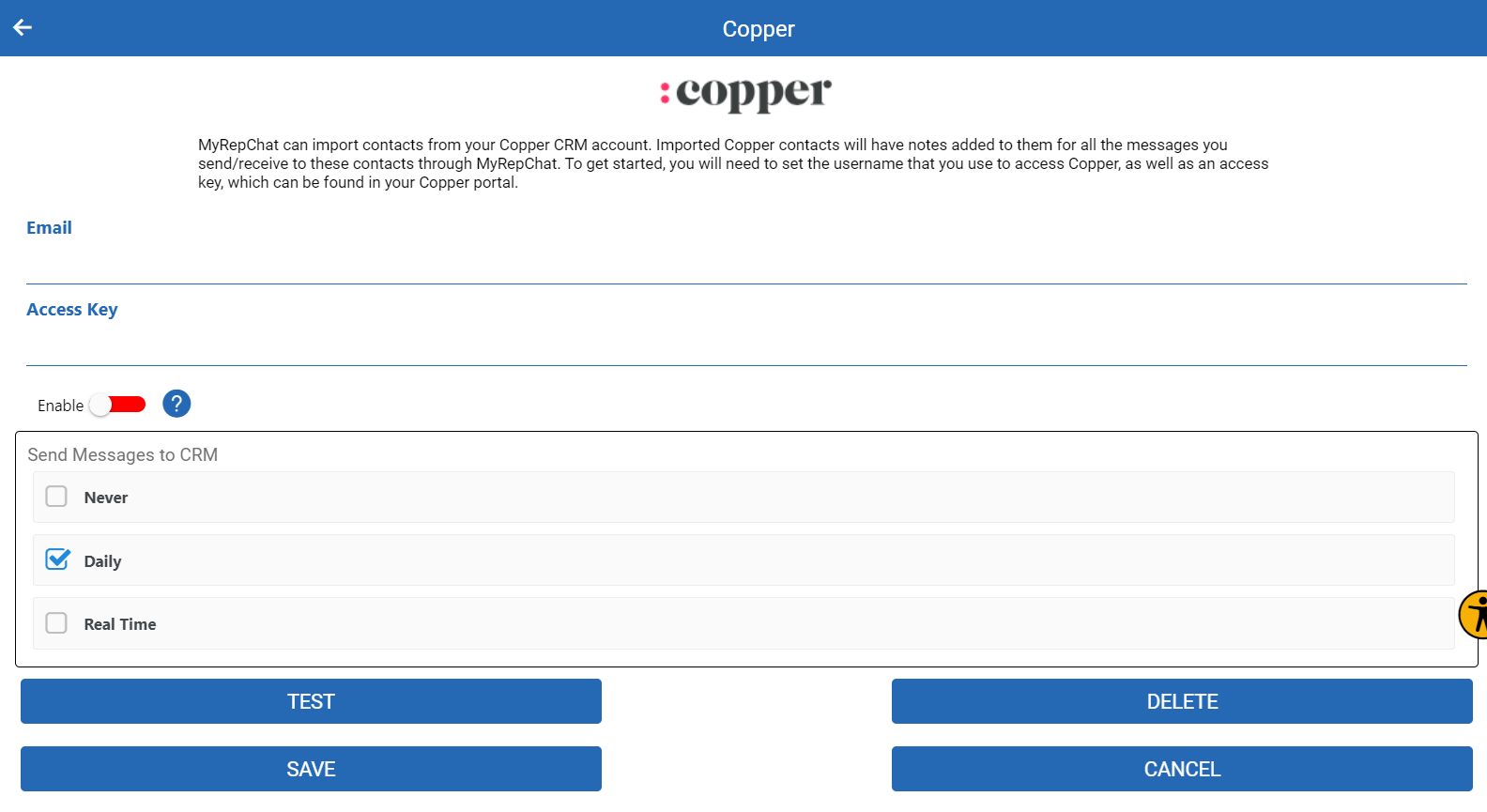
- From the Dashboard, go to Settings > Integrations > Connect to CRM.
- Scroll down and click the Copper box — a secondary section with setup instructions will appear.

- Get your Access Key from Copper CRM: log in, go to Settings > Preferences > API Keys, then click Generate API Key.
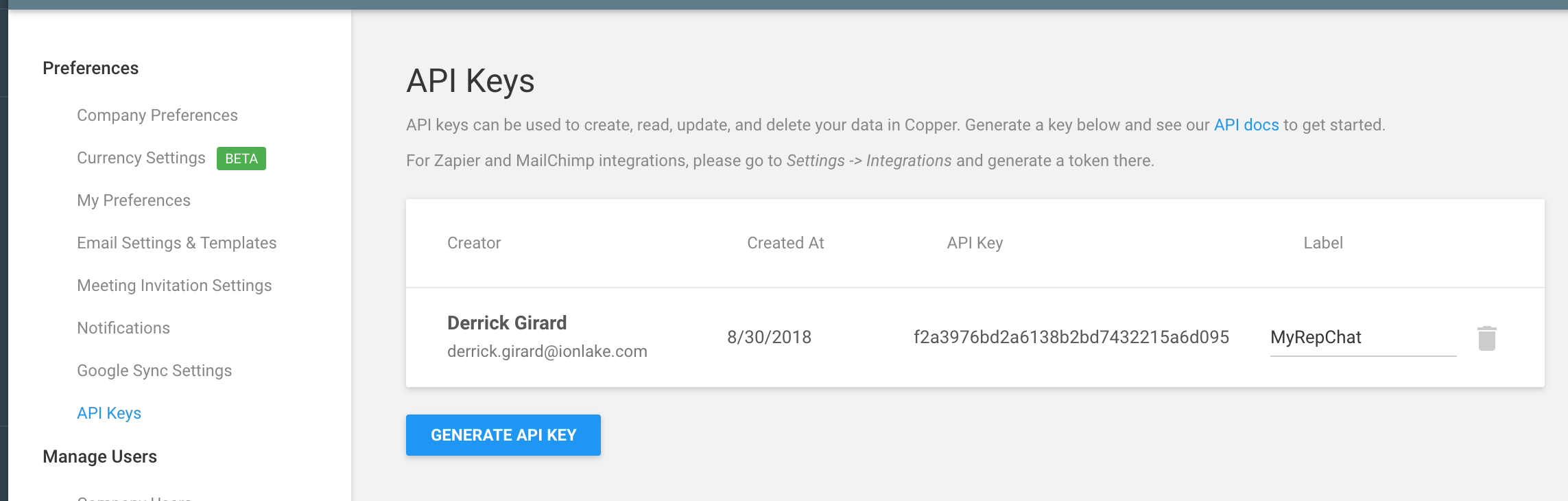
- Copy the creator email address and the generated API key.
- Paste the email into the Username field and the API key into the Access Key field in MyRepChat.
Note: For questions about creating an API key in Copper CRM, contact Copper CRM support directly. - Move the Enable toggle to green.
- Under Send messages to CRM, select the appropriate checkbox.
- Click Save.
What Is Copper's Search Behavior?
Each CRM has different search behavior and limitations. For Copper specifically:
- Phone searches check all phone fields and ignore punctuation.
- Phone searches under 6 digits require an exact match; searches with more than 6 digits use a "fuzzy" match instead.
- Name searches require an exact match on the full name — for example, "John Smith" must be searched as "John Smith," not just "John" or "Smith."