
Integrating with AllClients lets you import your contacts into MyRepChat, and lets MyRepChat log SMS/text messages as notes on your customers' profiles in AllClients.
See How Do I Import Contacts From My CRM? for general CRM integration features and behavior that apply across providers.
How Do I Set Up the Integration?
- From the Dashboard, go to Settings > Integrations > Connect to CRM.
- Click the AllClients box — a secondary section with setup instructions will appear.

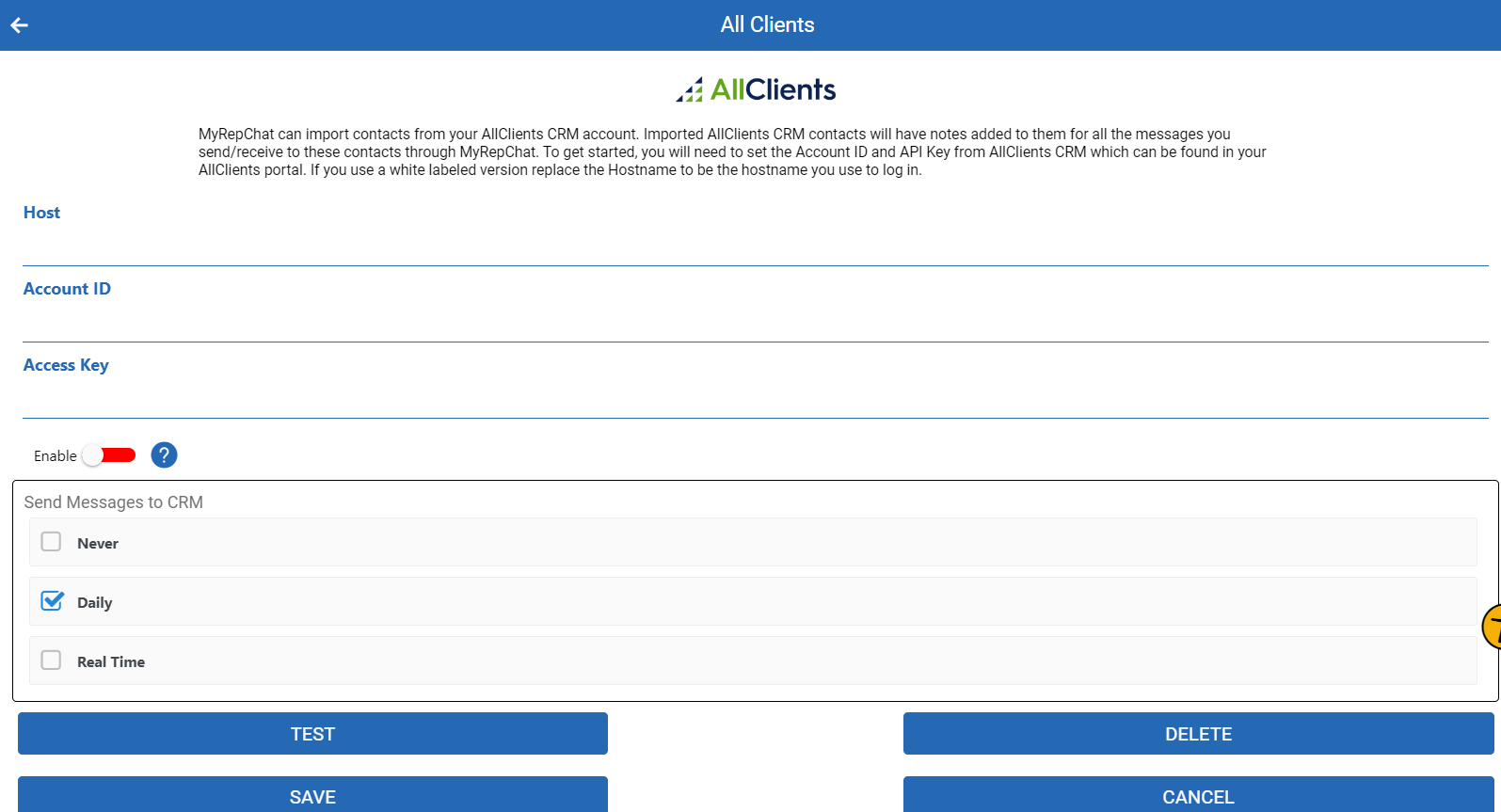
- Fill in the following three fields:
- Host: Used for any URL whitelisting needed to log in. If you don't need to whitelist, use the pre-filled default: www.allclients.com.
- Account ID: A number found after logging into AllClients under Settings > API Settings.
- API Key: Generated from the same API Settings page — click Generate API Key, then copy and paste it into MyRepChat.
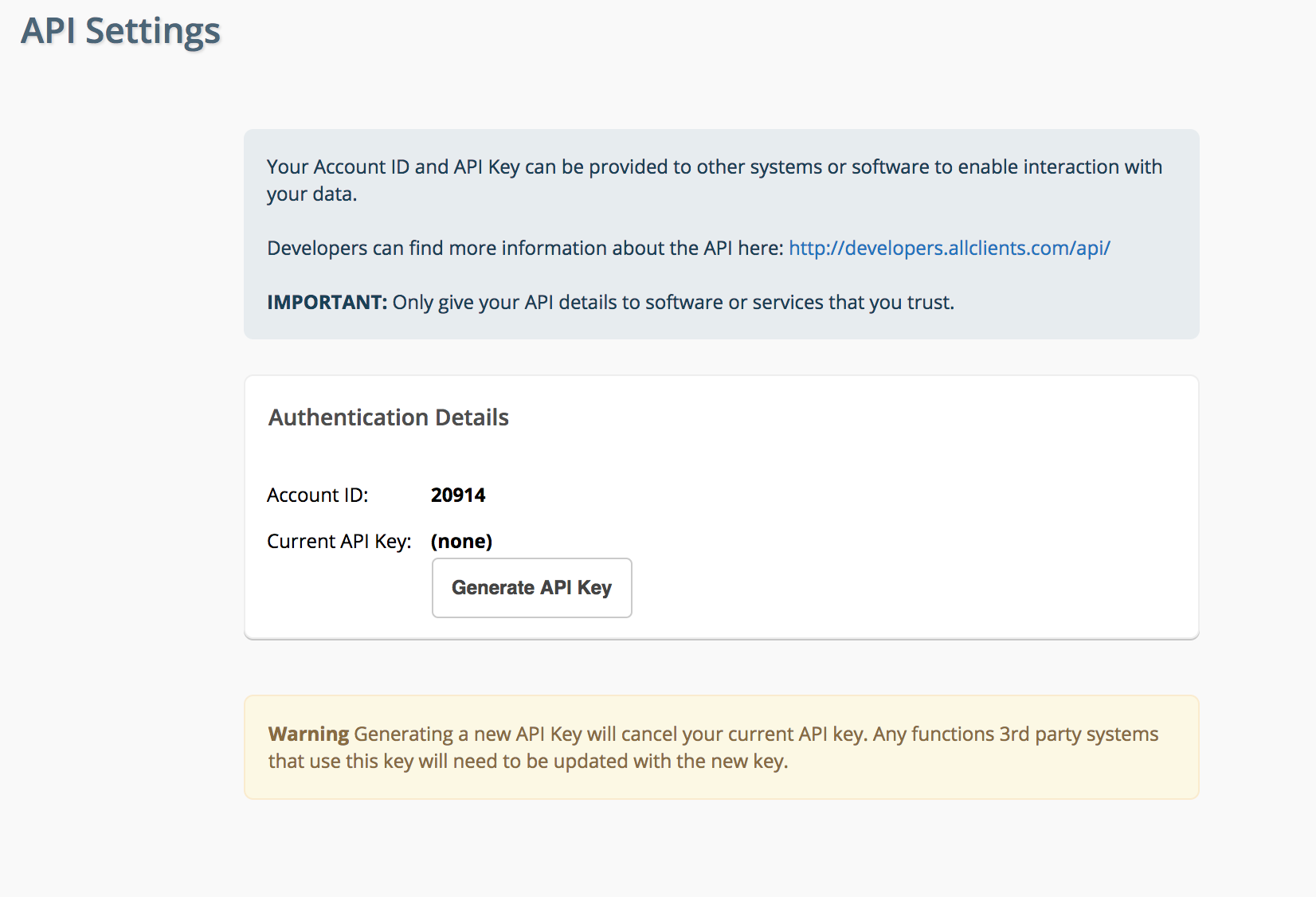
For questions about creating an API key in AllClients, contact AllClients support directly.
What Is AllClients' Search Behavior?
Each CRM has different search behavior and limitations. For AllClients specifically:
- Phone searches check all 4 phone fields and ignore punctuation.
- Phone searches use a "contains" match, so searching just the last 4 digits will still find a match.
- Name searches check the first name, last name, and email fields — but since these searches only return basic info (no phone numbers), and MyRepChat has to separately retrieve each contact's phone number, results are limited to 10. Be as specific as possible.
- A space in your search separates first and last name — for example, searching "To Jon" would match "Tom Jones."
- Group search isn't currently supported. Let us know if this is something you'd like added.