
Integrating with AdvisorEngine lets you import your contacts into MyRepChat, and lets MyRepChat log SMS messages as Actions in AdvisorEngine.
See How Do I Import Contacts From My CRM? for general CRM integration features and behavior that apply across providers.
How Do I Set Up the Integration?
- From the Dashboard, go to Settings > Integrations > Connect to CRM.
- Scroll down and click the AdvisorEngine logo — a secondary section with setup instructions will appear.
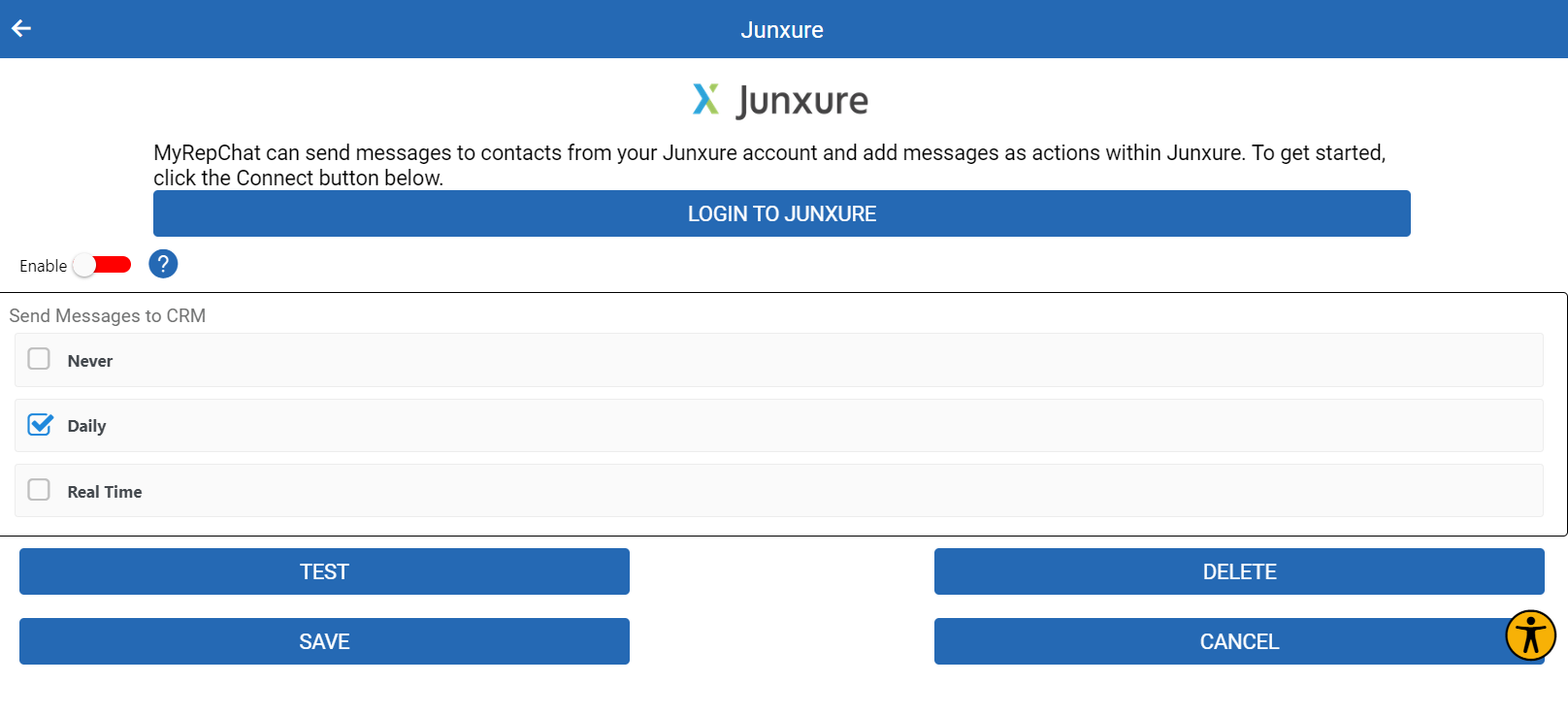
- Click Login to AdvisorEngine — you'll be redirected to the AdvisorEngine login page.
- Enter your AdvisorEngine email and password, then click Login. You'll land on the AdvisorEngine dashboard, just like a normal login.
- Go back to MyRepChat, navigate to Settings > Connect to CRM > AdvisorEngine, and move the Enable toggle to green.
- Under Send messages to CRM, select the appropriate checkbox.
- Click Save.
- Click Test to confirm MyRepChat can connect and communicate with AdvisorEngine.
What Do I Do If I Get a Login Error?
If AdvisorEngine returns an error during login, you may need to reset the integration and try again. This is rare, and usually only happens if AdvisorEngine believes an integration already exists that MyRepChat doesn't recognize (or vice versa).
- In MyRepChat, go to Connect to CRM > AdvisorEngine and click Remove Settings to fully delete the integration.
- Log in to AdvisorEngine.
- Go to User Profile > Edit User, uncheck Active, and save. Then edit the user again, check Active, and save. This clears AdvisorEngine's saved record of the integration.
- Log out of AdvisorEngine.
- Log back into MyRepChat.
- Click Connect on the AdvisorEngine page.
- You'll be redirected to AdvisorEngine and prompted to log in to set up the integration — the login page should mention it's integrating with MyRepChat.
- Enter your AdvisorEngine username and password to log in to the AdvisorEngine dashboard.
- Go back to MyRepChat, navigate to Settings > Integrations > Connect to CRM > AdvisorEngine, and click Test. It should confirm success.
What Is AdvisorEngine's Search Behavior?
Each CRM has different search behavior and limitations. For AdvisorEngine specifically:
- Name searches check either the first or last name field.
- All searches are single-field "contains" searches — don't include a space when searching for a name; search for either the first or last name only.
- Phone number searches ignore punctuation and support partial matches, so you can search using just the last 4 digits.
- All messages are written back to AdvisorEngine as Actions on the contact's primary record.