
The MyRepChat mobile app is built for everyday client communication: texting, calling, and managing your messages on the go. Here's how to install it, log in, and find your way around.
Install the mobile app
iPhone (iOS)
- Open the App Store on your iPhone.
- Search for "MyRepChat" or download MyRepChat from the App Store. You'll see two MyRepChat apps: The standard app and the Intune-enabled app.
Download the version your group uses. If you're not sure which one, contact your administrator. - Tap Get (or the download icon). If prompted, confirm with Face ID, Touch ID, or your Apple ID password.
- Tap Open, or find the app on your home screen.
Android
- Open the Google Play Store on your Android phone.
- Search for "MyRepChat," or download MyRepChat from Google Play. You'll see two MyRepChat apps: The standard app and the Intune-enabled app.
Download the version your group uses. If you're not sure which one, contact your administrator. - Tap Install and wait for it to finish.
- Tap Open, or find the MyRepChat icon on your home screen or in your app drawer.
Log in for the first time
- Open the MyRepChat app.
- Enter the same email and password you use for the MyRepChat web app. If your firm uses Single Sign-On (SSO), select that option and follow your firm's login steps.
- Tap Log In and wait for it to finish. If your account is already set up on the web, your contacts and settings load automatically.
Notes:
- On your first login, you'll be asked whether to sync contacts from your phone. Synced contacts don't automatically have consent.
- Contact data and CRM syncing already set up in the web app carry over automatically. You don't need to resync your CRM or rebuild your contacts on mobile.
Get around the app
-
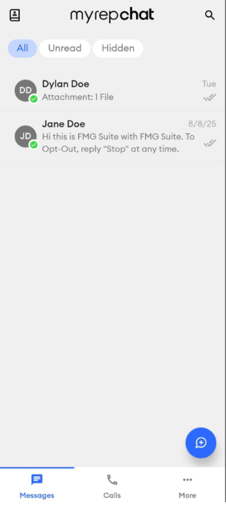
Messages: Shows your most recent conversations. Tap the blue new message button at the bottom right to start a message.
-
Navigation: Use the Messages, Calls, and More tabs at the bottom of the screen.
-
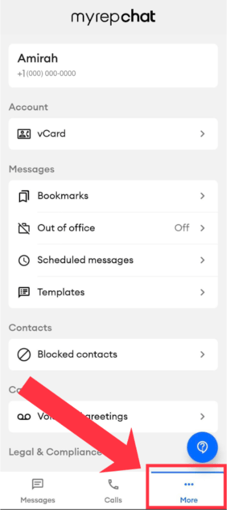
More: Manage your vCard, bookmarks, out-of-office, scheduled messages, templates, blocked contacts, and voicemail greetings.
-
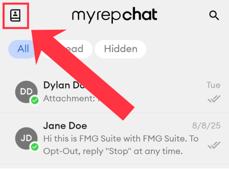
Contacts: Tap the Contacts icon at the top left of the screen.
Note: Some settings can only be managed in the web app, including your forwarding number, CRM integrations, add-ons, billing, and other preferences. This keeps the mobile app focused on communicating with your contacts.
Send messages and manage conversations
-
Start a message: On the Messages screen, tap the new message button, then search for and select a contact. See: How do I send a message? (Mobile) for details.
-
Search conversations: Tap the magnifying glass and enter at least two characters.
-
Group messaging: If your group has it turned on, you can create group chats with up to 9 participants.
What do the consent status icons mean?
 Green checkmark: Consent granted. This contact has agreed to receive messages from you, so you're clear to message them.
 Gold clock: Consent pending. A consent request was sent, but the contact hasn't responded yet. Follow up if needed, but hold off on messaging until they confirm.
 Red circle with a slash: Contact blocked. You can't send or receive messages or calls from this contact.
 Gray dash: Opted out. This contact has opted out of receiving messages and won't receive any communications from you.
- No icon: Consent isn't required for this contact.
See Understanding Contact Avatar Icons in MyRepChat for more details.
Calls on mobile
Making calls that show your MyRepChat number as the caller ID requires the Voice add-on. See How do I make an outbound phone call from MyRepChat? (Mobile).