
How Do I Start a New Conversation?
- Open the MyRepChat mobile app.
-
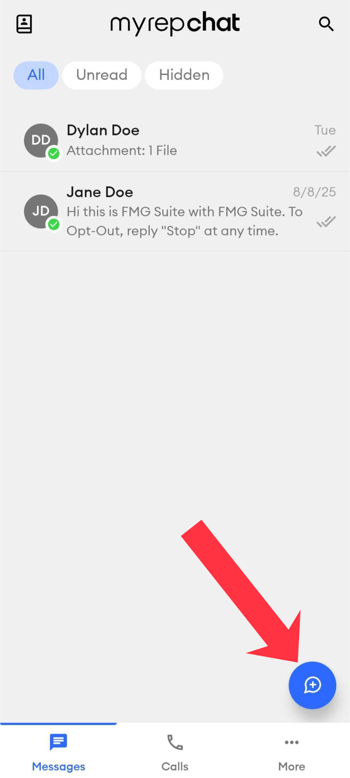
On the Messages tab, tap the + icon in the lower-right corner to start a new message.
-
In the To field, start typing the contact's name or phone number.
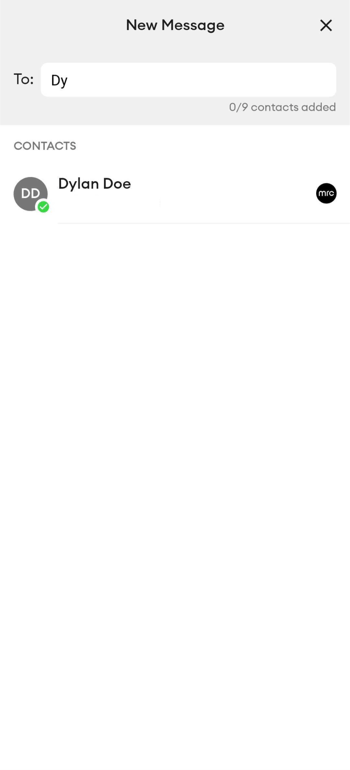
- Tap a matching contact from the search results to add them as the recipient.
- If you have access to Group Texting, you can add up to 9 recipients for a group message.
- If the recipient hasn't yet consented to messaging, you'll be prompted to send a consent message first, depending on your broker-dealer's compliance settings.
- Tap Type message to compose your text.
-
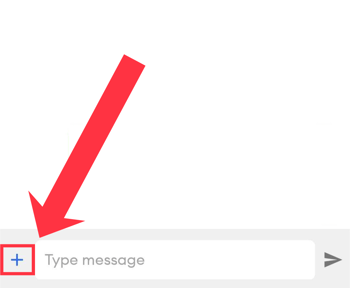
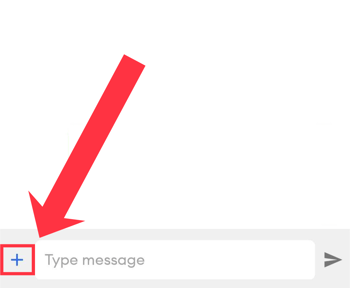
Tap the + icon next to Type message to attach photos, recent media, documents, content, templates, bookmarks, or your vCard to the text message. You can also schedule your text from here.
-
-
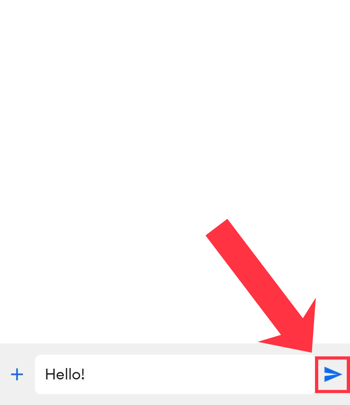
Tap the paper airplane icon to send.
How Do I Attach a Photo or Video?
- Compose a new message, or open an existing conversation.
-
Tap the + icon at the bottom left.
- Select from your available attachment options.
- When doing this for the first time, you will see a pop-up to grant access to your media library.
- Tap the photo or video you want to attach from the gallery view.
- Note: You can only send one photo or video at a time, and you can include text with it.
Learn more in How do I add attachments to a text message? (Mobile).