![FMG_Logo_RGB_Small_Blk-1.png]](https://help.fmgsuite.com/hs-fs/hubfs/FMG_Logo_RGB_Small_Blk-1.png?width=75&height=49&name=FMG_Logo_RGB_Small_Blk-1.png)
Understanding the Problem
When you receive an invitation or password reset email from FMG, it contains a secure, one-time-use link designed to grant you access to set up your account. Sometimes, clicking this link redirects you directly to the login page instead of allowing you to complete account setup.
Why This Happens
One-Time Use Links
FMG invitation and password reset links are designed for security and can only be used once. Once a link has been clicked or activated, it becomes invalid and will redirect you to the login page on subsequent attempts.
Email Security Software Interference
Many organizations use email security tools that automatically scan links in emails to protect against phishing and malware. These tools include:
-
Microsoft Defender for Office 365 (Safe Links)
-
Mimecast URL Protect
-
Proofpoint Email Protection
-
Barracuda Email Security Gateway
-
Other URL scanning or link rewriting services
When these security tools scan your invitation link, they may "click" it before you do, causing the one-time-use link to become invalid before you have a chance to use it. They can also “rewrite” the URL to indicate it is safe, invalidating the link.
Link Expiration
FMG invitation and password reset links have time limits for security purposes. If a week passes between receiving the email and clicking the link, it will expire and redirect you to the login page.
What You Should Do
Step 1: Request a New Invitation or Password Reset
Contact your organization's FMG administrator or FMG support to request a fresh invitation or password reset email. Each new email will contain a new one-time-use link.
-
Only use the link from the most recent email you received
-
Discard previous invitation emails to avoid confusion
-
Act promptly after receiving the new email to avoid expiration
Step 2: Open the Link Carefully
When you receive your new email:
-
Use a modern, updated web browser, such as:
-
Chrome, Firefox, Safari, Edge
-
- Ensure you are logged out of any other existing FMG accounts.
-
Only click the link one time.
-
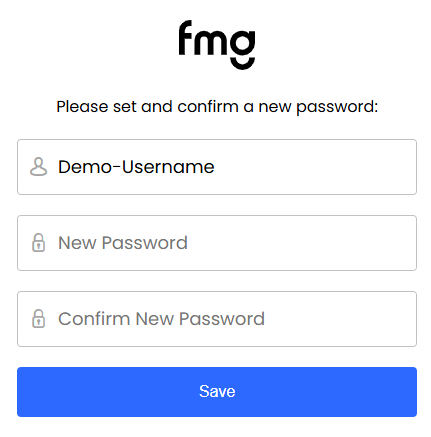
This should direct you to the password creation or password reset screen.
-
Please fill in your desired password promptly and do not navigate away from this page.
-
Step 3: Ask Your IT Department for Help
If you continue experiencing redirects after requesting new links, your organization's email security settings may need adjustment. Contact your IT help desk and provide them with the following information:
-
You are receiving FMG invitation or password reset emails
-
The one-time-use links are being redirected to the login page
-
Your IT team should whitelist FMG's sender domain (email01.fmgsuite.com) and configure URL protection to bypass FMG invitation links.
-
In the meantime, you can request a one-time access code from our support team to get access to your account.