![FMG_Logo_RGB_Small_Blk-1.png]](https://help.fmgsuite.com/hs-fs/hubfs/FMG_Logo_RGB_Small_Blk-1.png?width=75&height=49&name=FMG_Logo_RGB_Small_Blk-1.png)
ℹ️ If you’re affiliated with a broker-dealer or enterprise firm, your home office decides whether TaxStatus content is available to you. If you don’t see it in your Content Library, check with your home office.
What is TaxStatus?
TaxStatus is the leading provider of IRS-sourced financial data for RIAs, CPAs, broker-dealers, custodians, and financial institutions. The platform uncovers a household’s complete financial picture and automatically surfaces timely advice opportunities from the client’s own tax records. SOC 2, KYC/KYB, and AML compliant.
What are the TaxStatus email templates?
TaxStatus has added email templates to your FMG Content Library. Each one asks a client or prospect to give you consent to pull their financial data from the IRS. The email includes a link to TaxStatus, where the recipient authorizes the request.
Templates cover scenarios like annual reviews, required minimum distributions (RMDs), tax planning opportunities, and prospect outreach.
Do I need a TaxStatus account?
Yes. To send these emails, you need a paid TaxStatus account. Each email needs your unique TaxStatus consent link, and you get that link from your TaxStatus account.
If you don’t have TaxStatus and want to learn more, visit taxstatus.com.
How do I find the TaxStatus email templates?
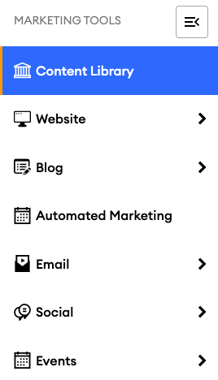
- From the left navigation, select Content Library.
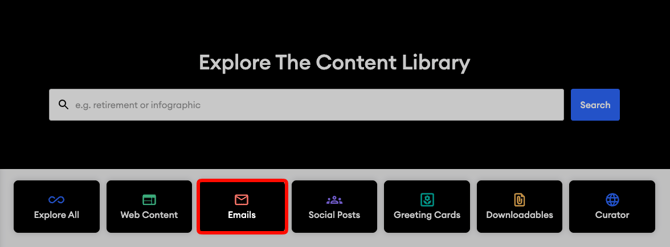
- Select Emails.
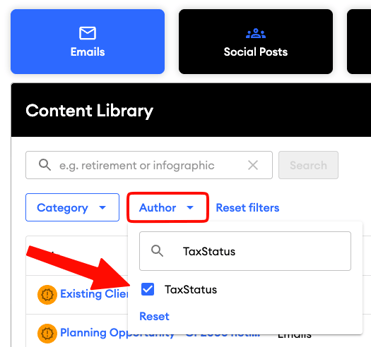
- Select the Author filter, then choose TaxStatus.
How do I send a TaxStatus email?
Before you start, have your TaxStatus consent link ready. You’ll add it each time you send a TaxStatus email.
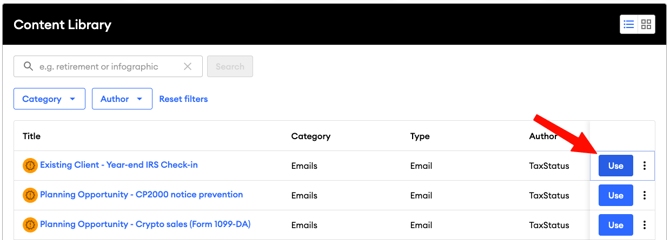
- Next to the email you want to send, select Use.
- Choose how to send it:
- To send it without changes, select Schedule Email As Is. Unedited emails may move through compliance faster.
- To make changes first, select Edit Email, then schedule it when you’re done
- On the Replace Email Tokens step, paste your TaxStatus consent link into the Consent Link field, then select Next.
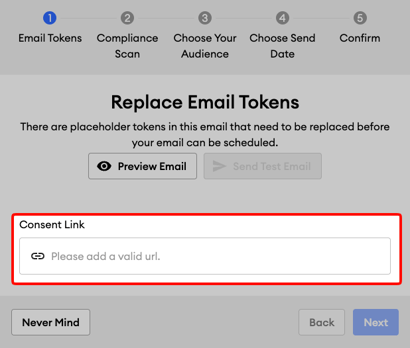
- Finish the remaining steps to schedule your email: Compliance Scan, Choose Your Audience, Choose Send Date, and Confirm.
💡 Each advisor has their own consent link. If you’re not sure where to find yours, contact TaxStatus at support@taxstatus.com.
What will my clients see?
When your client or prospect selects the link in your email, they’re taken to TaxStatus to give you permission to get their data from the IRS. TaxStatus walks them through the rest of the steps.
Need help?
- Finding or sending the TaxStatus email templates in FMG: Contact our Client Experience team.
- Your TaxStatus account or consent link: Contact TaxStatus at support@taxstatus.com.
- Learning more about TaxStatus: Visit taxstatus.com.