![FMG_Logo_RGB_Small_Blk-1.png]](https://help.fmgsuite.com/hs-fs/hubfs/FMG_Logo_RGB_Small_Blk-1.png?width=75&height=49&name=FMG_Logo_RGB_Small_Blk-1.png)
Already have your FMG website live and need to switch to a new domain or add another one? Follow along in this article to learn how!
Before You Begin
Make sure you have access to your domain registrar account (the service where your domain is registered, e.g., GoDaddy, eNom, Network Solutions). You'll need this to update your DNS records.
Don't remember who your domain registrar is? Check out this article first, "Finding Your DNS Provider," then return here.
Step 1: Add Your New Domain in FMG
- In your FMG account, in the left navigation, go to Website > Settings.
- In the Domain section, enter your new domain in the Website URL text box, then select "Add Location."
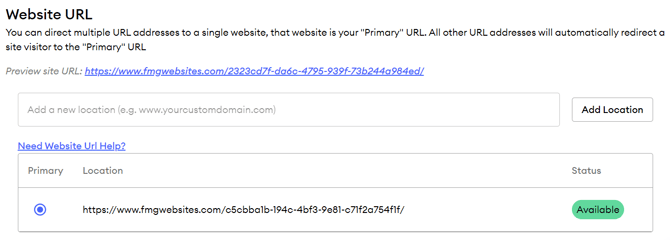
- Your domain will show as "Pending" for 3–5 minutes while FMG registers it and checks your DNS settings. Refresh the page after 5 minutes to check the status.
Step 2: Point Your Domain to FMG
You have two options:
1) Let Us Help By Granting Us Delegate Access to Your Registrar
Contact our support team at service@fmgsuite.com, and we'll assist with getting delegate access to your domain registrar. Delegate access allows our Domain team to update your DNS records on your behalf without needing your full account credentials.
2) Update DNS Yourself
Before making any changes, export or note your existing DNS records in your registrar so you can restore them if needed.
- Set your CNAME record: The CNAME needs to be updated in the DNS provider where your domain is hosted. The CNAME consists of two parts:
-
Name: The "www" prefix of your domain
-
Points to: The CNAME value provided in your FMG Website > Settings under the "Need Website URL Help?" hyperlink.
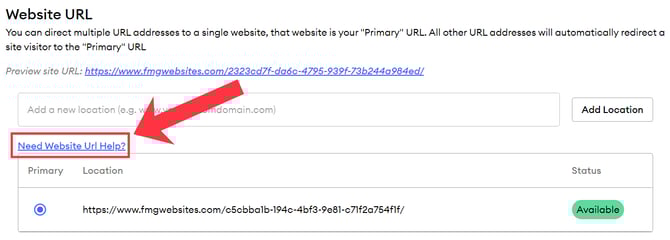
For help accessing your DNS editor, refer to the links below: -
- Set two "A records": Assign the following two IP addresses to the apex of your domain (e.g., domain.com without the "www"):
54.85.200.13154.164.9.107
-
Wait for propagation: DNS changes can take up to 48 hours to fully propagate. Monitor Website Settings until your domain shows as "Available."
Step 3: Set Your New Domain as Primary
Once your domain shows as "Available" in your FMG Website Settings, select the "Primary" radio button next to your new domain. This will change your website URL to the new domain.
Need help troubleshooting? Try these related DNS help articles: