![FMG_Logo_RGB_Small_Blk-1.png]](https://help.fmgsuite.com/hs-fs/hubfs/FMG_Logo_RGB_Small_Blk-1.png?width=75&height=49&name=FMG_Logo_RGB_Small_Blk-1.png)
When a prospect submits a form on your FMG website, that contact is added to your FMG account with an Unresolved integration status. This means the contact exists in FMG but hasn't been sent to Salesforce yet, giving you the chance to decide exactly how it should be handled before it touches your CRM. Follow along in this article for step-by-step guidance on managing unresolved contacts.
⚠️Availability: This feature is available only to users whose program has access. If you don’t see the Integration Status filter or the Unresolved contacts banner in your account, then this feature is not available to you.
Understanding Integration Status
Every contact in your FMG account has an Integration Status that tells you where that contact lives and how it's being managed.
|
Status |
What It Means |
|
Unresolved |
A new website form lead is waiting for you to take action. Exists in FMG only and can be edited in FMG. |
|
FMG Only |
A contact you added manually or imported via CSV, or a form lead you chose to keep in FMG only. |
|
Salesforce |
A contact synced from Salesforce. Edits must be made in Salesforce. |
Finding Your Unresolved Contacts
Unresolved contacts appear at the top of your Manage Contacts page:
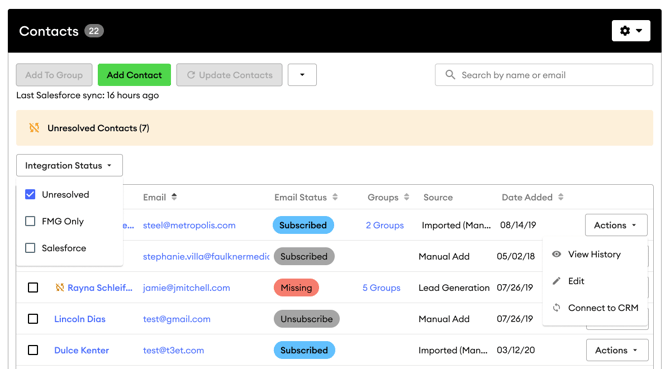
To view your Unresolved contacts:
- Go to Contacts > Manage Contacts in your FMG account.
- On the Manage Contacts page, look for contacts flagged at the top of the list in the banner, or use the Integration Status filter and select Unresolved
Resolving an Unresolved Contact
Once you've found an Unresolved contact, you can merge it with an existing Salesforce contact, create it as a new Salesforce contact, or keep it in FMG only.
To start the workflow:
- Click on the Unresolved contact to open the contact detail page
- You'll see a banner at the top of the page: click Manage to begin
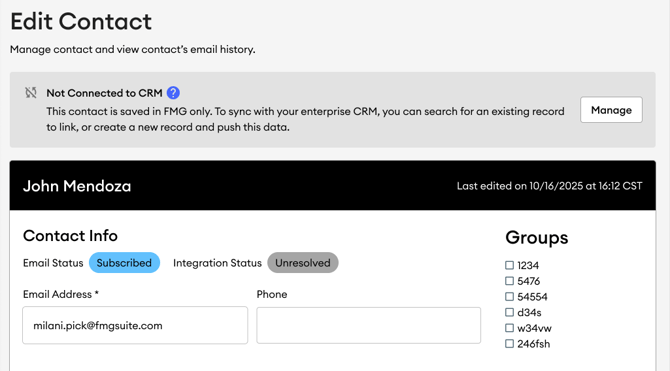
This will open a modal with your available options for resolving the contact’s integration status:
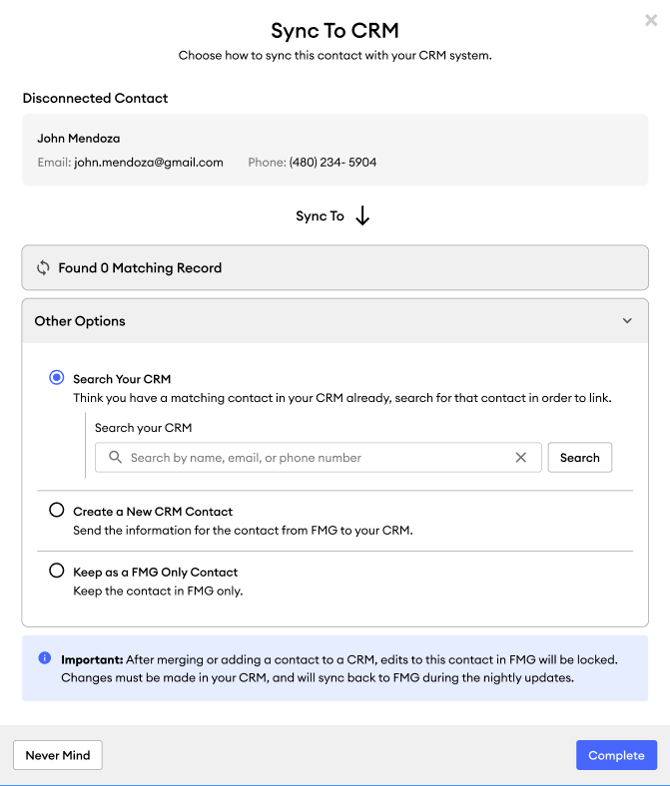
Choose the best option based on your needs. Click on any link below to quickly jump to a section:
Option 1: Merge with an Existing Salesforce Contact
Choose this option if the lead matches someone who already exists in your Salesforce account.
- FMG will automatically search for a matching Salesforce contact based on the lead's information. If a match is suggested, review it to confirm it's correct
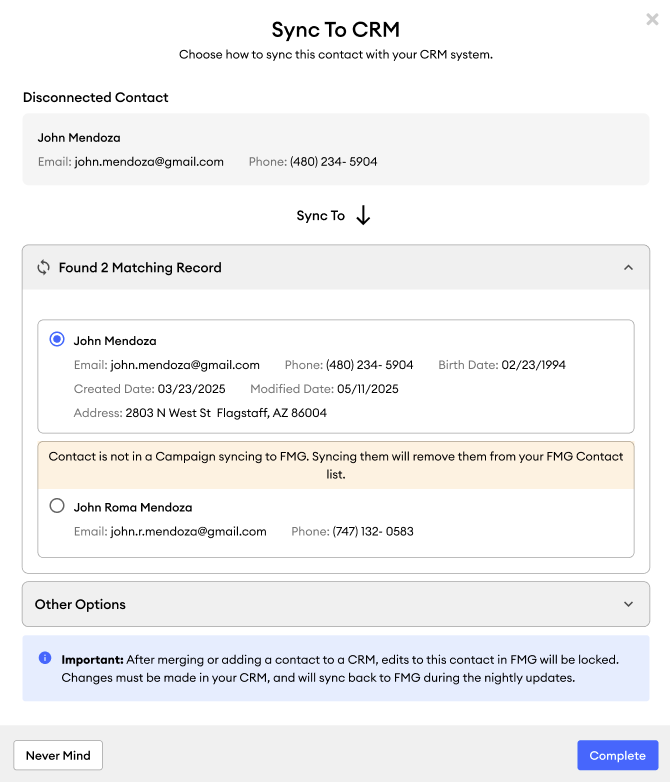
- If no automatic match appears, or if you'd prefer to search yourself, select Other Options and use the search field to find the right Salesforce contact
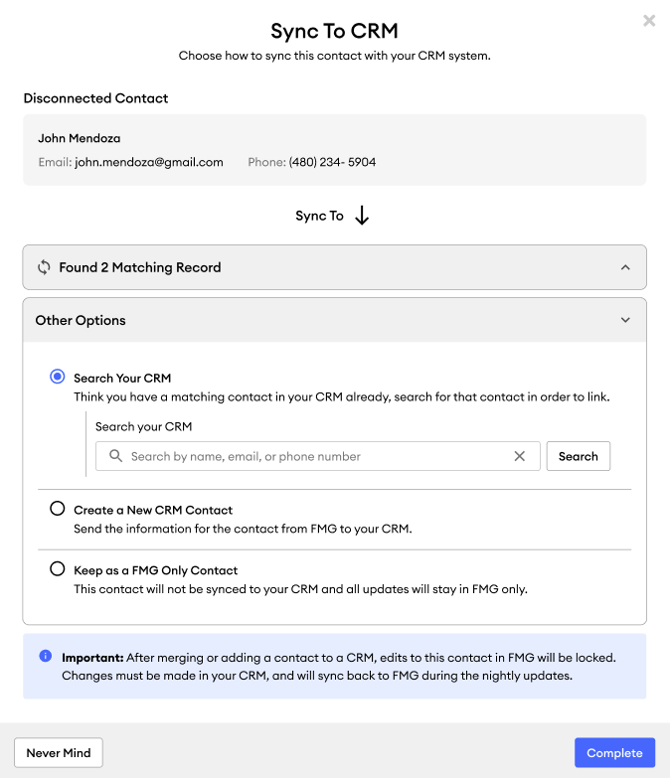
- Select the contact you want to merge with and confirm
Once the merge is complete:
- The Website Form Lead is removed from your FMG contact list
- The original Salesforce contact will remain as is
- The contact's Integration Status updates to Salesforce
- If the Salesforce contact is in a Campaign that syncs to FMG, they will continue to appear in your FMG contact list. If they are not in a syncing Campaign, they will no longer appear in FMG.
⚠️ Once a contact has a Salesforce Integration Status, all edits must be made directly in Salesforce; the contact cannot be edited in FMG.
Option 2: Create a New Salesforce Contact
Choose this option if the lead is someone new who you would like to add to your Salesforce account.
- Select Create a New CRM Contact
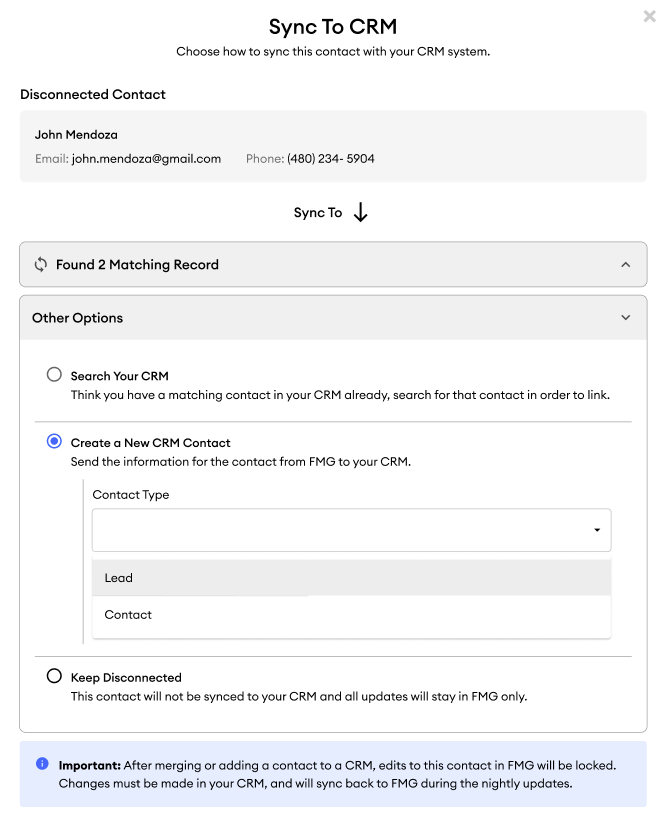
- Select Complete when you’re done.
Once the action is complete:
- A new contact record is created in Salesforce immediately
- The contact's Integration Status updates to Salesforce
⚠️ Newly created CRM contacts will not automatically appear back in FMG unless they are part of a campaign that is being synced to FMG. Edit the campaigns in Salesforce to ensure the contact syncs to FMG.
Option 3: Keep in FMG Only
Choose this option if you don't want this contact in Salesforce.
- Select Keep as FMG Only Contact
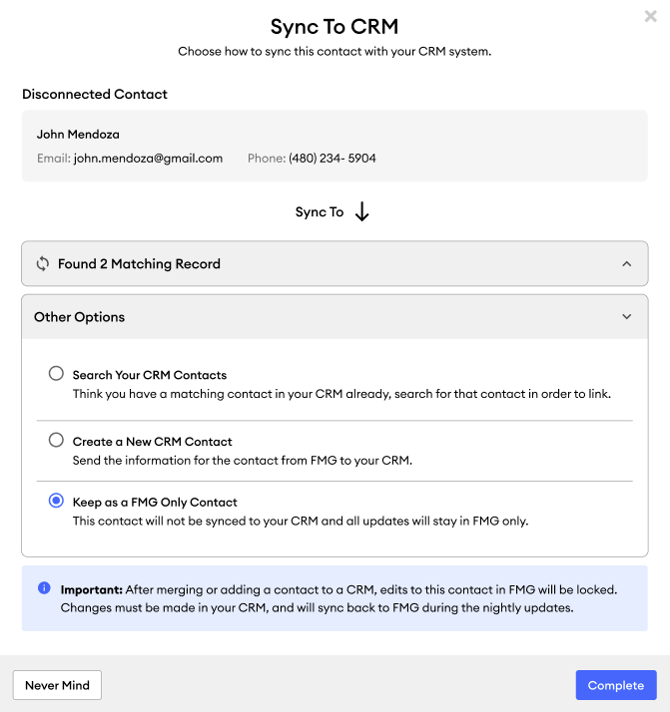
- Select Complete when you’re done.
Once the action is complete:
- The contact's Integration Status updates to FMG Only
- The contact remains in FMG and can continue to be edited there
- The contact will not be sent to Salesforce