![FMG_Logo_RGB_Small_Blk-1.png]](https://help.fmgsuite.com/hs-fs/hubfs/FMG_Logo_RGB_Small_Blk-1.png?width=75&height=49&name=FMG_Logo_RGB_Small_Blk-1.png)
The Inbox collects form submission messages from across your FMG marketing presence, including your website, landing pages, event campaigns, and lead generation tools, such as pop-ups. Any time a contact fills out a form or registers for an event, that message lands in your Inbox in your FMG admin and in your email inbox if you have notifications enabled, so you can review it, follow up, and keep track of incoming leads.
What Goes to Your Inbox
The following actions send a message to your Inbox:
- Event registrations: When someone registers for a seminar or event through the event registration form
- Website and landing page form fills: When a visitor submits a contact or inquiry form on your FMG website or a landing page
- Pop-up lead generation form fills: When a visitor submits their information through a lead capture pop-up on your site
- Referrals: When an established contact submits a referral form
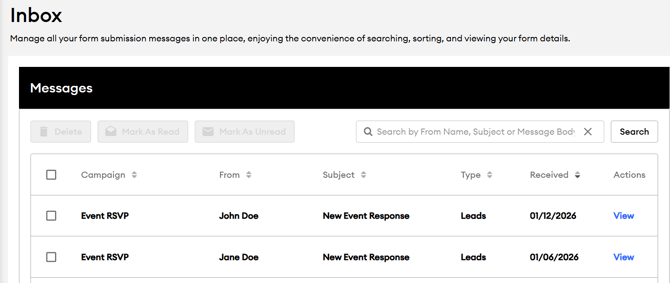
Each message appears as a separate entry in the Inbox and includes the campaign it came from, the contact's name, the subject, the message type, and the date received.
How to Access Your Inbox
- Log in to your FMG account.
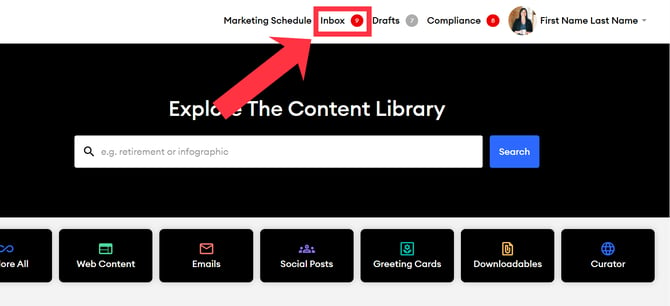
- In the top navigation bar, click Inbox.
The number shown next to Inbox reflects your unread message count.
Using the Inbox
Viewing a Message
-
In the Messages table, click View in the Actions column next to any message to open the full form submission details.
Searching Messages
-
Use the search bar at the top of the Messages table to search by From Name, Subject, or Message Body. Enter your search term and click Search.
Sorting Messages
-
Click any column header up/down arrows (Campaign, From, Subject, Type, Received) to sort the table by that column.
Managing Messages
Select one or more messages using the checkboxes on the left of the inquiry, then use the bulk action buttons at the top of the table to:
- ⚠️Delete: Permanently remove the selected messages
- Mark As Read: Mark selected messages as read
- Mark As Unread: Mark selected messages as unread
⚠️ Caution: Deleted messages cannot be recovered. If a message contains lead information you may need later, review it before deleting.
Lead Sync to Your CRM or Contact List
When a new lead comes in through your Inbox, FMG can automatically add that contact to your connected systems:
- If you have a CRM integrated with FMG and have enabled the "Sync FMG Activity" setting to add new leads to your CRM, the contact will sync there automatically.
- If you do not have a CRM connected, new leads are added to your FMG contact list instead.
Existing contacts who fill out forms on your website or register for events will not have a duplicate contact created as long as they use the same email address.
To adjust your CRM settings, please refer to your specific CRM help article listed here: Supported CRM Integrations