![FMG_Logo_RGB_Small_Blk-1.png]](https://help.fmgsuite.com/hs-fs/hubfs/FMG_Logo_RGB_Small_Blk-1.png?width=75&height=49&name=FMG_Logo_RGB_Small_Blk-1.png)
In FMG, you can reuse an event you’ve already built, so you don’t have to rebuild recurring events like monthly webinars or quarterly client appreciation events.
Repeat Event vs. Use as a Template
When you click Copy on an event, the Copy Event window gives you two ways to clone it. Choose based on how much of the event you plan to change.
|
Option |
Best for |
What you can edit |
Compliance review |
|
Repeat Event
Click here to jump to the section detailing this workflow. |
Running the same event again with the same name, description, and images |
Event date and time, event location, and webinar link |
Not required. The cloned event is approved and published immediately. |
|
Use as a Template
Click here to jump to the section detailing this workflow. |
Using an existing event as a starting point for a different event |
All event fields |
Required. The cloned event goes through compliance review before it publishes. |
Note: If the original event hasn’t been approved, Repeat Event is grayed out with the message “Only events approved by compliance can be repeated.” You can still clone the event with Use as a Template.
How to Clone an Event with Repeat Event
Before you can repeat an event, you need a previously approved event to start from. Only events approved by compliance can be cloned with Repeat Event.
If you don’t have a previously approved event or have never made an event before, start by creating one. See Adding New Events for step-by-step instructions.
Use Repeat Event when only the event logistics are changing, such as hosting the same webinar on a different date.
- Navigate to Events > My Events.
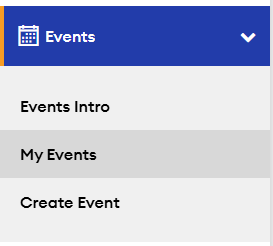
- Find the previously approved event you want to repeat. Click Copy next to the event.
-1.png?width=670&height=264&name=Untitled%20design%20(1)-1.png)
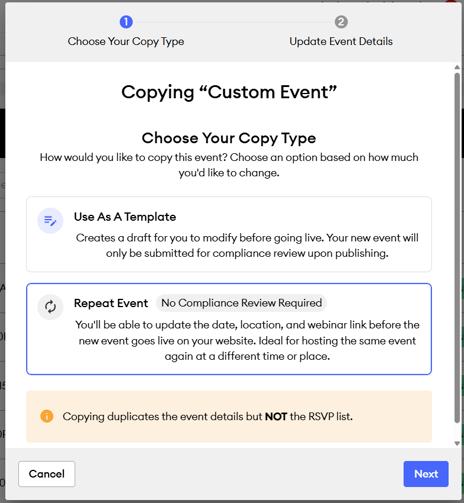
- In the Copy Event window, select Repeat Event, then select Next.
- Enter the required Event Date, Event Time, Time Zone, and Location for the cloned event. Enter a Webinar Link, if the event is virtual; this field is optional. These are the only fields you can edit with the Repeat Event option.
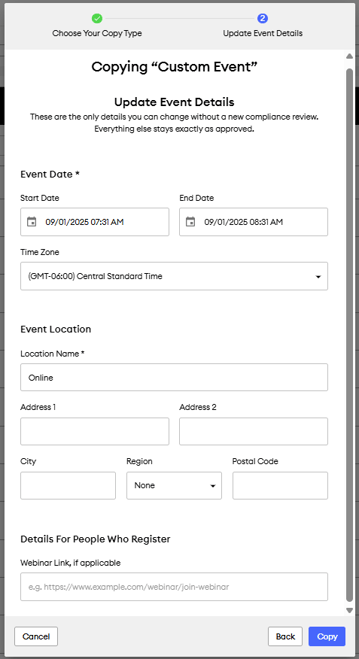
- Click Copy when you're done. The repeated event is published as approved and is live on your website right away.
💡The Webinar Link is included only in the confirmation email registrants receive. It does not appear on your public event landing page, so you can share the join link with registrants without posting it publicly.
How to Clone an Event with Use as a Template
Use Use as a Template when you need to change more than the date, location, or webinar link, such as the event name, description, summary, or disclosures.
- Navigate to Events > My Events.
- Click Copy next to the event you want to clone.
- In the Copy Event window, select Use as a Template. Then select Copy.
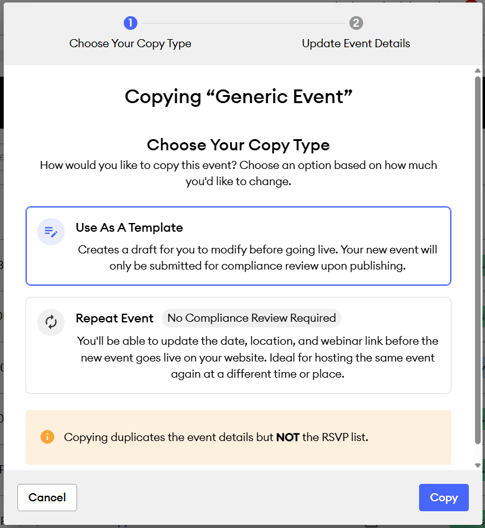
- This will bring you into the event editor with all the previous event details filled in. You can make changes to the Event Name, Description, Summary, Image, Event Date & Location, Disclosure, Registration Details, and SEO.
- Click Publish to submit the copied event for compliance review when you'e done. The cloned event goes live on your website once it’s approved.
What Copies Over When You Clone an Event
If you used the "Repeat Event" option, the event content, including the event name, description, summary, landing page header image, and disclosures, will be copied to the repeated event.
The following items do not copy over to a cloned event:
- RSVP lists: The cloned or copied event starts with no registrants.
- Promotional email and social sequences: Any promotional emails or social posts you customized for the original event need to be set up again on the cloned event. Carrying sequences over to cloned events is planned for a future update.
Related Articles
Check out these related help articles: