![FMG_Logo_RGB_Small_Blk-1.png]](https://help.fmgsuite.com/hs-fs/hubfs/FMG_Logo_RGB_Small_Blk-1.png?width=75&height=49&name=FMG_Logo_RGB_Small_Blk-1.png)
To keep your websites secure, PDFs embedded in blog posts must be hosted on FMG's infrastructure. If you try to embed a PDF using a third-party iframe (a PDF hosted outside of FMG), or have done so previously, it will stop rendering once the blog post is edited and saved. For the PDF iframe embed to work, the PDF must be uploaded as an attachment so it's hosted by FMG, then embedded using the steps below.
Example of what you may see if you attempt to embed a third-party PDF iframe: 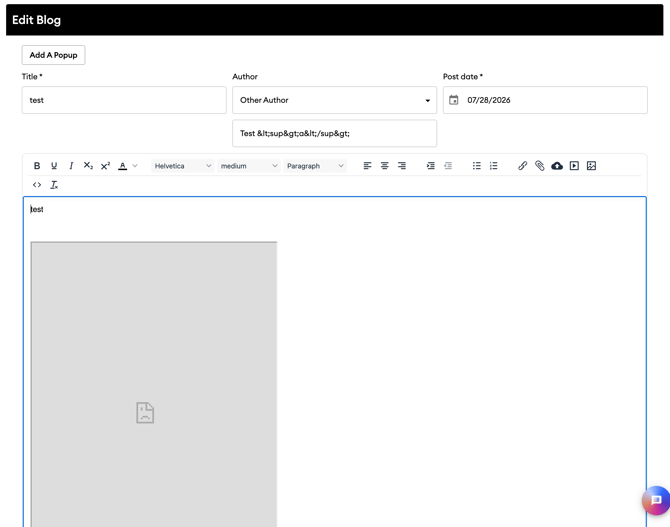
How to Attach a PDF to a Blog Post
- Navigate to the blog post where you want to add your PDF, or create a new one.
- Click the spot in the body where you'd like the PDF link to appear, then click the paperclip (Insert Attachment) icon in the editor toolbar.
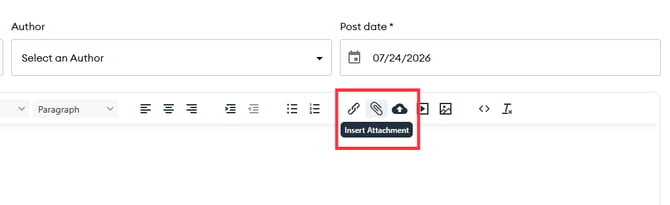
- In the "Upload An Attachment" modal that opens, add the following:
- Title: Enter the text you want to appear as the link to the PDF.
- Upload File: Click "Upload File" to select and upload the PDF from your computer.
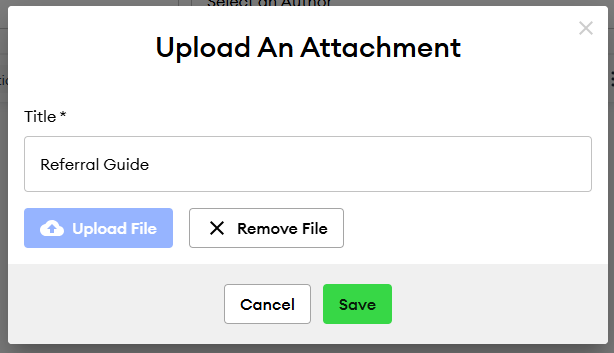
- Click Save in the modal.
- Click Save Draft to save your changes before publishing.
- Now, follow the steps below to embed the PDF into your blog post.
How to Embed a PDF in a Blog Post
After completing the steps above to upload your PDF, you can embed it as an inline iframe in your blog post. Follow these steps:
-
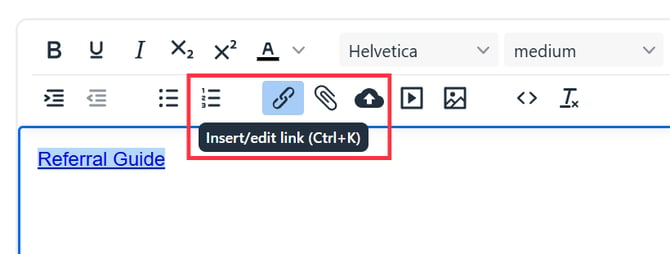
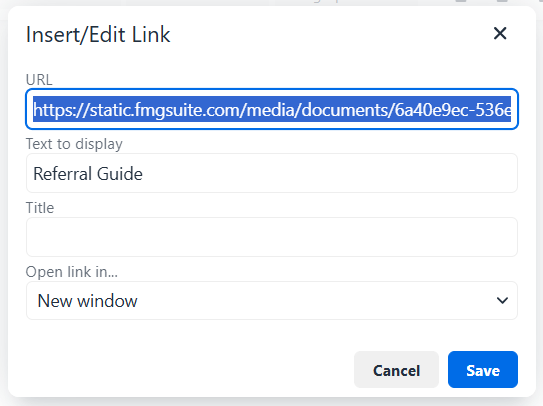
Follow the steps above to upload a PDF to your blog post, then click on the PDF link in the editor. This will highlight the URL link icon.
-
Click the chain link icon and copy the URL.
-
This is your FMG-hosted PDF URL:
-
-
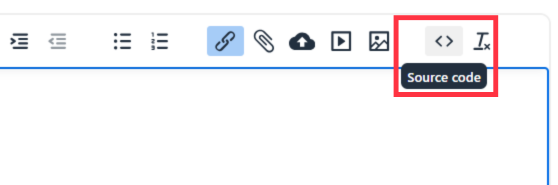
Now, click the Source code (<>) icon in the editor toolbar.
-
In the source code editor, paste an iframe using your copied URL.
-
Example iframe: Use the iframe below and replace [your-copied-URL-here] with your URL, then add it to the source code:
<p><iframe src="LINK GOES HERE" width="100%" style="border: none; height: 100vh;"></iframe></p>
-
-
Click Save to close the source code editor. The embedded PDF will appear in the preview post.
-
Click Save Draft to review your changes, then Publish when ready.
Your PDF will now be embedded into the blog post, and your website will remain secure since the PDF is hosted on your FMG website.