![FMG_Logo_RGB_Small_Blk-1.png]](https://help.fmgsuite.com/hs-fs/hubfs/FMG_Logo_RGB_Small_Blk-1.png?width=75&height=49&name=FMG_Logo_RGB_Small_Blk-1.png)
If you want to modify your website's top navigation menu, follow these steps:
-
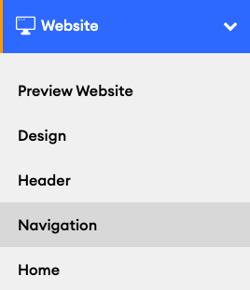
Navigate to Website > Navigation:
-
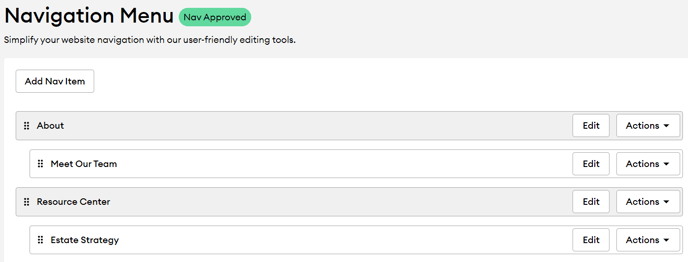
Here, you can manage your navigation menu.
-
When editing or adding your navigation menu, you have these choices:
-
Add Nav Item: You can add a new navigation item
-
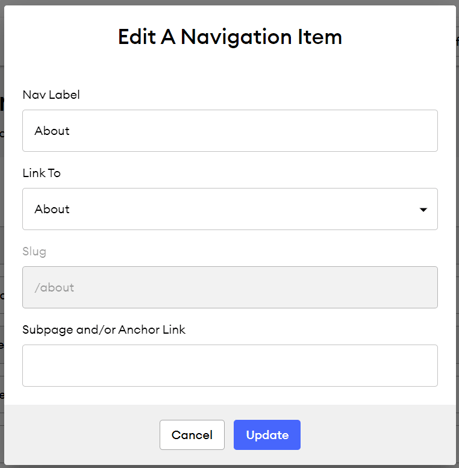
Edit Nav: You can edit the navigation label, which page it links to, the URL slug (for custom pages), or the Subpage and/or Anchor Link on a page.
-
Actions: Use the 'Actions' drop-down menu to:
-
Edit Page (only available for custom pages): Edit the page
-
Delete: Delete the navigation item
-
-
Positioning Your Nav Items: Drag and drop the navigation items to the desired position in your website navigation menu.
-
⚠️ Depending on the Broker/Dealer, some users' Navigation edits will need to be approved by compliance before the changes will reflect on their website.
📝 If you must stop and make more Navigation edits later, click the "Save Draft" button!
✔️ After completing your edits, click the green "Publish" button in the Navigation editor to save your edits and submit the changes to compliance for review (if applicable).