![FMG_Logo_RGB_Small_Blk-1.png]](https://help.fmgsuite.com/hs-fs/hubfs/FMG_Logo_RGB_Small_Blk-1.png?width=75&height=49&name=FMG_Logo_RGB_Small_Blk-1.png)
Subusers allow another user to log into your FMG account using their own credentials. They're a great fit for assistants, marketing staff, or team members who help manage your marketing, send emails, or update your website on your behalf. Subusers work from your account's contacts, content, and tools, and you choose which areas they can access.
💡 Looking to give another advisor at your firm their own set of marketing tools and contacts? Then, you may want an Additional Advisor account instead, which gives an advisor on your team their own email and social tools, campaigns, and personal contact list while being on your FMG subscription. Learn more about Additional Advisor accounts.
Note: Only the account admin (the primary contact) can add/edit users. If you are not currently listed as the admin on the account, please contact our Client Experience team for assistance with adding new users.
How to add additional users to your FMG account
To give someone else access to your FMG account, in your FMG admin, click on your name in the top right-hand corner and select Users
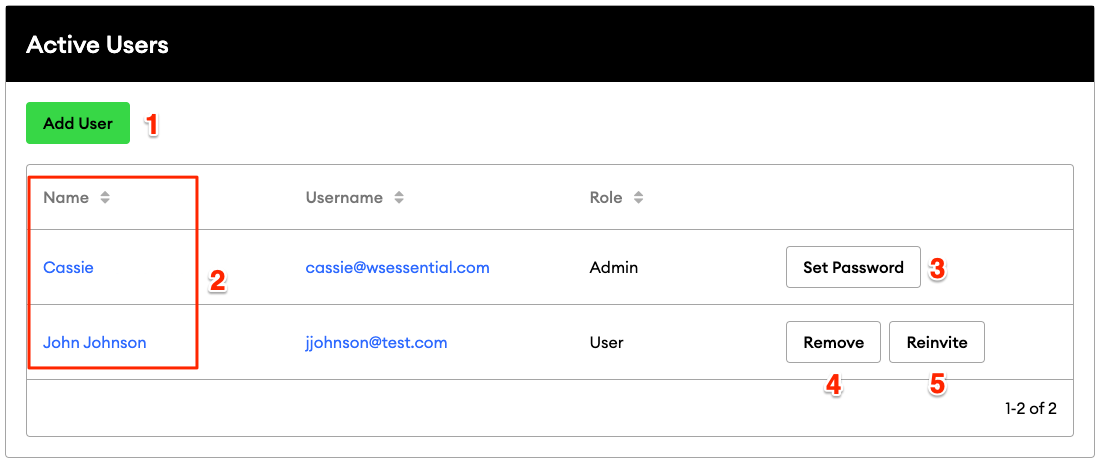
On this page, you can:
-
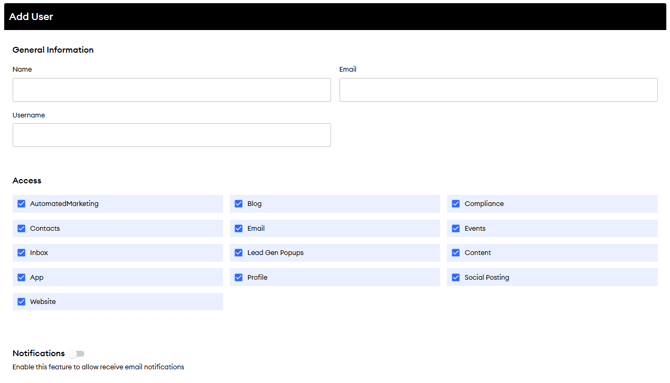
Add a new user: To add a new user, click the "Add User" button,* and you'll be taken to a form requesting the following details:
-
Name: Enter your new user's name. This will appear on the top right-hand corner when they log into the admin.
-
Email: This will be the email address to which notifications are sent, including the invitation to log into the admin.
-
Username: Ideally, this is the same as the email address above, but it does not have to be. It's just easier to remember that way!
-
Access: Here, you can decide what parts of the account this user will have access to. Only the admin can adjust these settings for subusers.
-
Automated Marketing: Gives access to the Automated Marketing section, where they can turn automations and campaigns on or off and update their settings and audiences.
-
-
-
-
- Blog: Gives access to the Blog section, where they can create, edit, and publish blog posts on your website.
- Compliance: Gives access to the Compliance section on the account, where they can view compliance status on pending items and past records.
- Contacts: Gives access to the Contacts section and the Manage Contacts and Groups pages, where they can add or edit contacts, manage groups, and change your CRM integration settings.
- Turning this off prevents the subuser from making changes to your contacts and groups, but if they have Email access they can still see and send to your contacts when scheduling an email.
-
-
-
- Email: Gives access to the Emails section, where they can create, schedule, and send emails to your contacts and groups, and view email metrics.
- Events: Gives access to the Events section, where they can create and manage events.
-
-
-
- Inbox: Gives access to the Inbox, where they can view website form and lead gen submissions.
- Lead Gen Popups: Gives access to Lead Gen Popups, where they can manage popups on your website. (Option only available if you have website popups)
- Content: Gives access to the Content Library, where they can browse FMG content.
-
-
-
-
App: Lets the user log in to the FMG mobile app with their subuser credentials.
- Profile: Gives access to your account profile, where they can update details like your name, contact information, photo, and logo.
- Social Posting: Gives access to social tools, where they can create, schedule, and post content to your connected social accounts.
- Website: Gives access to your website editor, where they can update pages, navigation, and other website settings.
-
-
Notifications: Select "Allow email notifications" to include this user on emails about activities in your admin
-
Clicking "Save" on this page will trigger an email address to the new user, with a link to create a password and get them logged in to your admin.
-
-
Update the settings for an existing user: To update a user's email address, username, or permissions, click on the user's name or username
-
Set Password: To reset your password click the "Set Password" button next to your name
-
Remove a user: To remove a user click the "Remove" button next to the user's name
-
Reinvite a user: To resend an invitation to another user, click the "Reinvite" button. This will trigger an email to that user
Baird Users: Please contact your Home Office Marketing Specialist for any updates to your user information.
▶️ ON-DEMAND WEBINAR Wondering which marketing tasks to hand off and how to set up your team to execute them? Watch our Did You Know webinar, Did You Know Workshop: April 2026, for strategies on delegating marketing tasks and building a consistent system with the right people in place.