![FMG_Logo_RGB_Small_Blk-1.png]](https://help.fmgsuite.com/hs-fs/hubfs/FMG_Logo_RGB_Small_Blk-1.png?width=75&height=49&name=FMG_Logo_RGB_Small_Blk-1.png)
In FMG, every email, whether it's a personalised message or part of an automated campaign, uses the same design. This means you have a single, universal email template that defines your logo, colors, header image, and button styles for all your communications. You can fully customize this template to reflect your brand, but creating different templates or applying varied designs to different types of emails isn’t possible.
-
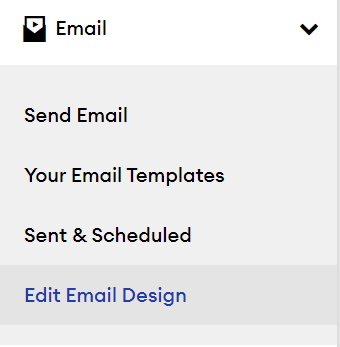
Navigate to Email > Edit Email Design in the navigation pane on the left side of your dashboard.
-
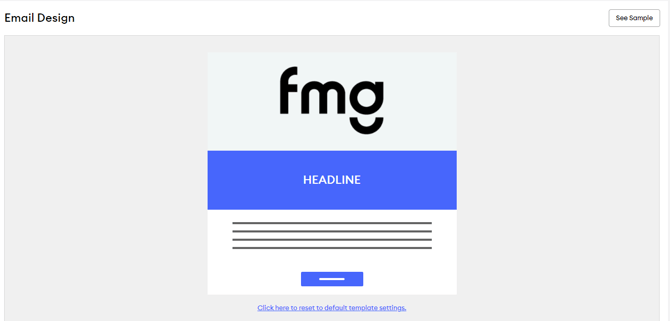
On this page, you'll see a simplified version of the email design with your logo as the header graphic if you entered one in your Profile >> Logo section.
-
Hover over a particular element and click the pencil icon ✏️ to modify it. Here are the elements you can edit:
-
Header Graphic: This will default to your logo, but you can upload a custom graphic here. We recommend a graphic of at least 600 pixels wide. If you choose to use your logo, you can set a background color for the header here as well
-
Headline Settings: You can select the background color and text color for headline sections in your emails
-
Button Settings: You can select the button background color and text color for buttons on your emails
-
Note: We will automatically include your portrait, name, address, and social media links in your email signature beneath section 3 listed above.
-
- Select "See Sample" while you're working to preview how your emails will look. This will include your email signature and disclosures.
-
Click "Publish" on the top left of your screen to send your email template to compliance.
You can click here to learn more about the content in your email signature.