![FMG_Logo_RGB_Small_Blk-1.png]](https://help.fmgsuite.com/hs-fs/hubfs/FMG_Logo_RGB_Small_Blk-1.png?width=75&height=49&name=FMG_Logo_RGB_Small_Blk-1.png)
Email Sequences are a series of emails on a single topic that can be scheduled to be sent over a period of time. They make it easy to stay in touch with your audience and provide relevant information in a structured and timely manner.
How to Share Email Sequences
Finding in the Content Library and Using Email Sequences:
-
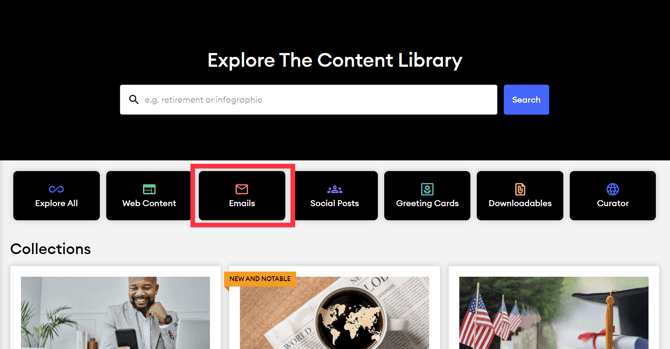
To access email sequences, log into your FMG admin account and navigate to Content Library > Emails.
-
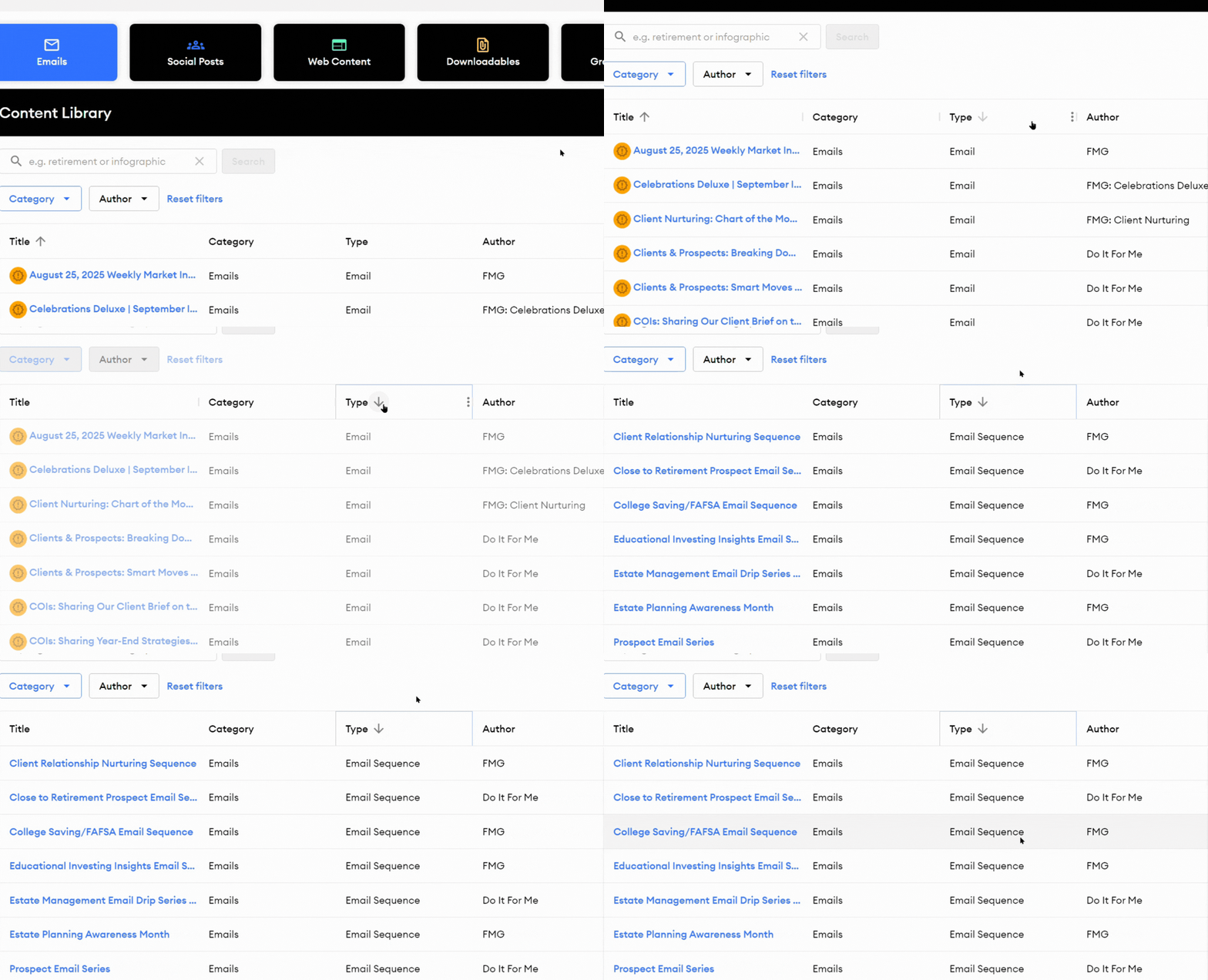
Sort: You can sort emails to show Email Sequences first by clicking on the arrow in the"Type" column:
-
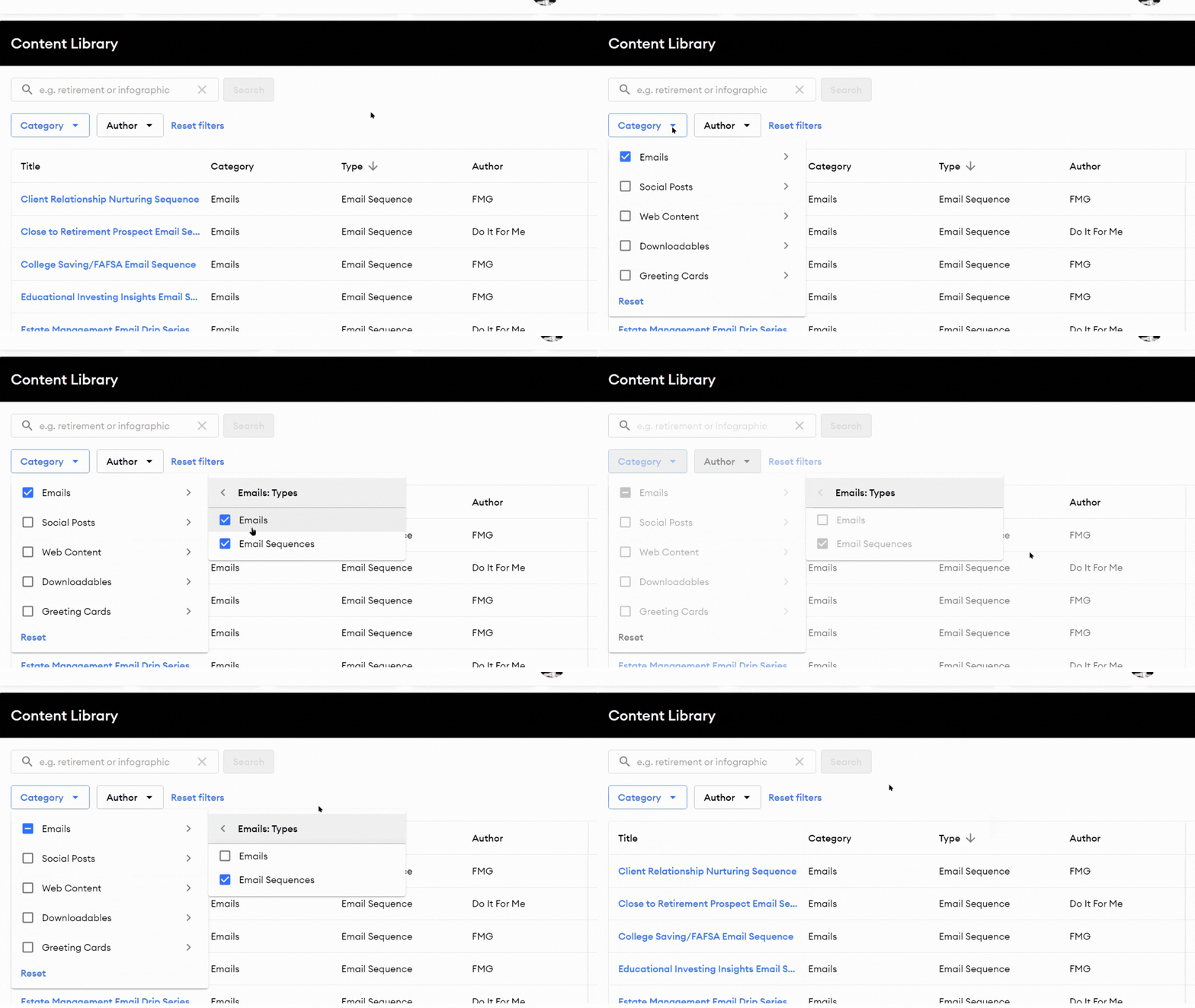
Category Filter: Use the Category drop-down menu, then select the arrow next to the Emails category, to filter to Email Sequences:
-
To review a specific email sequence before using it, click the content title. Here you will see a short description, preview image, and keywords associated with the piece.

-
When you find a content piece to use, click Use Sequence on the preview or Use next to the email sequence in the Content Library.
Editing Email Sequences:
-
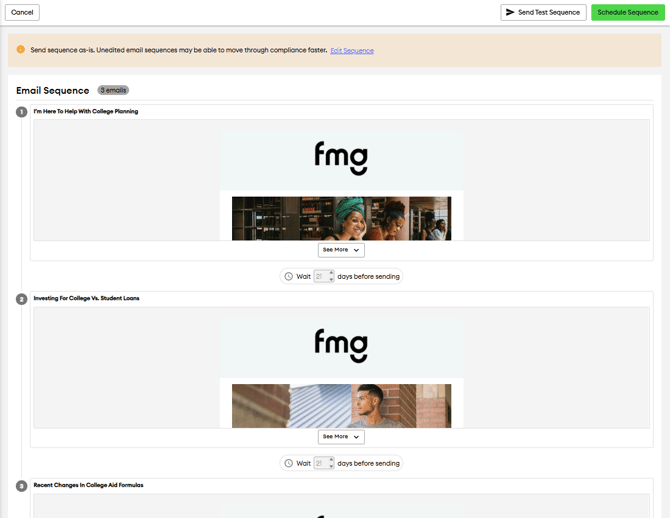
You can schedule an email sequence as is or make edits before scheduling.
-
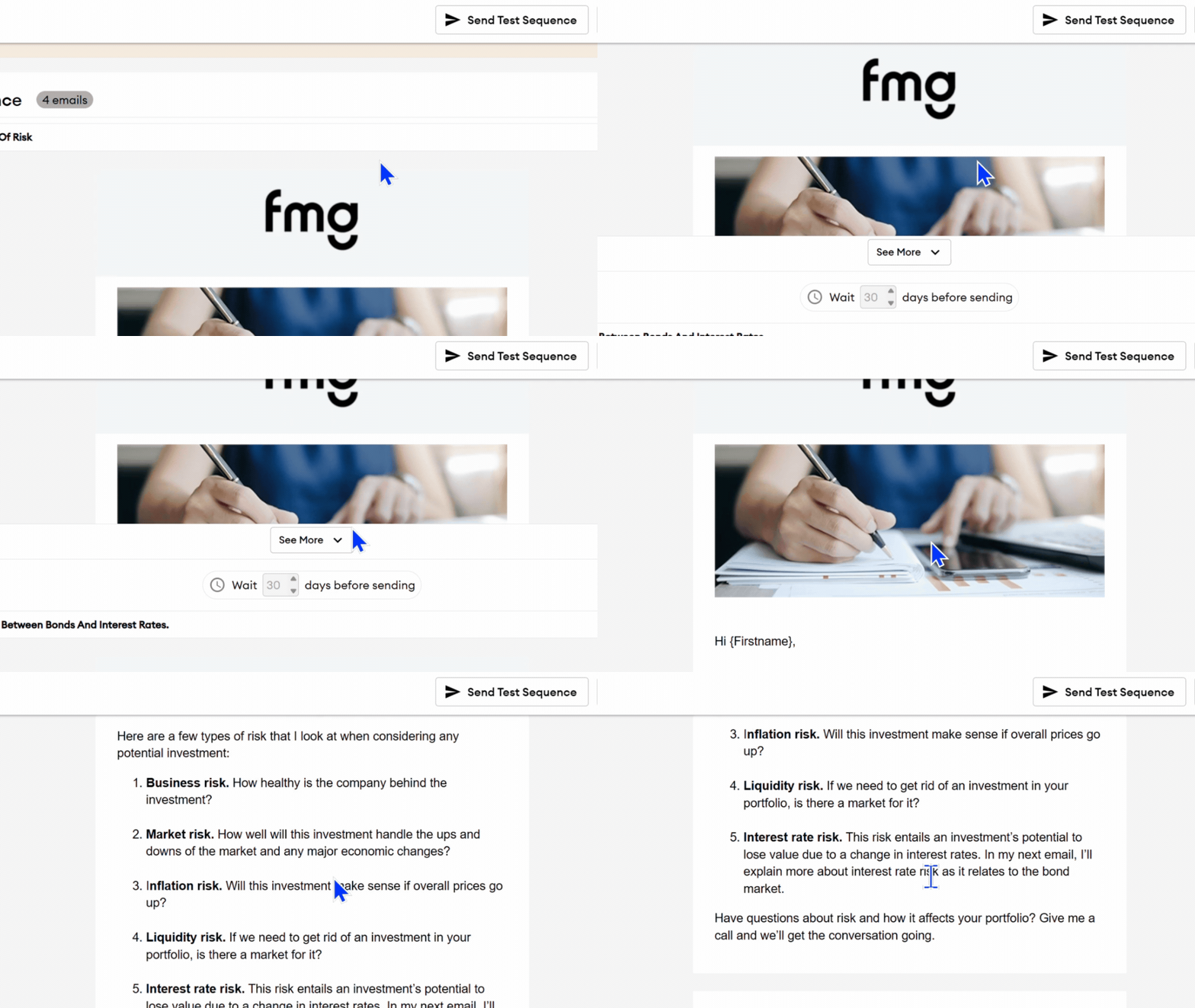
To preview the content of an email in a sequence, click See More under the email:
-
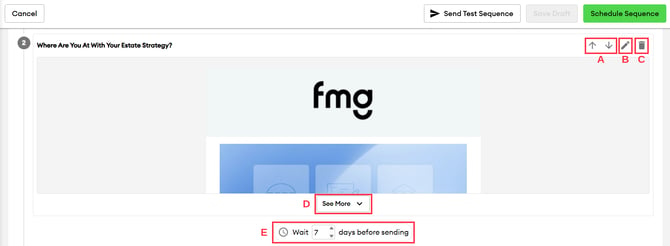
To edit the sequence content or wait period between sends, click Edit Sequence at the top of the sequence. Use the icons to make edits:
-
-
Up/Down Arrows: Use the arrow icons to move an email up or down in the sequence. This will change the order of the sequence.
-
Pencil Icon: Click the pencil icon next to an email in the sequence to edit the content of that specific email.
-
Trash Icon: Remove an email from the email sequence by clicking the trash can icon.
-
Wait X days before sending: You can set the wait period between each email send (in days).
-
💡Compliance Notes for Editing:
-
In most cases, compliance approval is necessary before sending out email sequences.
-
Certain programs and agencies may pre-approve agency-created email sequences for use as-is. However, any modifications will prompt a compliance review prior to sending.
-
Adjusting the wait time between emails does not require compliance approval when utilizing a pre-approved email sequence as-is (with no changes to the email content).
Schedule Email Sequence
-
When you're ready to share the email sequence, click Schedule Sequence at the top of the page.
-
First, choose your audience; you can send to all your contacts, a group, or an individual.
- Once you've selected your audience, you will choose when to send your email:
- Send immediately: The first email in the sequence will be sent as soon as it's approved by compliance. The rest of the emails will follow based on the wait days between sends.
- Schedule a future date: The first email in the sequence will be sent at a future date of your choosing as long as it's been approved by compliance (if not approved in time, your email will not send). The rest of the emails will follow based on the wait days between sends.
- Double-check your details to ensure everything looks good. Then, click Send Sequence to schedule your email sequence.
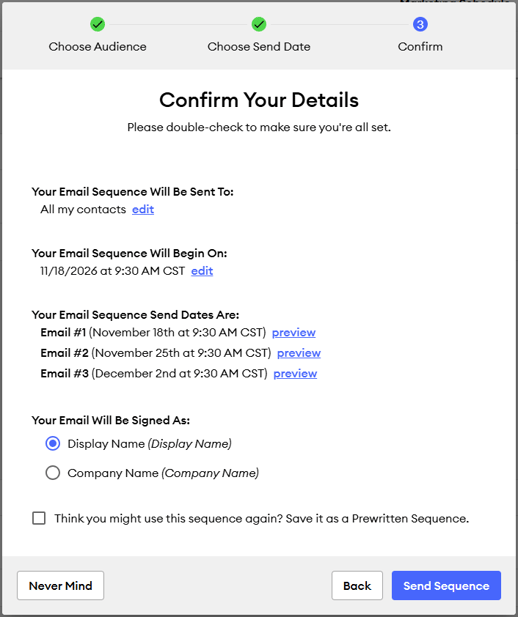
💡TIP: If you have edited the Email Sequence and want to use it again in the future, click the checkbox on the confirm details page while scheduling the sequence. This will save your edited version in the Content Library> Emails section under Email Sequences for future use.
View Your Shared & Scheduled Email Sequences: You can go to Email > Sent & Scheduled to view your shared and scheduled email sequences. Here you can view previously shared emails as well as scheduled emails. Click on the email subject line to view the email, and you will also have the option to delete an email before it is sent. You cannot currently edit an email that is part of a sequence before it's sent.