![FMG_Logo_RGB_Small_Blk-1.png]](https://help.fmgsuite.com/hs-fs/hubfs/FMG_Logo_RGB_Small_Blk-1.png?width=75&height=49&name=FMG_Logo_RGB_Small_Blk-1.png)
Whether you want to share a piece of content with your contacts or include an article (or two!) that relates to a blog post or some commentary you're sharing, we've made it simple to add library content to your custom messages.
With our "Featured Content" and "Multi-Content" sections, you can easily add articles, videos, and more from your Content Library to your custom emails.
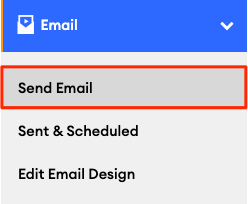
To create a custom email, navigate to Email>>Send Email in the navigation pane on the left side of your dashboard:
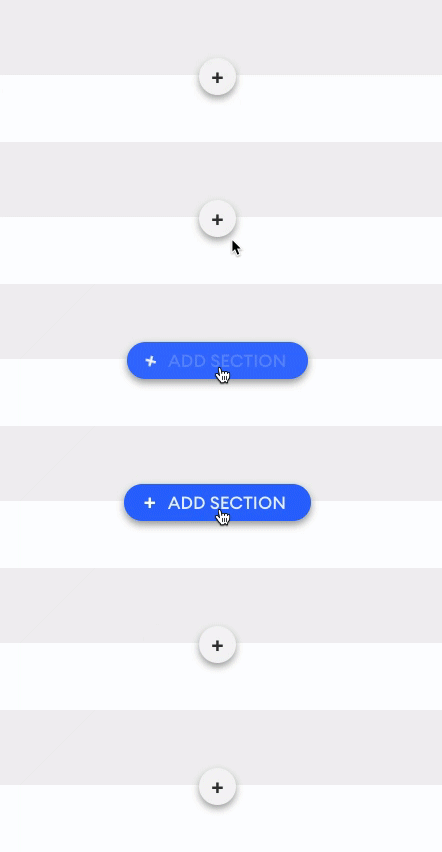
Next, click "+ Add Section" to add a new section to your email:
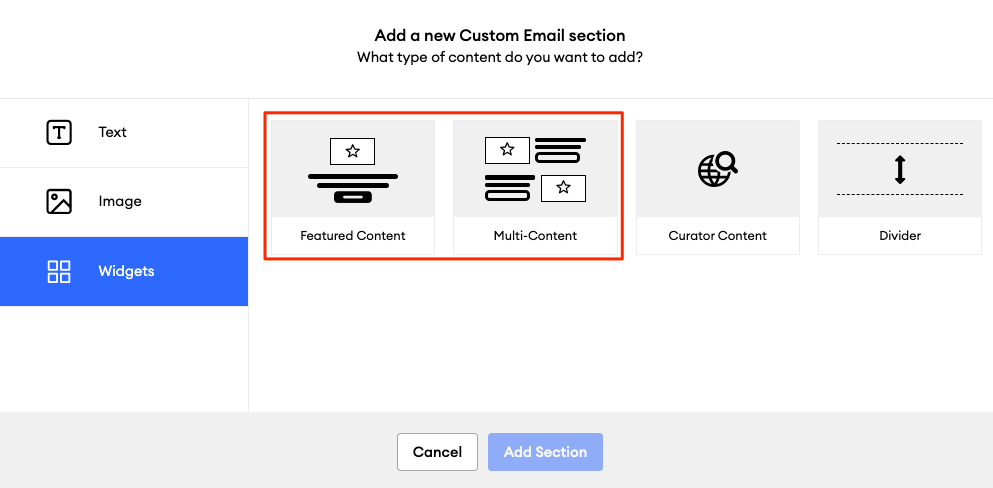
In the "Add a new section" modal that opens, click "Widget," then select either "Featured Content" or "Multi-Content":
-
Featured Content: add this widget to include a single video or article from your Content Library, with a link to the entire piece on your website
-
Multi-Content: add this widget to include several (or even just one) pieces of content from your Content Library in a side-by-side layout
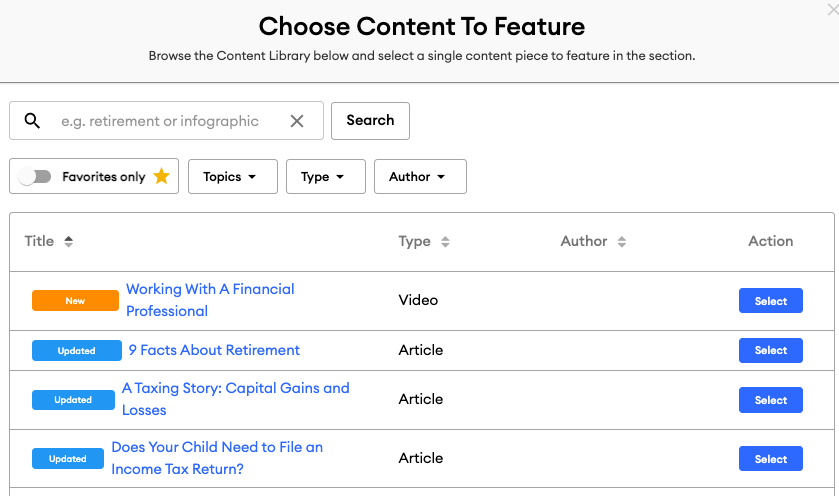
You'll be able to browse and search for content to feature in your email:
On the "Featured Content" section, you are only able to edit the following elements:
-
Headline
-
Image
On the "Multi-Content" section, you are able to edit the following elements:
-
Headline
-
Paragraph
-
Button Copy
-
Image
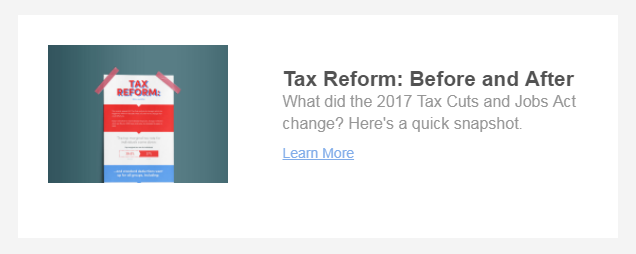
Just because it's called "Multi-Content" doesn't mean you must add more than one piece of content to this section! If you want to augment some commentary that you've put together with a related article or video, you may want to use this shorter section to highlight that content: