![FMG_Logo_RGB_Small_Blk-1.png]](https://help.fmgsuite.com/hs-fs/hubfs/FMG_Logo_RGB_Small_Blk-1.png?width=75&height=49&name=FMG_Logo_RGB_Small_Blk-1.png)
Adding a text section to a page is an essential task when you're building a website. Here's a step-by-step guide on how to add a text section to a page:
-
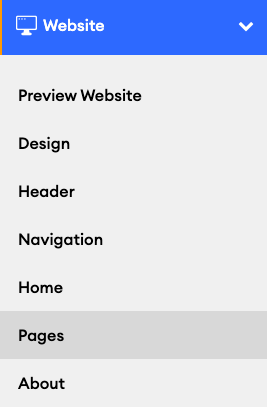
Navigate to Website > Pages, and open the page where you want to add the text section.
-
Click the "+ Add Section" button on a new or existing page:

-
In the "Add a new section" modal that opens, you'll see the different types of text section options available. Select the text section option that best suits your needs:
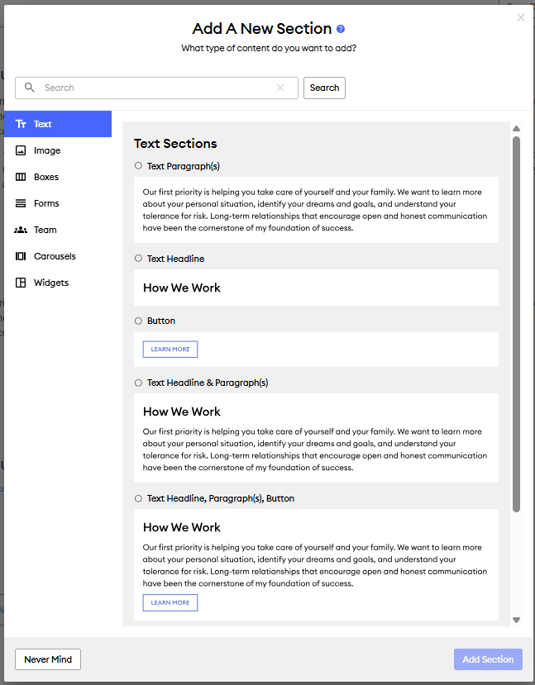
- Text Paragraph(s): Add a single paragraph section.
- Text Headline: Add an H1 headline section.
- Button: Add a call-to-action button section. Learn more about editing buttons in this article: Adding a Button Section to a Page
- Text Headline & Paragraph (s): Create a single section with a headline and paragraph.
- Text Headline, Paragraph (s), Button: Create a cohesive section with all these elements. You can also control the background of this single section more easily than with individual sections.
-
Rich Text Editor: Offers flexibility and versatility. Consider using this option if you want to embed custom forms or videos. For additional information on embedding custom forms or videos, check out these articles:
- Select "Add Section" when you've picked an option, then make edits by clicking directly on the text.
- For text paragraphs and rich text editor sections, you can use the in-line text editor options to customize formatting, text color and size, add links, insert attachments, upload images, and more!
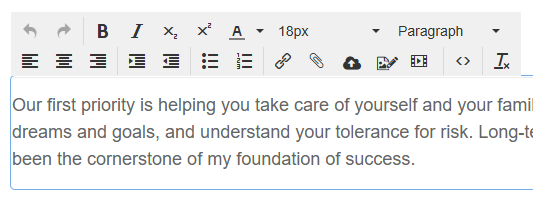
- For text paragraphs and rich text editor sections, you can use the in-line text editor options to customize formatting, text color and size, add links, insert attachments, upload images, and more!
-
When you're happy with your edits and ready to save them on your website, click "Publish" to submit your edits to compliance.