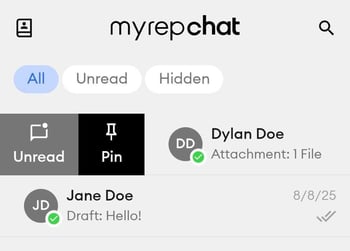
When you log into the MyRepChat mobile app, you'll land on the Messages tab by default — your home base for all client conversations.
What Can I Do From the Messages Tab?
- Start a new message: Tap the + icon in the lower right corner.
- Add a contact: Tap the Contacts icon in the top left to access your contact list and add contacts manually.
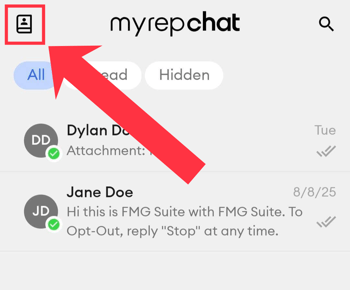
- Search messages: Tap the magnifying glass in the top right to search your existing conversations.
What Are the Different Message Views?
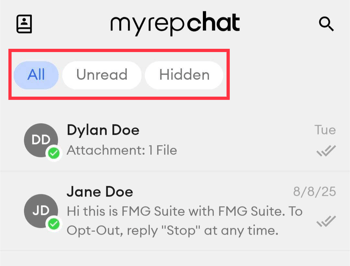
The Messages tab has three views to help organize your conversations:
- All: Every message thread in your account, with infinite scroll so you can go back as far as needed.
- Unread: Threads with unread messages, including any you've manually marked as unread.
- Hidden: Threads you've chosen to hide from your main view.
What Do the Swipe Actions Do?
You can swipe on any thread to take quick action without opening it:
- Swipe left: Hide the thread from the All view, or block the contact.
- Swipe right: Mark the thread as read or unread, or pin the contact to the top of your list.