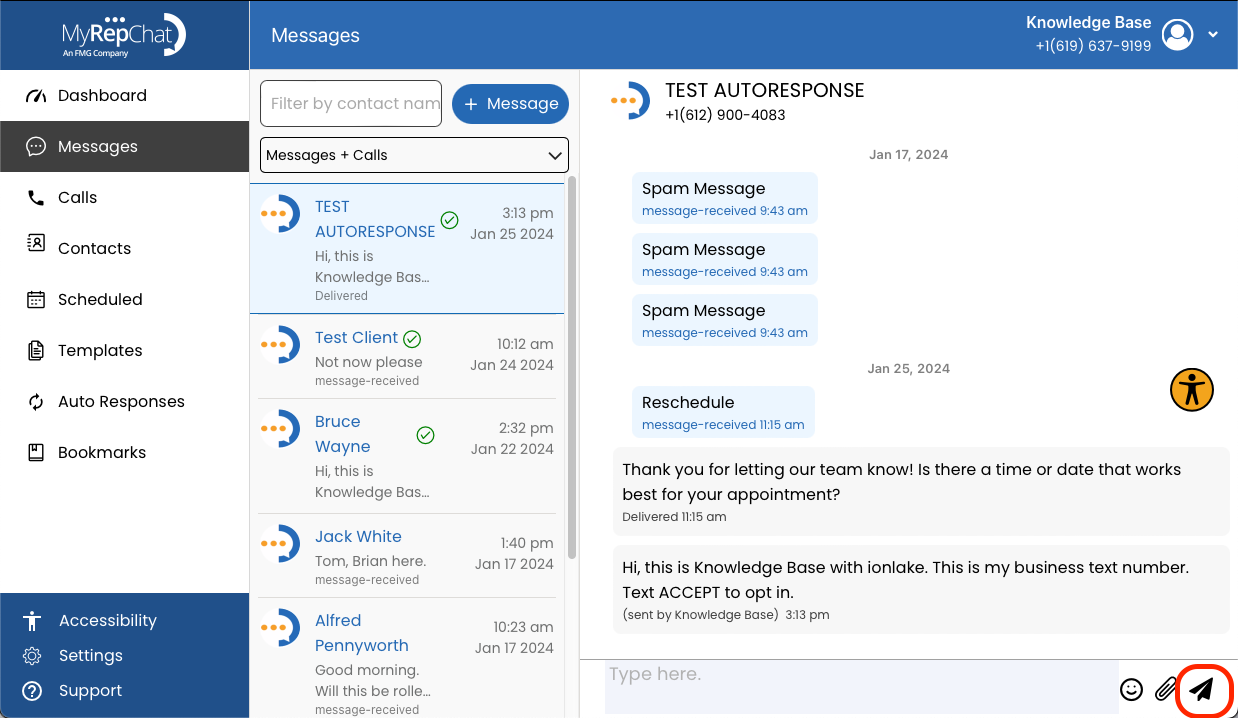
The Messages tab has several tools for filtering, viewing, and sending messages. Here's a quick guide to what's available.
How Do I Filter My Messages?
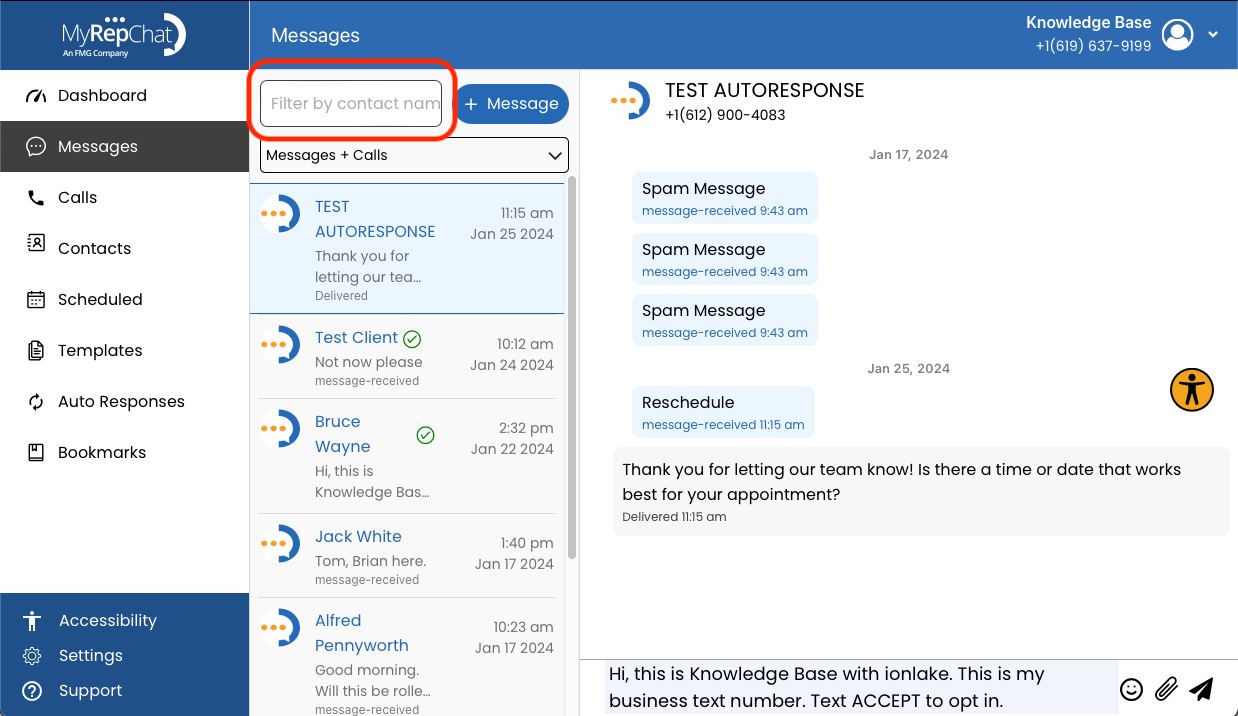
- Filter by contact: Type a contact's name into the Filter by Contact Name field.
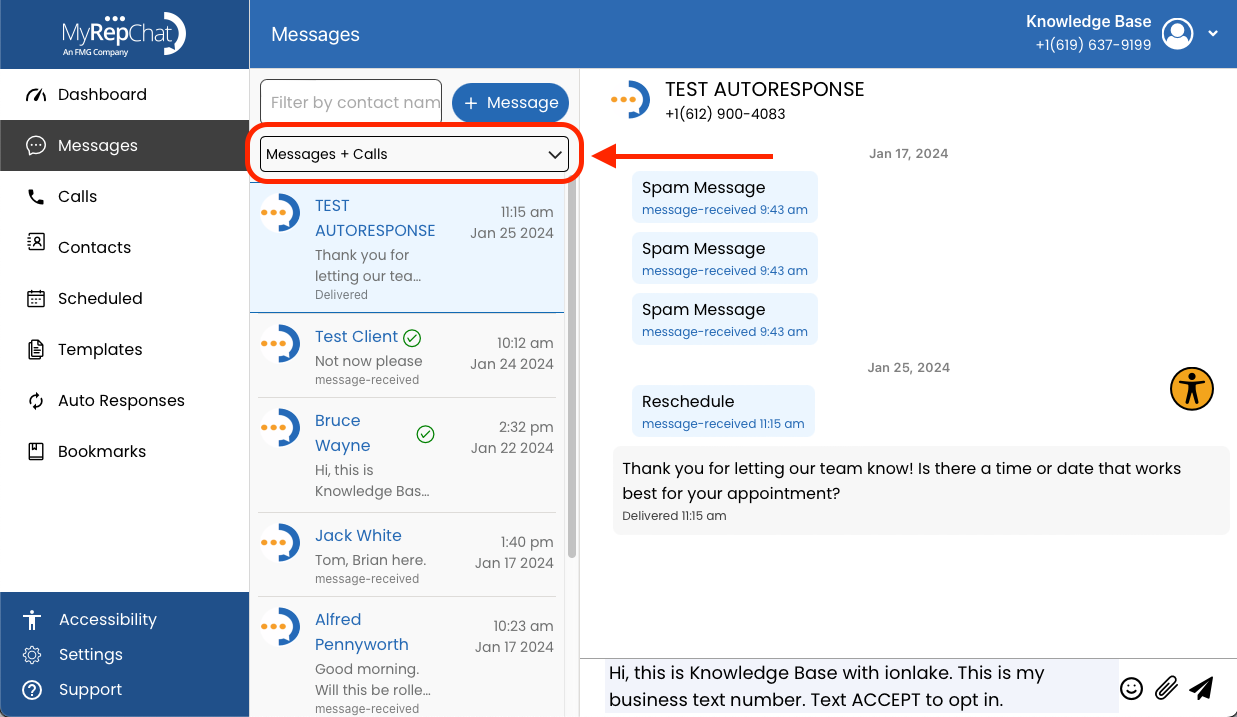
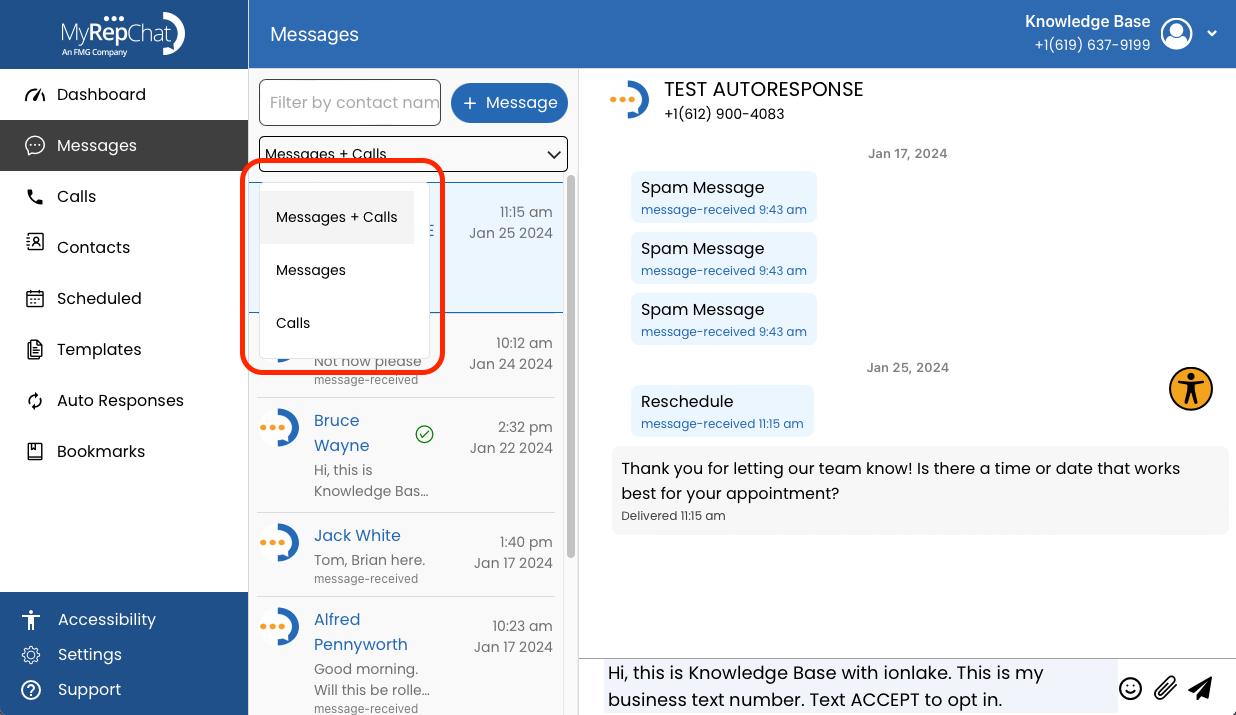
- Filter by type: Use the dropdown beneath the search bar to switch between Messages + Calls, Messages, or Calls.
How Do I Read My Conversation History?
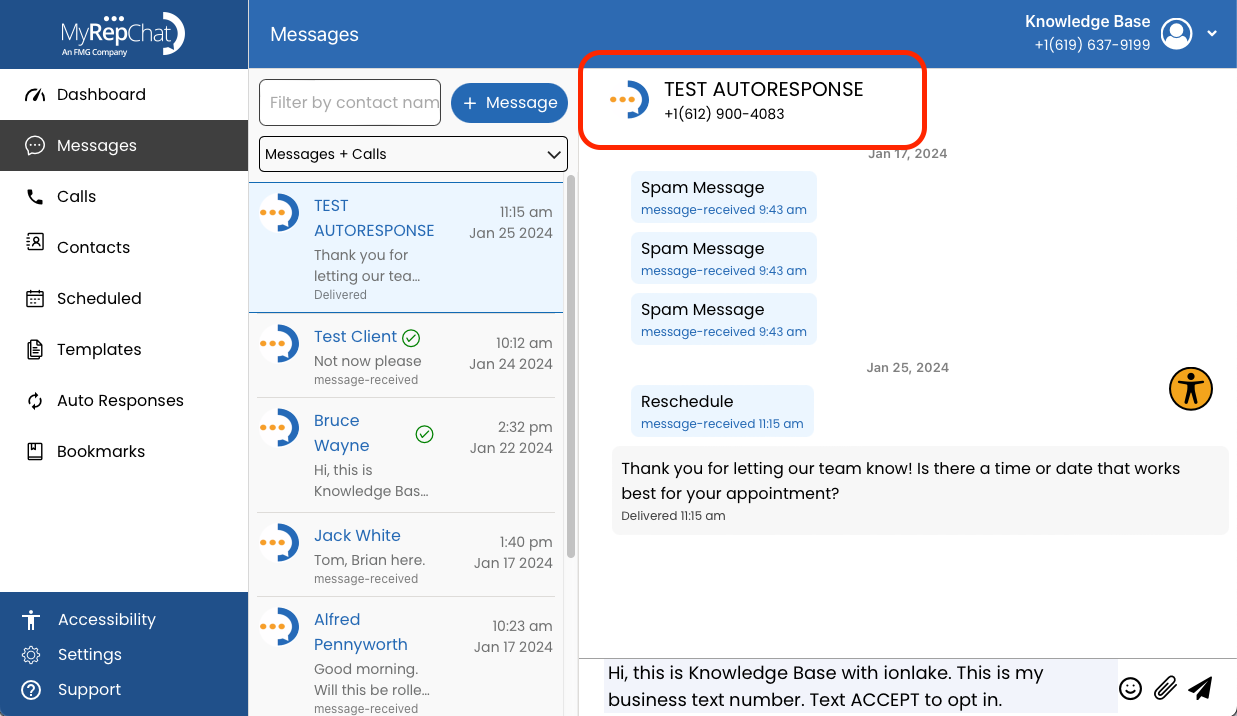
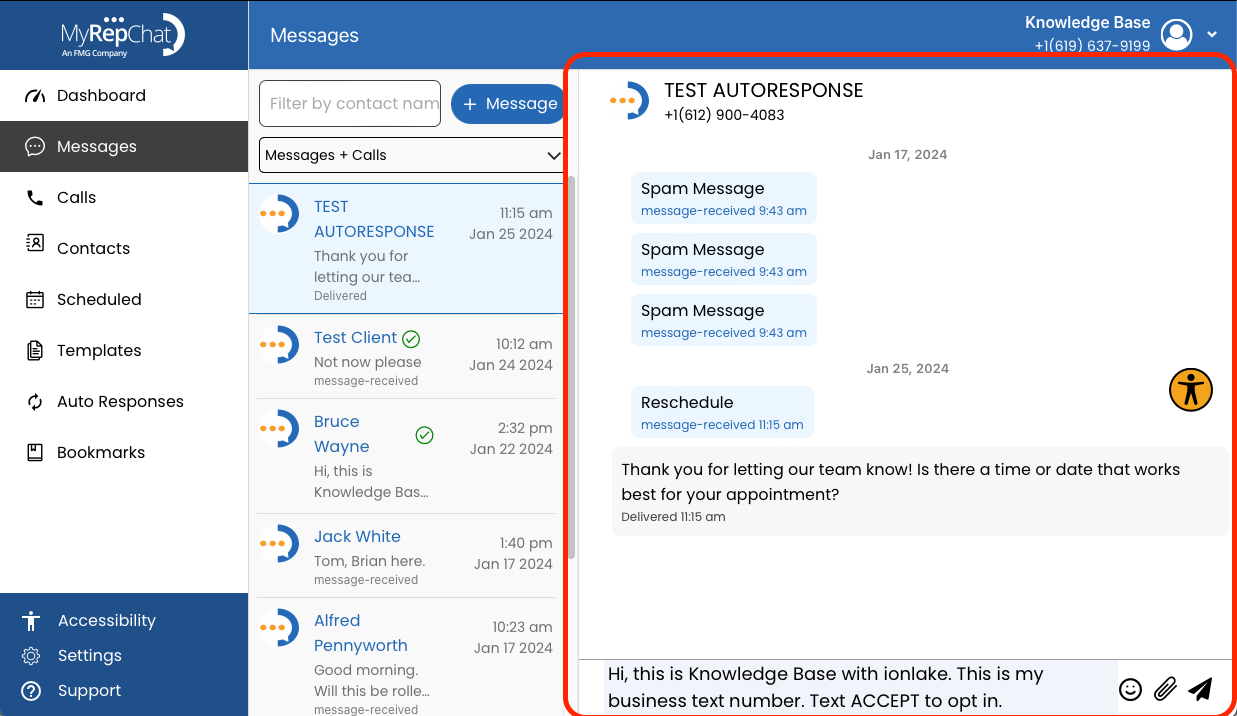
Your recent conversations appear in a list on the left side of the screen. Click any contact to open their conversation. The contact's name and number appear at the top, and the full conversation history appears on the right, where you can scroll to read past messages.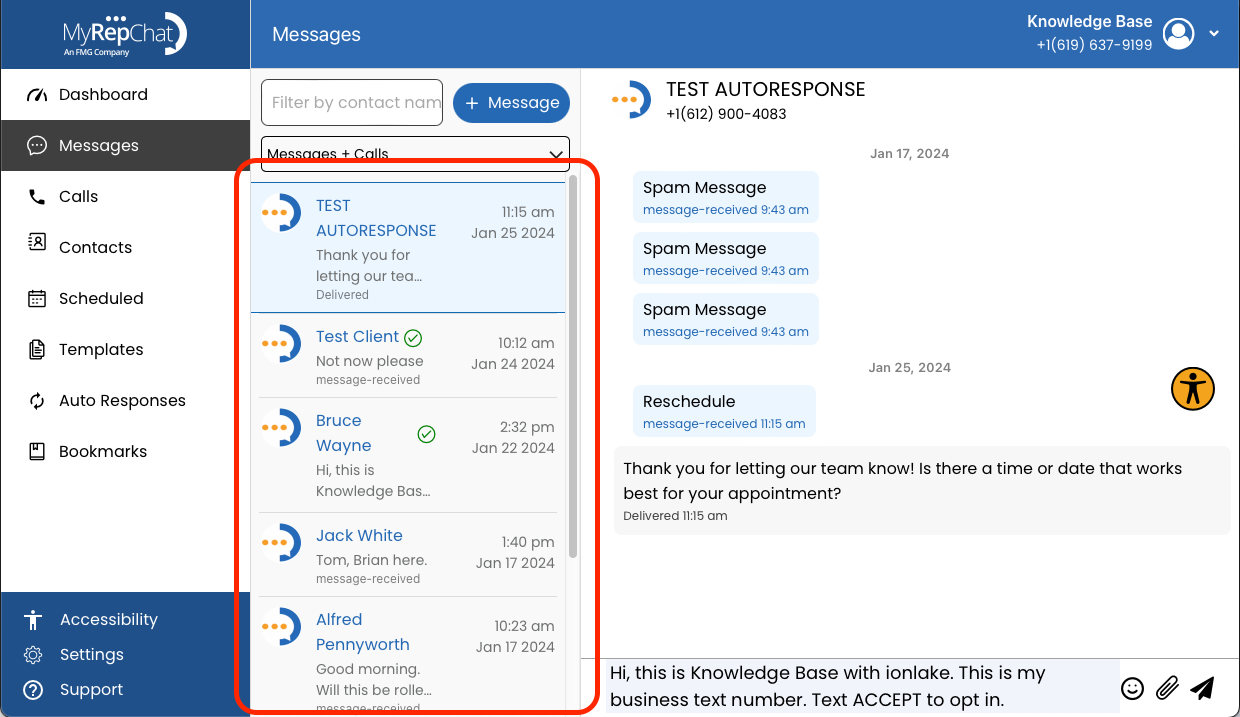
How Do I Send a New Message?
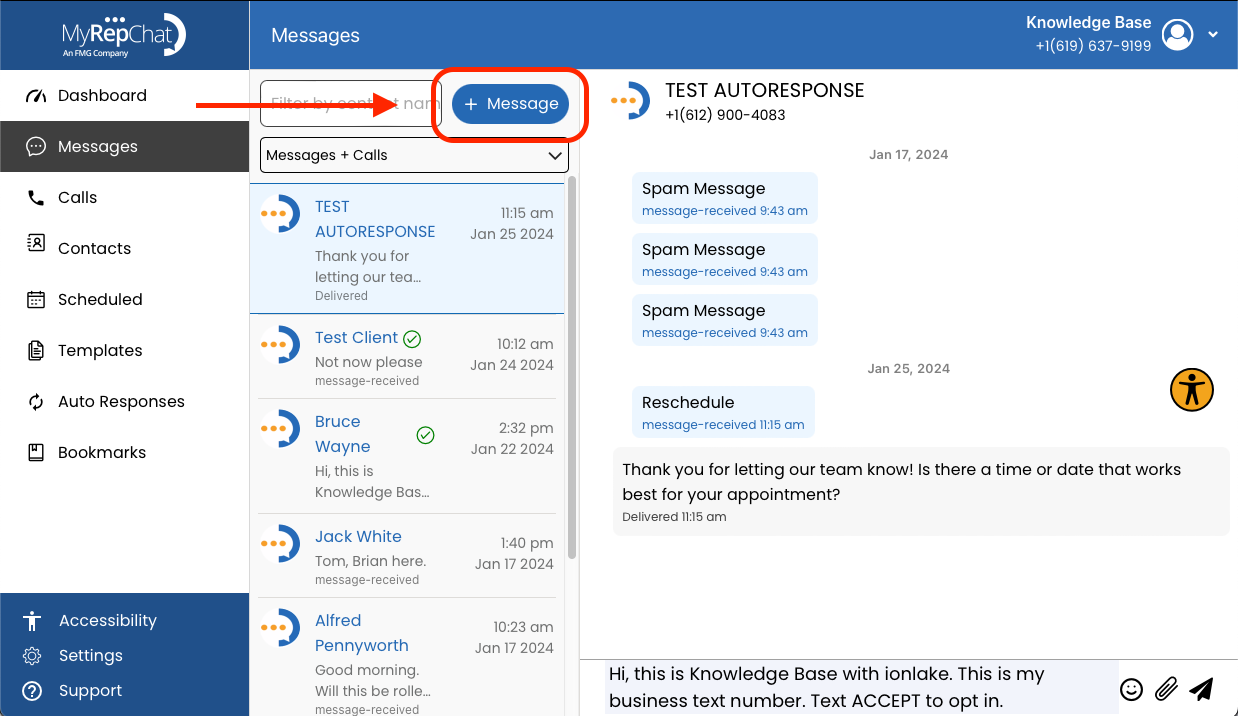
- Click + Message in the upper left of the Messages page.
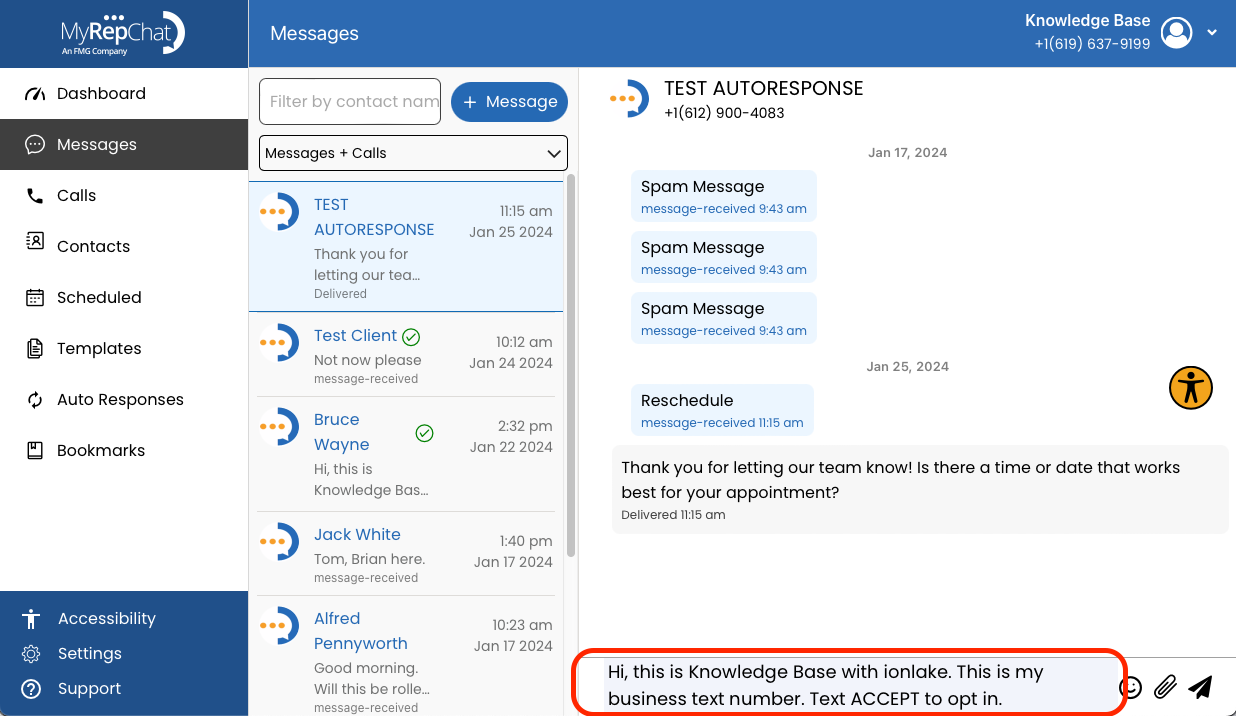
- Type your message in the text field at the bottom.
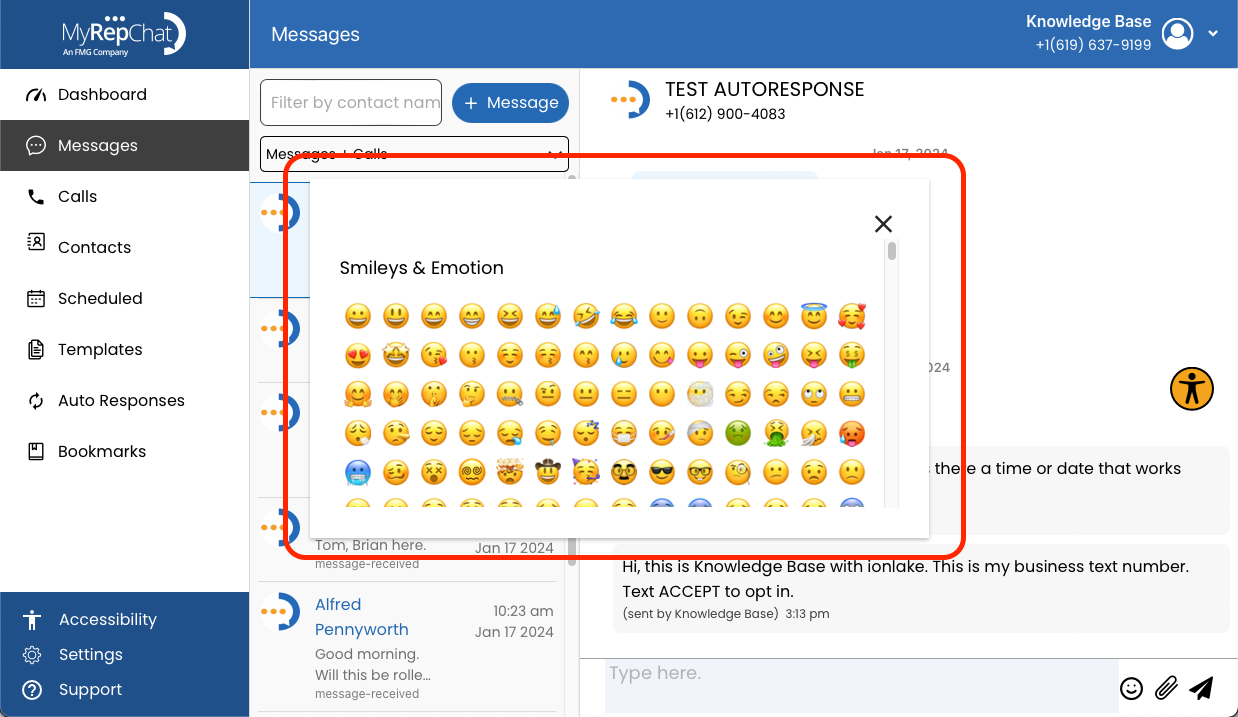
- Click the smiley face icon to open the emoji picker, then click an emoji to add it to your message.
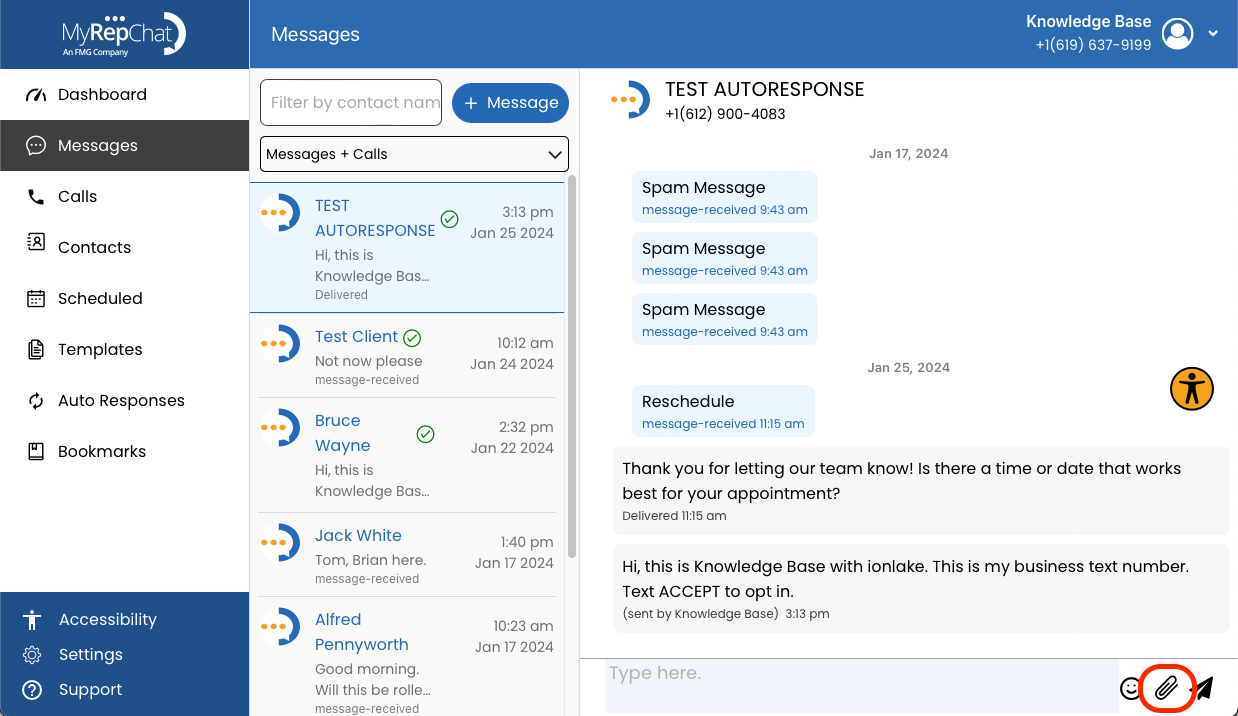
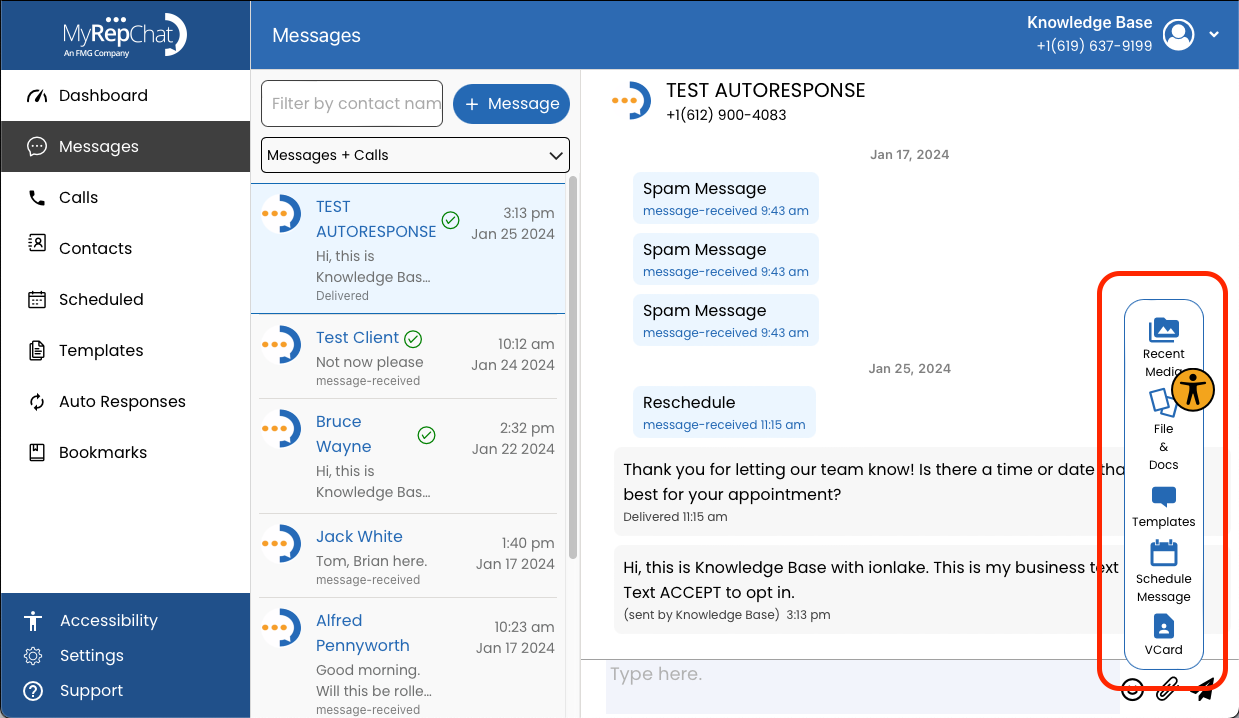
- Click the paperclip icon to add an attachment. You can choose from Recent Media, File & Docs, Templates, Schedule Meeting, or VCard.
- Click the paper airplane icon to send.