
When you first log into the MyRepChat mobile app (or log back in after being logged out), you'll be prompted to allow the app to access your phone's contacts. Granting access lets MyRepChat read your device's contacts, making it easy to search for and select them within the app — the quickest way to get your contacts into MyRepChat.
This article covers how to manually add and delete contacts.
How Do I Add a Contact From an Existing Text Conversation?
If you've already exchanged messages with a number that isn't yet saved as a contact, you can add it directly.
From the Messages screen:
- Tap the image icon next to a text from an unsaved number.
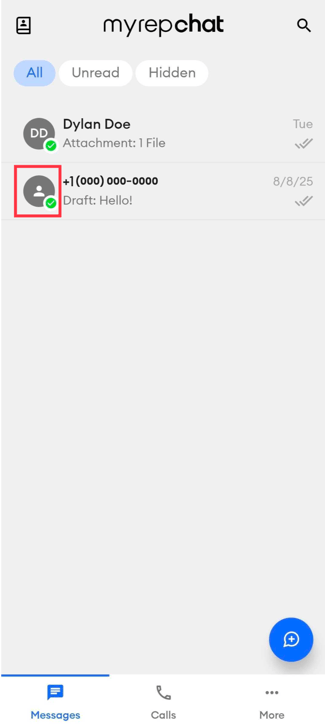
- Select Add in the top right corner.
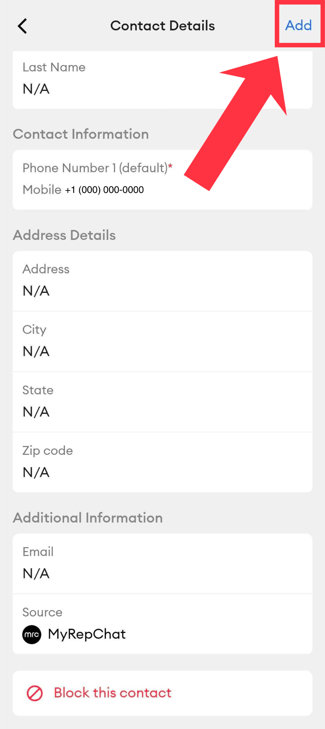
- Update the contact's details as needed, then save.
From the conversation screen itself:
- Tap the text message from the number.
- If the number isn't already a contact, you'll see an Add Contact option at the top of the conversation.
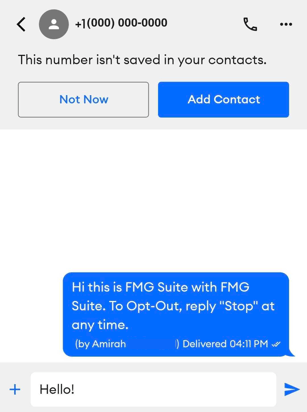
If you've been messaging a number that isn't yet a saved contact, the phone number appears as the default "First Name" until you edit and save the full contact details.
How Do I Add a New Contact From Scratch?
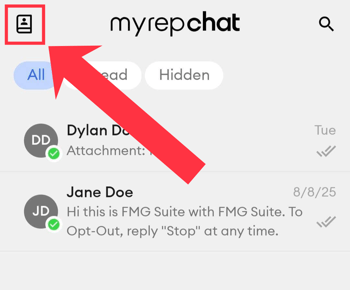
- On the Messages tab, tap the album icon in the top-left corner.
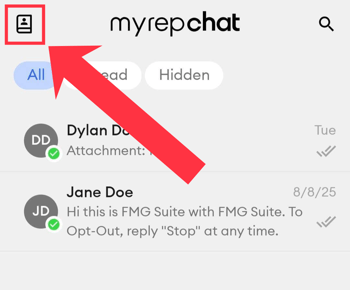
- Tap the + icon in the top-right corner of the contacts list.
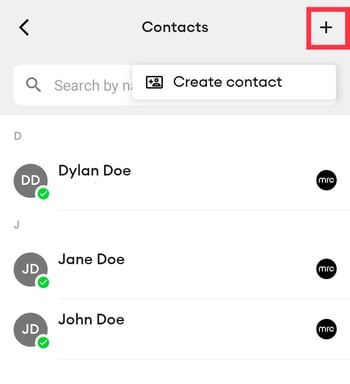
- Select Create Contact.
What Information Can I Add to a Contact?
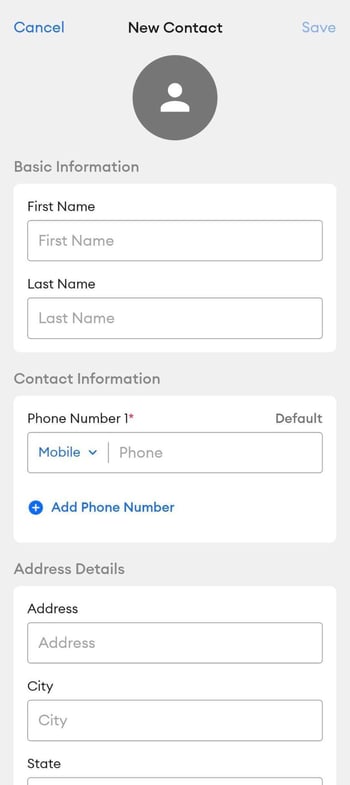
- Basic information: First Name, Last Name
- Contact information: Phone Number (required — you can add more than one per contact)
- Address details: Address, City, State, Zip Code
- Additional information: Email Address
How Do I Delete a Contact?
There are two ways to reach a contact's details page to delete them.
Only contacts can be deleted in MyRepChat — text messages cannot be deleted.
From the Messages or Calls tab:
- Find the contact in your Messages or Calls tab.
- Tap their image icon next to their name or number.
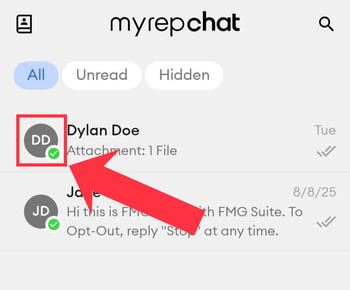
- You'll land on their contact details page.
- Scroll to the bottom and tap Delete.
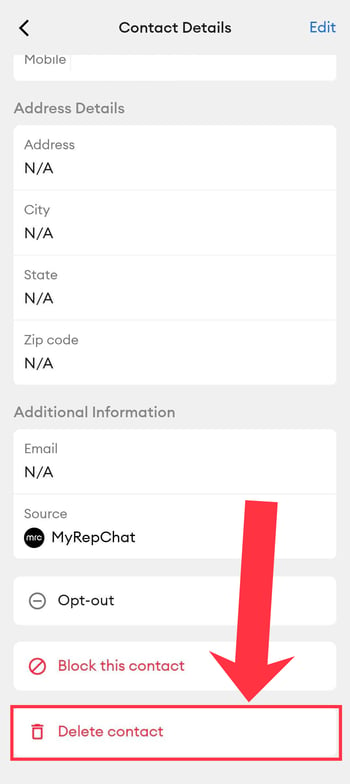
- Confirm the deletion when prompted.
From the Contacts list:
- Tap the Contacts album icon in the top-left corner of the Messages tab.
- Find and tap the contact you want to delete.
- Scroll to the bottom and tap Delete.
- Confirm the deletion when prompted.
If a contact is synced to a CRM, deleting them in MyRepChat won't remove them from your CRM — they can be re-imported at any time.