You can schedule a message to send at a later time instead of right away.
How Do I Schedule a Message?
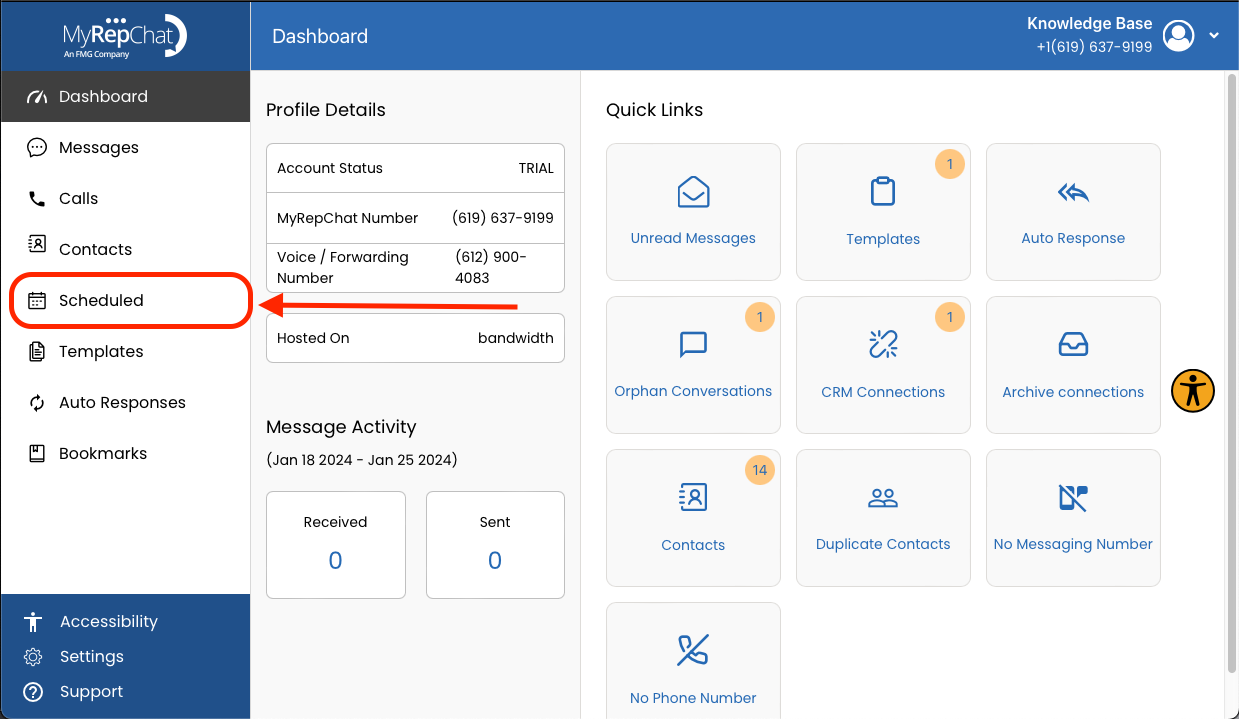
- In the menu on the left side of your Dashboard, click Scheduled.
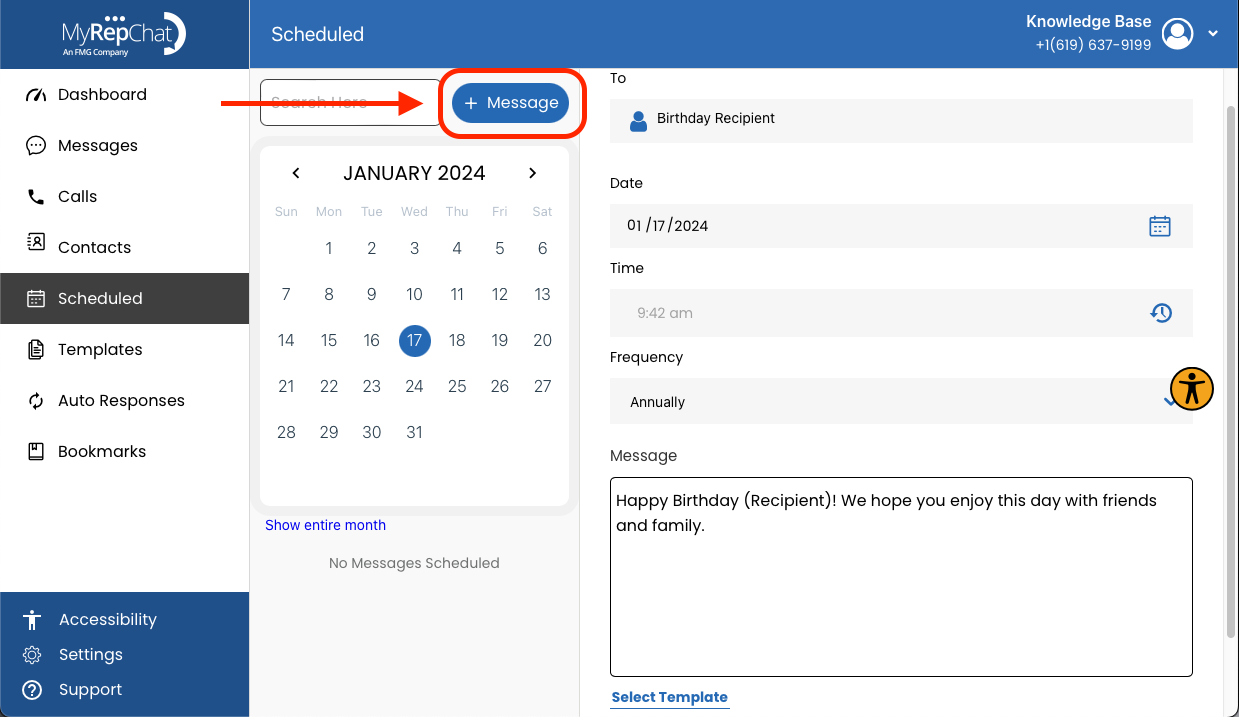
- Click + Message to create a new message.
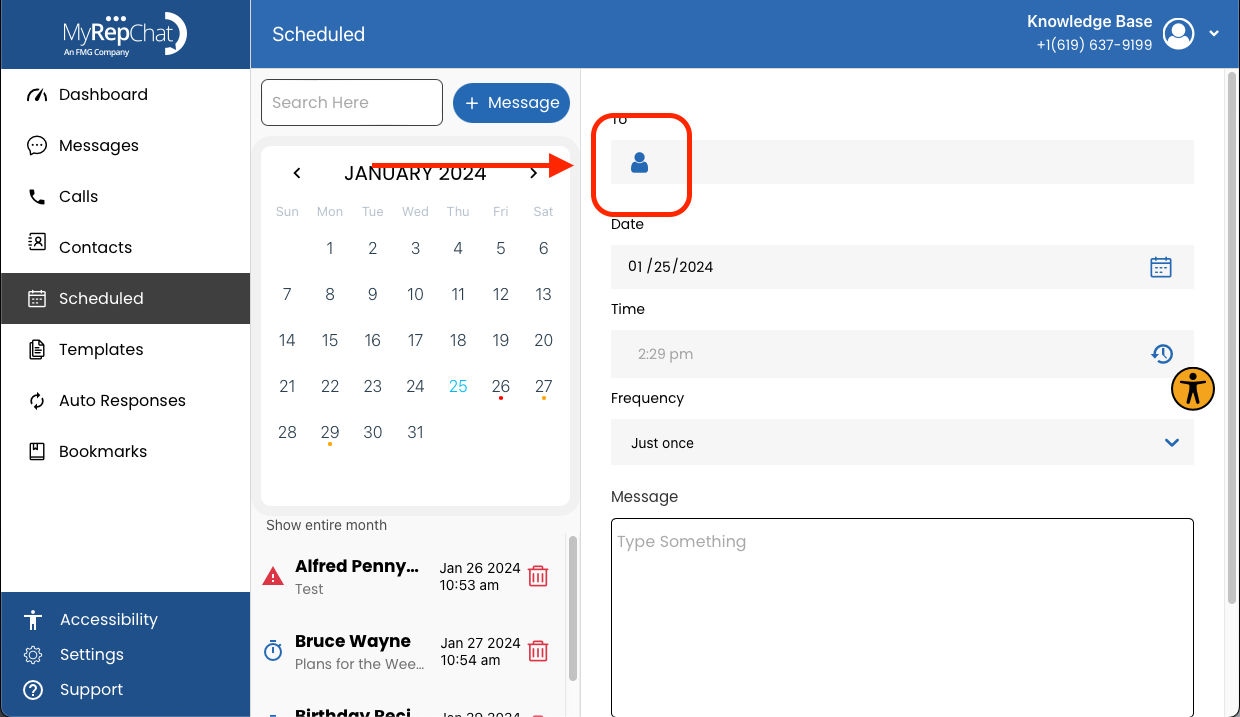
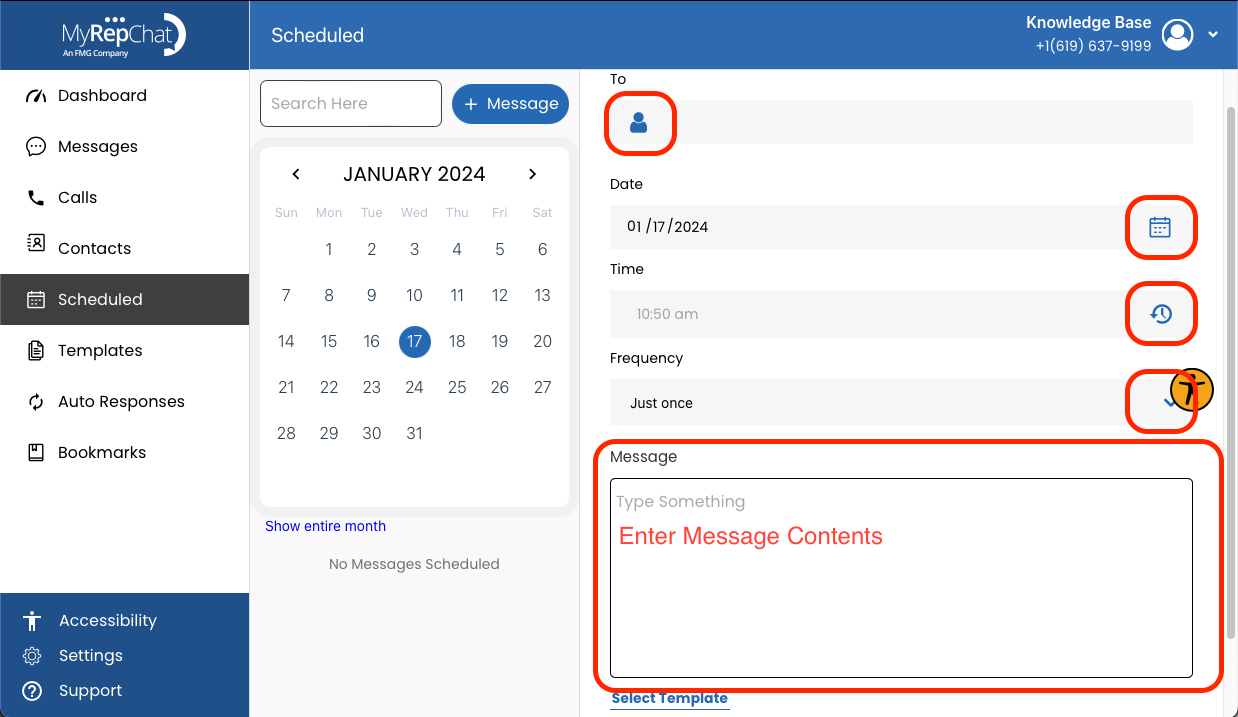
- Click the person icon in the To field.
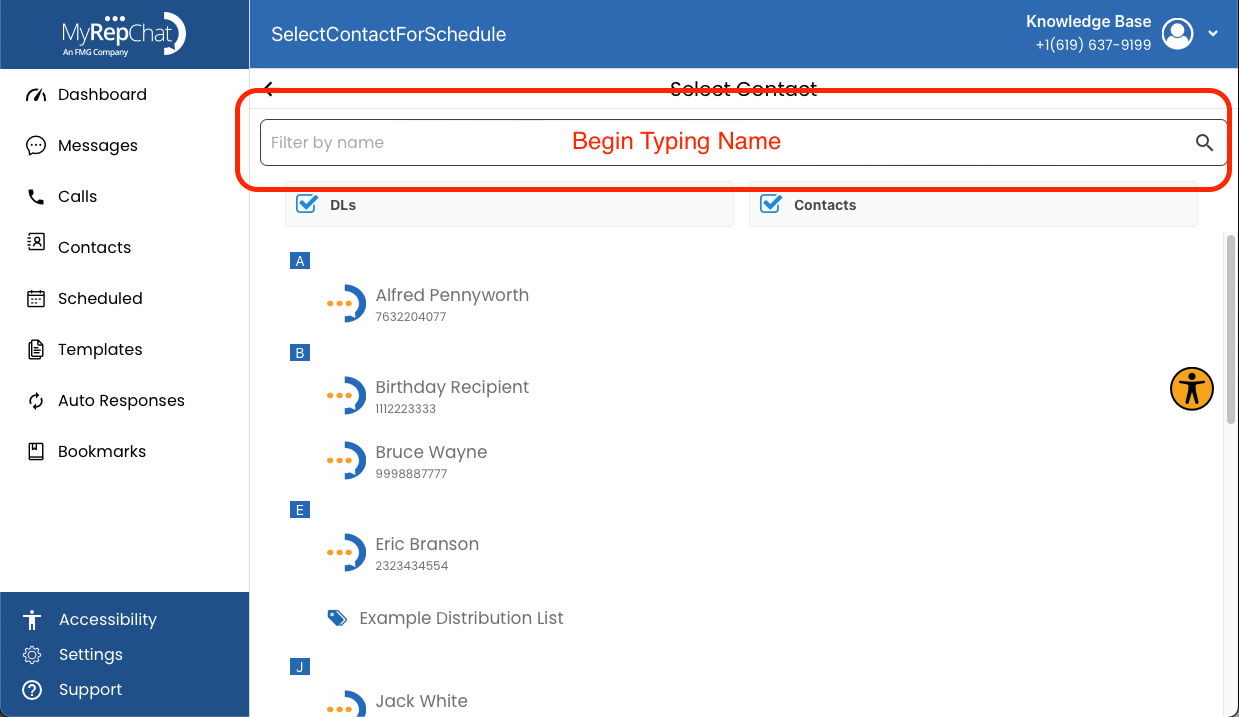
- Start typing the contact's name in the search bar.
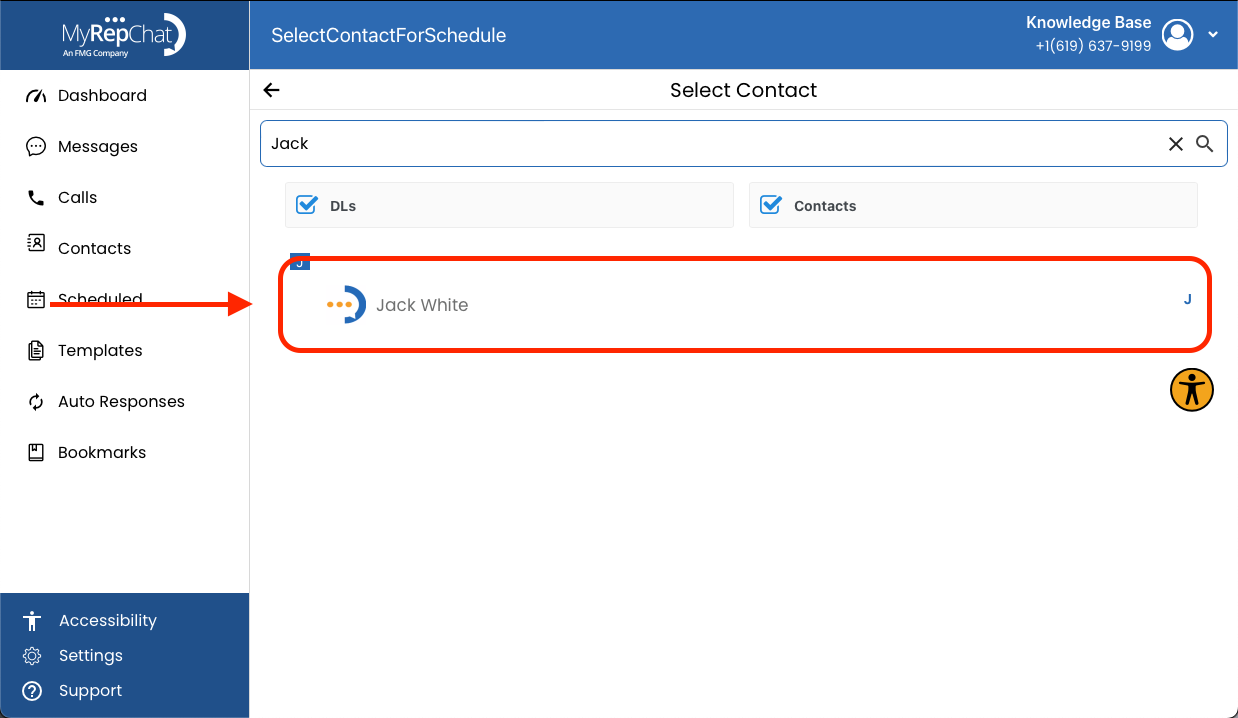
- Find and click the correct contact in the list.
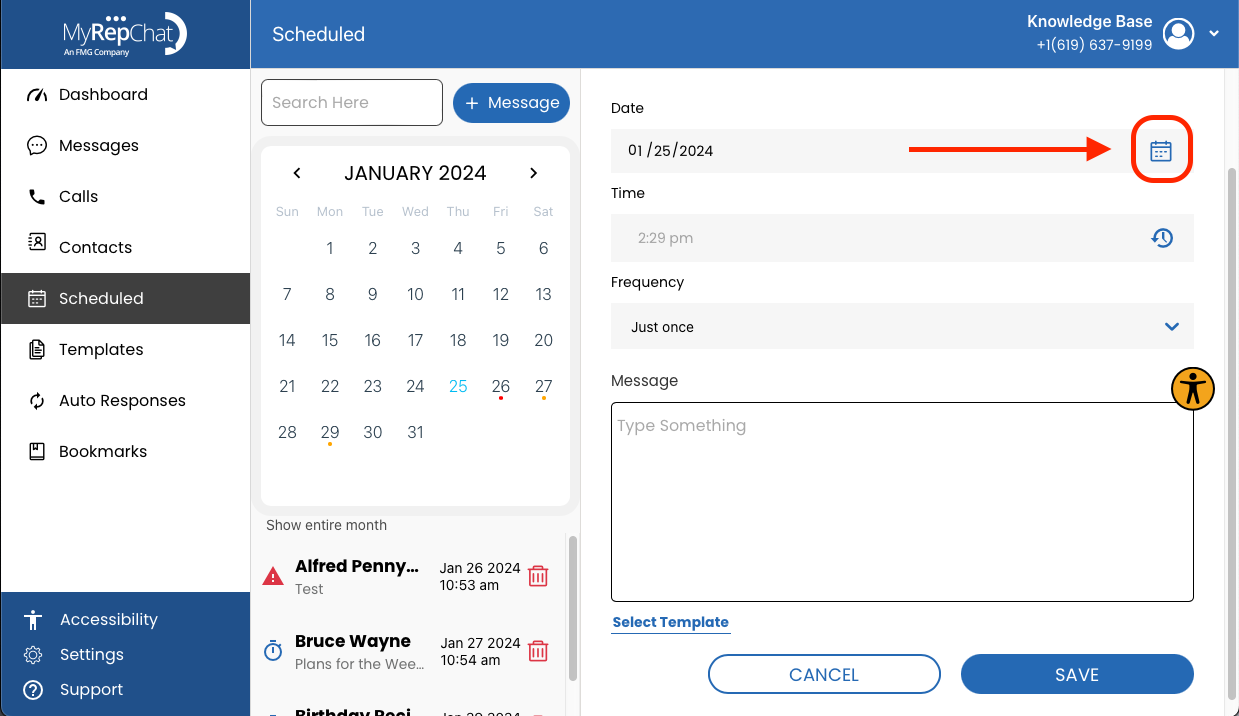
- Click the calendar icon to open the calendar view.
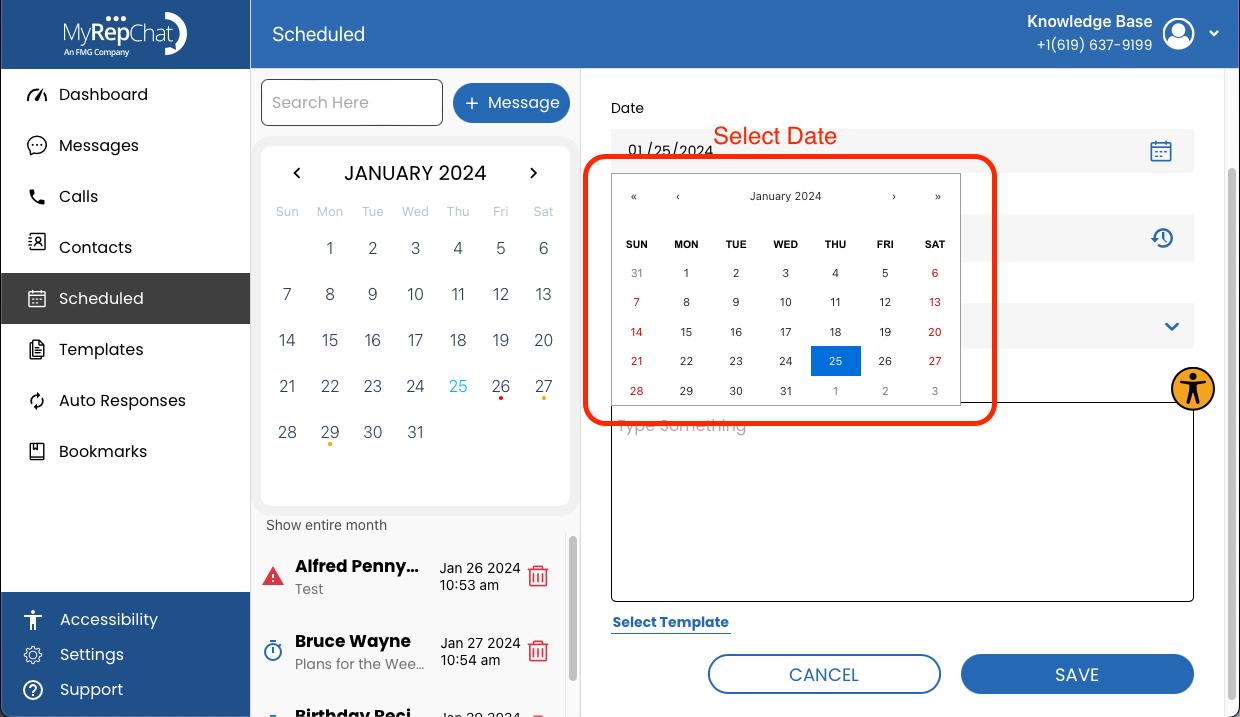
- Click the date you'd like to schedule the message for.
- Click the clock icon in the Time field.
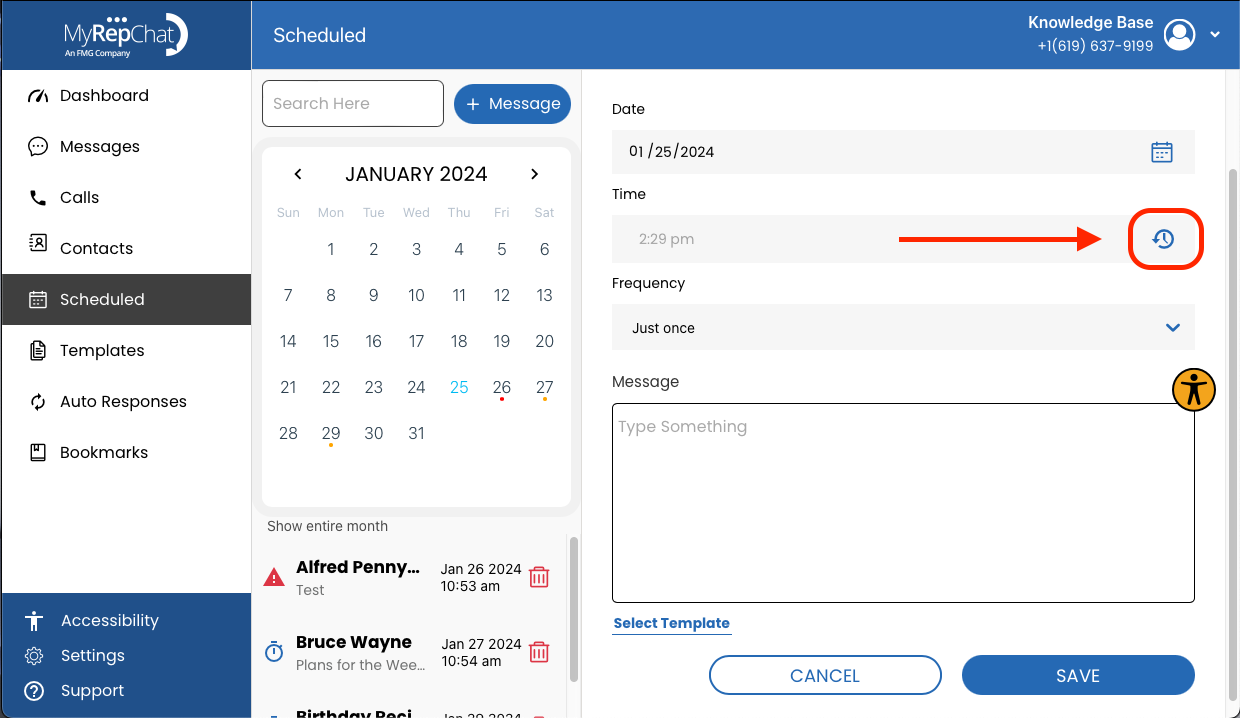
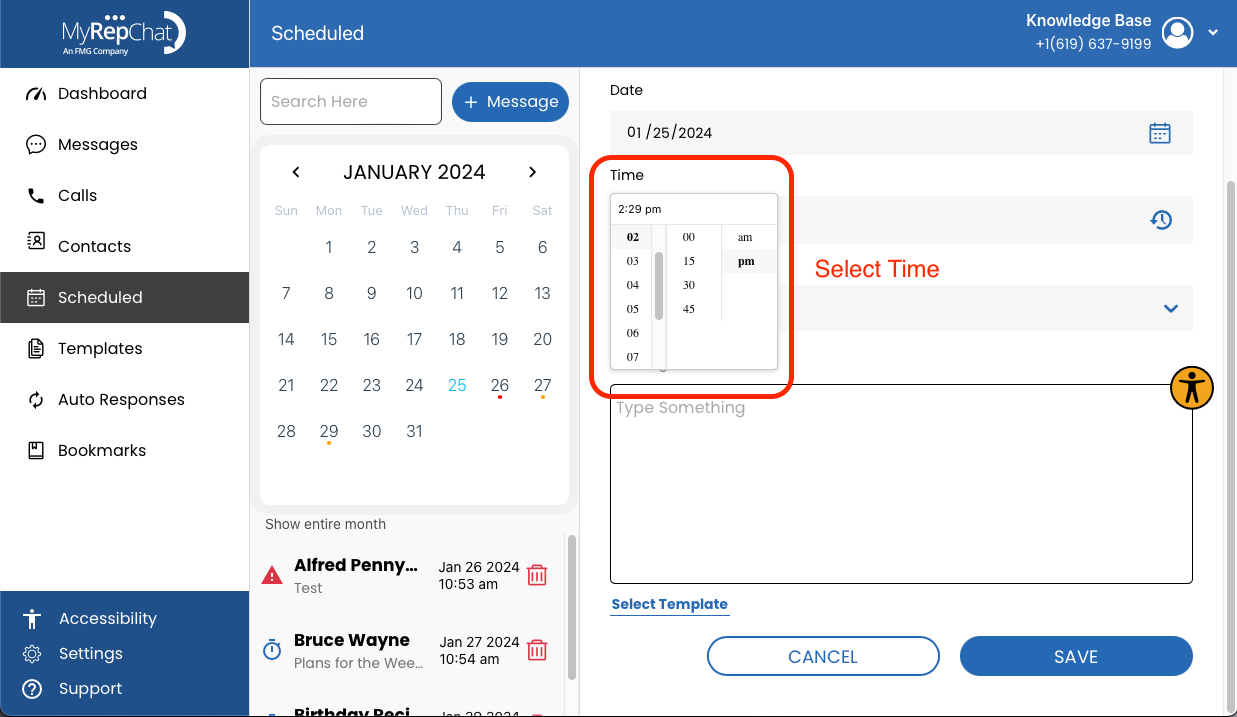
- Select the time you'd like the message sent.
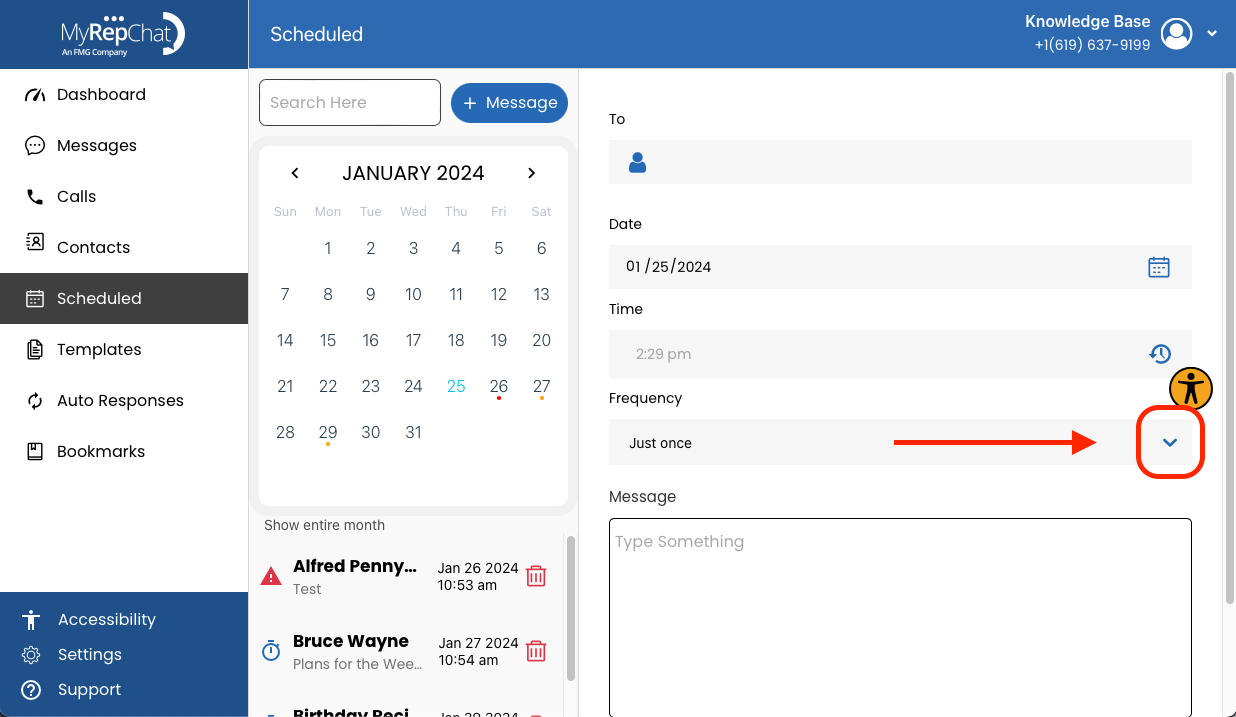
- If you'd like the message to repeat, click the dropdown arrow in the Frequency field.
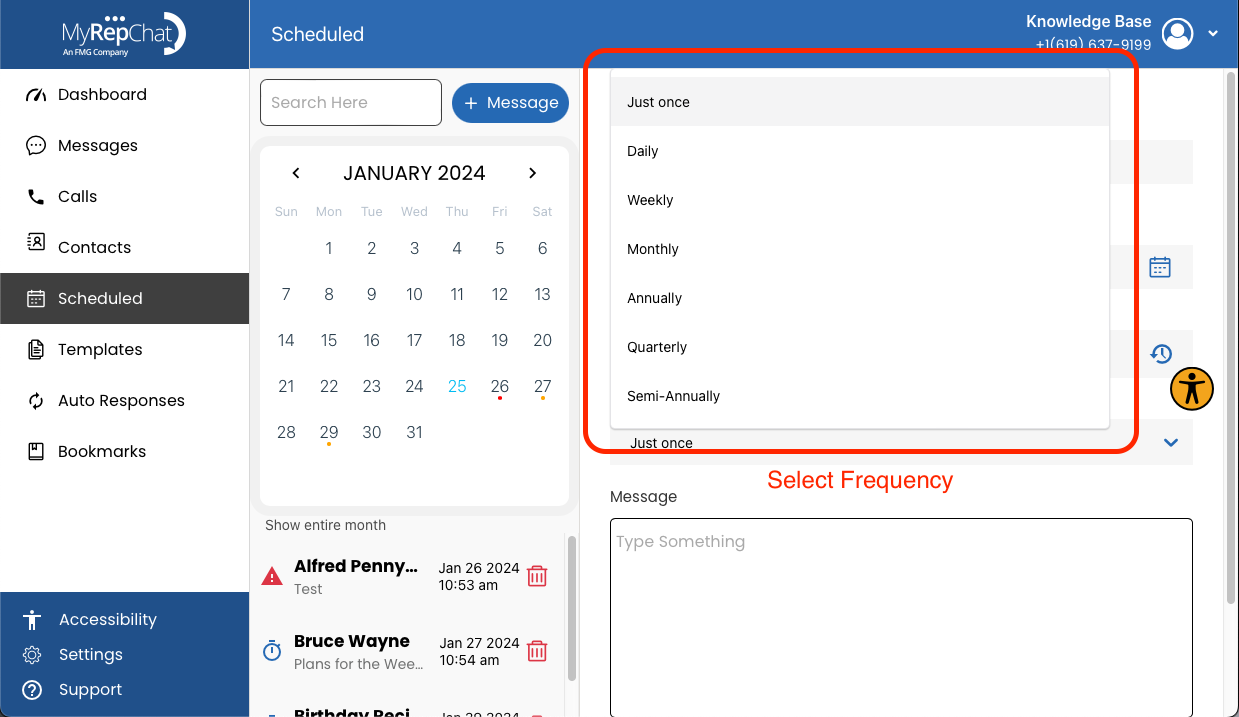
- Select how often it should send: Just Once, Daily, Weekly, Monthly, Quarterly, Semi-Annually, or Annually.
- Type your message in the Message field.
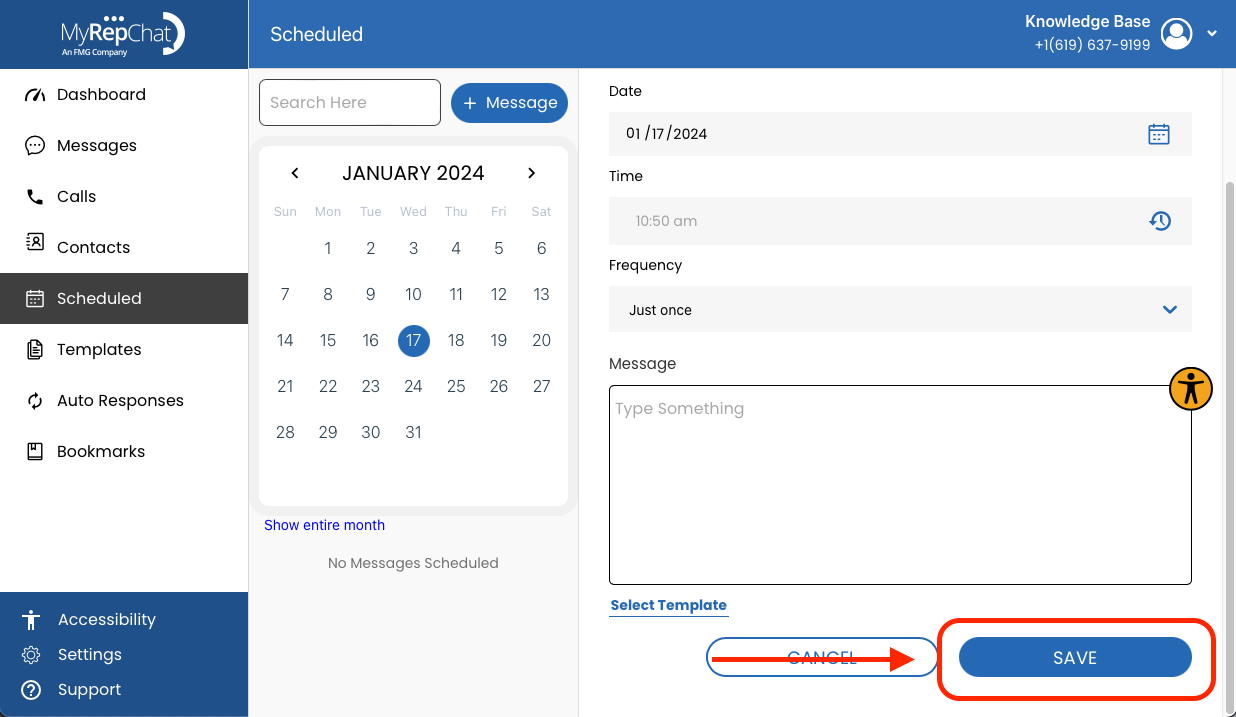
- Click Save in the bottom right.