
If you pay for your own MyRepChat subscription — or for add-ons like Voice or Archiving — you can access the Subscription Management screen from Settings > Profile in the desktop app.
The Subscription Management screen is not accessible from the mobile app.
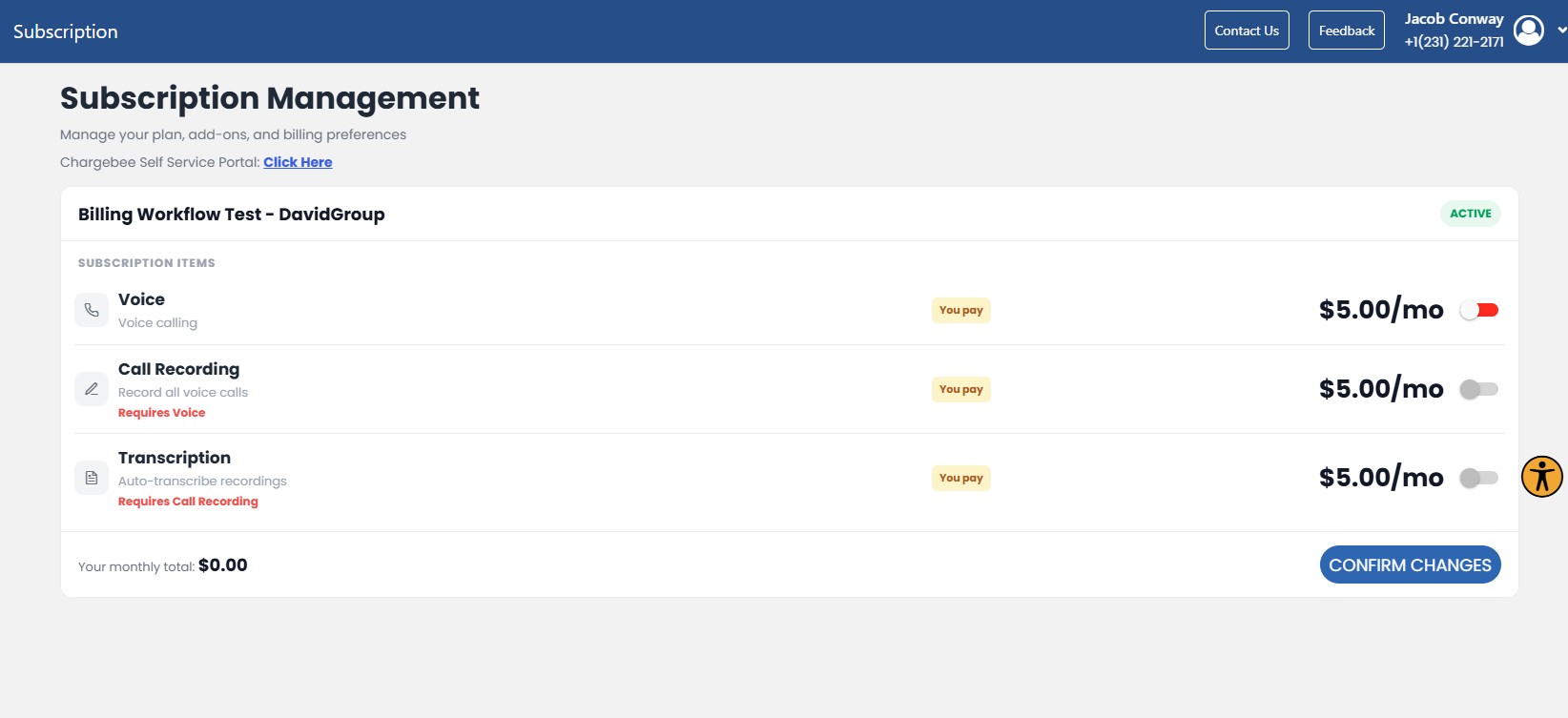
What Can I Do on the Subscription Management Screen?
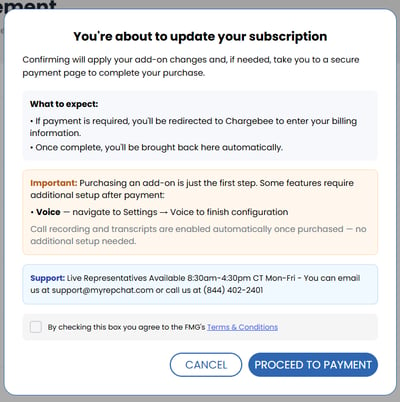
The Subscription Management page shows all of your active and inactive MyRepChat products and add-ons. Use the toggle next to each line item to purchase or suspend a service. Toggling a service on takes you to the Chargebee billing portal — where your billing account is managed — to complete the purchase.
Some add-ons require additional configuration after purchase. Be sure to read the notices in the MyRepChat desktop app after completing your transaction so you can start using your add-ons without delay.
How Do I Access the Chargebee Billing Portal Directly?
- From the desktop app, go to the Subscription Management screen.
- Click the hyperlink at the top of the page to open the Chargebee billing portal.
What Can I Do in the Chargebee Billing Portal?
- Modify your billing address.
- Update your billing method, such as changing credit card information.
- Access and download invoices from July 31, 2026 onward.