
What Are the CSV File Requirements?
The first line of your file must be a header row containing field identifiers. The available fields you can import are:
- ID (Internal ID in MyRepChat; you should not associate external ID fields with this)
- First Name
- Last Name
- Address
- City
- State
- Zip
- Mobile (numbers only)
- Phone (numbers only)
- Distribution List (Separated with ‘|’)
- Source (If included MUST be one of the following: redtail, smartoffice, salesforce, hubspot, capsule, lessannoying, office, or wealthbox).
- Source ID (External ID assigned to a contact from your CRM; you should associate external ID fields if you want contacts to link to CRM)
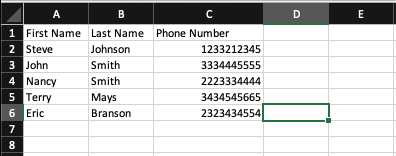
Don't include commas within any field value — since CSV files are comma-delimited, a stray comma will create an unwanted extra column and misalign your data.
If you want your CSV upload to link to your CRM, you must include both the Source and Source ID fields.
Each row is evaluated individually during import: if MyRepChat finds a matching existing contact, it updates that record with the CSV data. If no match is found, a new contact is created.
How Do I Upload a CSV File?
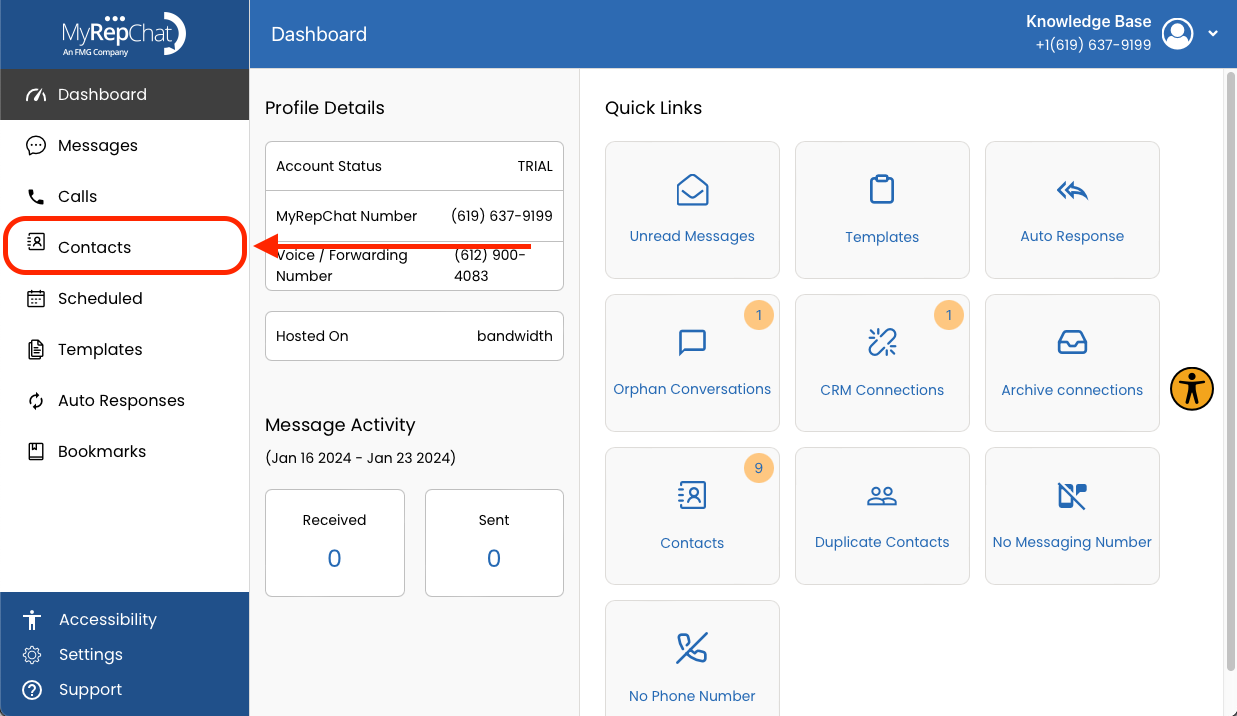
- Go to MyRepChat and click Contacts.
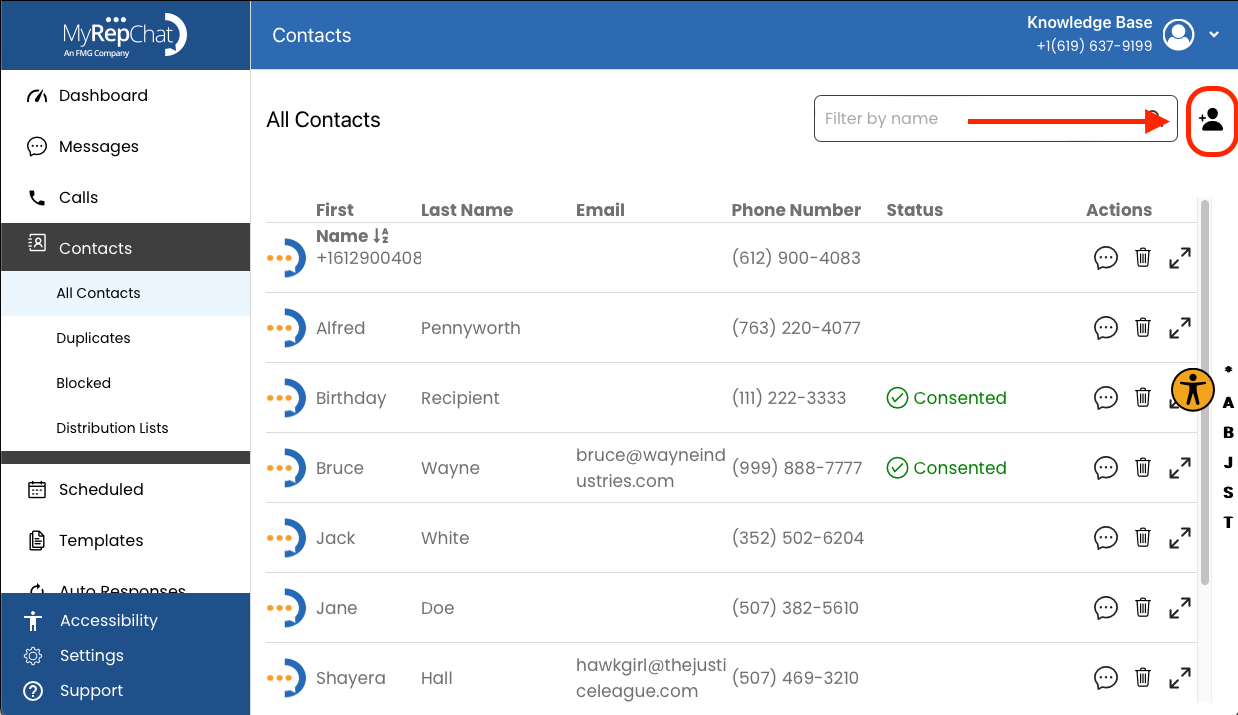
- Click the person icon in the top right corner.
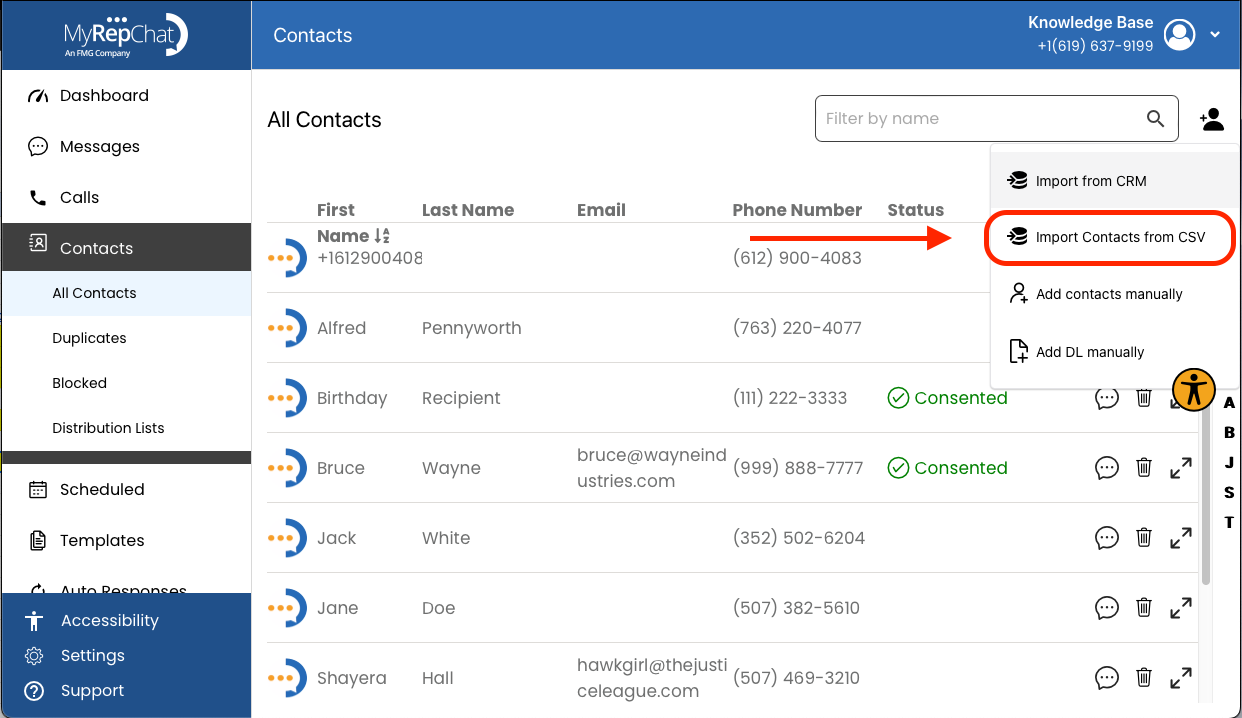
- Select Import contacts from CSV.
- Click Choose File to select your file.
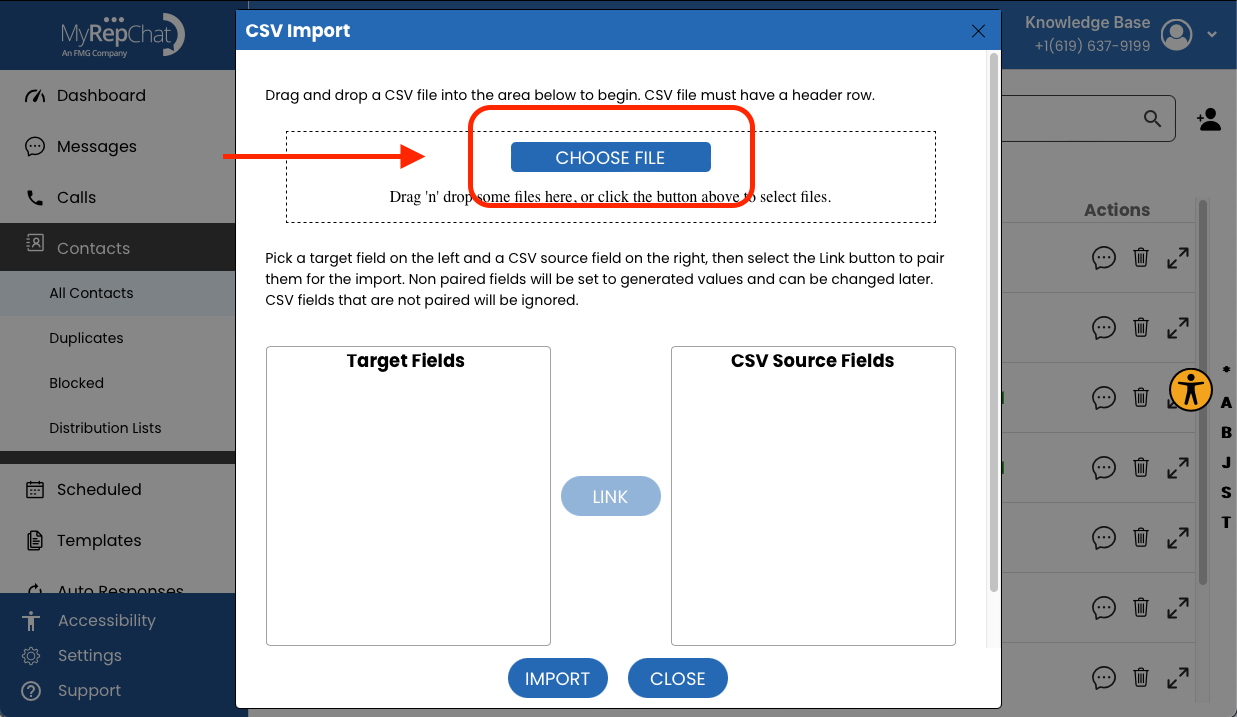
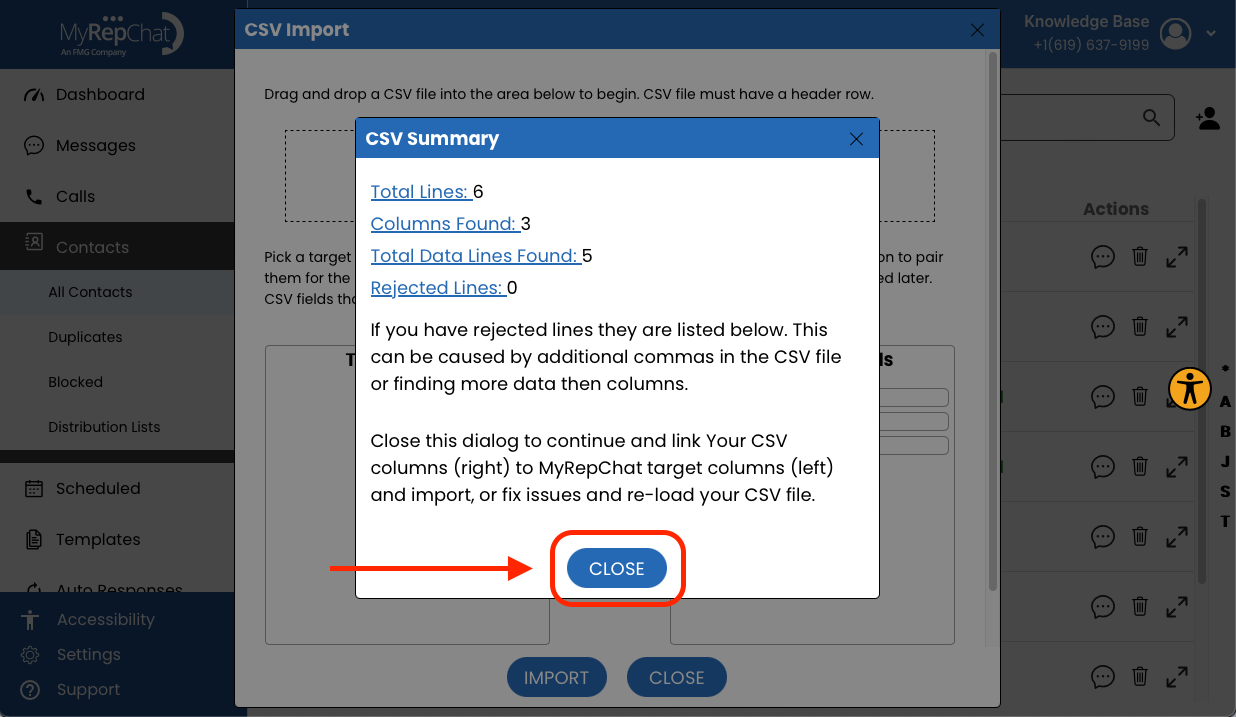
- Once uploaded, MyRepChat parses your CSV header and displays your Contact Fields alongside your CSV fields. Any "trouble rows" needing review will be flagged here.
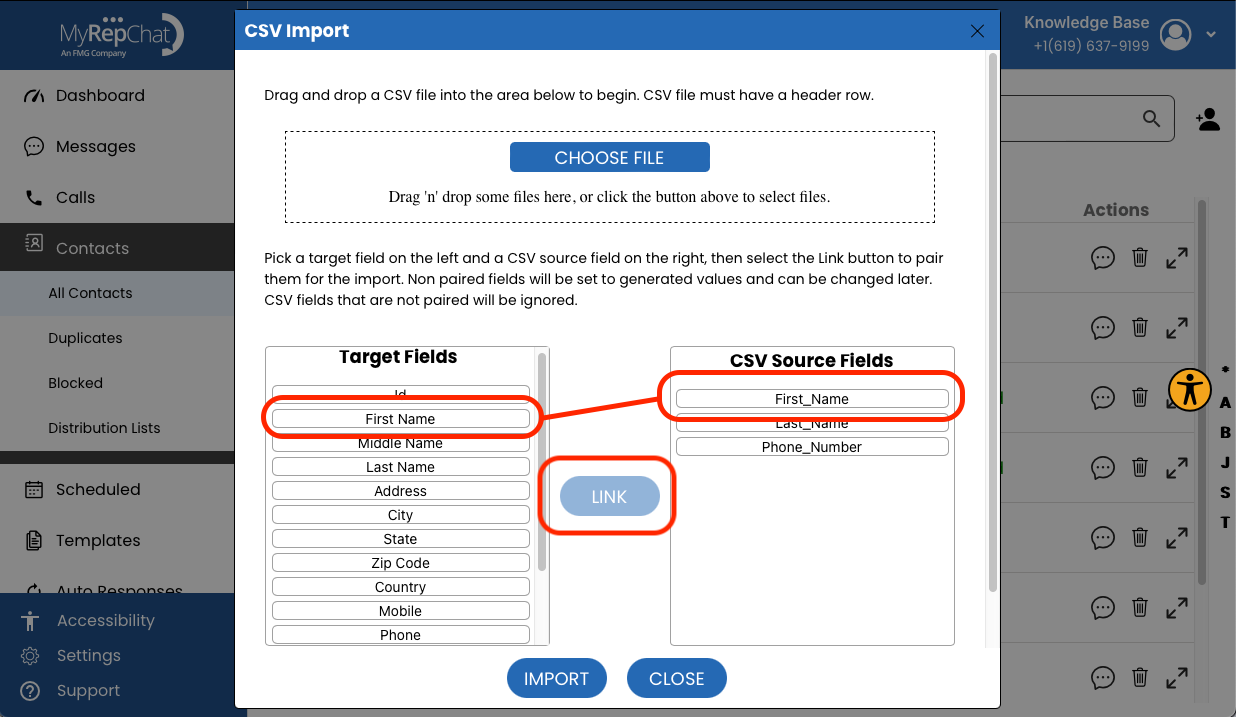
- Link each Contact Field to its matching CSV field: select a Contact Field, then select the matching CSV field (it highlights red), then click the link button between them to connect them (the highlight turns green). Repeat for each field you want to map.
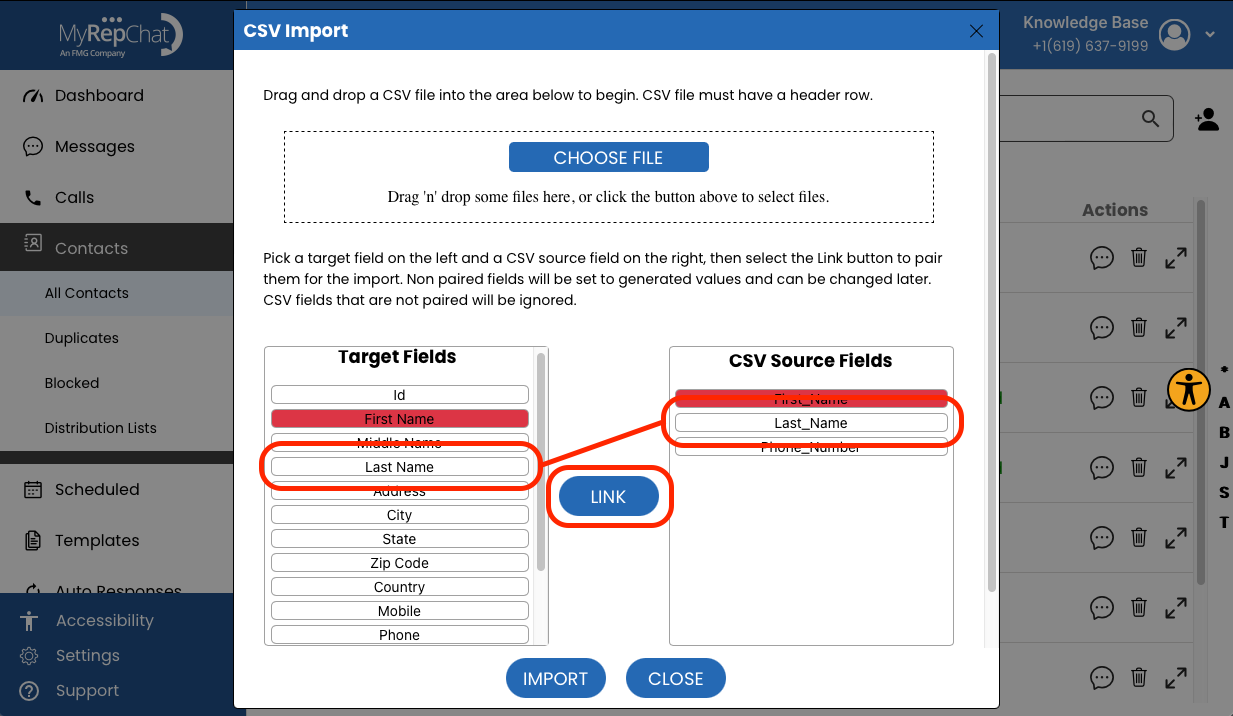
- Once linked, selecting either field in a pair highlights both in red to show they're associated. To unlink them, click the link button again.
- Click Import to start. When finished, a message in the lower-left corner shows how many contacts were added and updated. If there's an error in your CSV, the message will specify which line contains it.
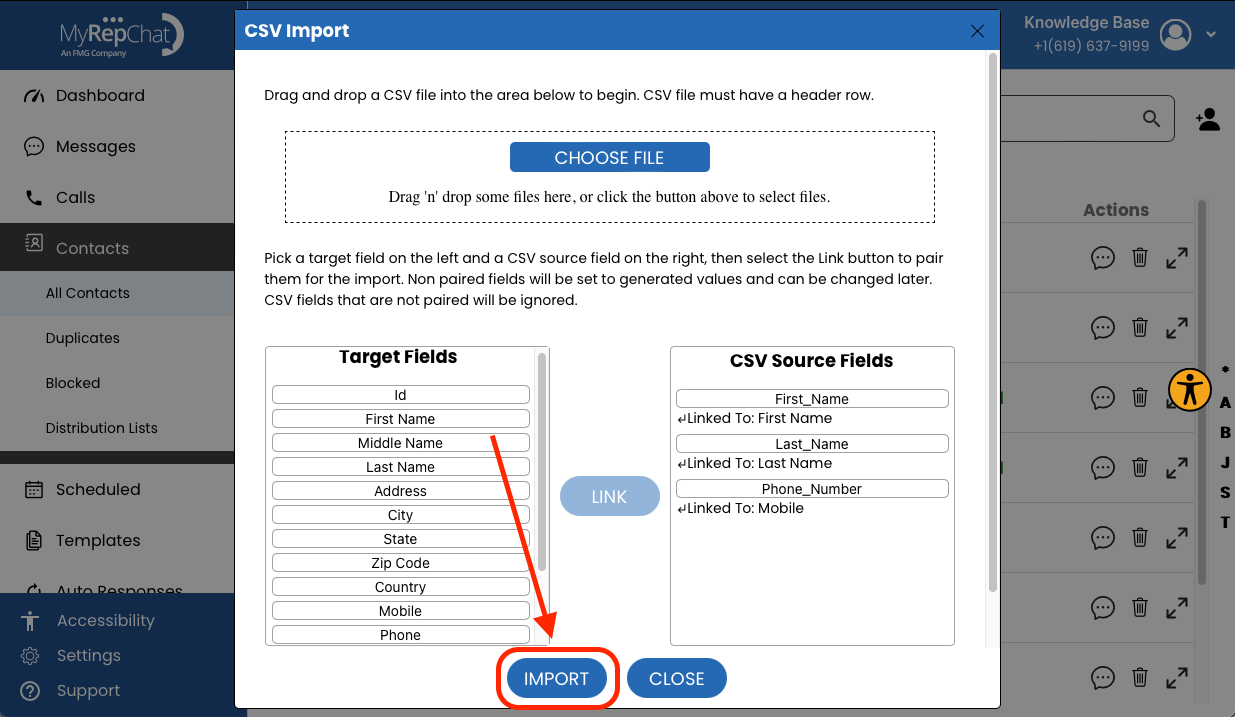
Once the import completes, your new and updated contacts appear in your contacts list. Close the dialog box when you're done.
Your file must be a plain-text file with a .csv extension. Excel files (.xls) are not supported.
What Else Should I Know Before Importing?
- MyRepChat's internal ID field is different from any ID your CRM or previous database may have used. Don't map an external ID to this field.
- The Source ID may come directly from your CRM export, or may need to be built from a combination of CRM fields — test this before running your full import.
- After importing, confirm the link worked correctly by checking that notes actually appear in your CRM's contact notes — the CRM logo showing next to a contact's name in MyRepChat is not sufficient confirmation on its own.
Make sure any CSV field containing mobile numbers is mapped to the Mobile column, not Phone. Mapping it to Phone instead means MyRepChat won't recognize the number for messaging, and the contact will show as "No Messaging."