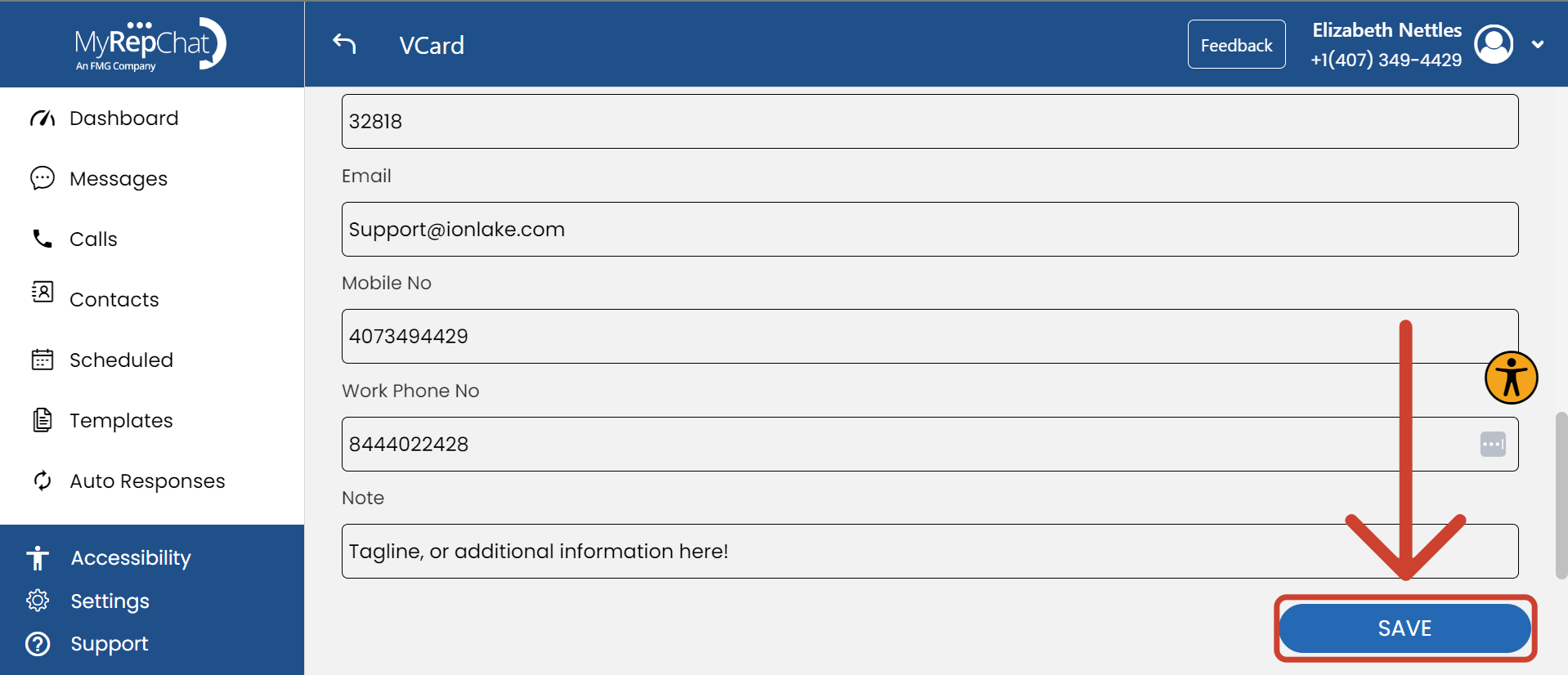
A vCard is a virtual business card that makes your contact information easily accessible to you and your contacts.
Some broker-dealers or groups may require approval of vCard changes. If this applies to you, your changes won't appear until approved by your group administrator.
Do not use colons (:) or semicolons (;) in any vCard field — these characters are used as field separators and will break the vCard.
You must set up your vCard before you can send it, even if some fields were pre-filled during your initial account setup.
How Do I Set Up or Edit My vCard?
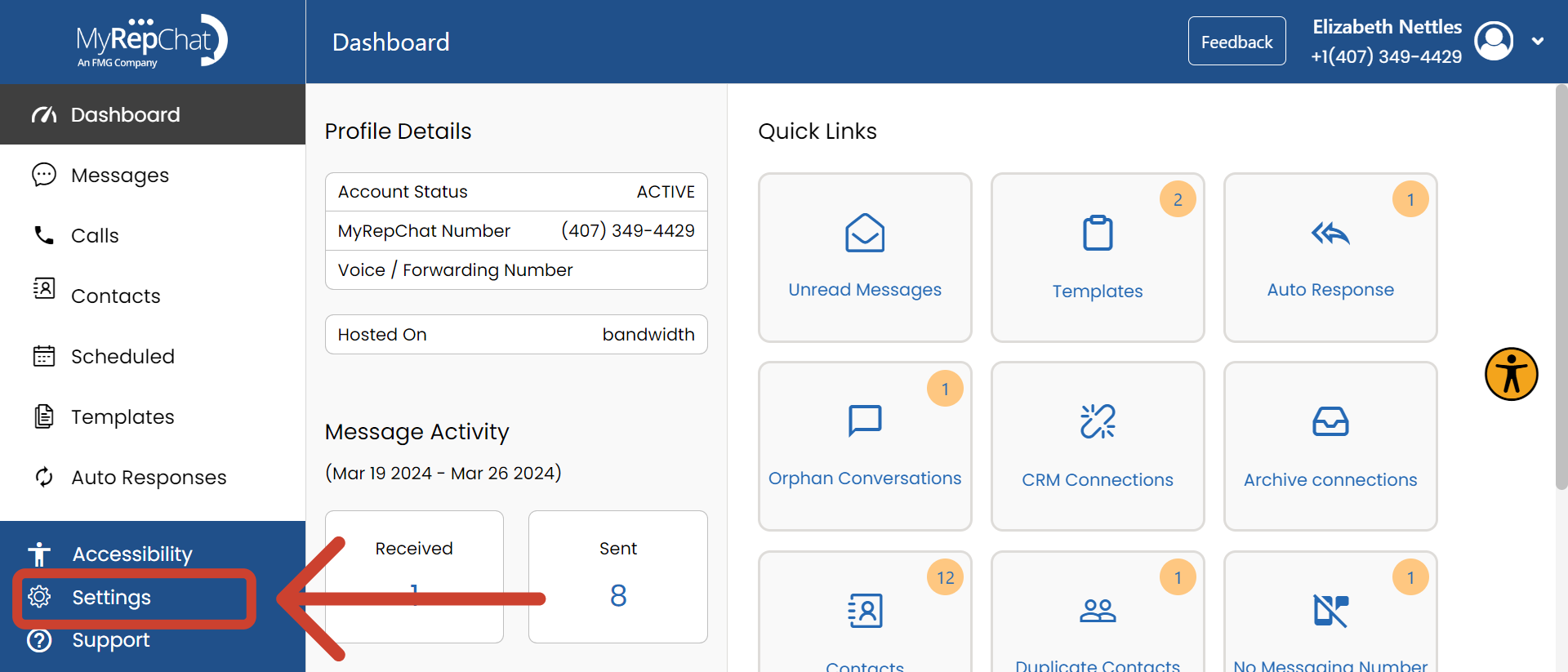
- In the menu on the left side of your Dashboard, click Settings.
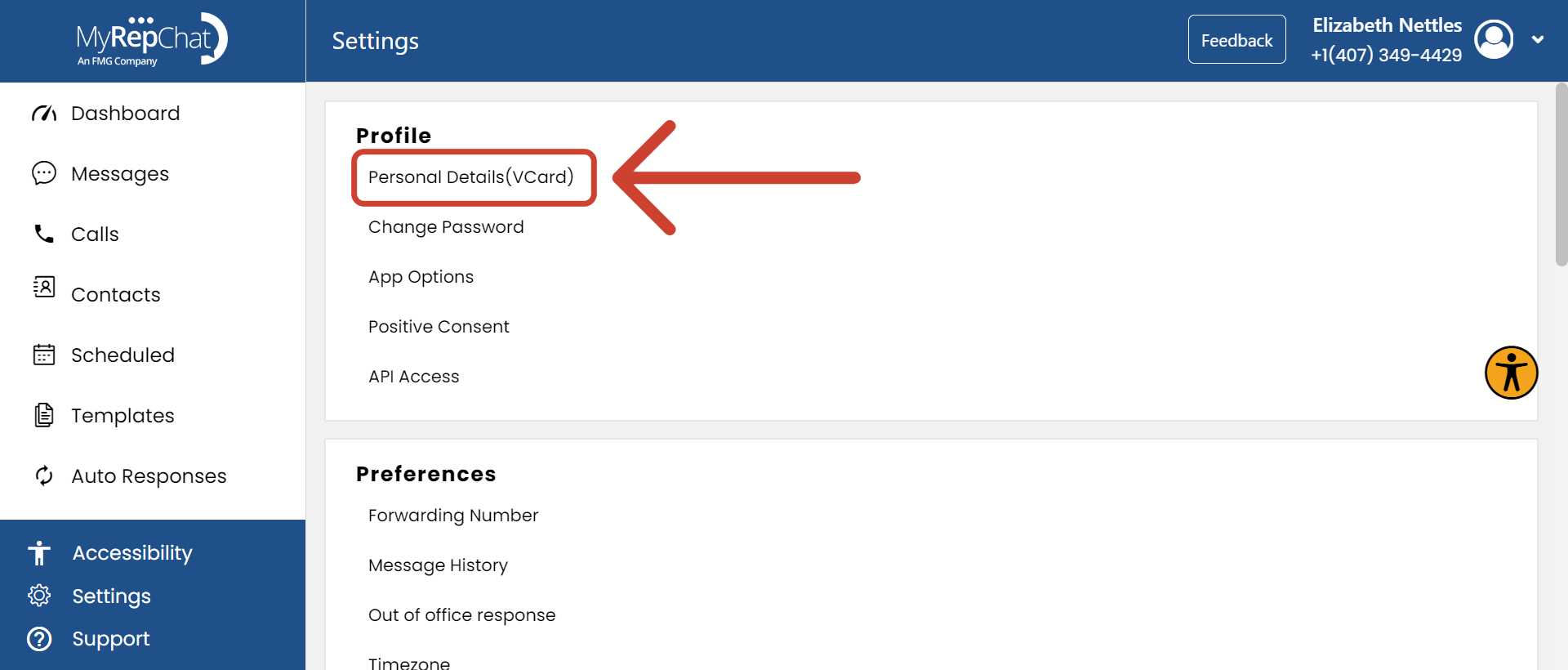
- In the Profile section, click Personal Details (vCard).
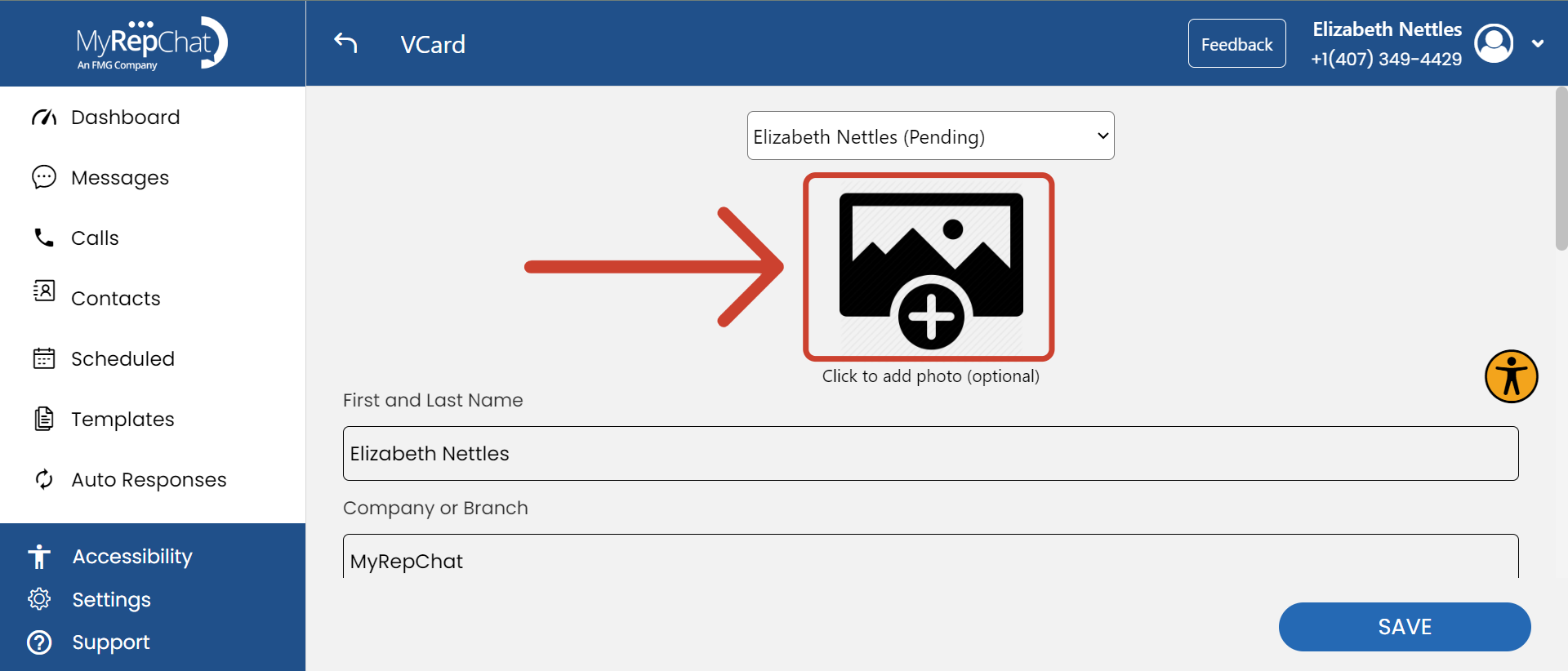
- Click the image+ icon to add a contact photo.
- Click Choose From Library to open your computer's files.
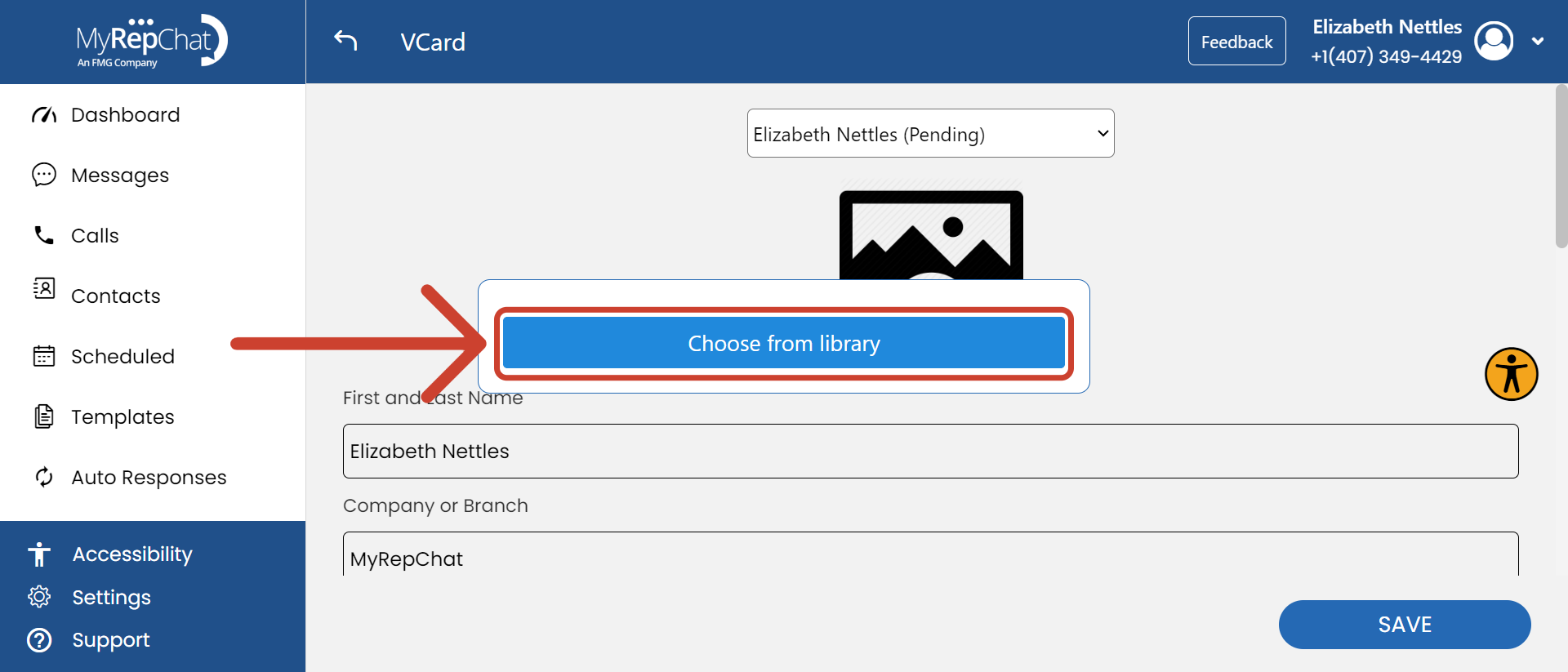
- Select the image you want to upload.
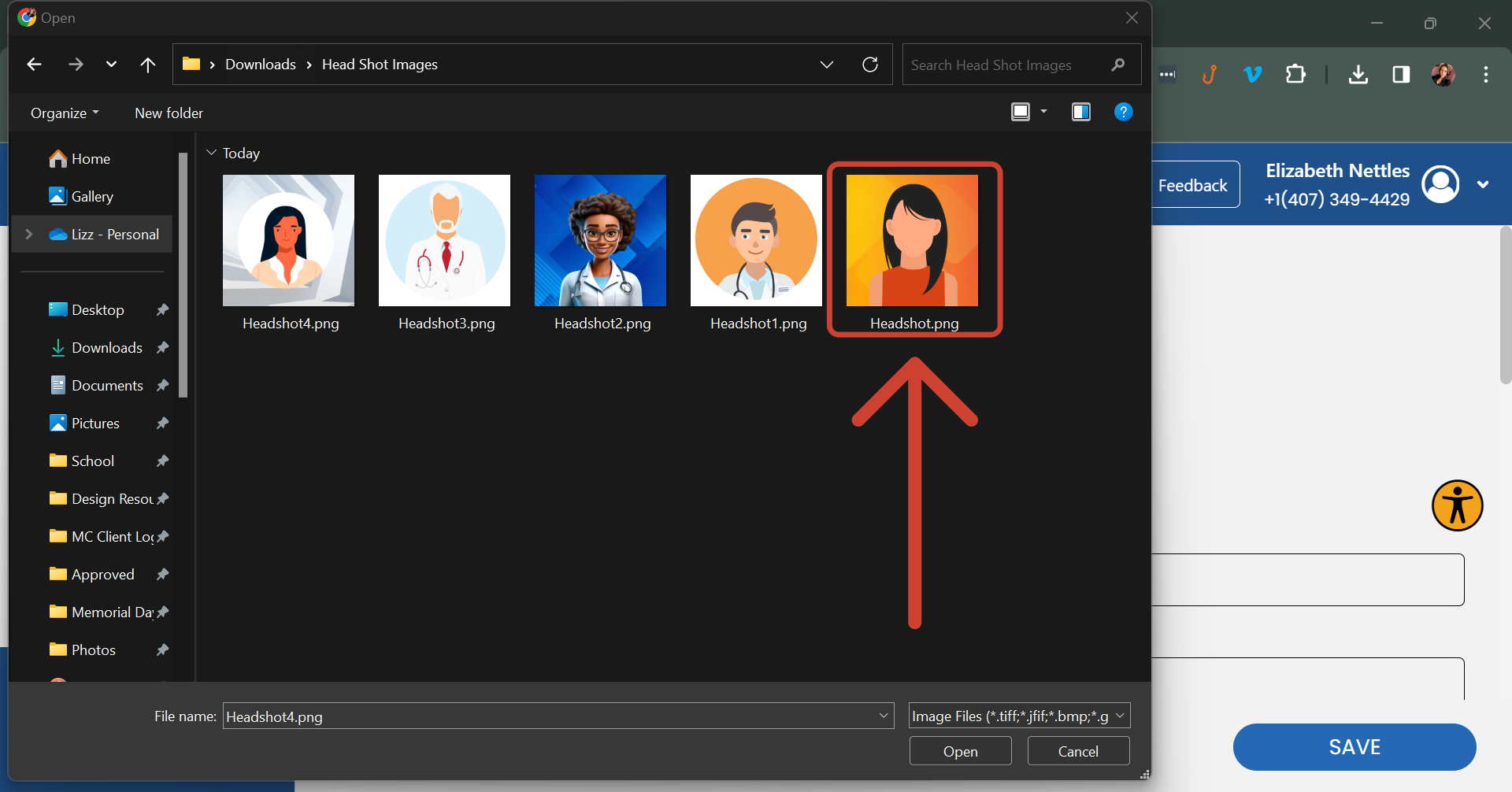
- Click Open to upload the image to your vCard.
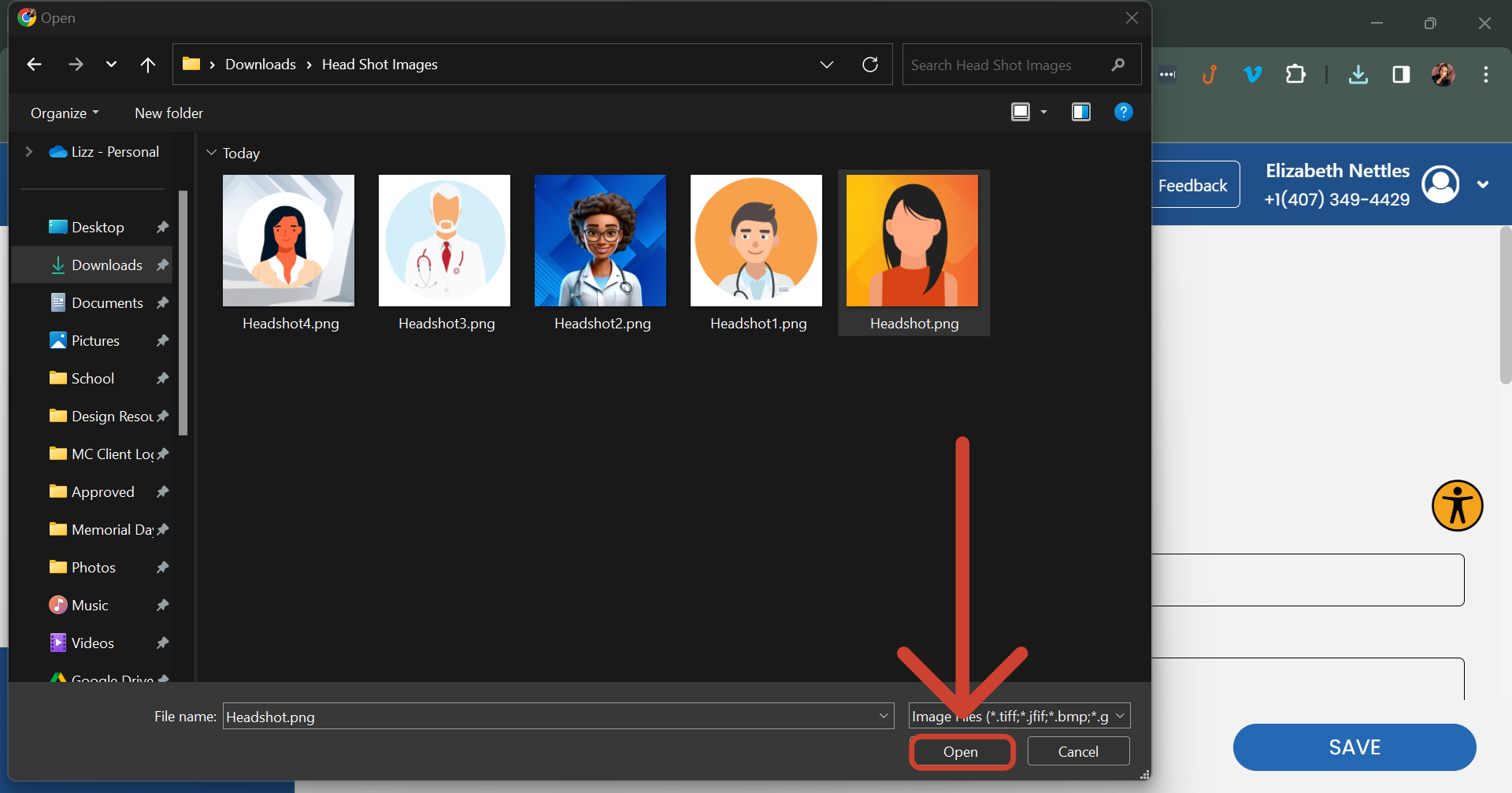
- Enter your first and last name in the First and Last Name field.
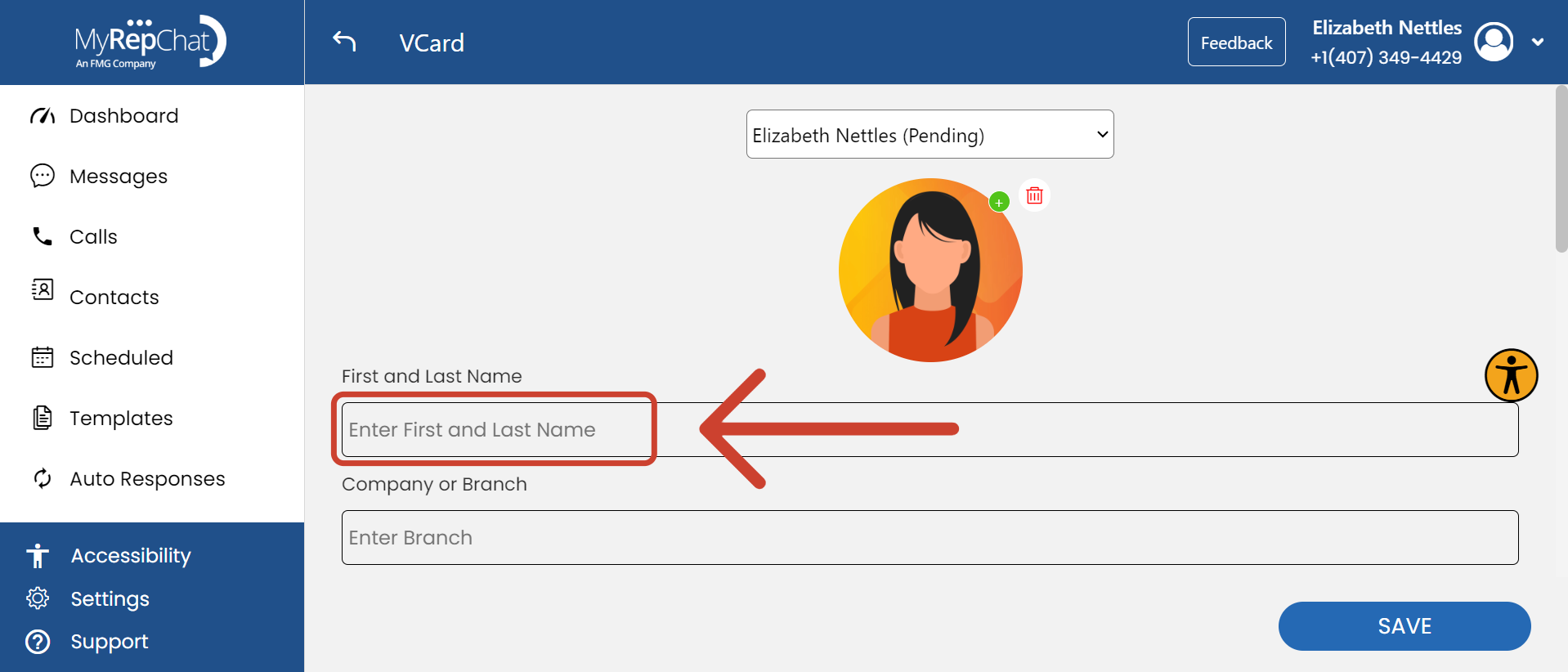
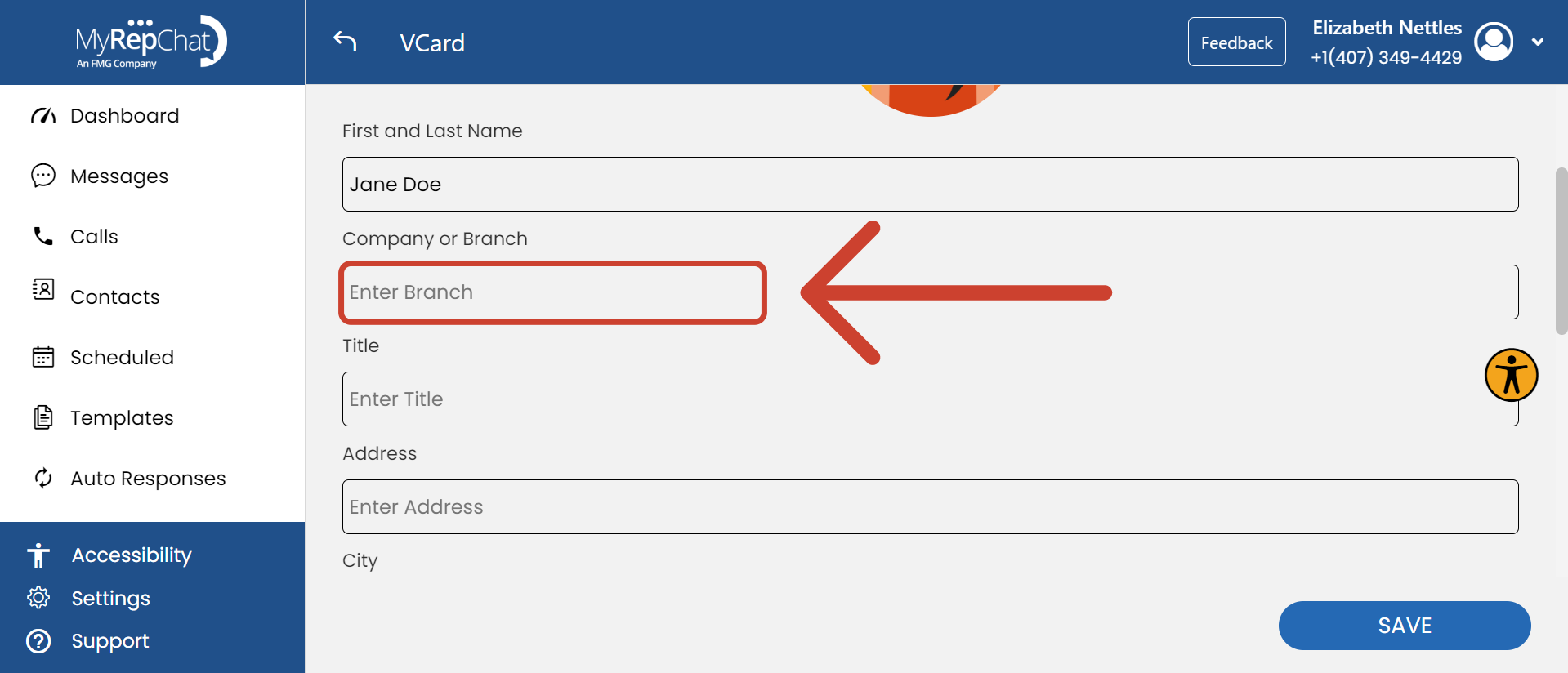
- Enter your company or branch name in the Company or Branch field.
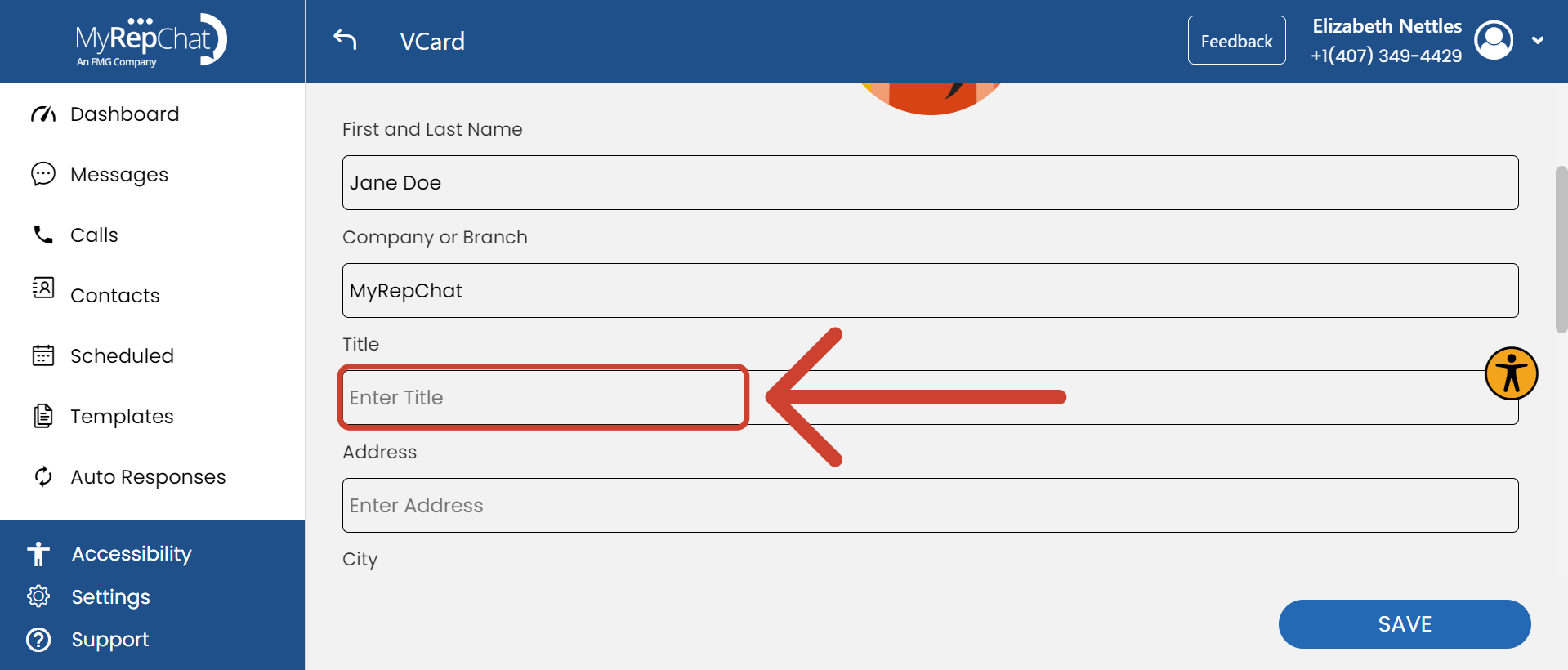
- Enter your title in the Title field.
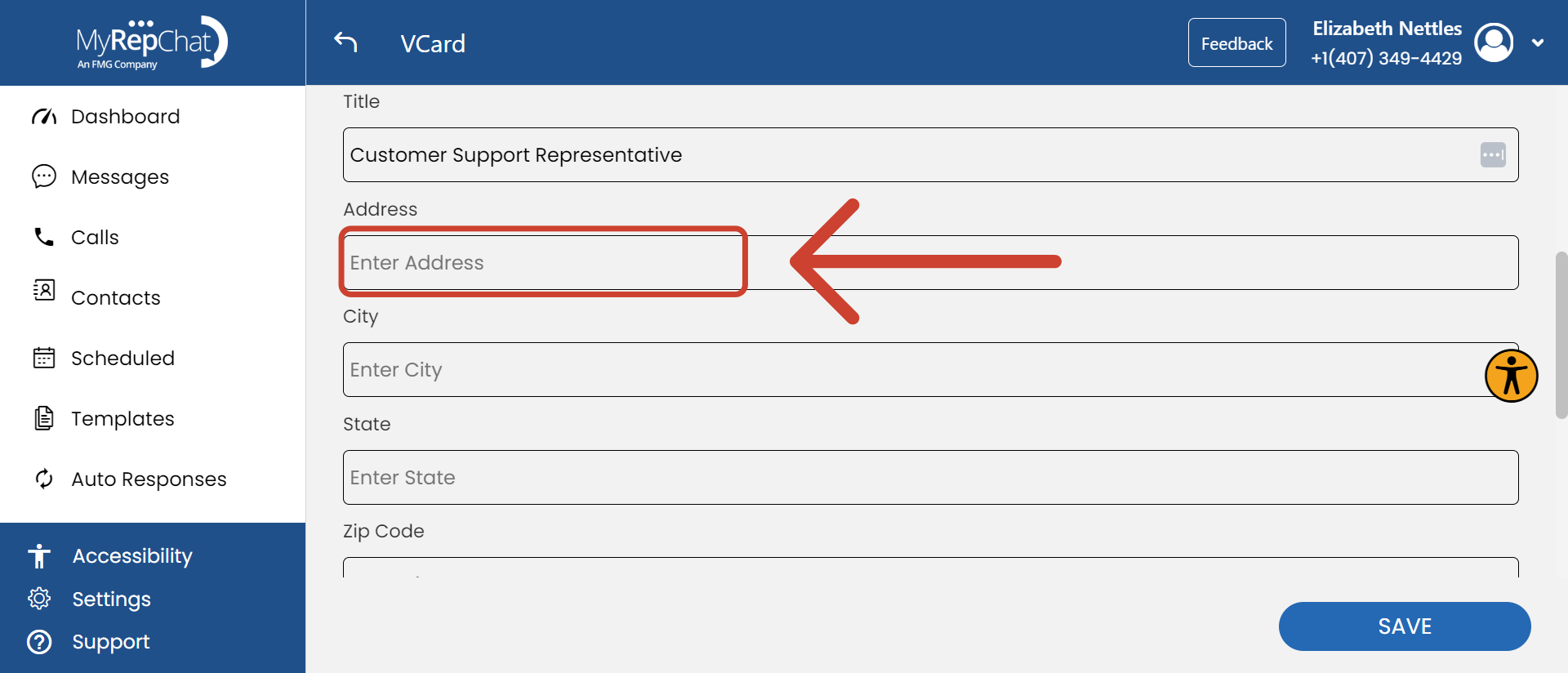
- Enter your street address in the Address field.
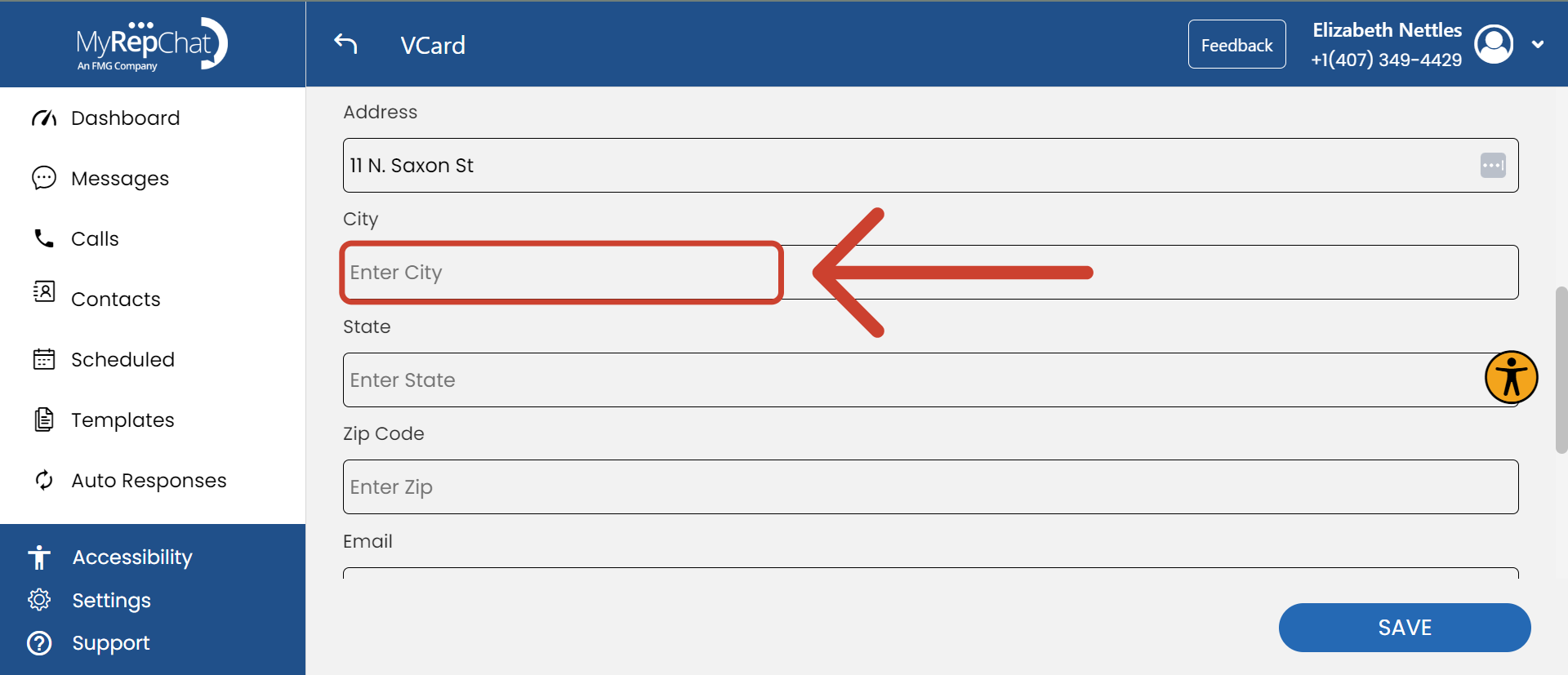
- Enter your city in the City field.
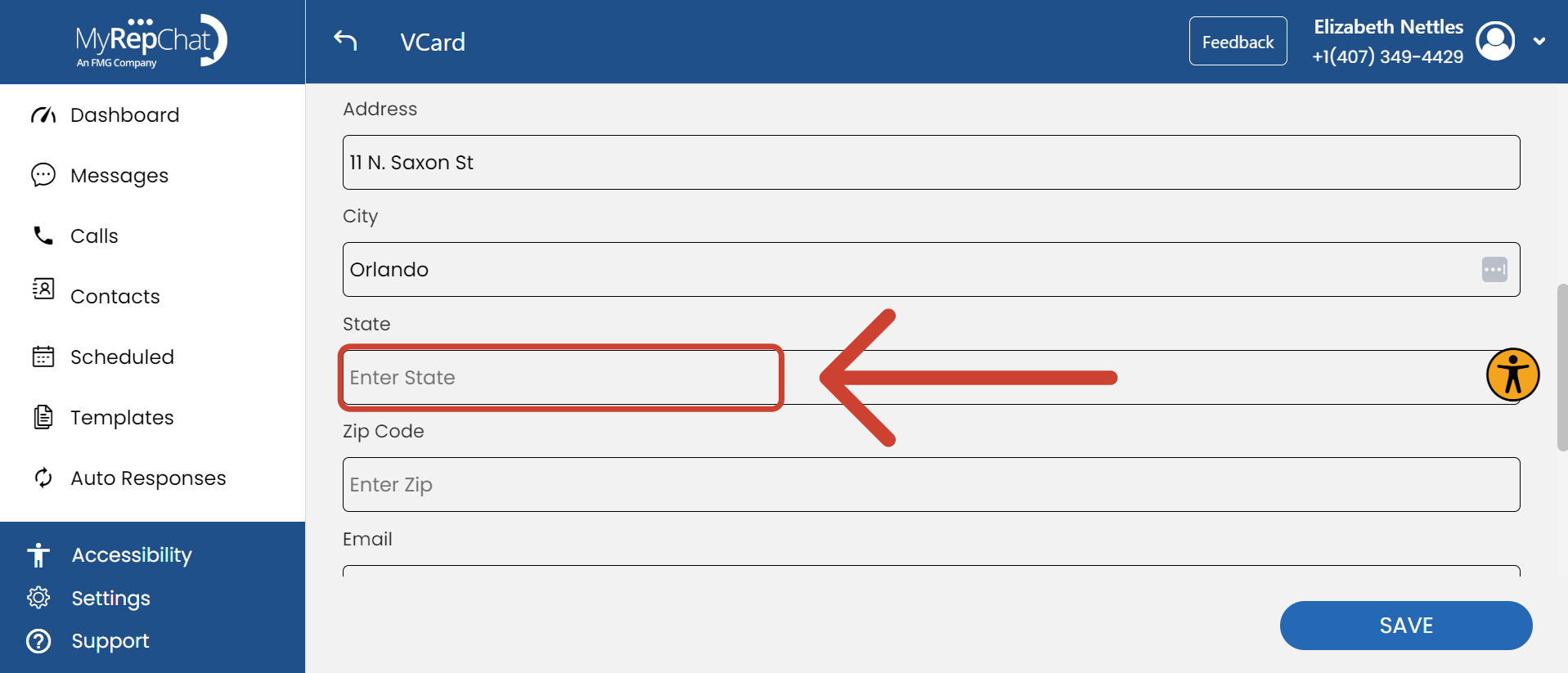
- Enter your state in the State field.
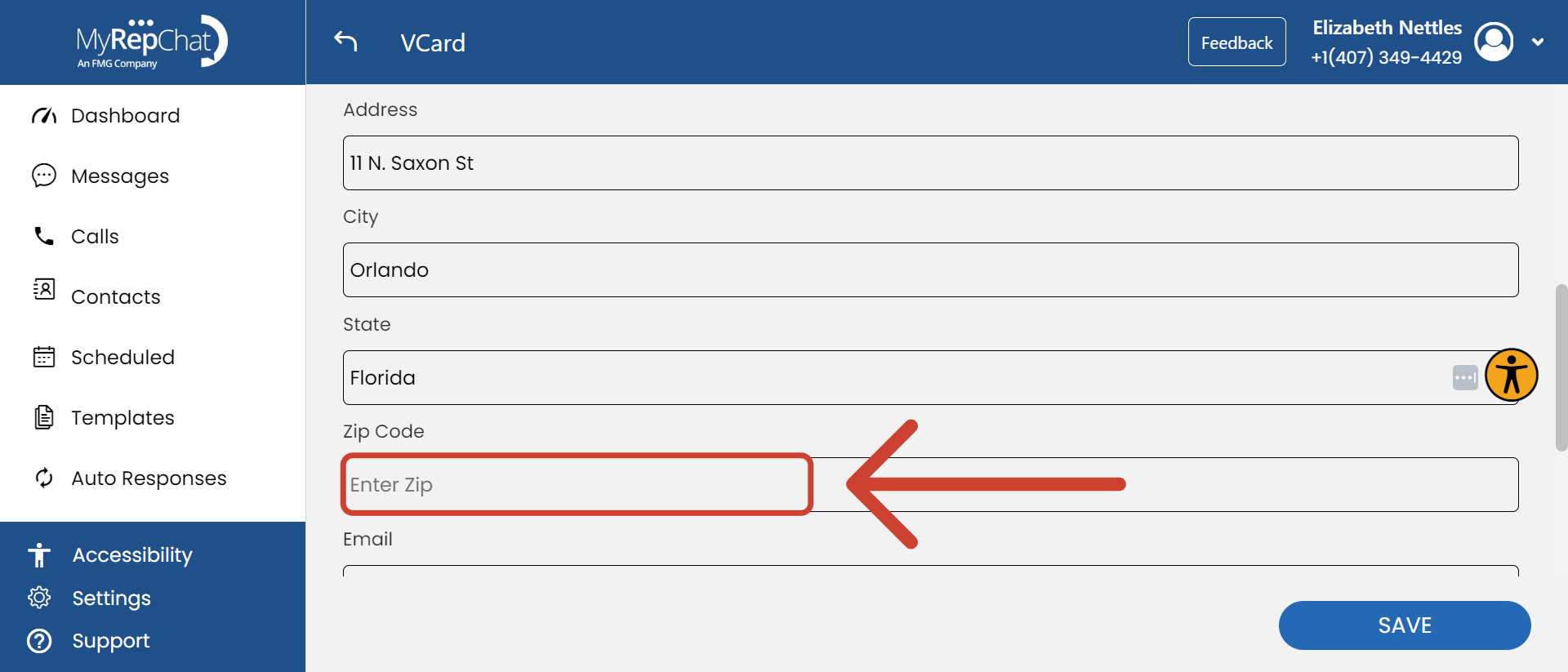
- Enter your zip code in the Zip Code field.
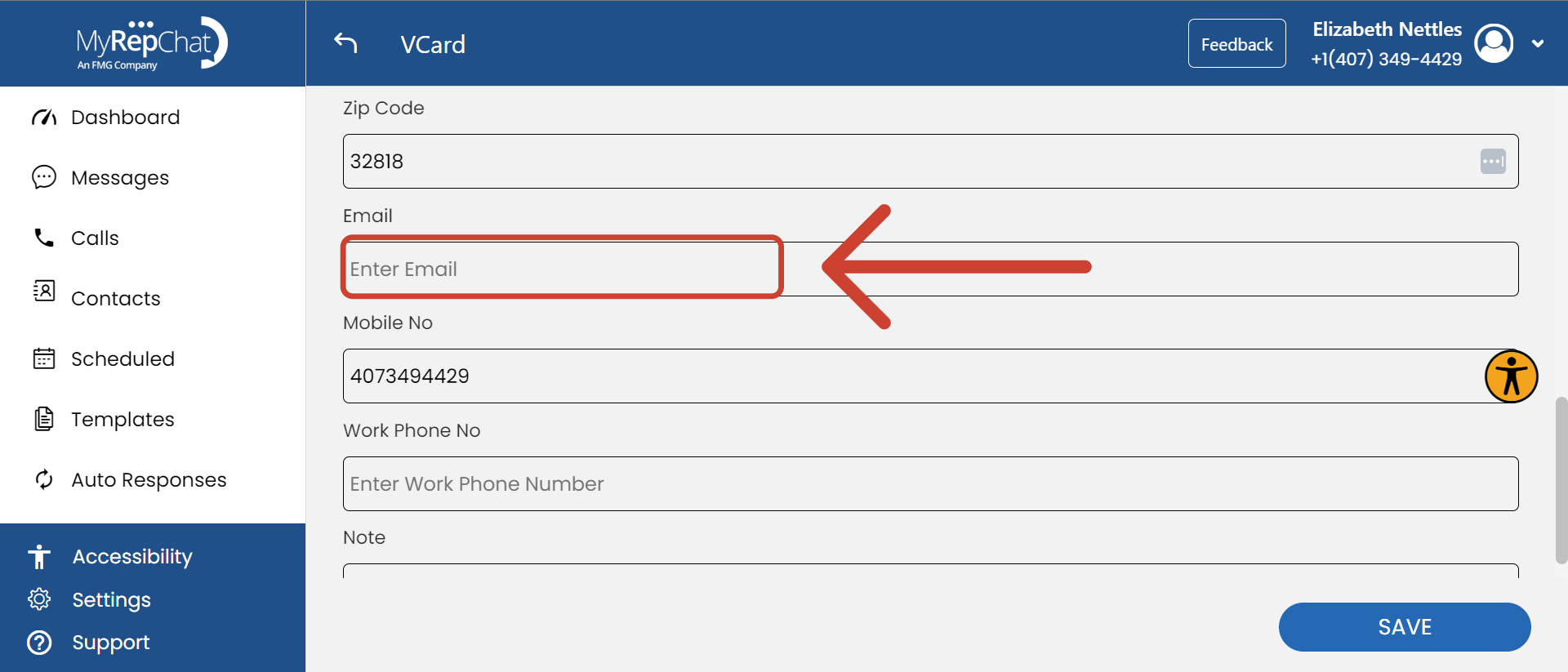
- Enter your email address in the Email field.
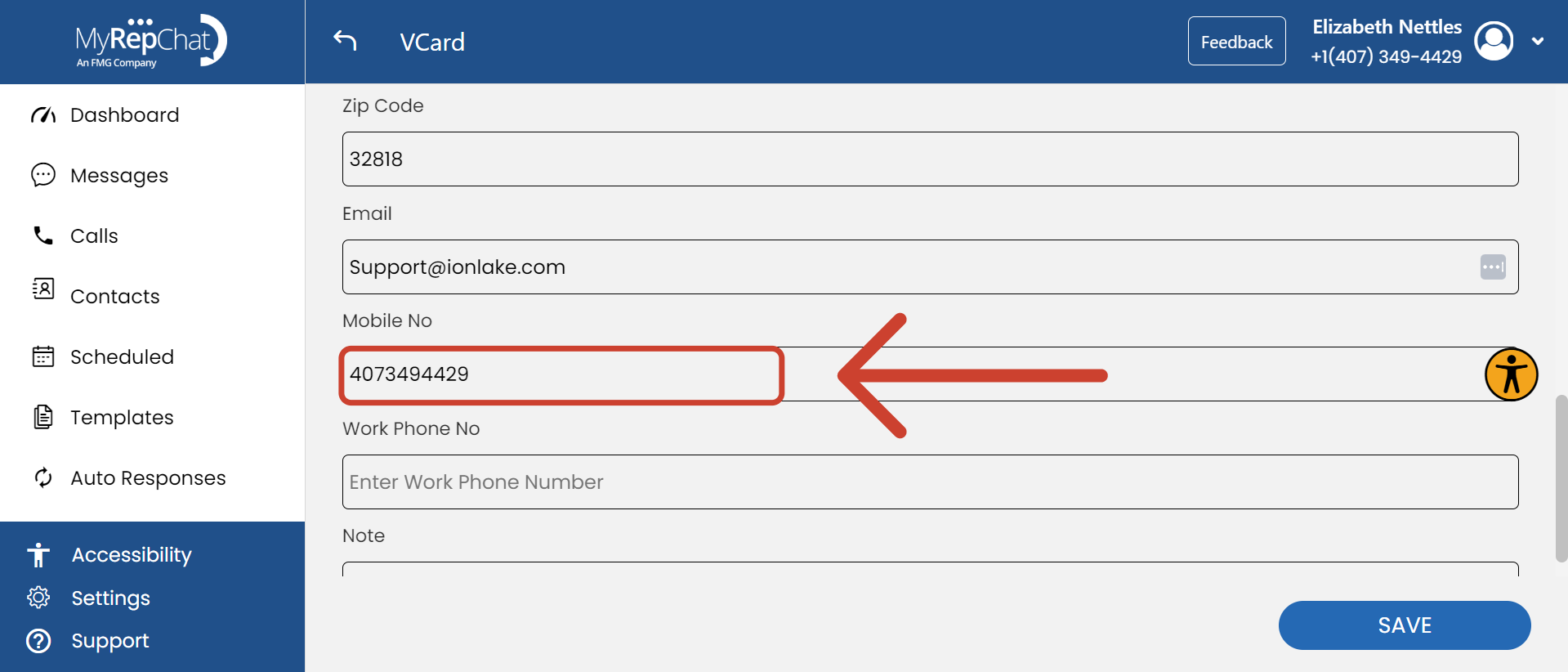
- Your MyRepChat number defaults into the Mobile Number field — you can change this if you'd like.
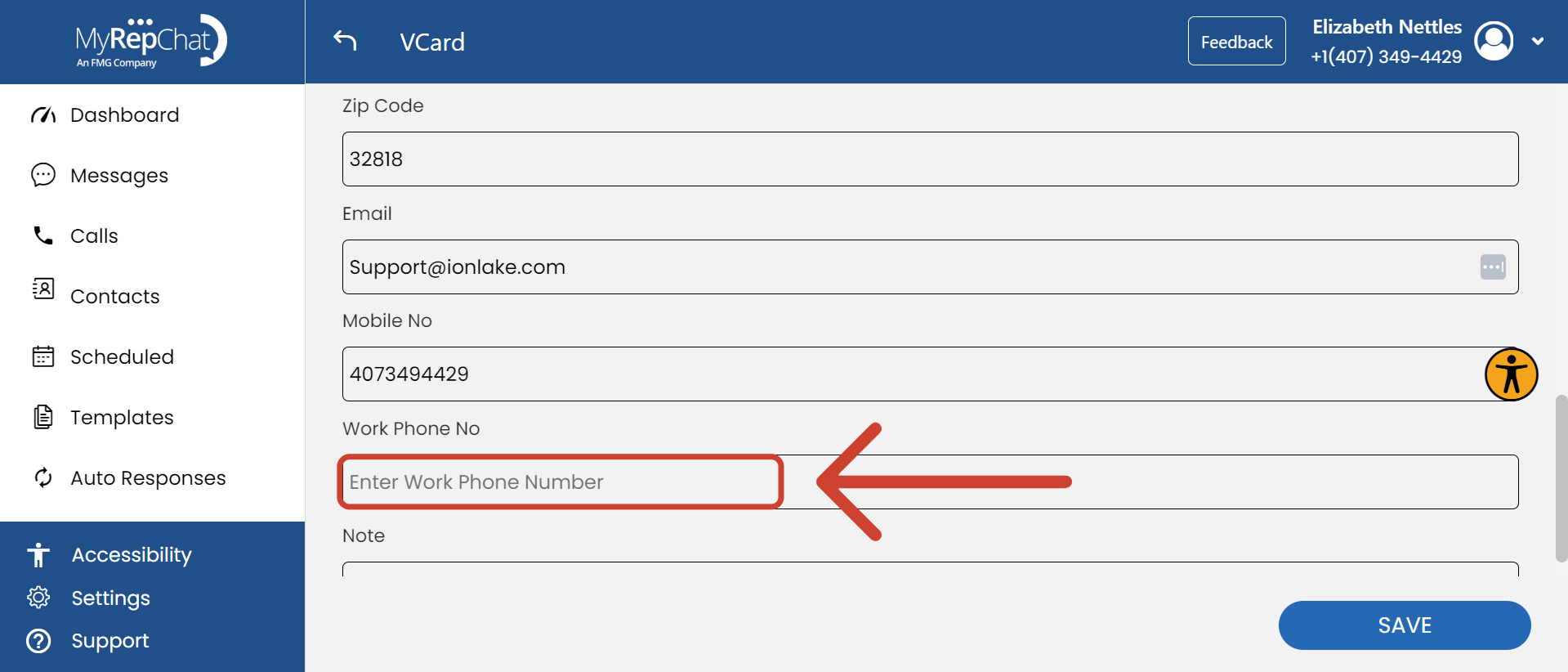
- Enter your work phone number in the Work Phone No field.
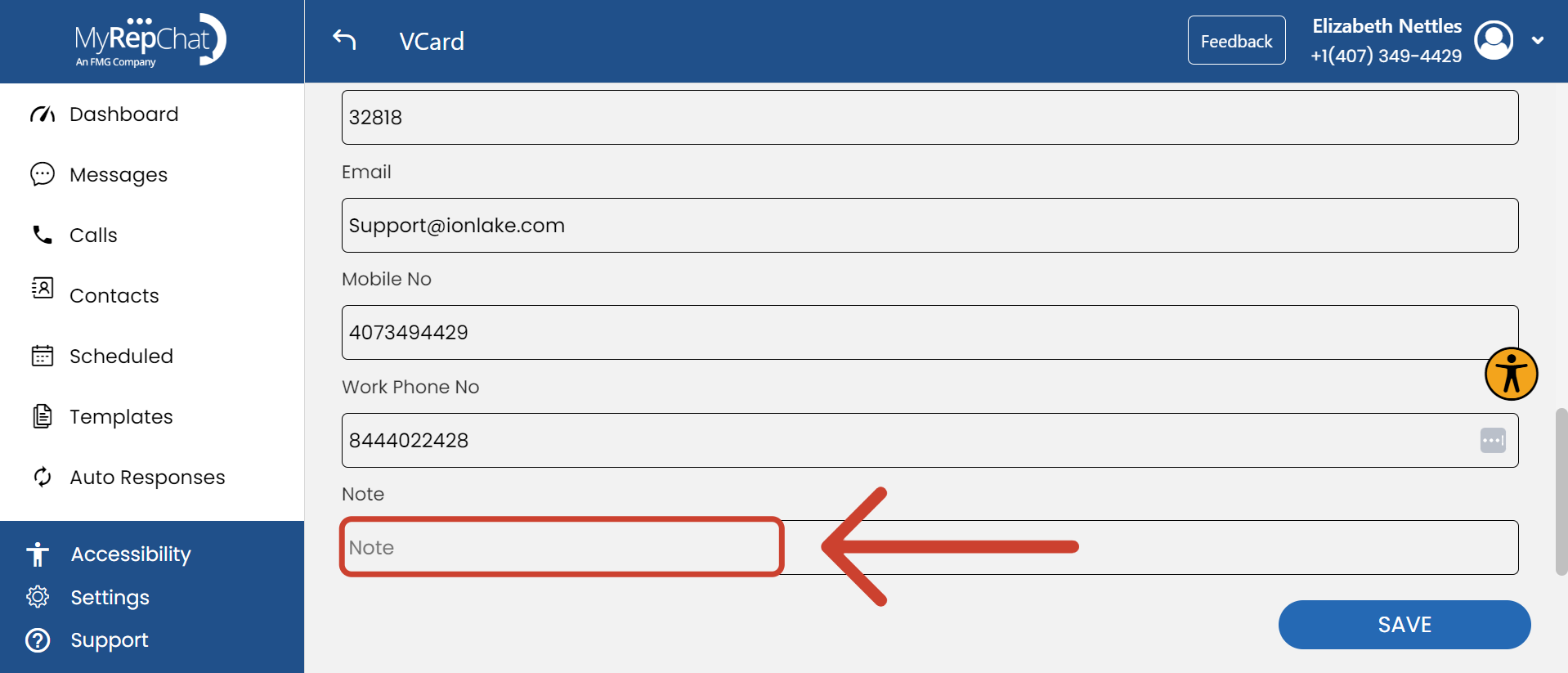
- Add a note or tagline in the Note field.
- Click Save to apply your changes.