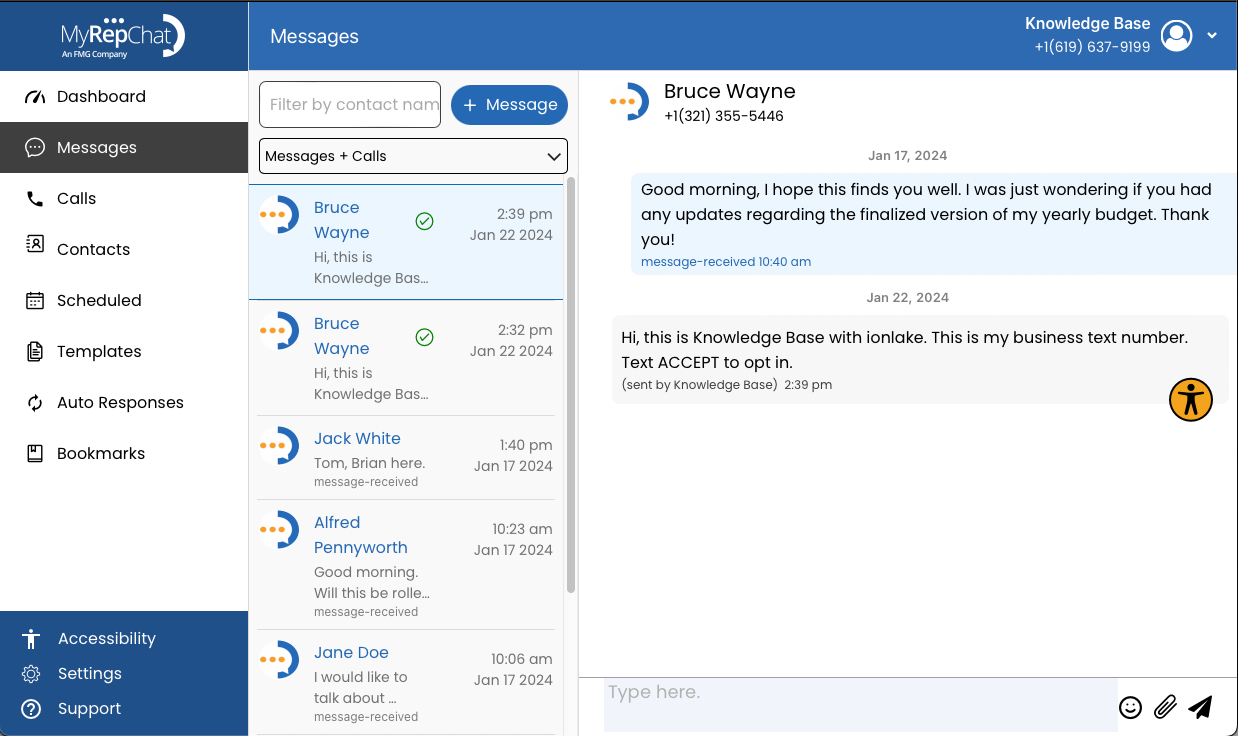
There are two ways to send a text message in MyRepChat.
Option 1: Send From Messages
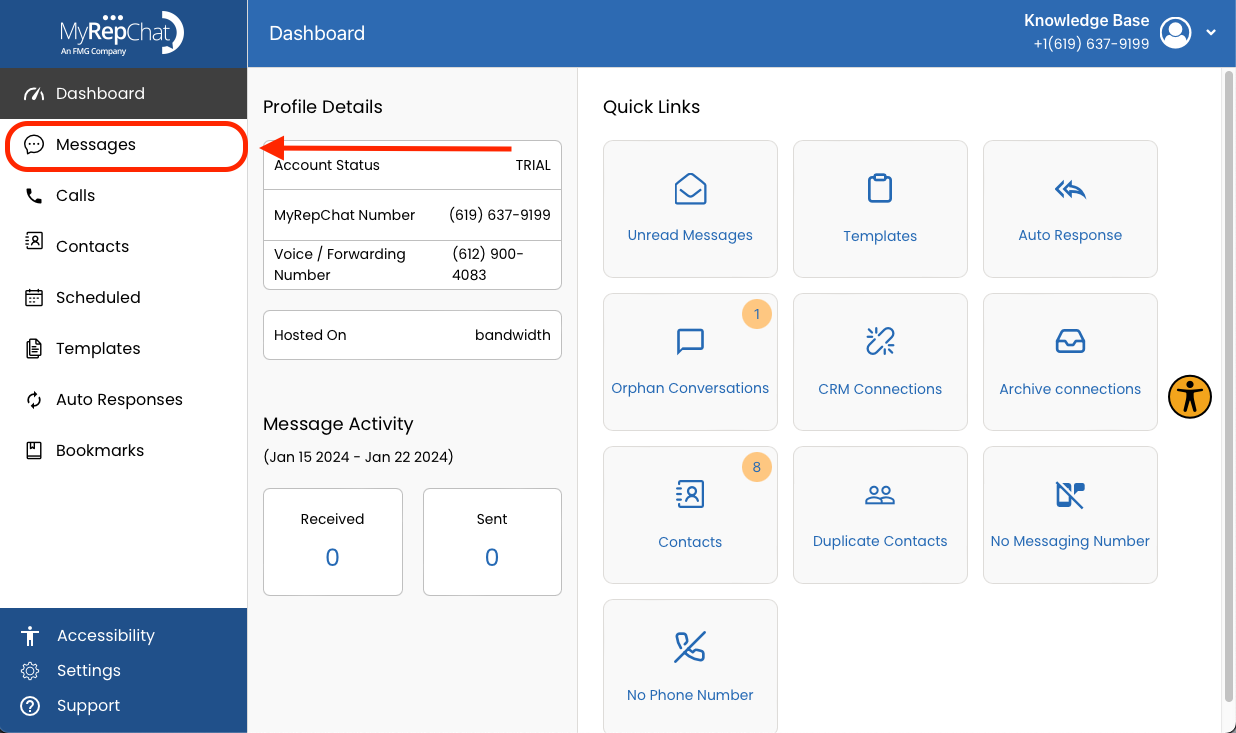
- In the menu on the left side of your Dashboard, click Messages.
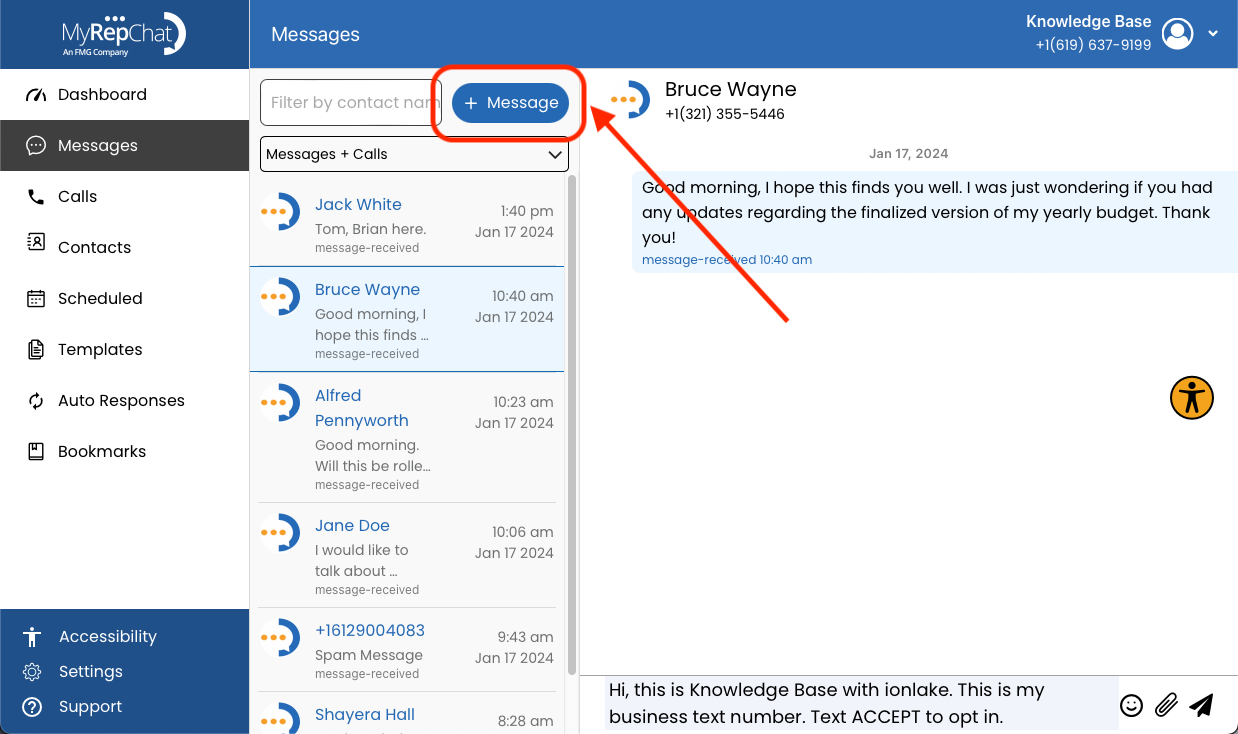
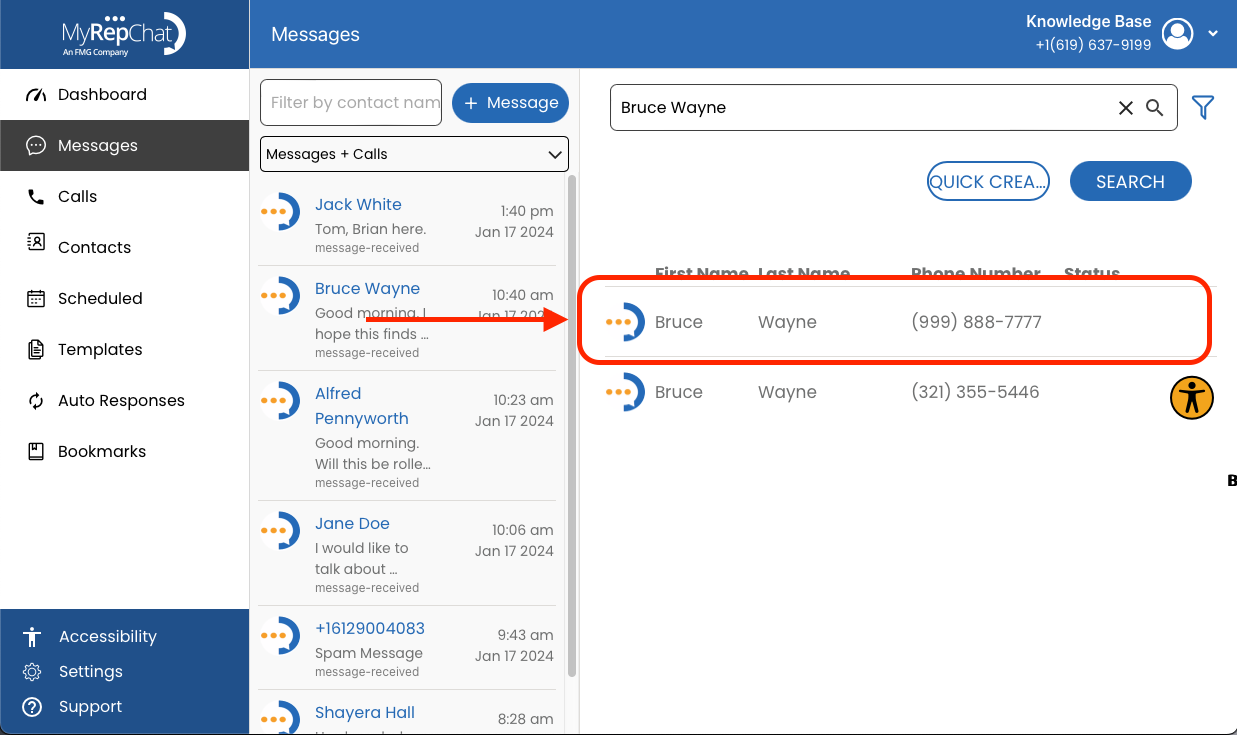
- Click + Message, found above your list of existing conversations next to the Filter by Contact Name field.
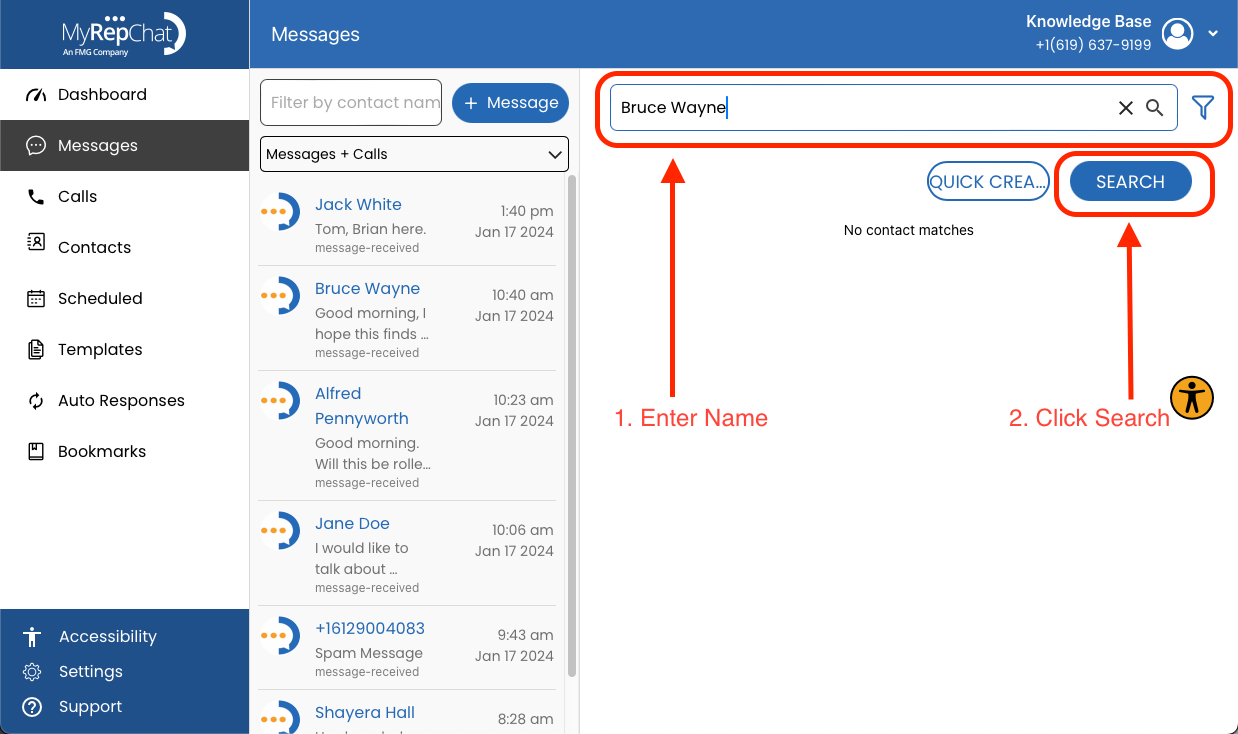
- Type the contact's name into the search bar and click Search.
- Find and click the correct contact in the search results.
If this contact hasn't yet consented to receive texts, you'll see a Consent Required pop-up explaining that a consent message must be sent first and can't be changed. Click OK to continue.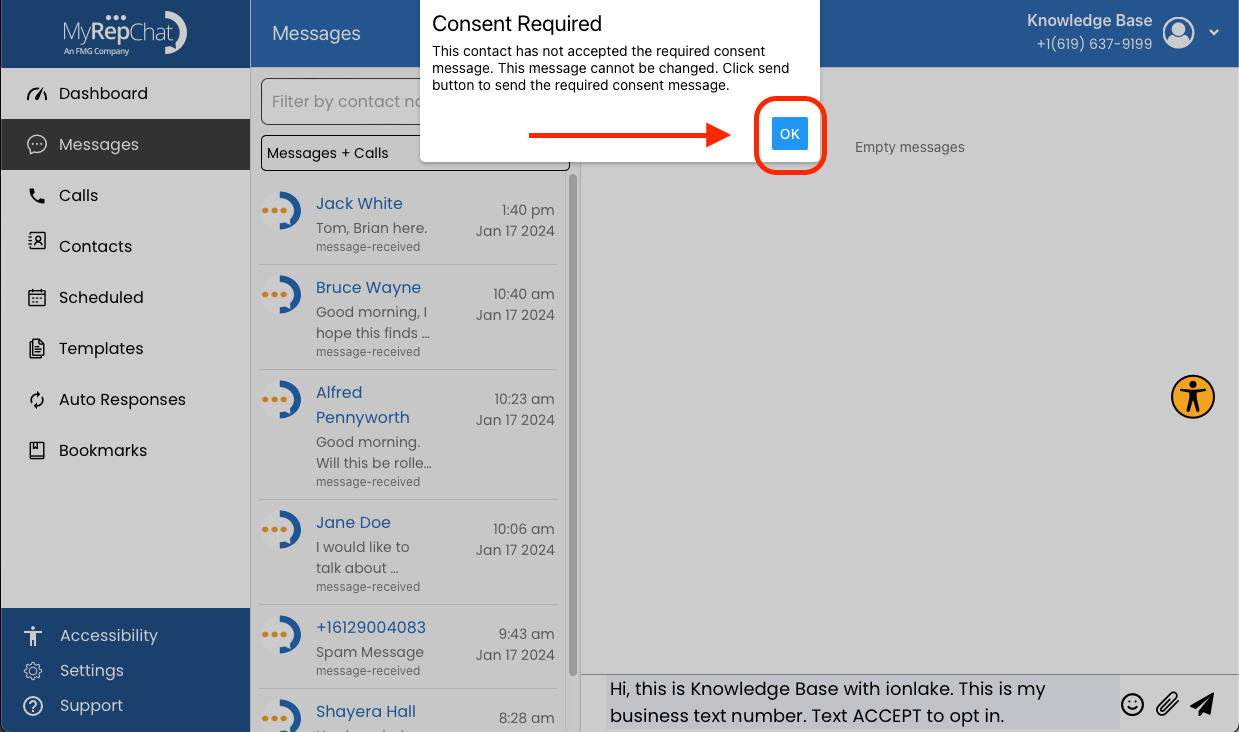
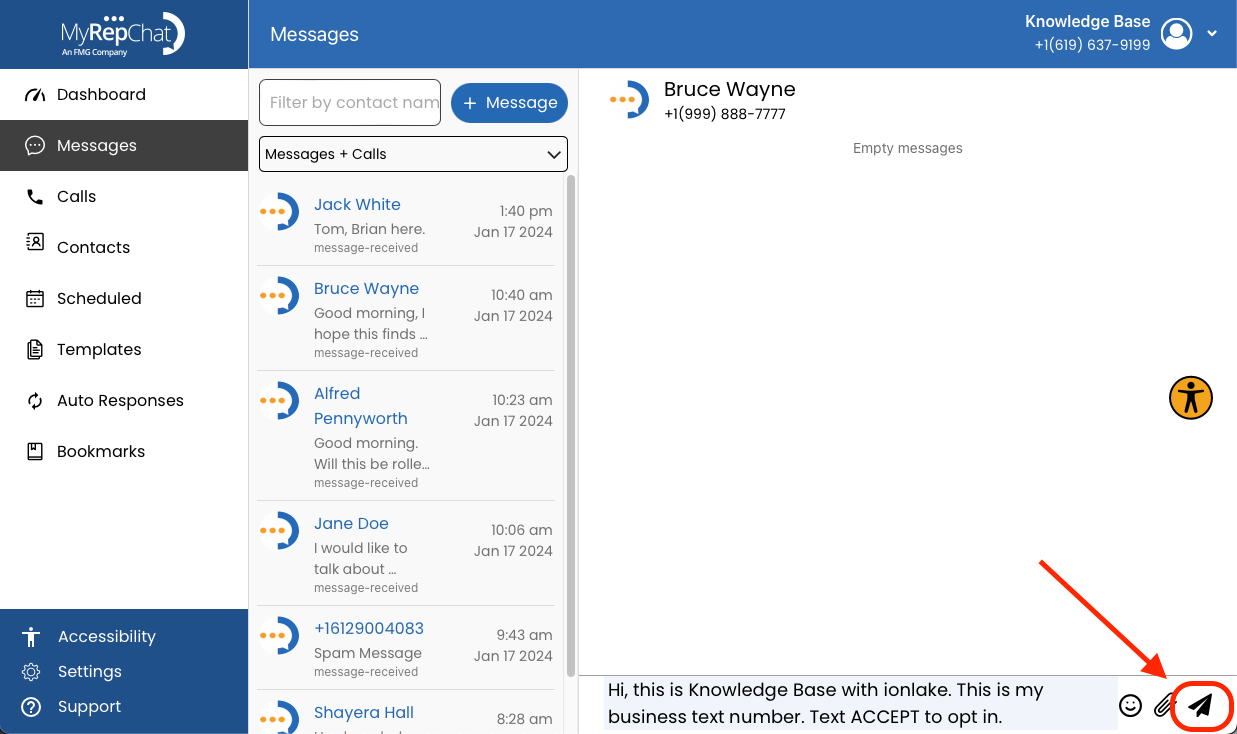
- Click the paper airplane icon to send the consent message.
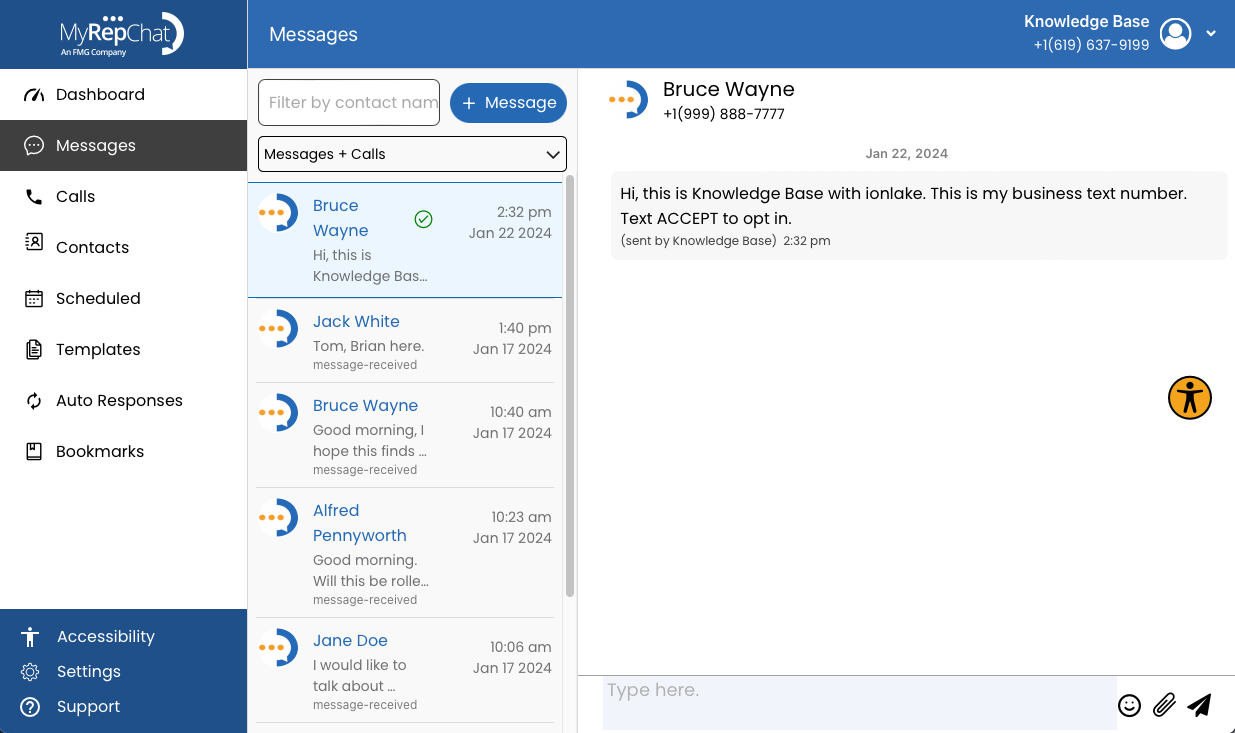
- The message sends and appears in your message history.
Option 2: Send From Contacts
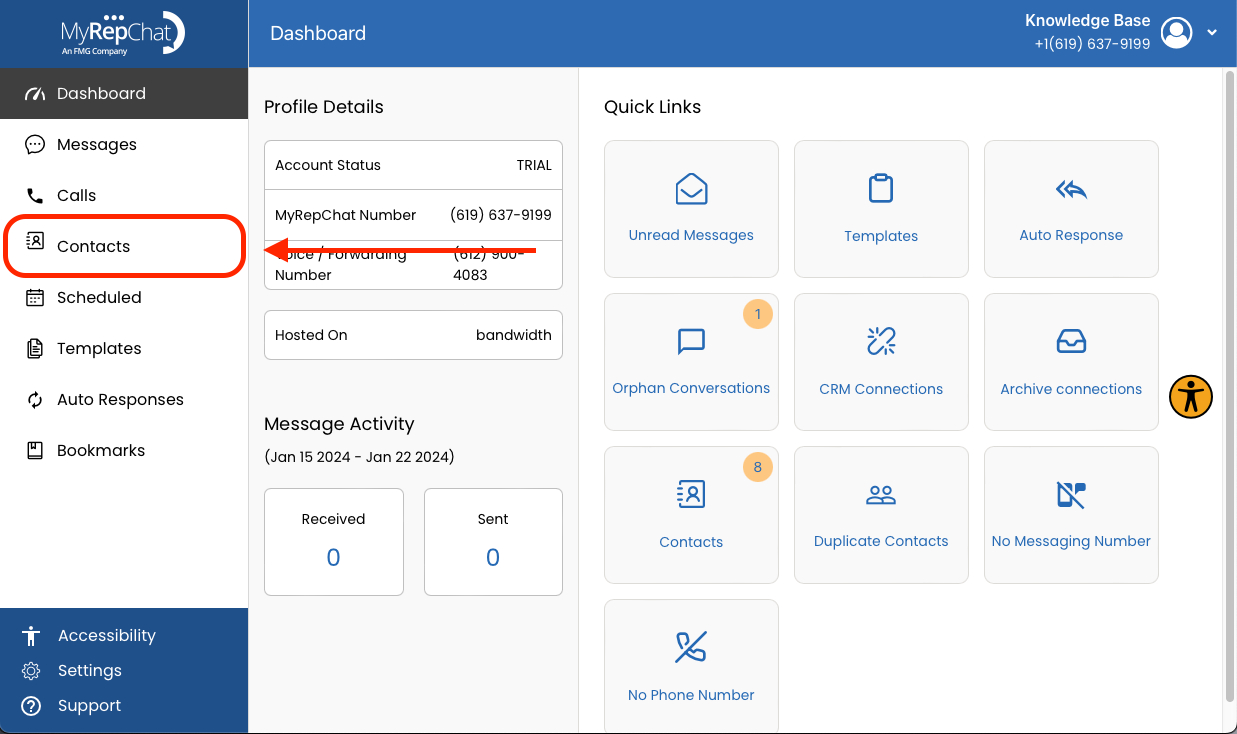
- In the menu on the left side of your Dashboard, click Contacts.
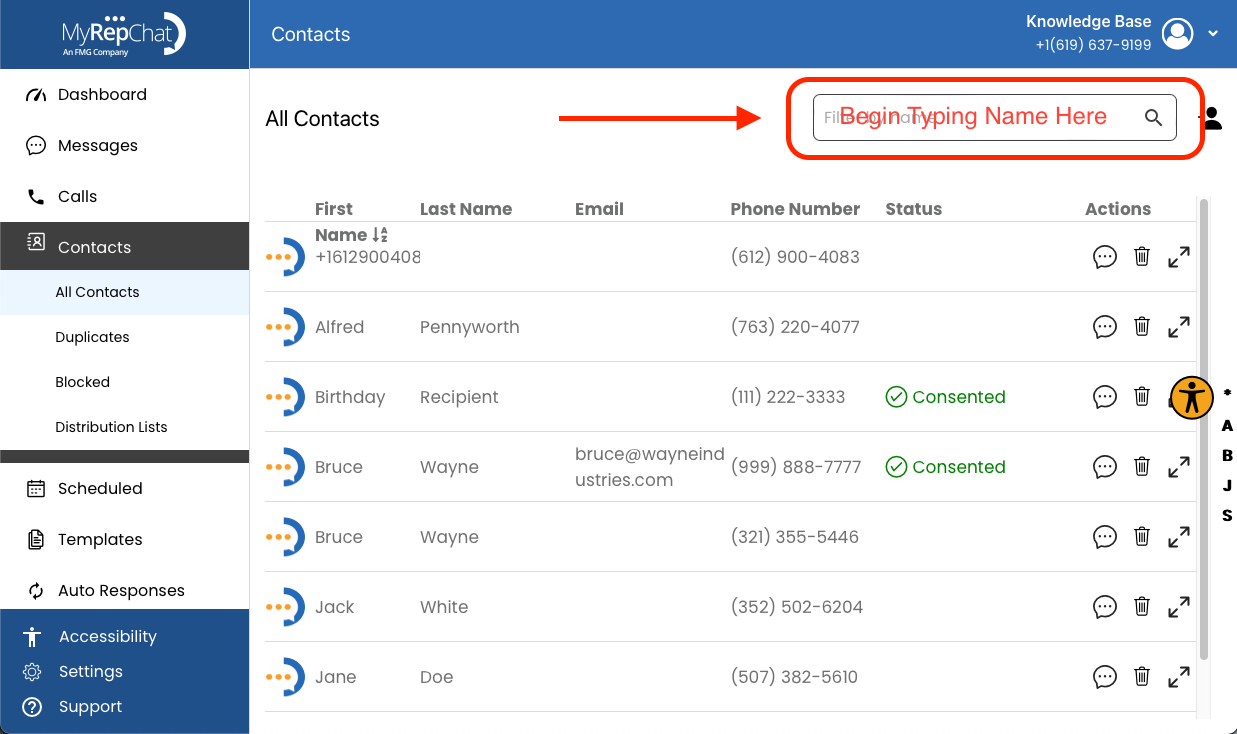
- On the Contacts page, use the search bar in the upper right to find the desired contact.
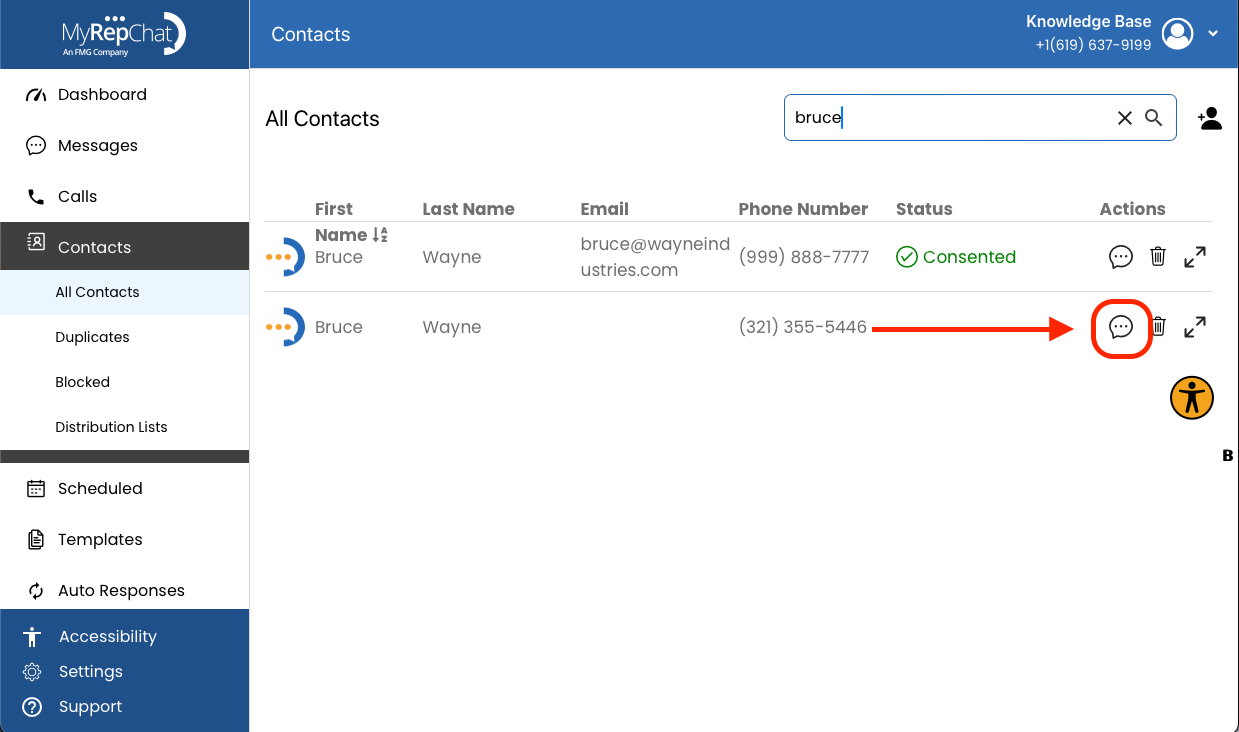
- Once found, click the text bubble icon on the right side of their entry.
If this contact hasn't yet consented to receive texts, you'll see a Consent Required pop-up. Click OK to continue.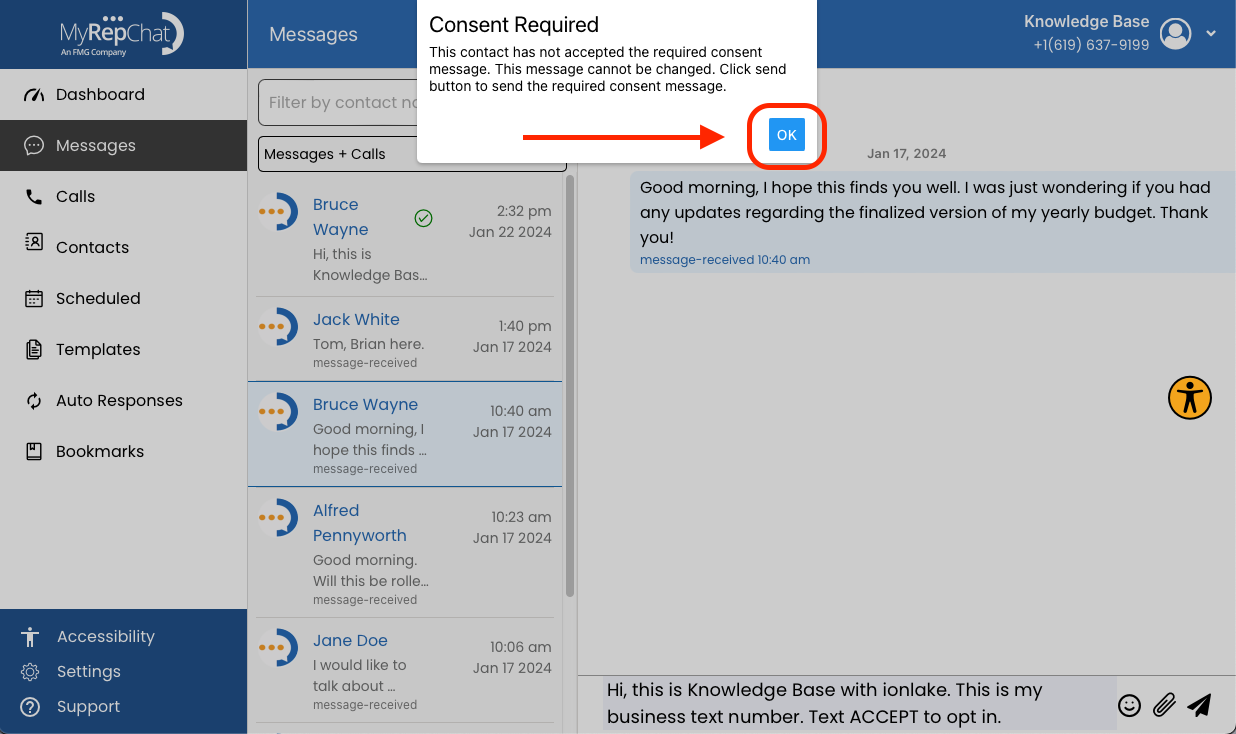
- Click the paper airplane icon in the bottom right of the message field to send the consent message.
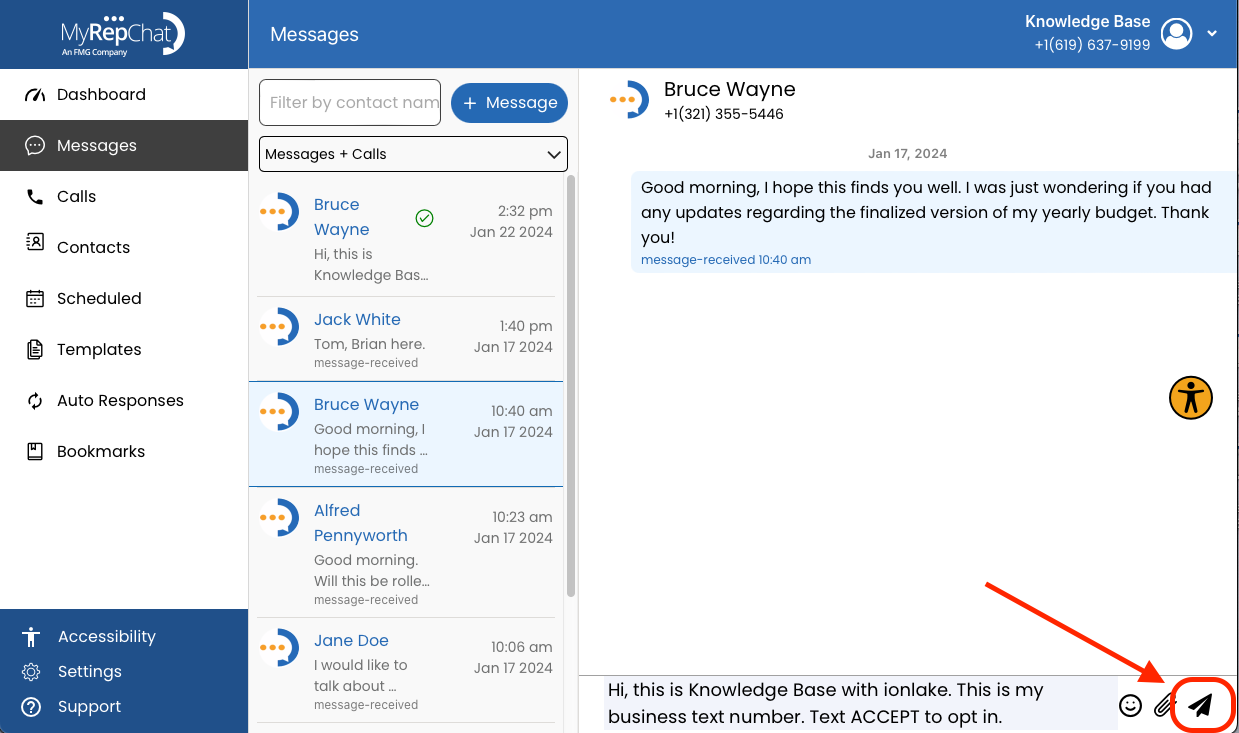
- The message appears in your message history.