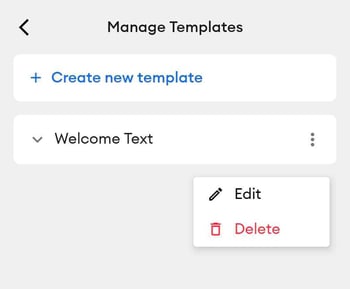
Template messages let you quickly send pre-written, approved texts from the MyRepChat mobile app without retyping the same content each time. They're ideal for common communications like appointment reminders, follow-ups, and introductions — and you can still personalize the details before sending.
How Do I Send a Template Message?
- In the Messages tab, select an existing conversation or tap the + icon in the lower-right corner to start a new message.
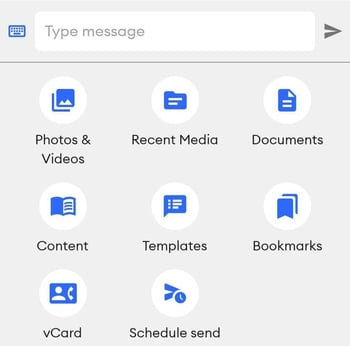
- Tap the + icon next to the message box to open the attachment options.
- Select Templates.
- Select the checkbox next to the template you want to send.
- The template text inserts into the message box, where you can edit it before sending.
- Tap the paper airplane icon to send immediately, or confirm your scheduled send time if you set one.
How Do I Create or Edit a Template?
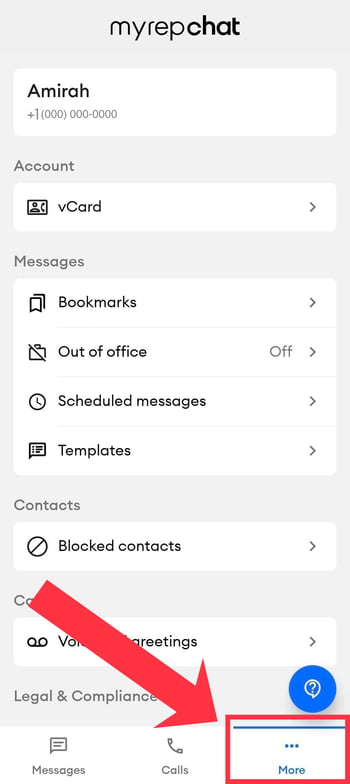
- Tap the More tab.
- Select Templates under the Messages section.
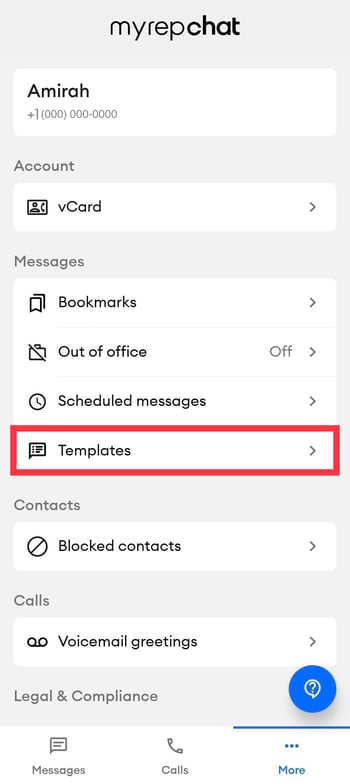
- Tap + Create New Template to add a new one.
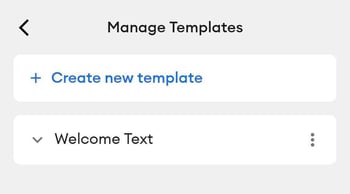
- Use the three-dot icon next to an existing template to edit or delete it.