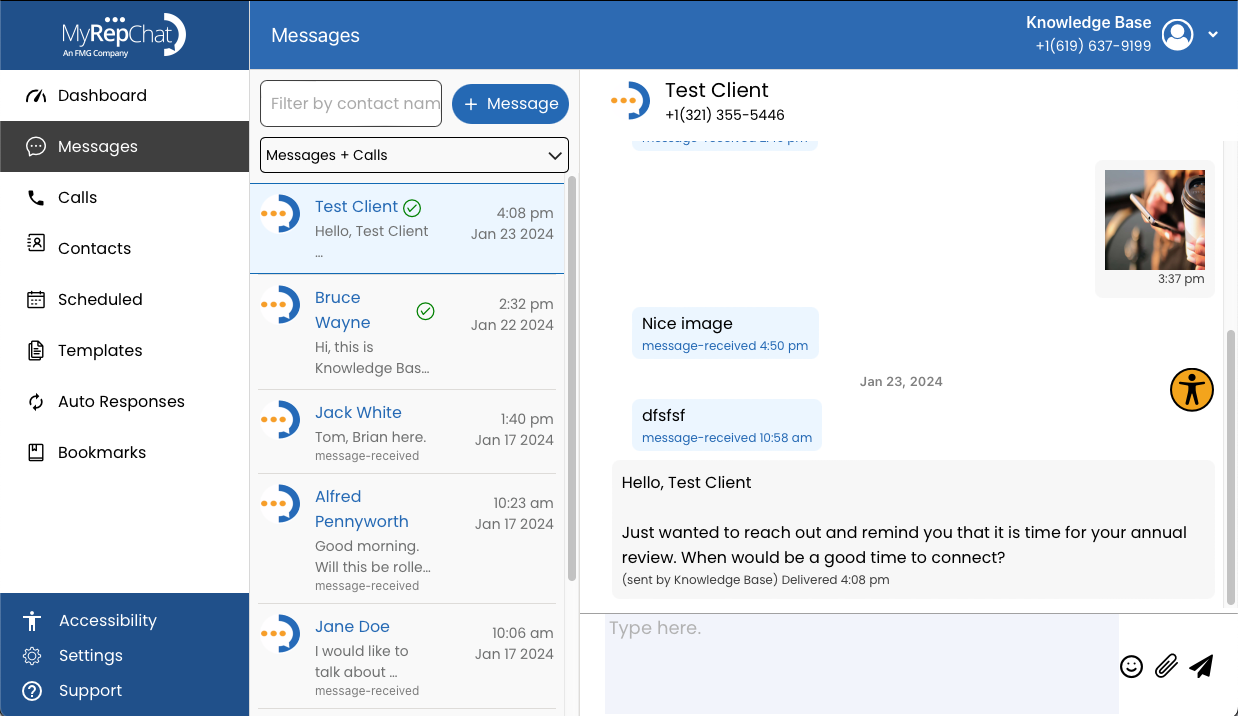
Sending messages using templates can save you time. Follow these steps to send one.
How Do I Send a Template?
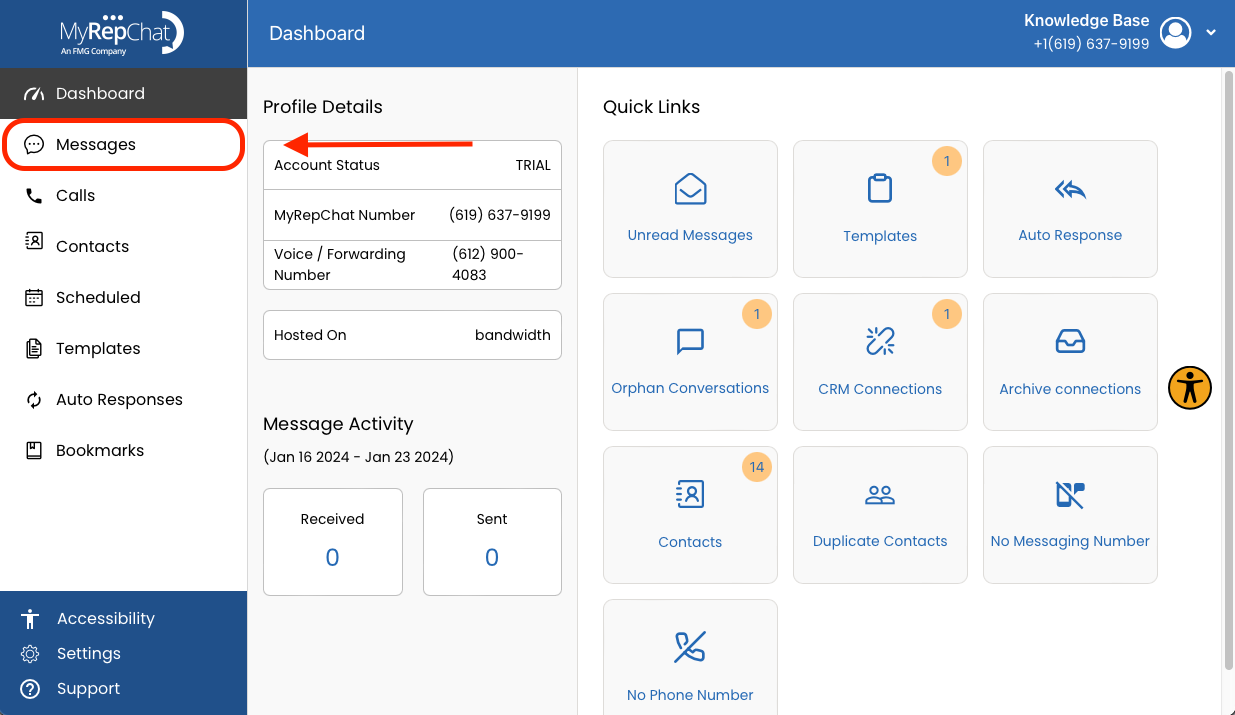
- In the menu on the left side of your Dashboard, click Messages.
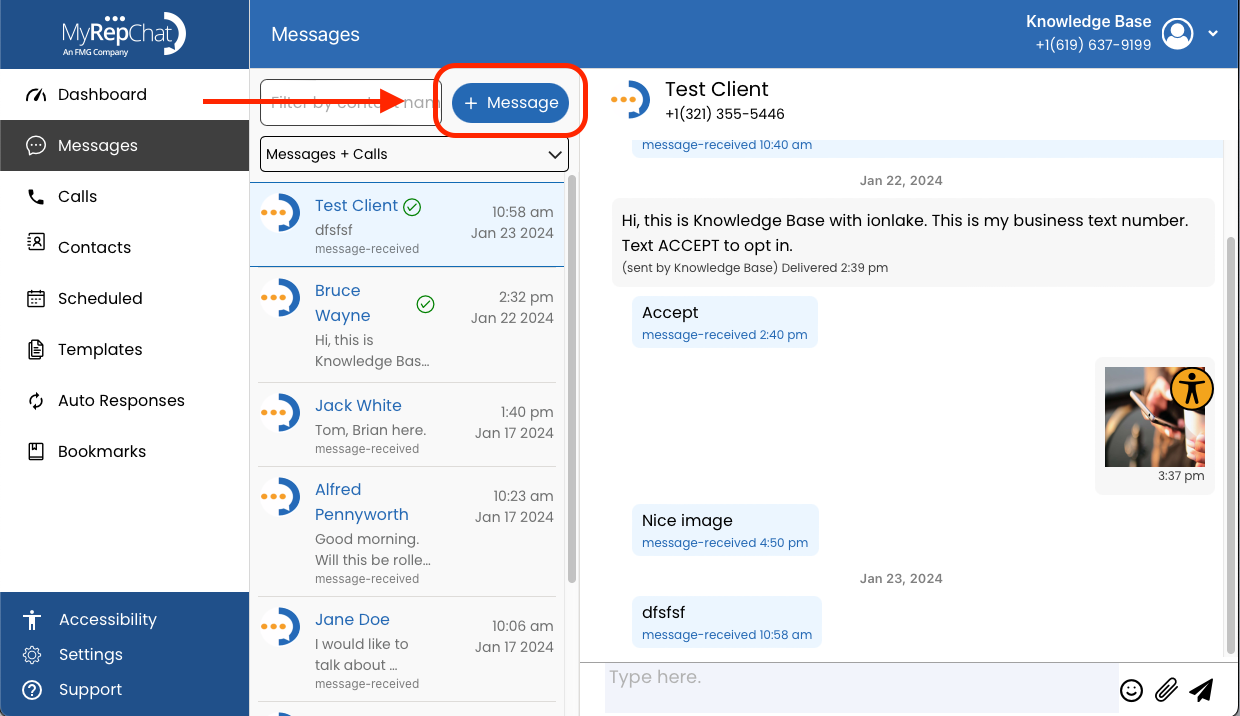
- Click + Message, found above your list of existing conversations next to the Filter by Contact Name field.
-
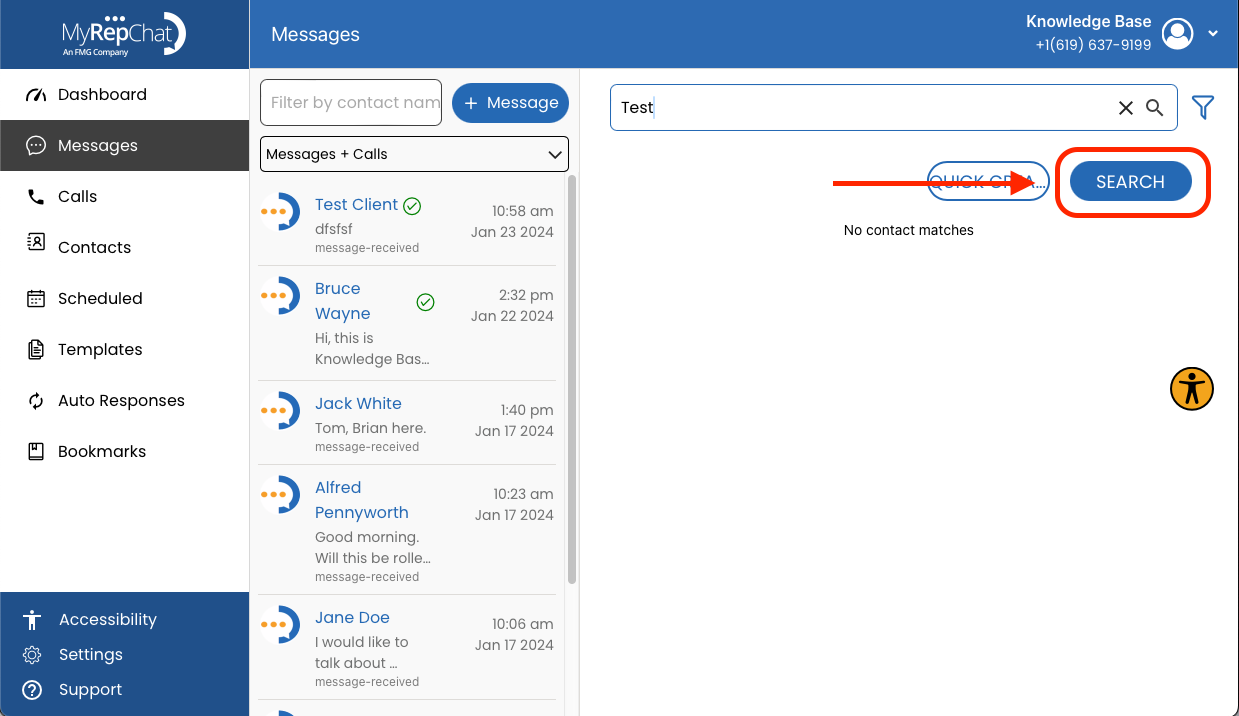
Type the contact's name into the search bar. Note: Click the filter icon
 to make sure you're searching across all contacts — both CRM and MyRepChat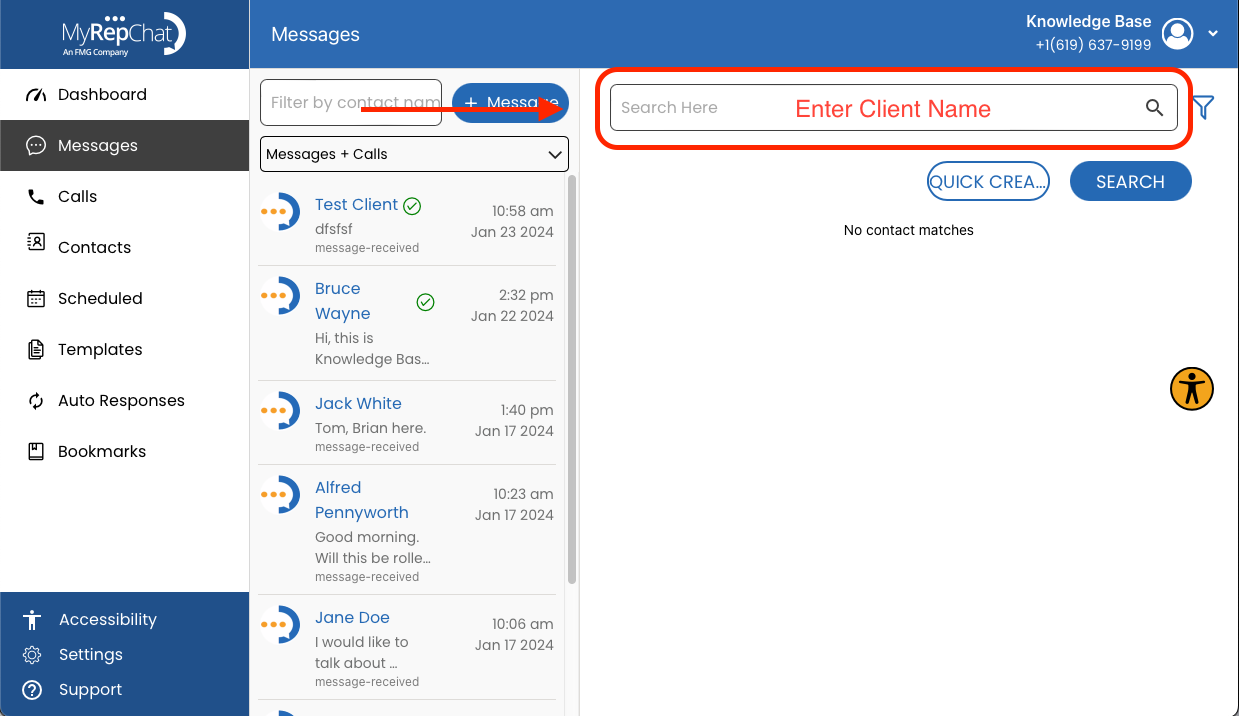
-
Click Search.
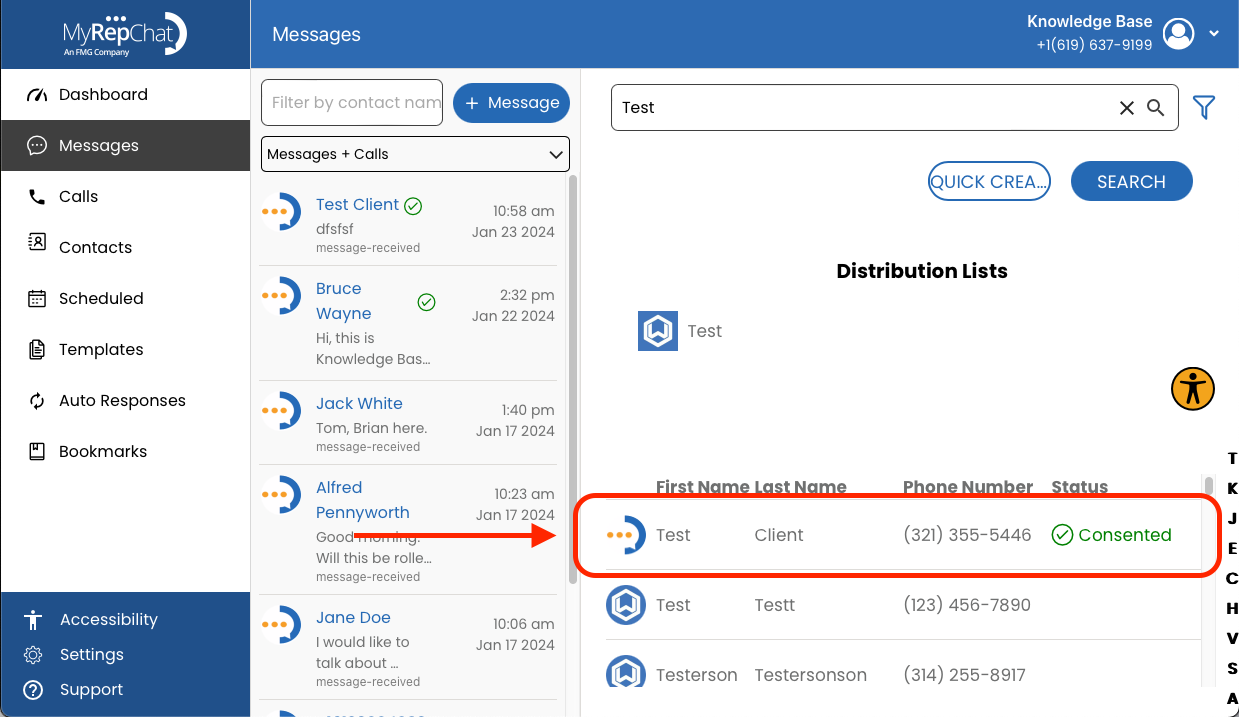
- Find and click the correct contact in the search results.
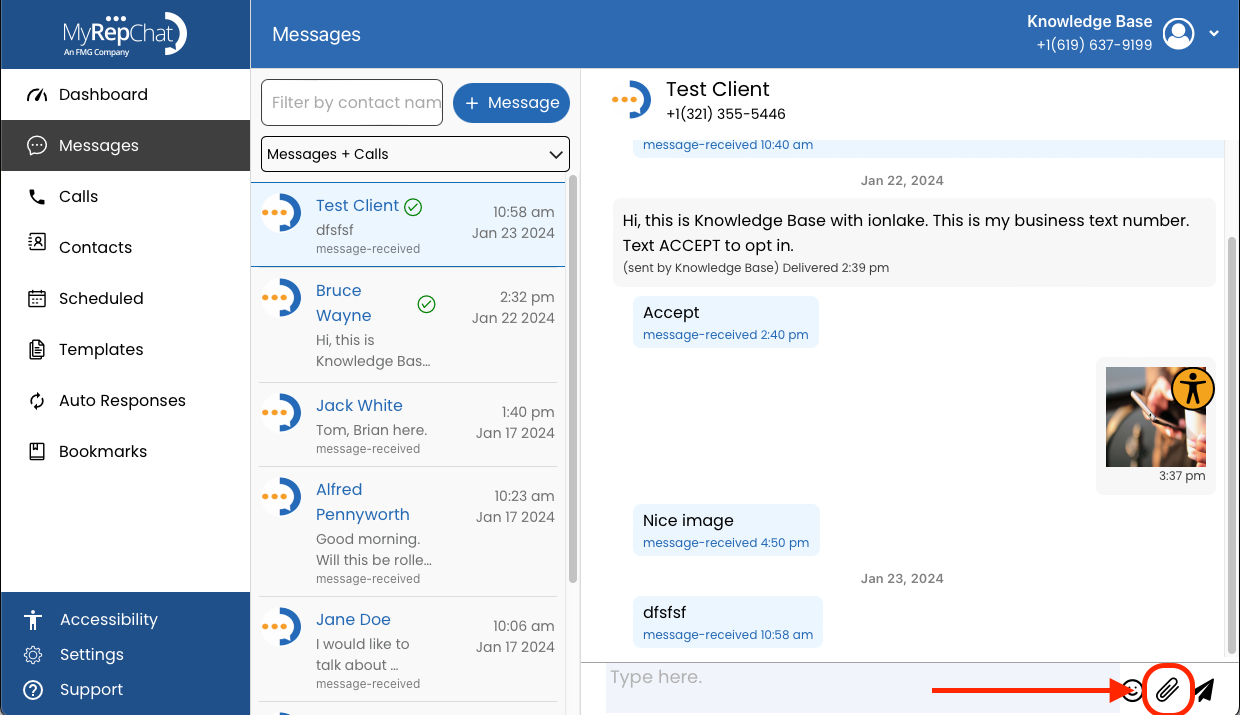
- Click the paperclip icon at the bottom right, next to the Send button.
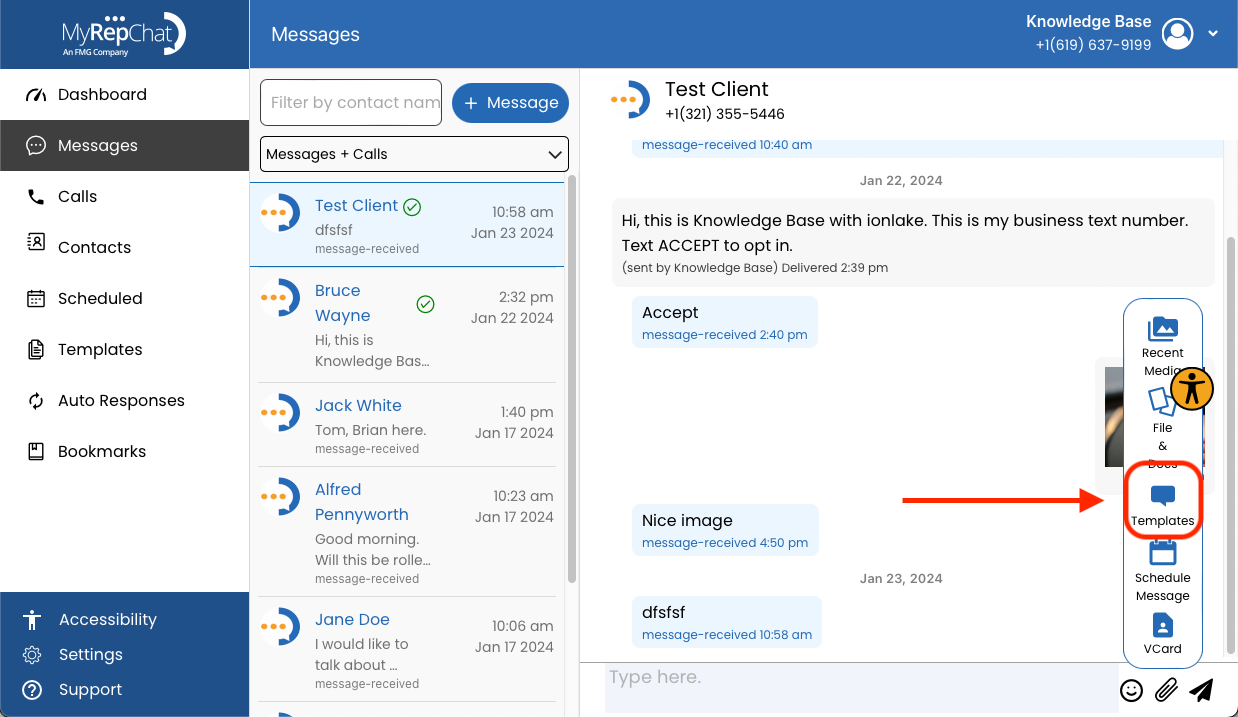
- In the menu that expands, click Templates.
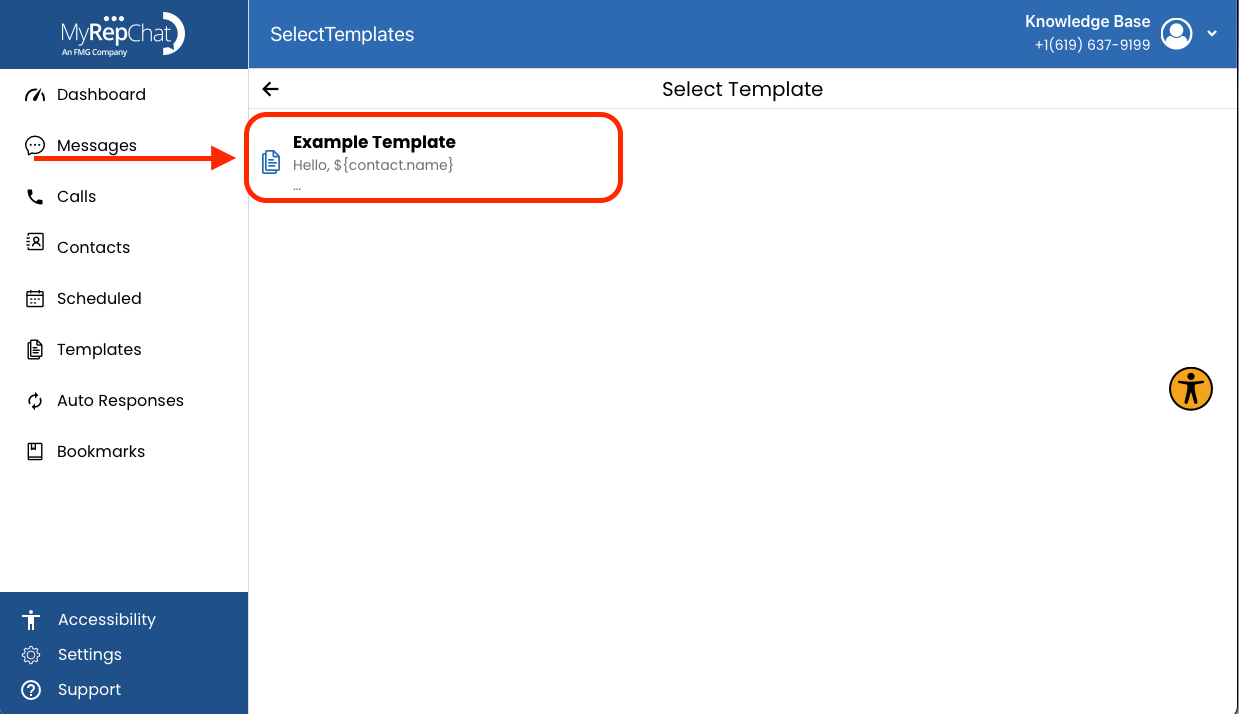
- Click the name of the template you want to use — it populates into the message text box.
- Click the paper airplane icon to send the message.
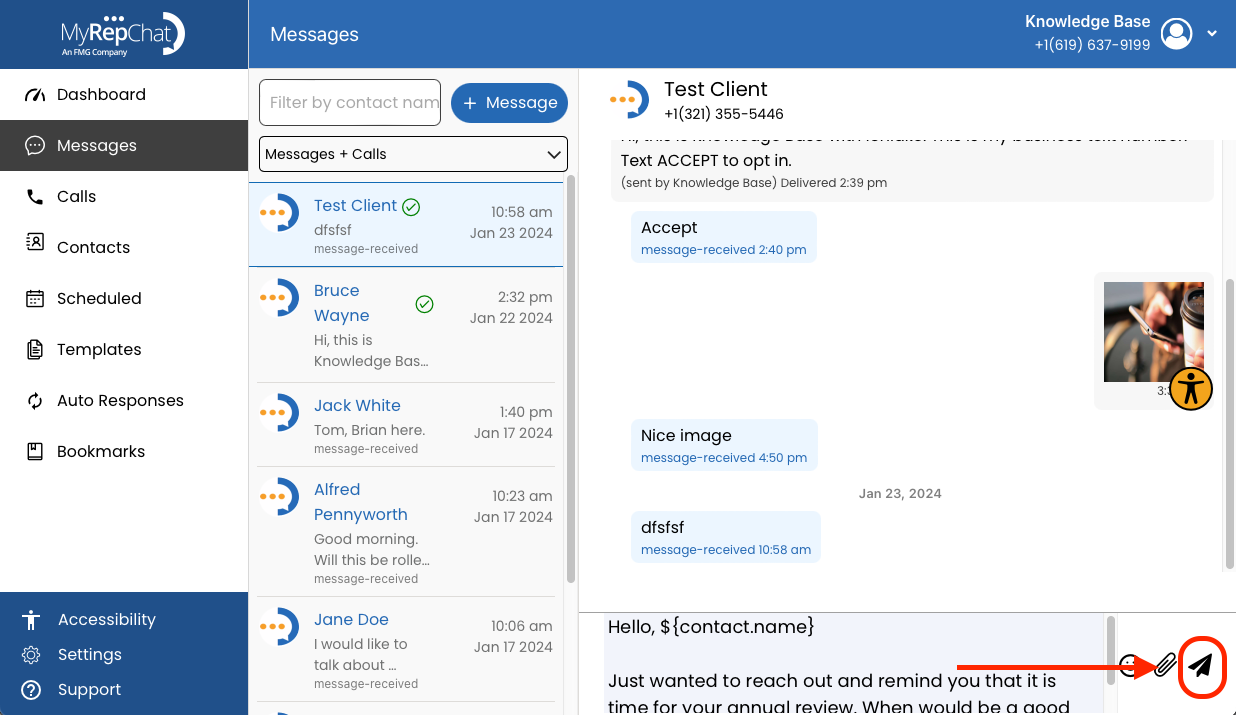
- Once sent, the template message appears in your conversation history with that contact.