
How Do I Send a Picture?
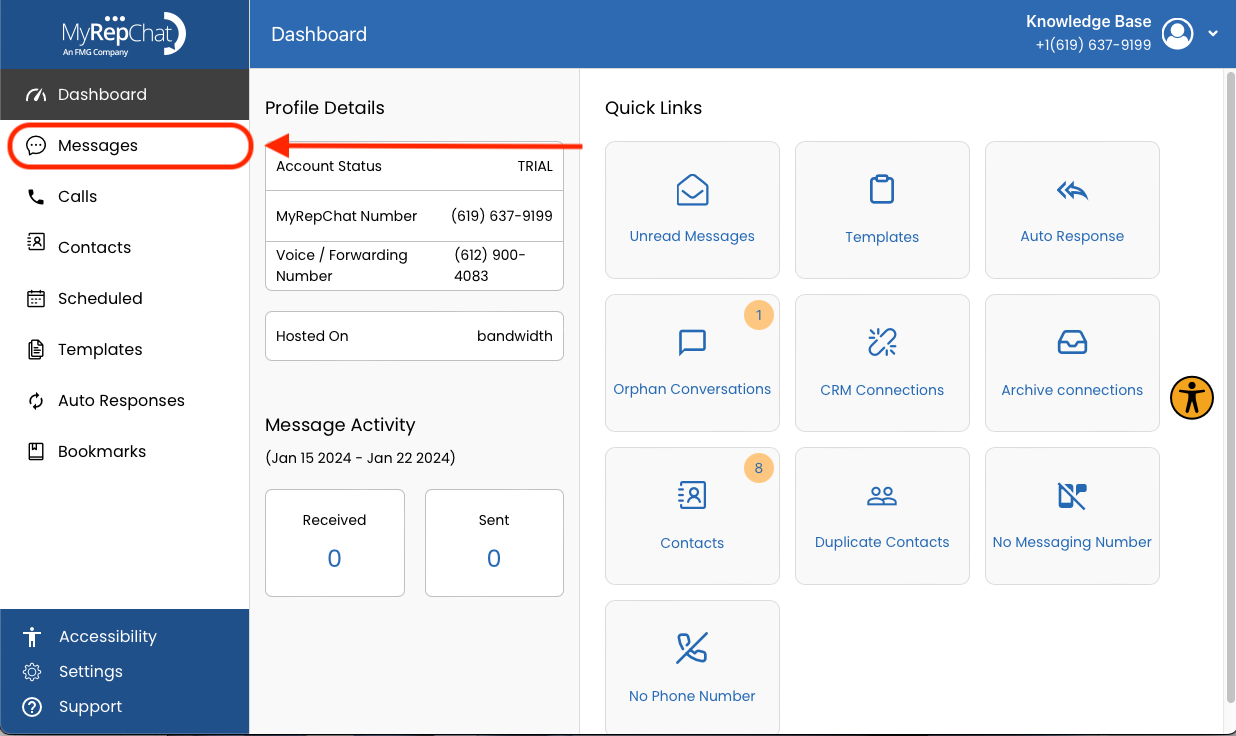
- Click Messages in the menu on the left side of your Dashboard.
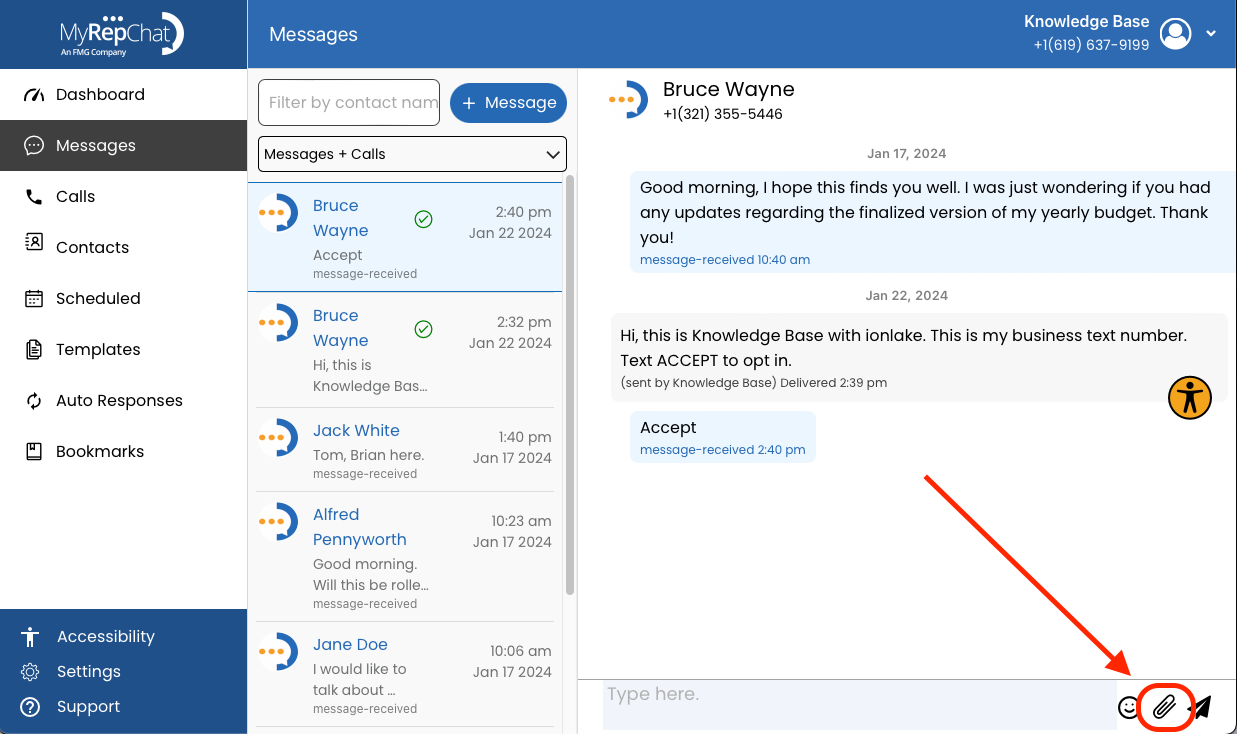
- Open the conversation with the contact you want to send the image to, then click the paperclip icon in the bottom right corner.
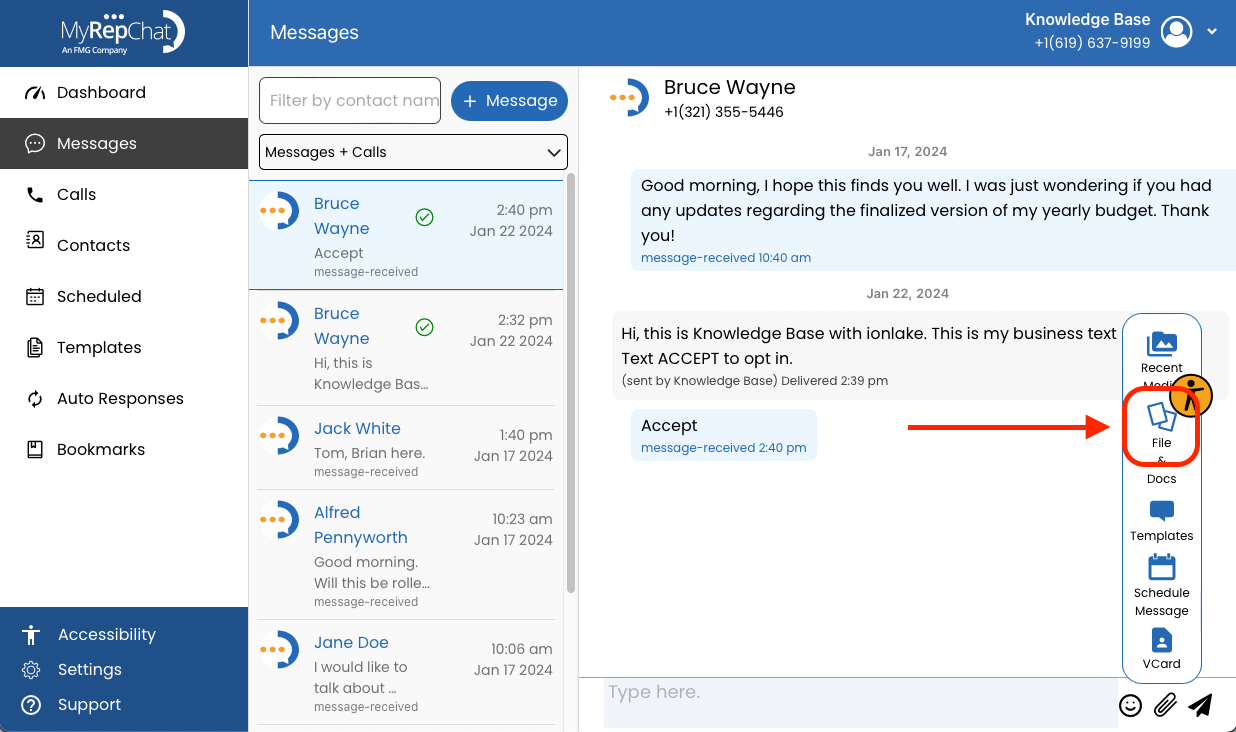
- In the menu that appears, click File.
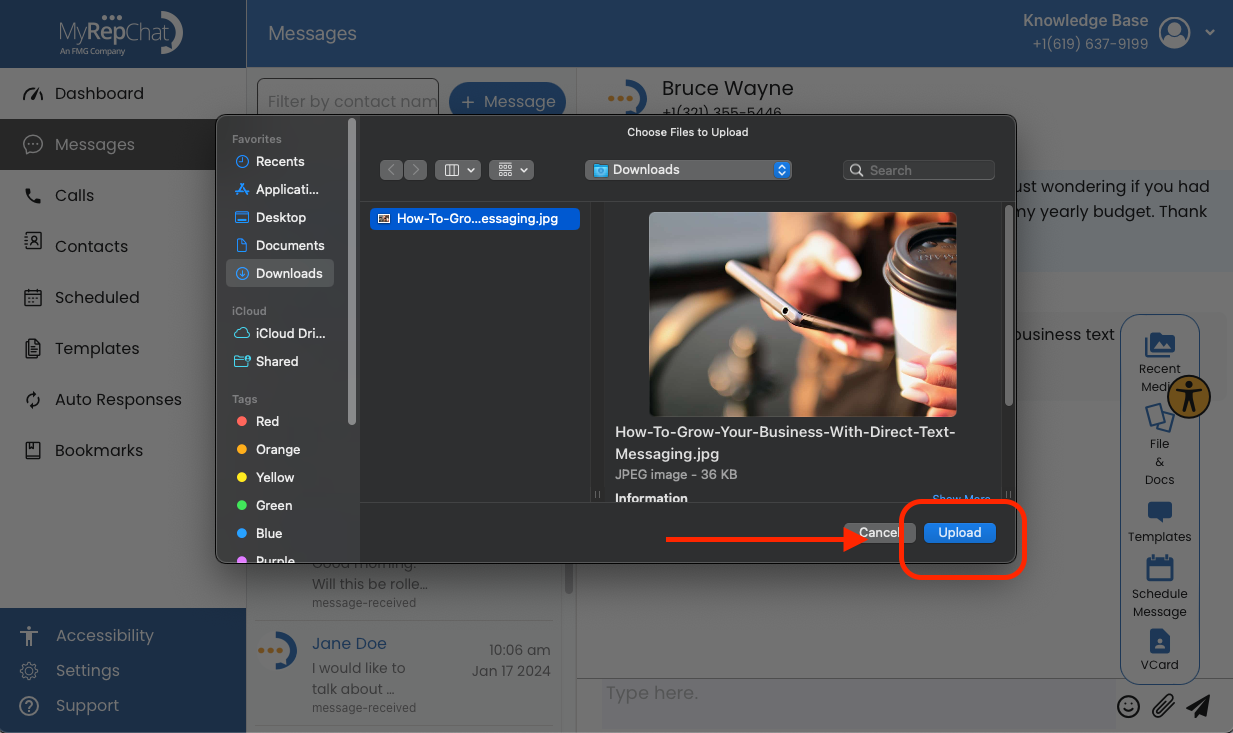
- Select the image you want to attach from your computer's files.
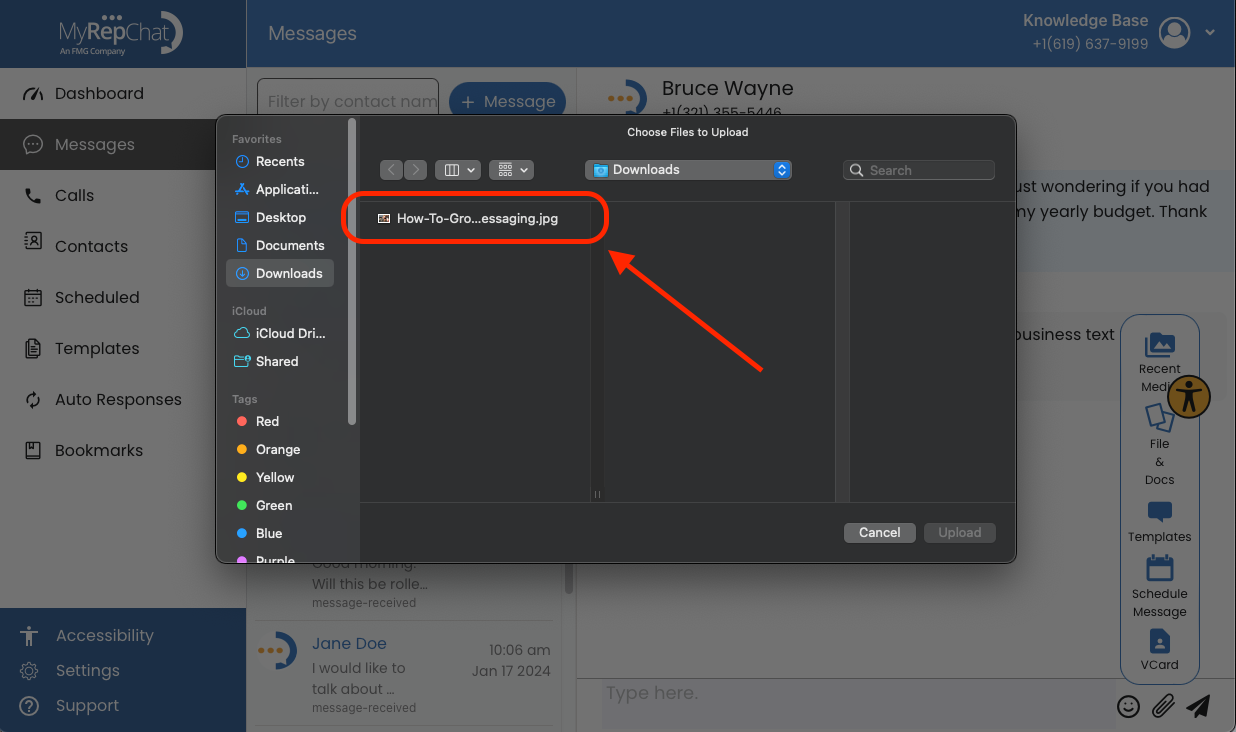
- Click Upload in the bottom right of the pop-up window.
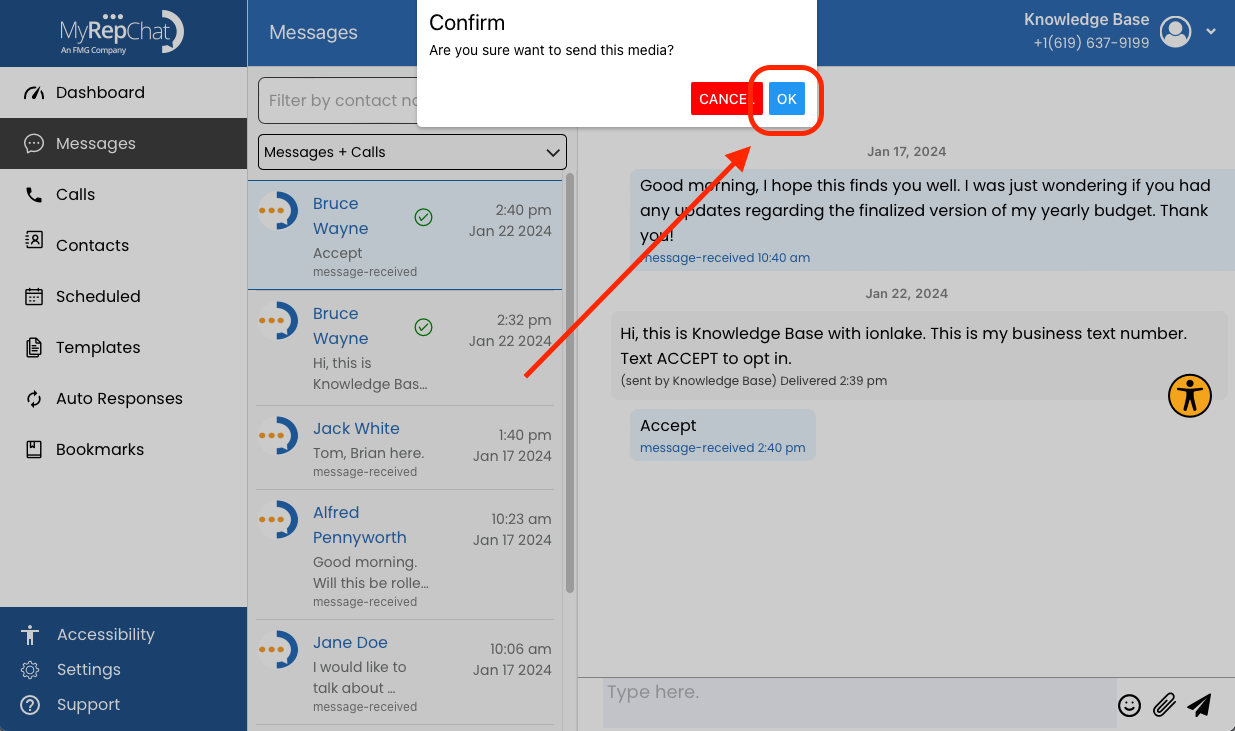
- A confirmation pop-up appears: "Confirm — Are you sure you want to send this media?" Click OK.
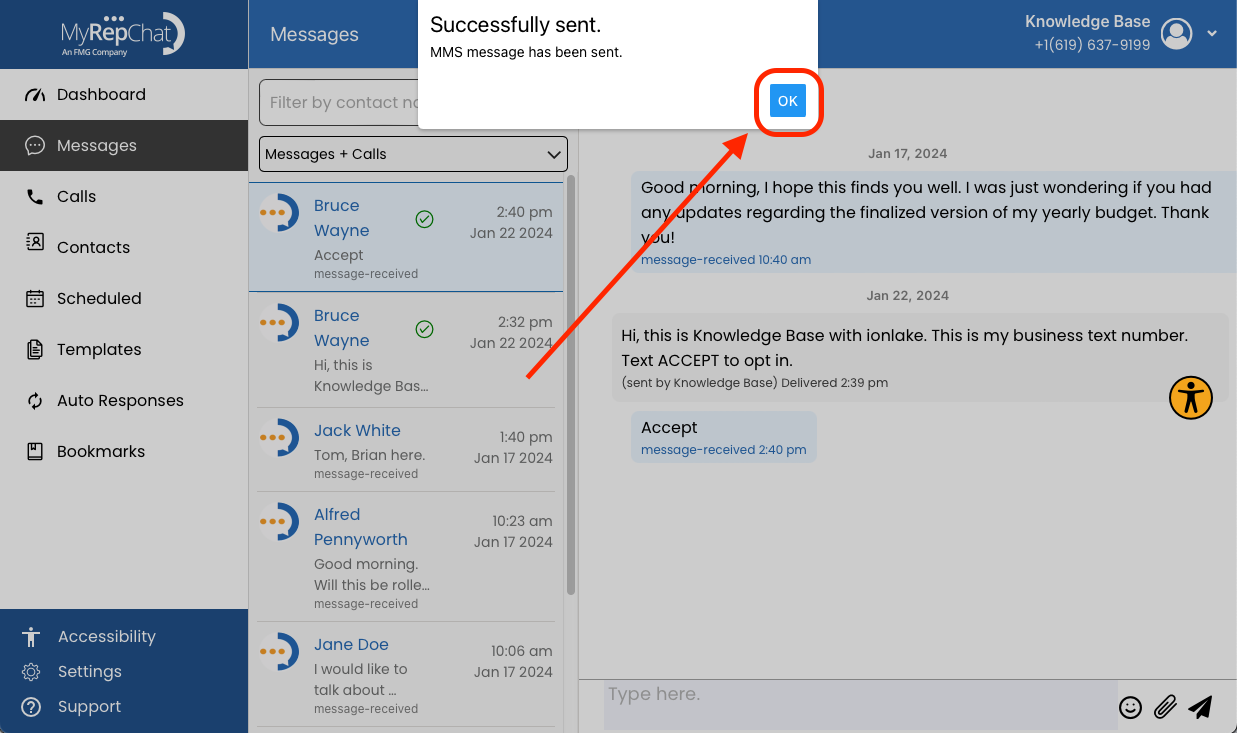
- Another pop-up confirms: "Successfully Sent — MMS message has been sent." Click OK to close it.
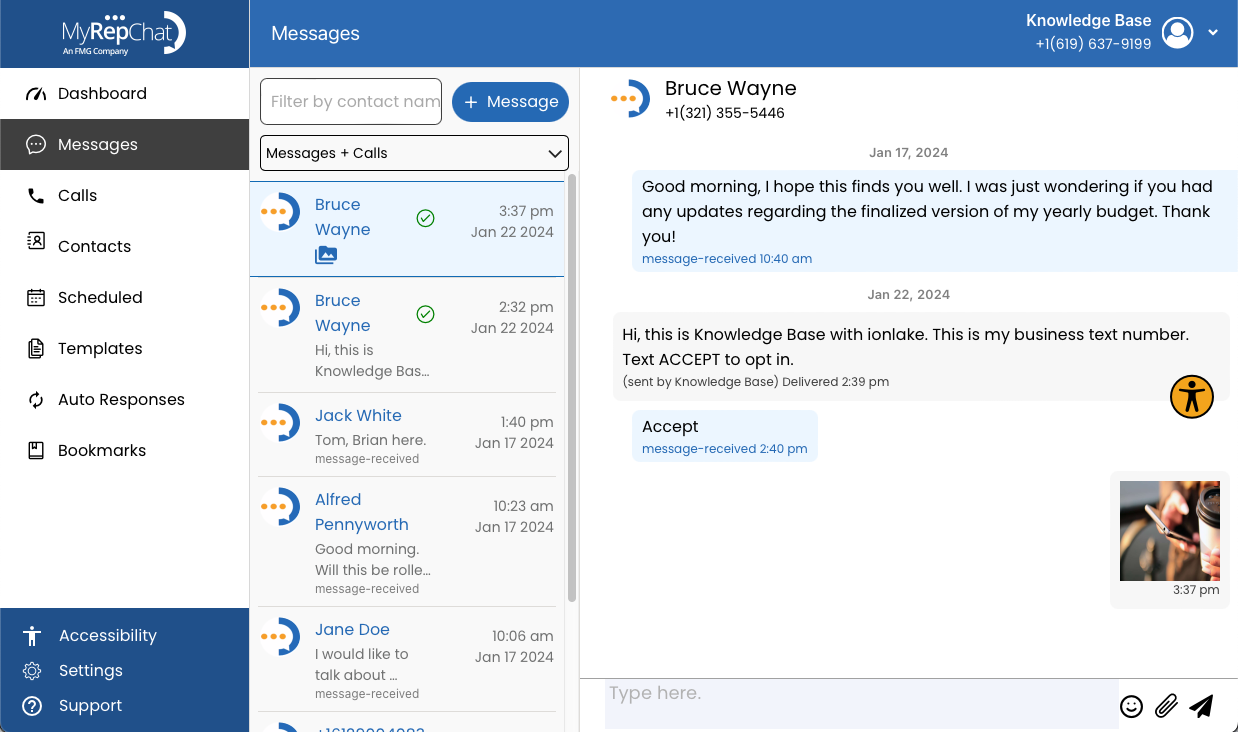
- Your image now appears in your message history as sent.
Keep picture file sizes under 1MB to ensure delivery. Image size limits are set by the recipient's carrier, not MyRepChat's. For larger files, we recommend uploading to a cloud storage service and sharing a link instead.