How Do I Manually Add a Contact?
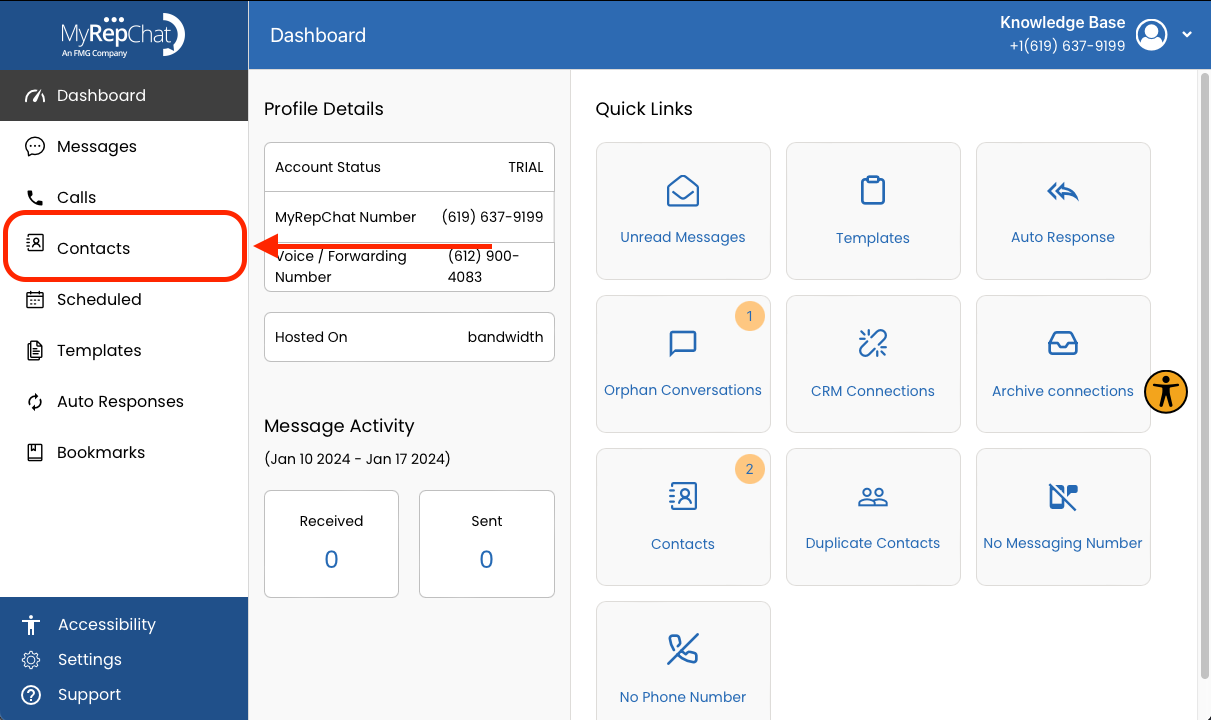
- Click Contacts in the menu on the left side of your Dashboard.
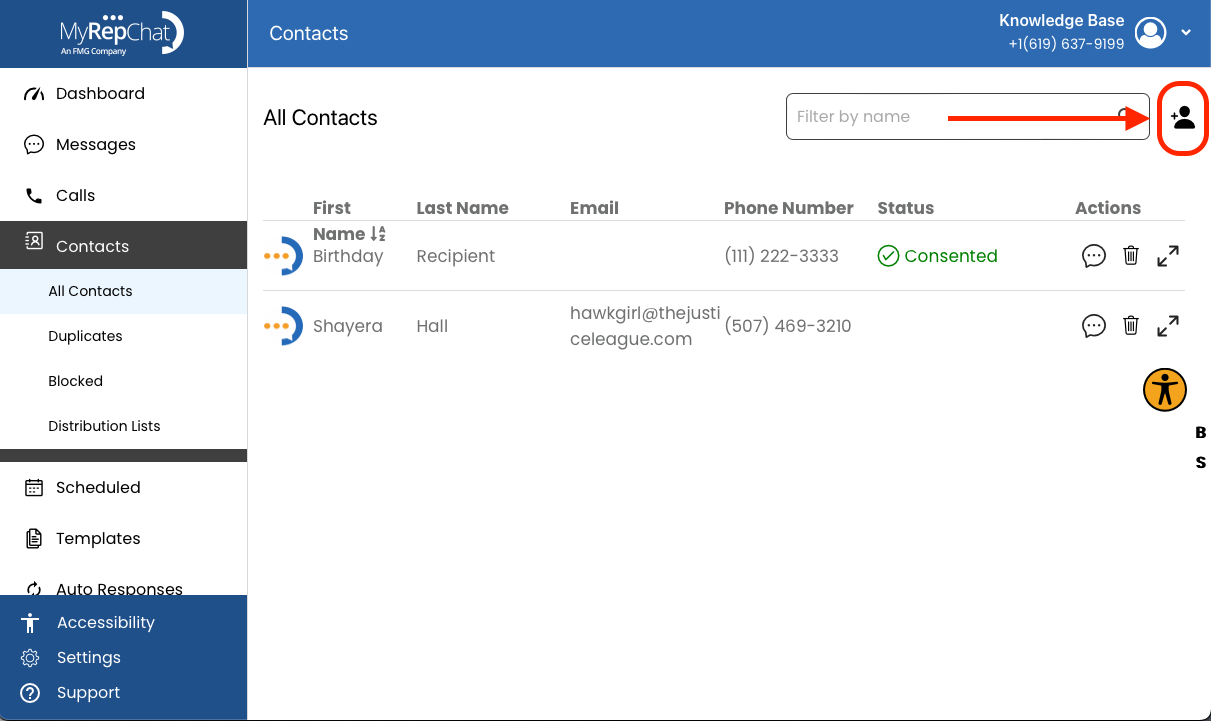
- On the Contacts page, click the person icon in the top right.
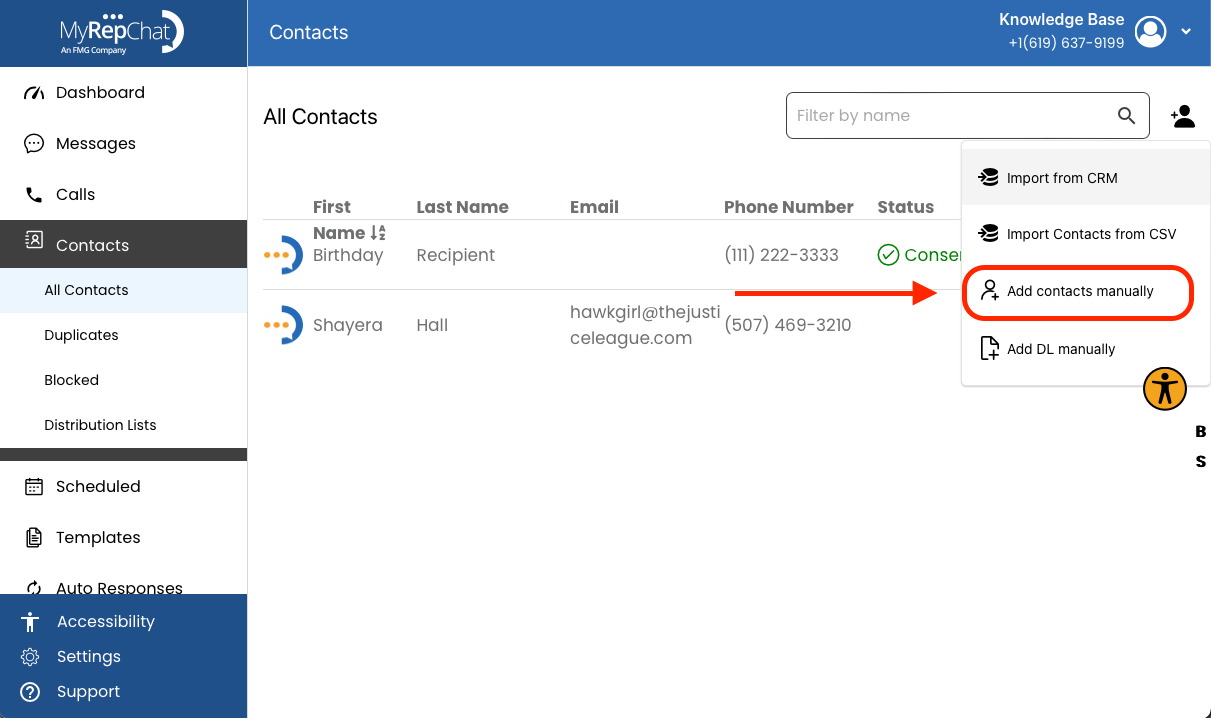
- In the dropdown menu, click Add Contacts Manually.
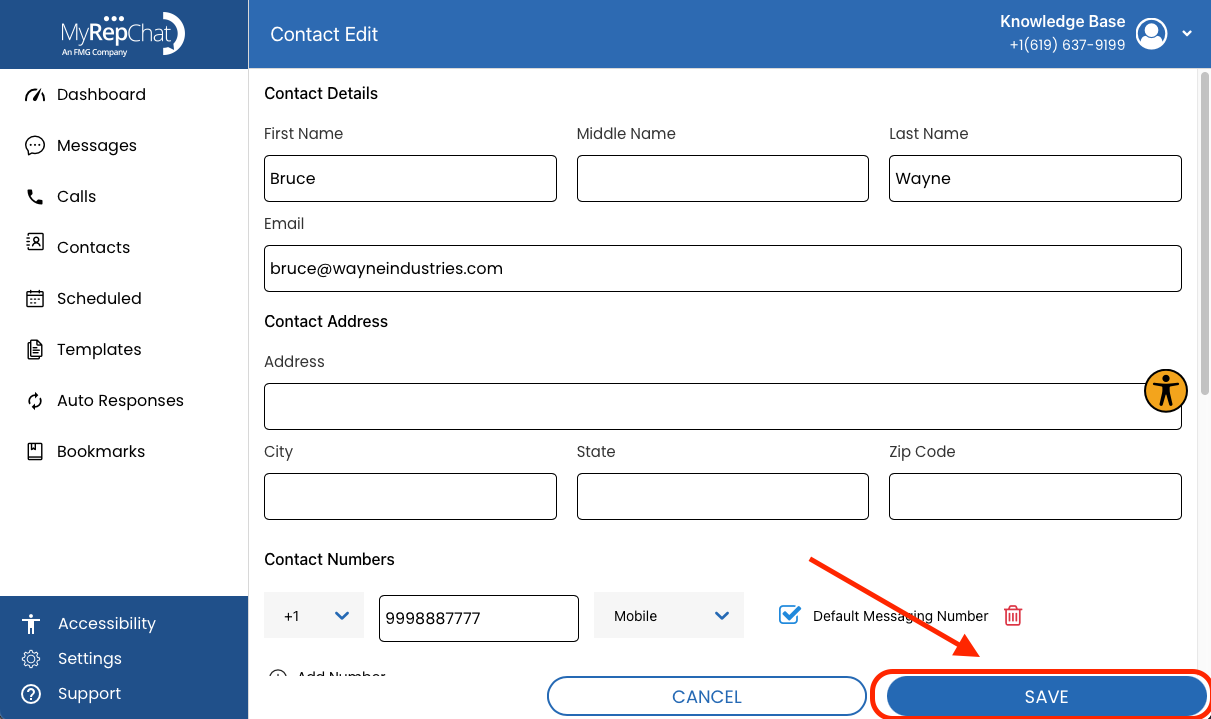
- Enter the contact's details. Available fields include:
- First Name
- Middle Name
- Last Name
- Contact Address (Street Address, City, State, Zip Code)
- Phone Number(s)
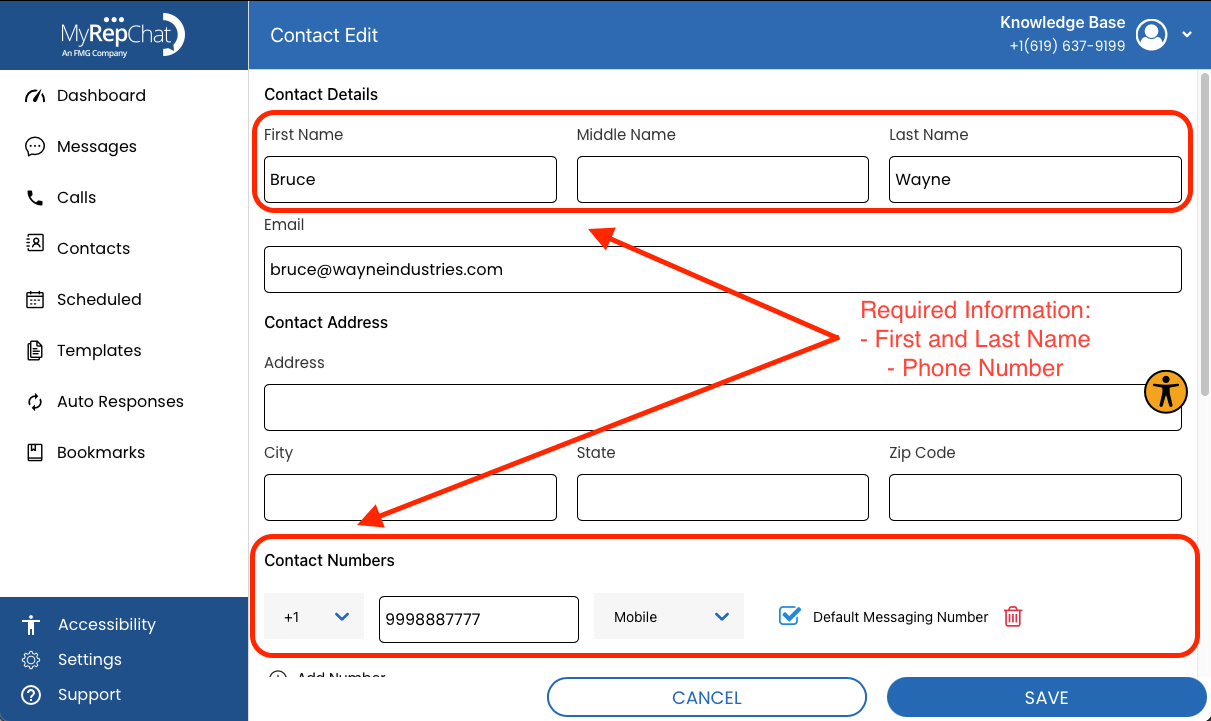
Note: First Name, Last Name, and Phone Number are required fields.
- Click "Save" on the bottom right, to save your new contact.