
If you pay for your own MyRepChat subscription — or for add-ons like Voice or Archiving — you can access the Subscription Management screen from Settings > Profile in the desktop app. This article walks you through reviewing your subscription, adding or removing add-ons, and updating your payment method — the process takes just a few minutes.
Payment is handled through our billing partner, Chargebee, where you can also modify your billing address, update your payment method, and access invoices from July 31, 2026 onward at any time.
The Subscription Management screen is not accessible from the mobile app.
How Do I Access the Subscription Management Screen?
- Go to myrepchat.com and log in to your account.
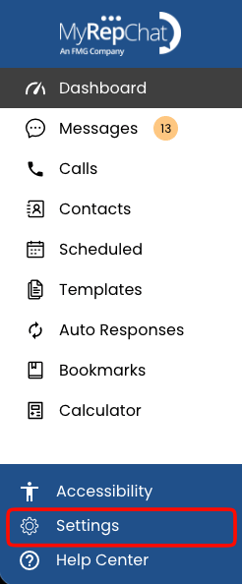
- Click Settings in the bottom-left sidebar.
- Under Profile, click Subscription.
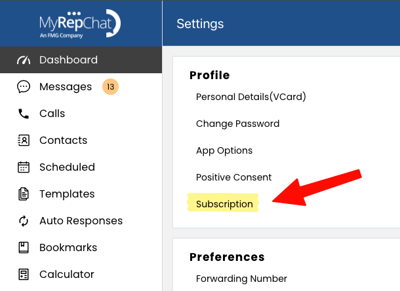
Note: Billing is now managed from Profile > Subscription. If you previously updated billing under "Add-Ons and Billing," that menu has moved.
What Can I Do on the Subscription Management Screen?
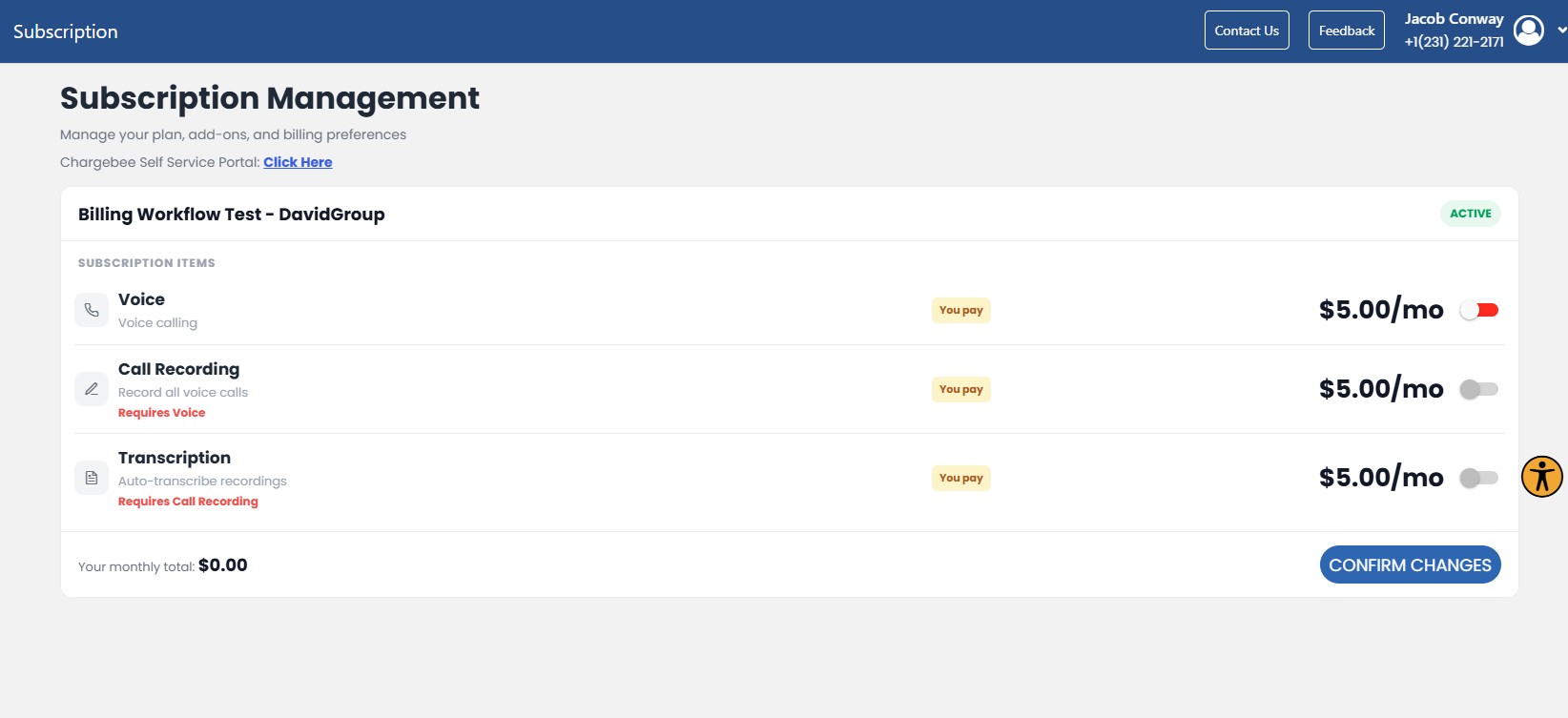
The Subscription Management page shows all of your active and inactive MyRepChat products and add-ons — such as Voice, Call Recording, Transcription, and Extra Logins — along with their monthly cost.
- Toggle any add-on setting (even switching it off and back on) to activate the Confirm Changes button. This is required to move forward, even if you don't want to change your add-ons.
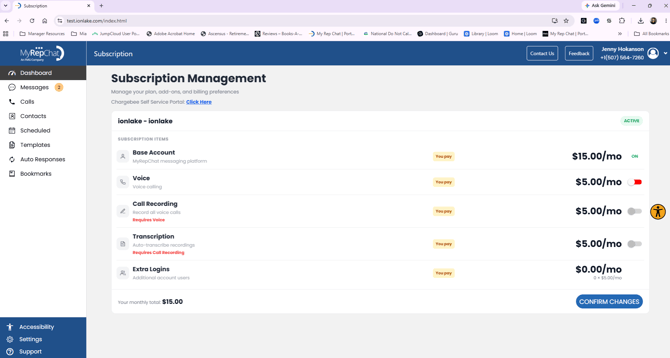
- Confirm your monthly total is correct, then click Confirm Changes.
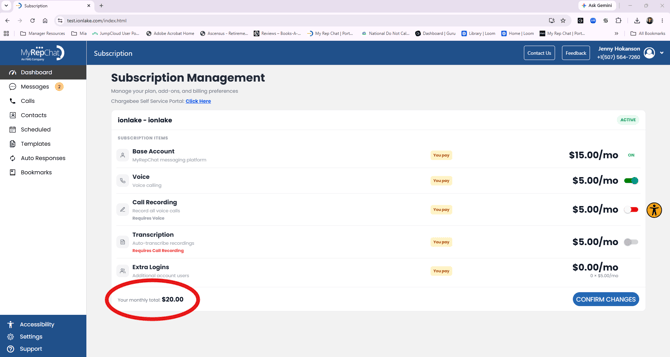
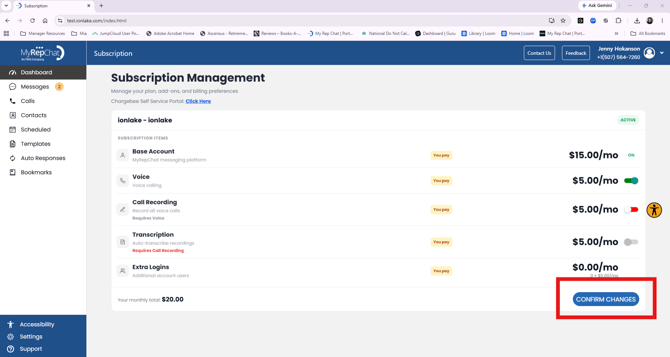
Note: If your account fee is paid by your broker-dealer, it will show as $0.00/mo. Turning on Voice will also unlock the Call Recording and Transcription options.
How Do I Confirm My Changes and Proceed to Payment?
- A popup summarizing your subscription update will appear. Check the box to agree to FMG's Terms & Conditions.
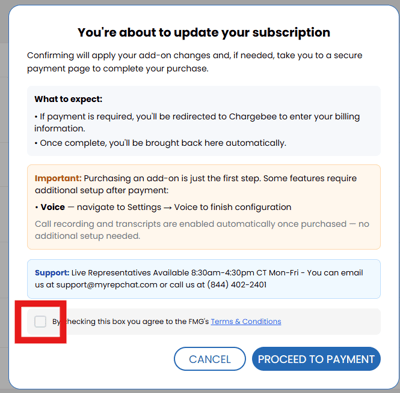
- Click Proceed to Payment.
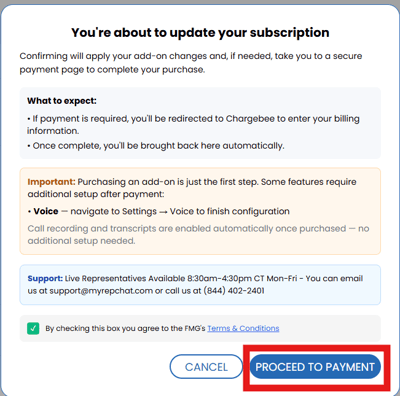
You'll be securely redirected to our payment partner, Chargebee, to complete your purchase. Once finished, you'll be brought back to MyRepChat automatically.
Note: Purchasing an add-on is just the first step for some features. Voice requires additional setup — go to Settings > Voice to finish configuration after payment. Call Recording and Transcription are enabled automatically once purchased, with no additional setup needed.
How Do I Complete Checkout in Chargebee?
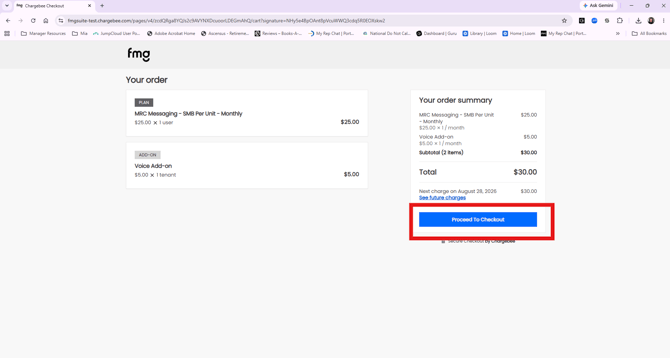
- Review your order summary, showing your plan, any add-ons selected, and total cost.
- Click Proceed to Checkout.
- Enter your billing address information.
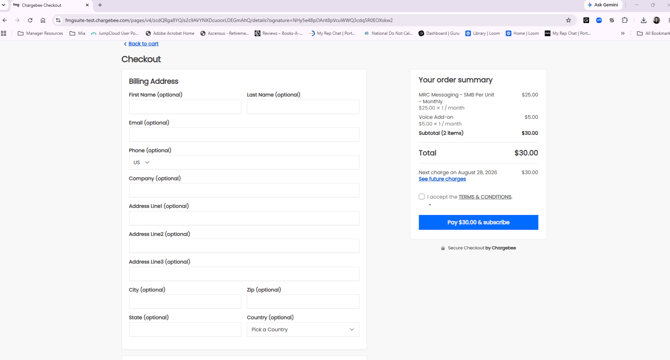
- Choose your payment method and enter your details:
- Card: First Name, Last Name, Card Number, Expiration (MM/YY), and CVV.
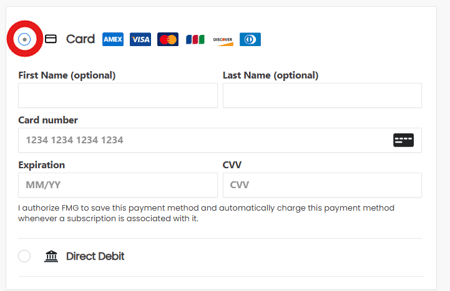
- Direct Debit: Name on Account, Account Type, Routing Number, Account Number, Country, and Bank Name.
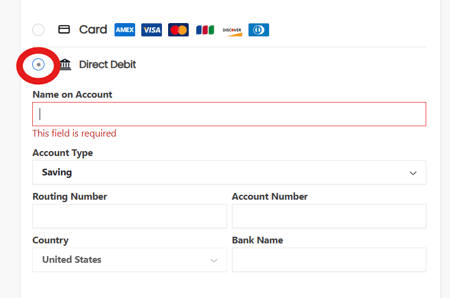
- Card: First Name, Last Name, Card Number, Expiration (MM/YY), and CVV.
- Check the box authorizing FMG to save this payment method and automatically charge it for your subscription.
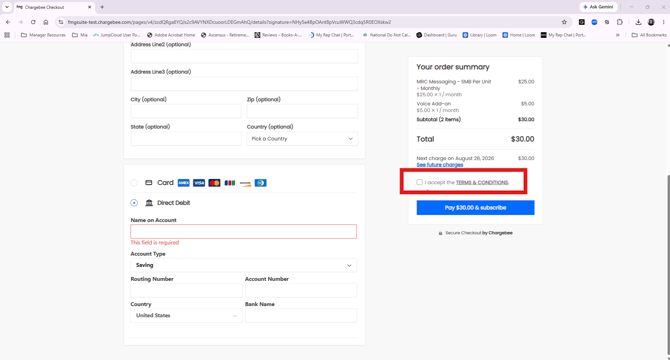
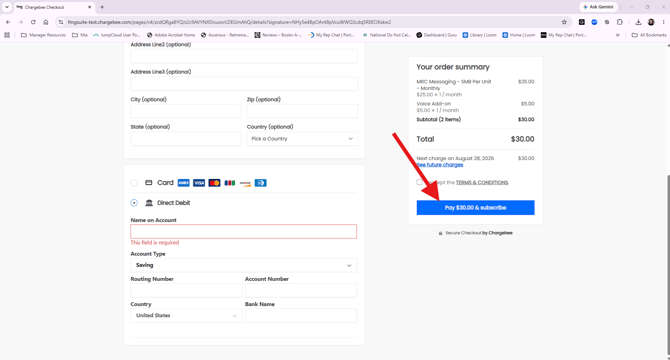
- Click Pay & Subscribe to complete your purchase.
What Happens Next?
Once your payment is submitted, your new payment method is saved and used for all future charges on your account. This typically takes effect within a minute.
Need Help? Our Client Experience team is available Monday through Friday, 8:30 AM to 4:30 PM CT.
- Email: support@myrepchat.com
- Phone: 844-402-2401