MyRepChat integrates with MarketingPro to let you send content from your MarketingPro library directly to contacts as a link in a text message — from both the web app and mobile app.
Content available in MyRepChat includes articles you've specifically added, plus any automatically assigned to you.
How Do I Set Up the Integration?
- Link your MarketingPro account to MyRepChat.
- Configure your MarketingPro profile with your name and disclosures.
- Add content from your MarketingPro library for use in MyRepChat.
Step 1: Link Your Accounts
- In MarketingPro, go to Settings > MyRepChat Integration to find your Authentication Code.
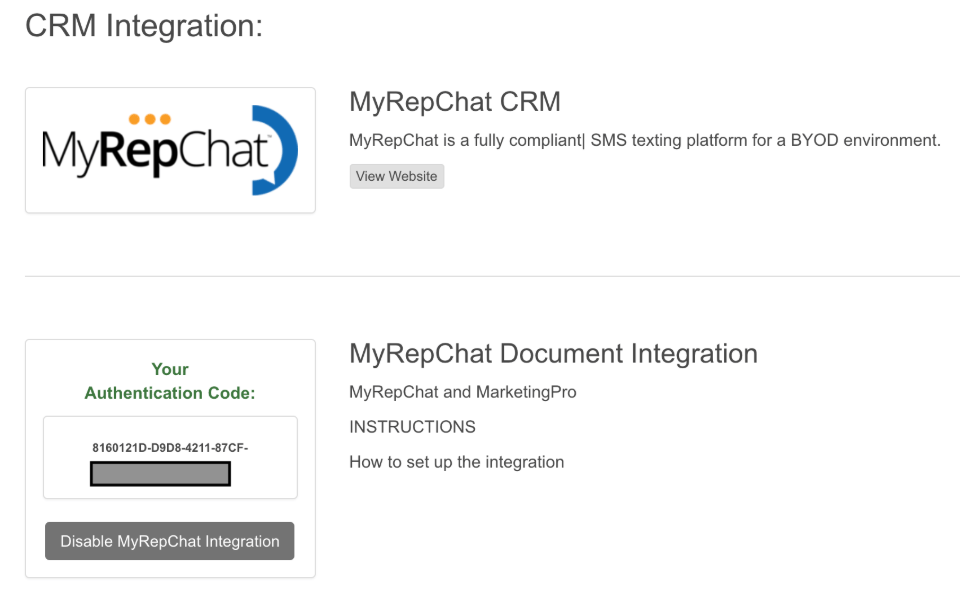
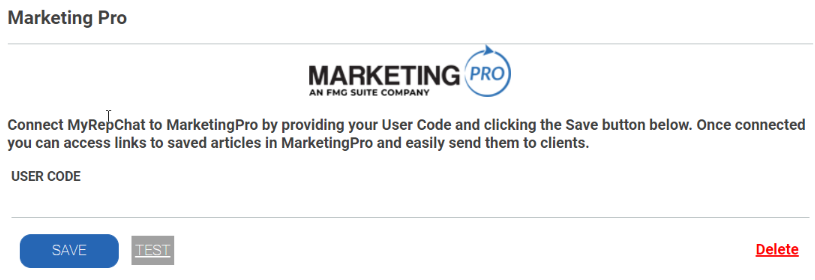
- In MyRepChat, go to Settings > Integrations > MarketingPro, enter the code, and click Save.
Step 2: Configure Your MarketingPro Profile
MyRepChat uses the name and disclosures from your MarketingPro profile to keep the content you send in compliance. Make sure both are filled in on your MarketingPro profile.
Step 3: Add Content for Use in MyRepChat
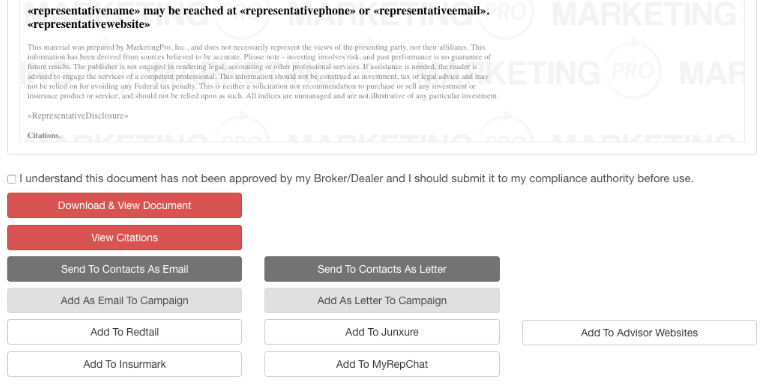
By default, MyRepChat only shows content that's automatically assigned to you. To add more:
- Open the article in MarketingPro.
- Scroll to the bottom and click Add to MyRepChat.
How Do I Send MarketingPro Content to a Contact?
Once your account is linked and you've added content, you can search for and send it to contacts in two ways:
From the Dashboard:
- Click Bookmarks.
- Search for content, or leave the search empty to see everything you've linked.
From a message you're composing:
- Compose a new message, or open an existing conversation.
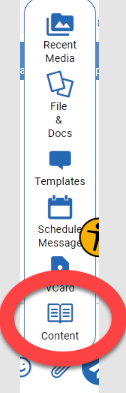
- Click the paperclip icon, then select Content.
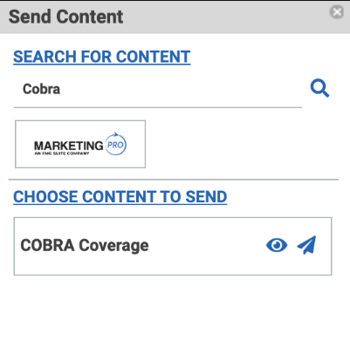
- Search by keyword, then click the magnifying glass.
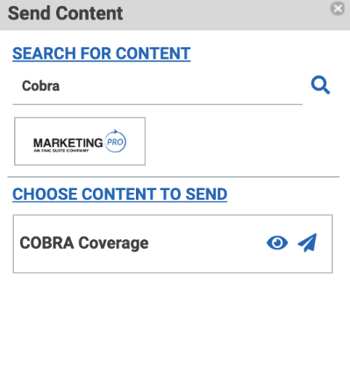
- Use the eye icon to preview content, or the airplane icon to send it.