
How Do I Schedule a Text Message?
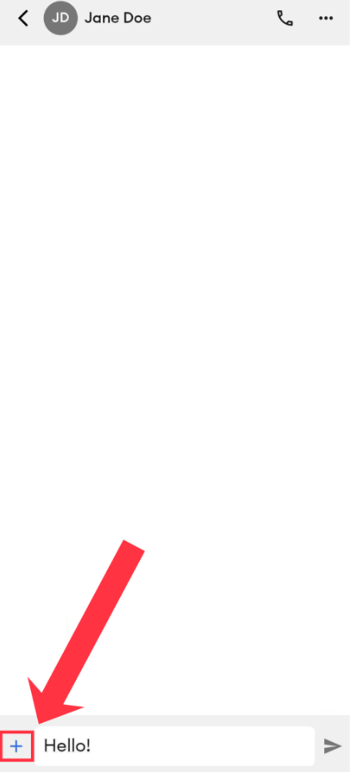
- Type your message.
- Tap the + icon to open messaging options.
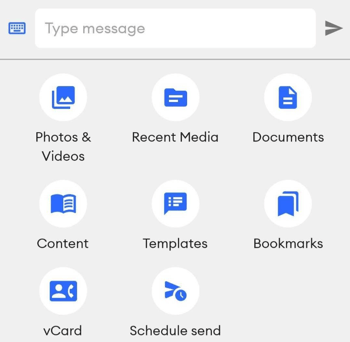
- Select Schedule Send.
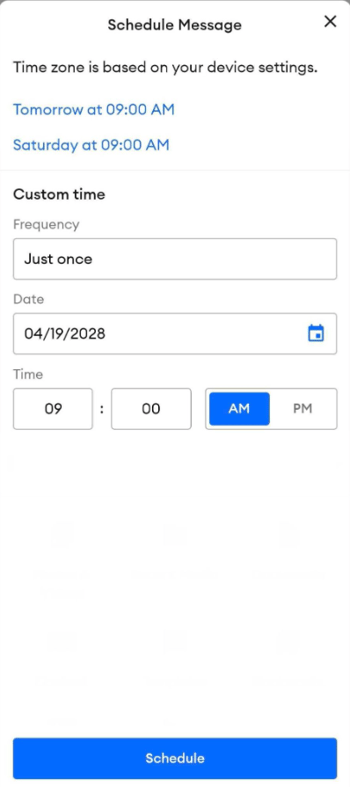
- Choose the date and time to send, then tap Schedule.
How Do I View My Scheduled Messages?
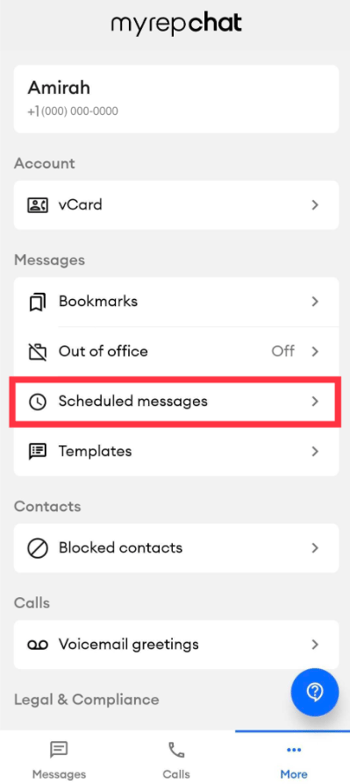
- Tap More in the bottom navigation.
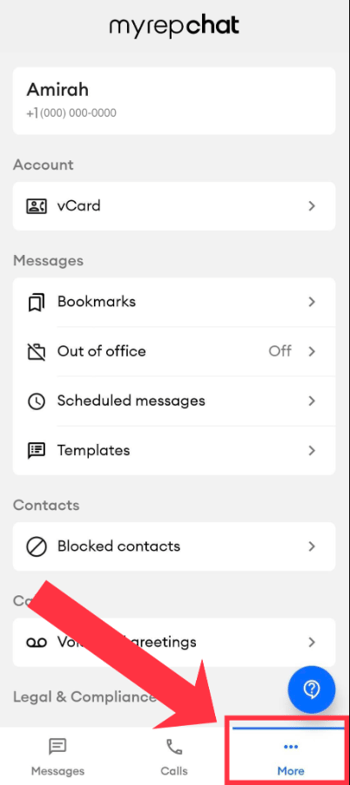
- Select Scheduled Messages to see everything currently scheduled.
How Do I Edit a Scheduled Message?
- In the Scheduled Messages list, tap the three-dot icon next to the message.
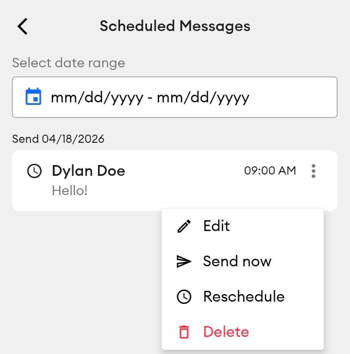
- Select Edit or Reschedule.
- Update the message text, recipient, or send time as needed.
- Tap Save to confirm.
How Do I Delete a Scheduled Message?
- Tap the three-dot icon next to the message.
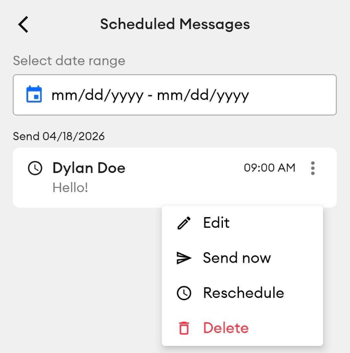
- Tap Delete.
- Confirm when prompted.
Recurring scheduled messages can only be managed in the MyRepChat web app — the mobile app supports single, one-time scheduled messages only.