
How Do I Create an Auto Response?
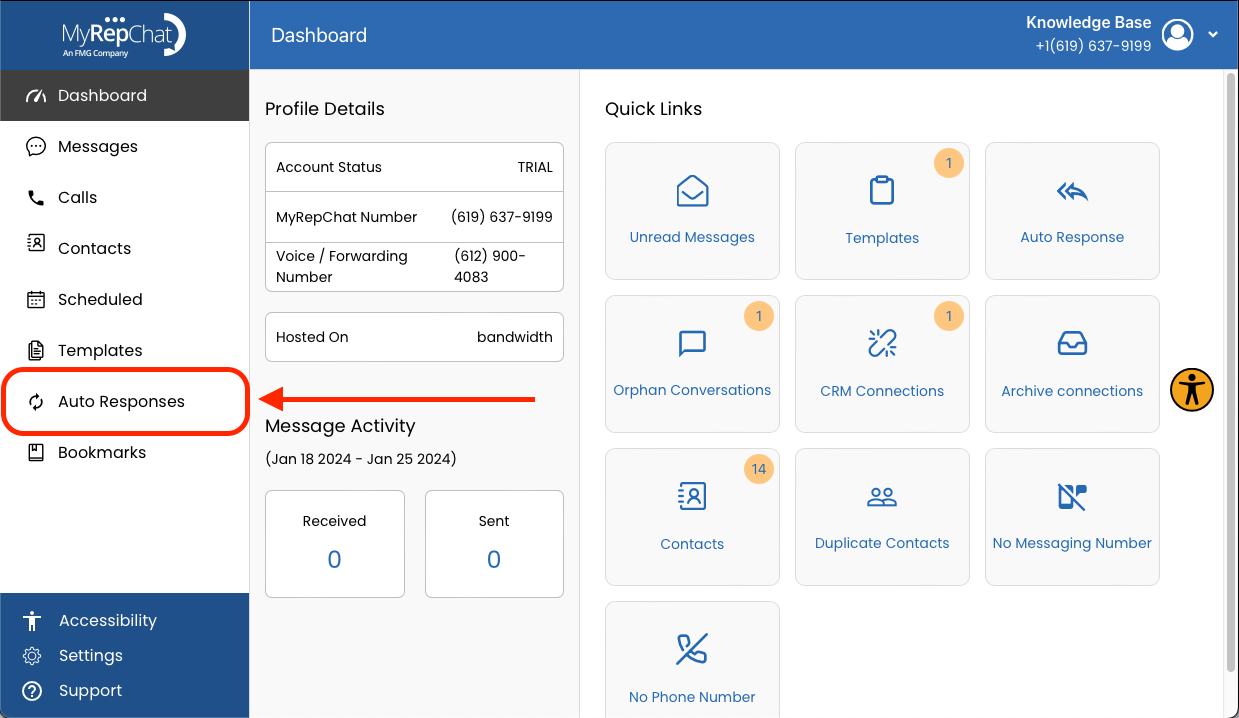
- In the menu on the left side of your Dashboard, click Auto Responses.
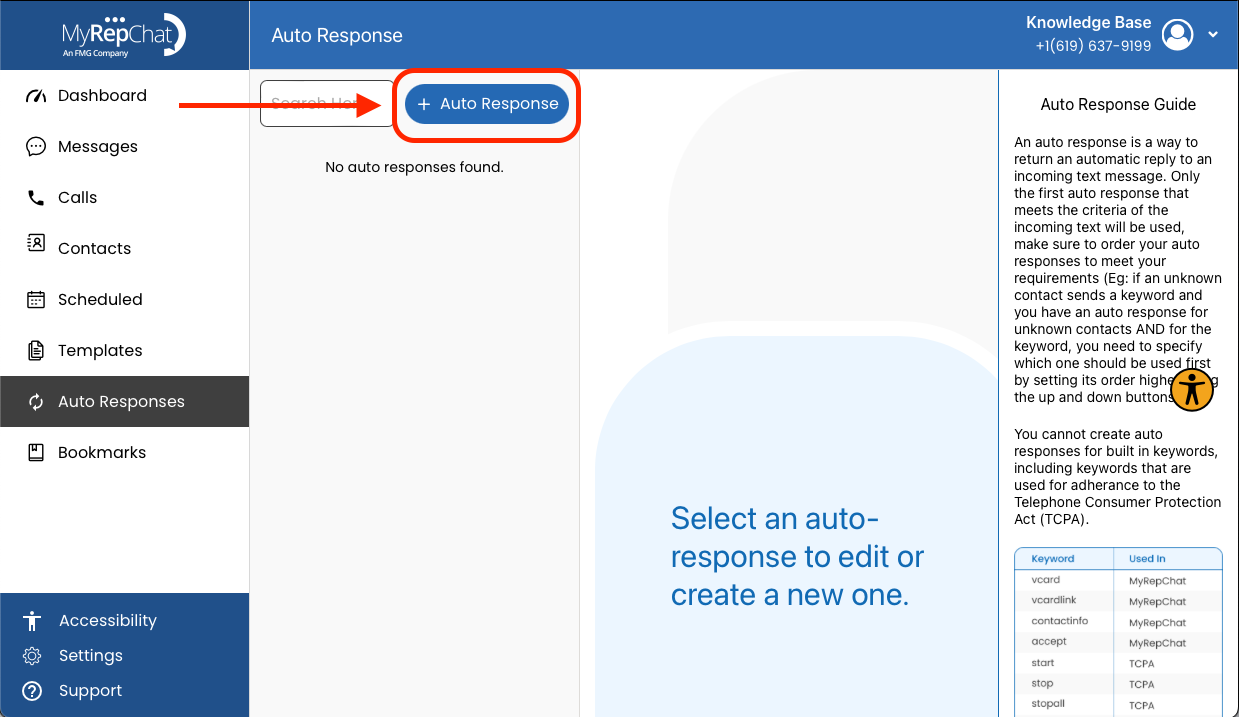
- Click + Auto Response at the top left of the page.
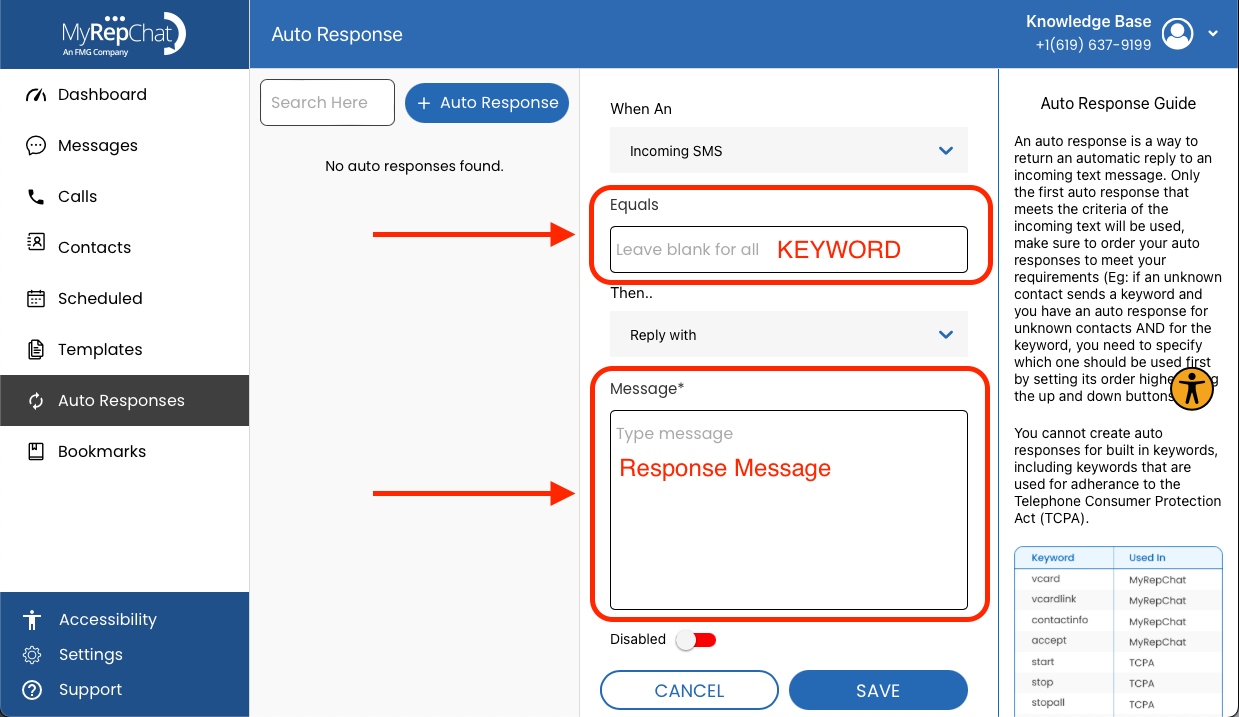
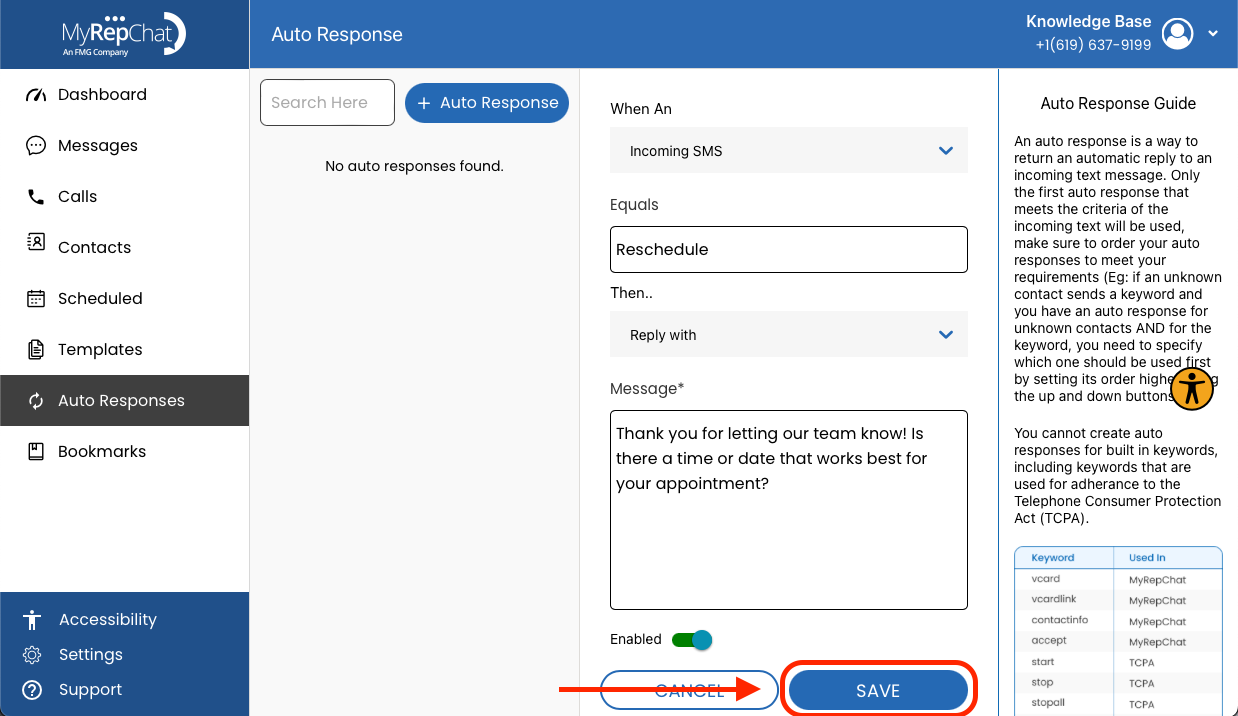
- In the Equals field, enter the keyword that should trigger this response. In the Message field, enter what you'd like the auto-response to say.
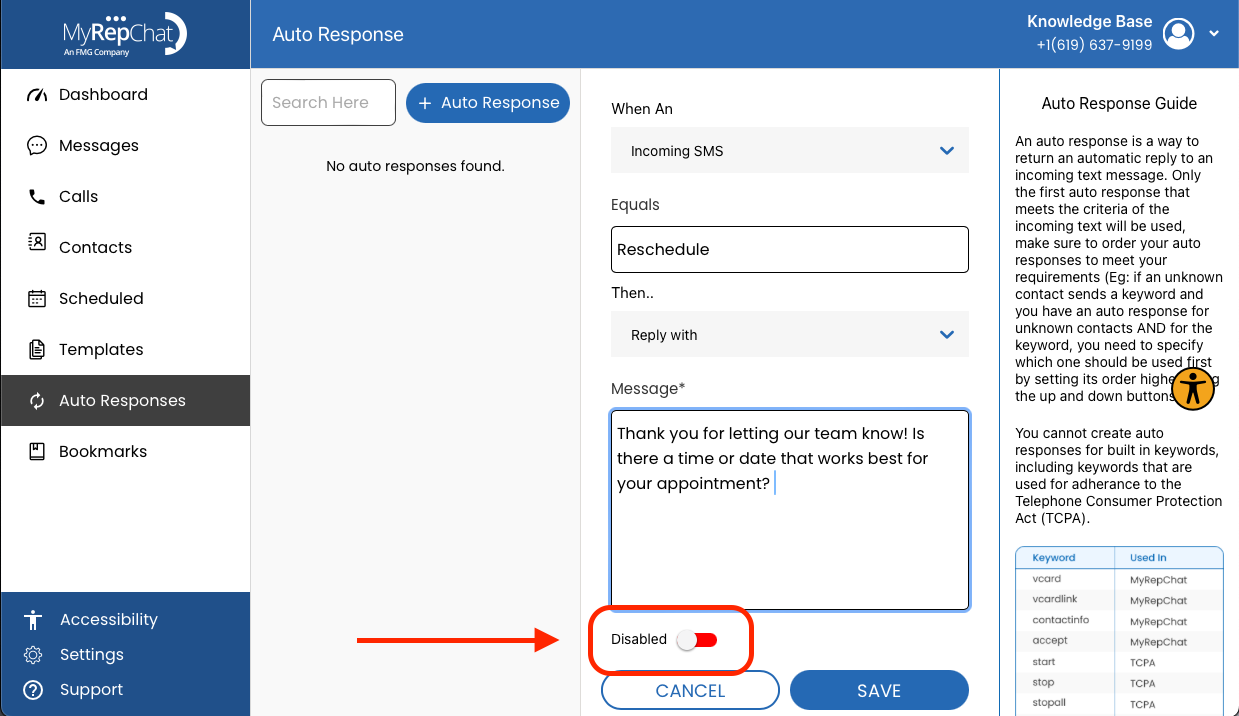
- Use the toggle beneath the Message field to turn the auto-response on or off.
- Click Save in the bottom right.
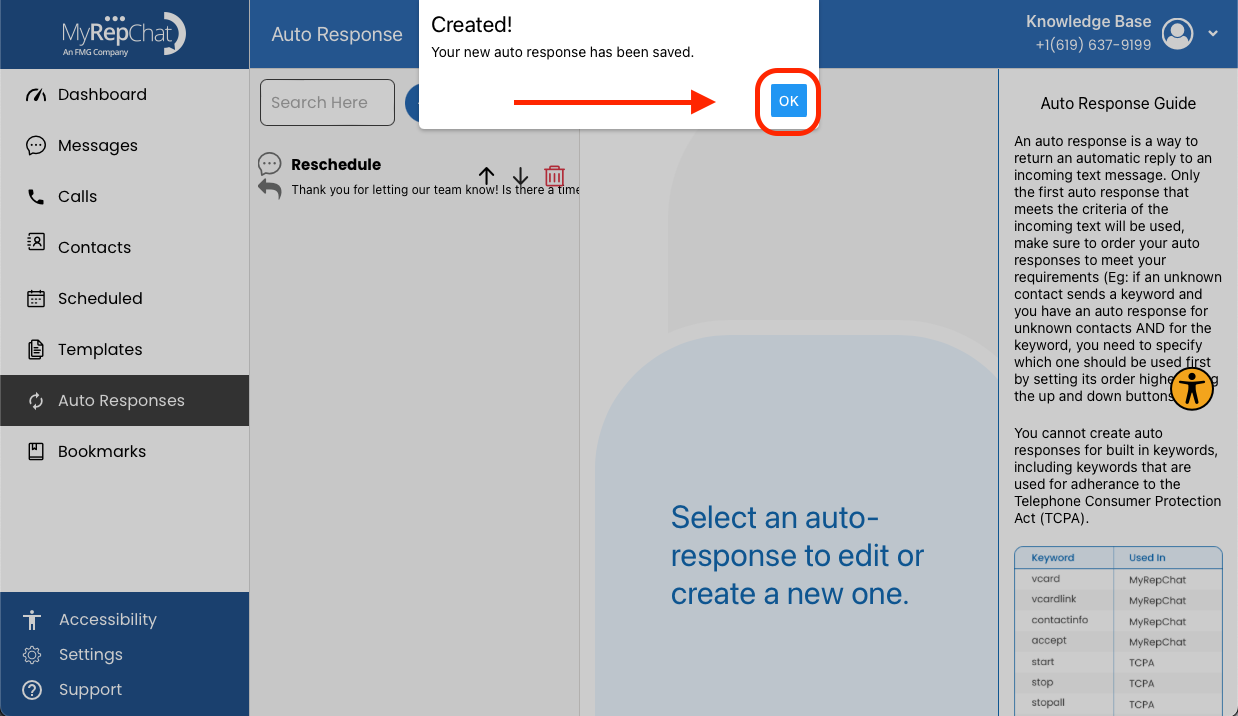
- A confirmation pop-up appears: "Created! Your new auto-response has been saved." Click OK to close it.
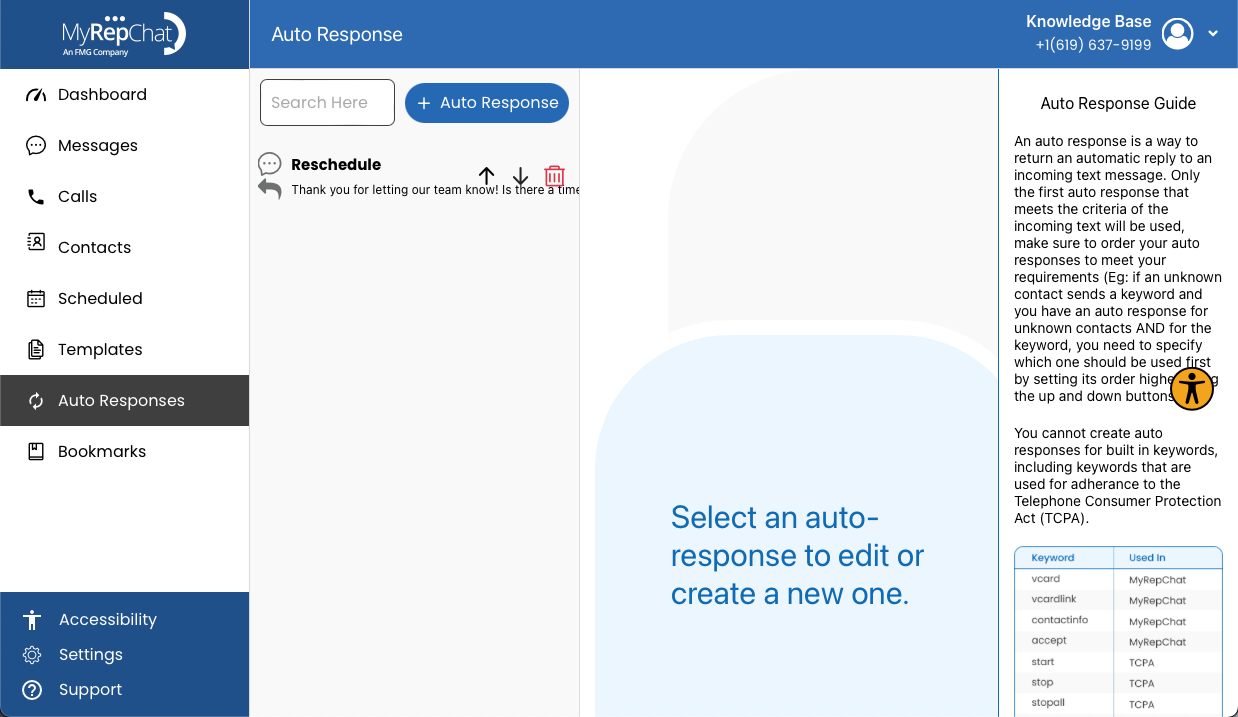
- Your auto-response now appears in your list of auto-responses.
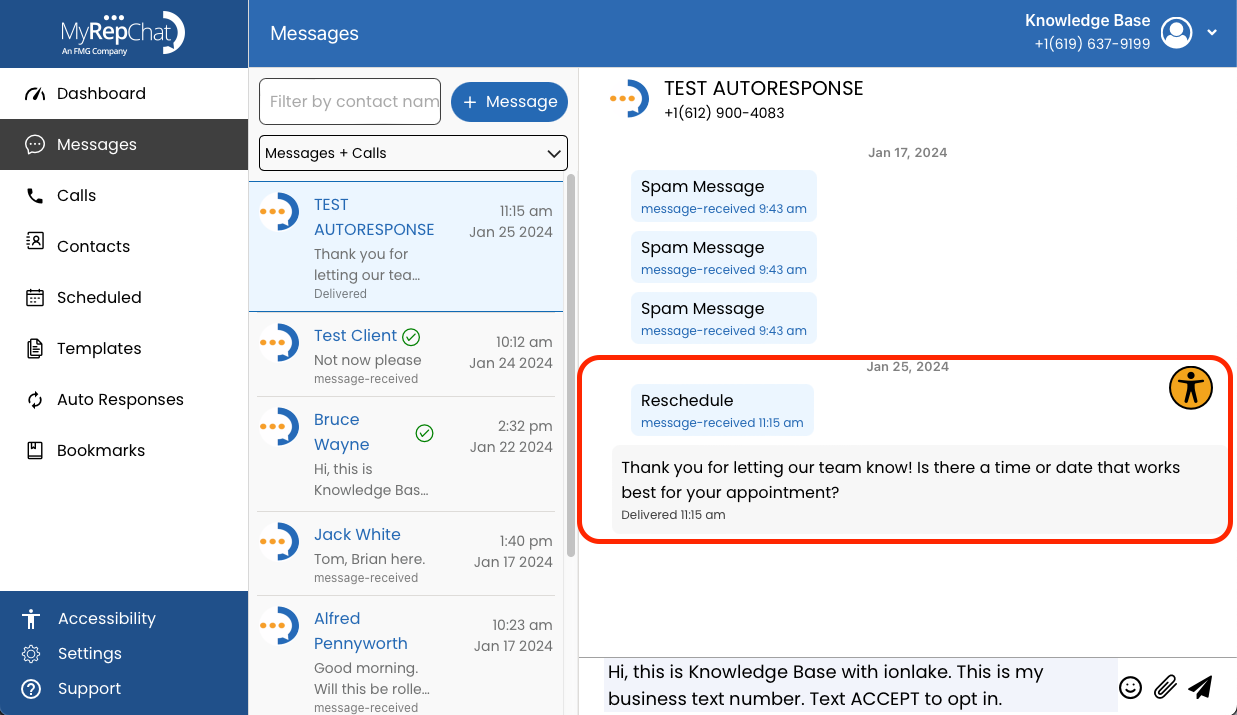
- When a contact texts a matching keyword, the auto-response will appear automatically in your message history.
How Do Auto Responses Work?
An auto-response automatically replies to an incoming text. Only the first auto-response that matches the incoming message is used, so the order of your auto-responses matters.
For example, if you have both a keyword-based auto-response and a separate one for unknown contacts, and a message could trigger either, use the up and down buttons to set which one should take priority.
You can't create auto-responses for built-in keywords, including those required for Telephone Consumer Protection Act (TCPA) compliance