
How Do I Create a New Group?
- While logged into your reseller account, click the wrench icon, then go to the Group Admin section.
- Click + Add Group next to the action bar.

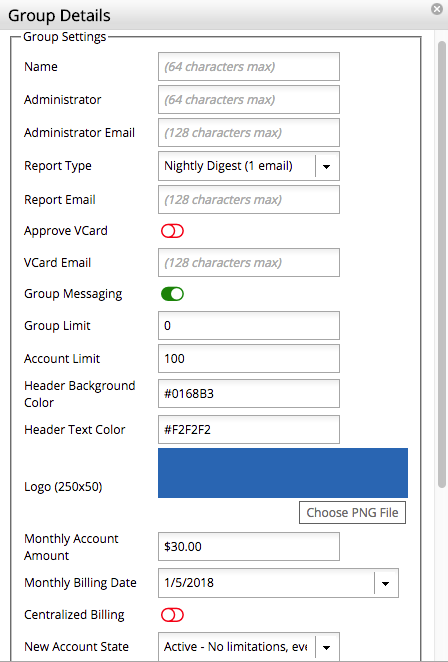
- A dialog box appears for the new group's details (see the full settings breakdown below).
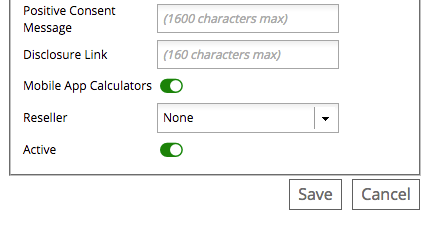
- Click Save when finished. The new group is added to your groups list.
What Do the Group Settings Do?
| Setting | Required? | Description |
|---|---|---|
| Name | Required | Appears in the group list, and in the product itself if no logo is provided. |
| Administrator | Optional | The administrator's name. |
| Administrator Email | — | The email address that receives new account signup requests. |
| Report Type | Optional | The type of report generated for the group. |
| Report Email | Optional | The email address reports are sent to. |
| Approve VCard | Optional | If enabled, all vCard changes are staged until approved by an administrator. |
| VCard Email | Optional | The email address that receives vCard change notices. |
| Group Messaging | Optional | Turns the group messaging feature on or off. |
| Group Limit | Optional | Limits the number of contacts allowed in a group (0 = no limit). |
| Account Limit | Optional | Limits the number of accounts a group can have (0 = no limit). |
| Header Background and Text Colors | Optional | Sets the banner colors across the top of the app (web app only). |
| Logo | Optional | A PNG logo, 250px × 50px, shown in the upper-left corner of the product (web app only). |
| Monthly Account Amount | Required | The amount charged per user in this group. |
| Centralized Billing | Optional | If enabled, all billing charges go to a group credit card on file. The signup page won't display a credit card section when this is on. |
| New Account State | Required | The default status assigned to new accounts: Active, Trial, Review, or Inactive. |
| Positive Consent Message | Optional | A pre-written positive consent message for the group administrator to use. |
| Disclosure Link | Optional | A link to the group's disclosure agreement. |
| Mobile App Calculators | Optional | If disabled, removes the calculator feature from the MyRepChat mobile app. |
| Reseller | Required | Selects yourself as the reseller for this group. |
| Active | Required | Keeps the group active. Disable to deactivate the group. |