
Files can't exceed 2 MB (some carriers limit this to 1 MB). Some broker-dealers also don't permit media attachments at all.
From the mobile app, you can attach a variety of file types to a text using the + menu while composing a message.
How Do I Add an Attachment to a Message?
- Open an existing conversation, or start a new message.
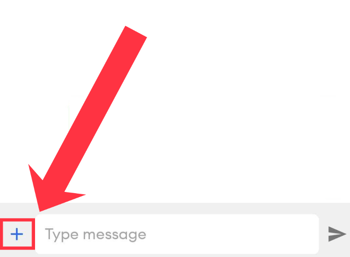
- Tap the + icon next to the message field to open the attachment menu.
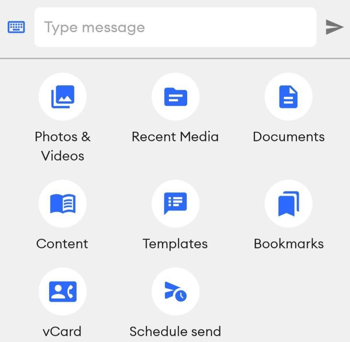
- Select the type of attachment you want to send (see options below).
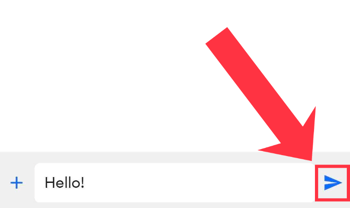
- Add any message text if you'd like, then tap the paper airplane icon to send.
What Are My Attachment Options?
- Photos or videos: Tap Photos to browse and select an image or video from your device's media library. The first time you do this, you'll be prompted to grant MyRepChat access to your media library. You can only send one photo or video at a time, but you can include text alongside it.
- Note: HEIC image files (the default format on many iPhones) are not supported. If you need to send a photo from an Apple device and it's in HEIC format, you'll need to convert it first. See Apple's guide on converting image file types using Preview.
- Documents: Tap Documents to attach a file from your device storage, such as a PDF or other document.
- Content: Tap Content to browse and attach FMG content pieces, if your account has FMG content enabled.
- Templates: Tap Templates to select a pre-written message template. The template text will populate in the message field, where you can edit it before sending.
- Bookmarks: Tap Bookmarks to attach a saved bookmark link to your message.
- vCard: Tap vCard to attach your virtual business card. You'll see a prompt confirming that an auto message will be sent alongside the vCard. Tap Send to confirm or Cancel to go back.
- Schedule Send: Tap Schedule to set a future date and time for your message to send instead of sending it immediately.