
The Voice Add-On lets you use your MyRepChat number for voice calls in addition to text messaging — useful if you want one business number across all your communications. All calls to your MyRepChat number automatically go to your forwarding number, but the Voice Add-On also lets you make outbound calls using your MyRepChat number.
Note:
- The Voice Add-On may not be available to you depending on your broker-dealer or group — this is managed at the group level.
- The Voice Add-On comes with an additional monthly fee, which may vary by group. You can find your individual pricing in the Voice Add-On tab (see Step 2 below).
Voice Add-On
Enables voice calling through your MyRepChat number.
How Do I Set It Up?
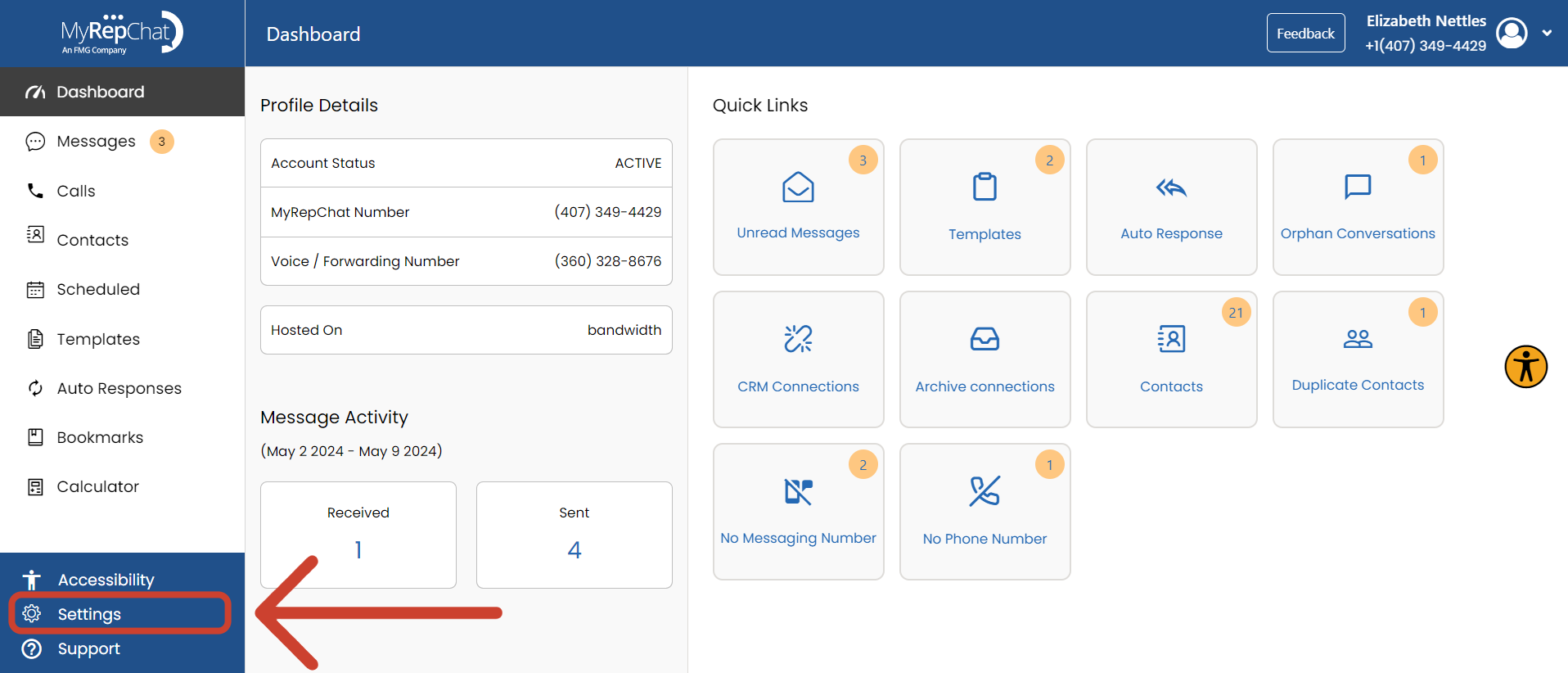
- Click Settings in the bottom left of your Dashboard.
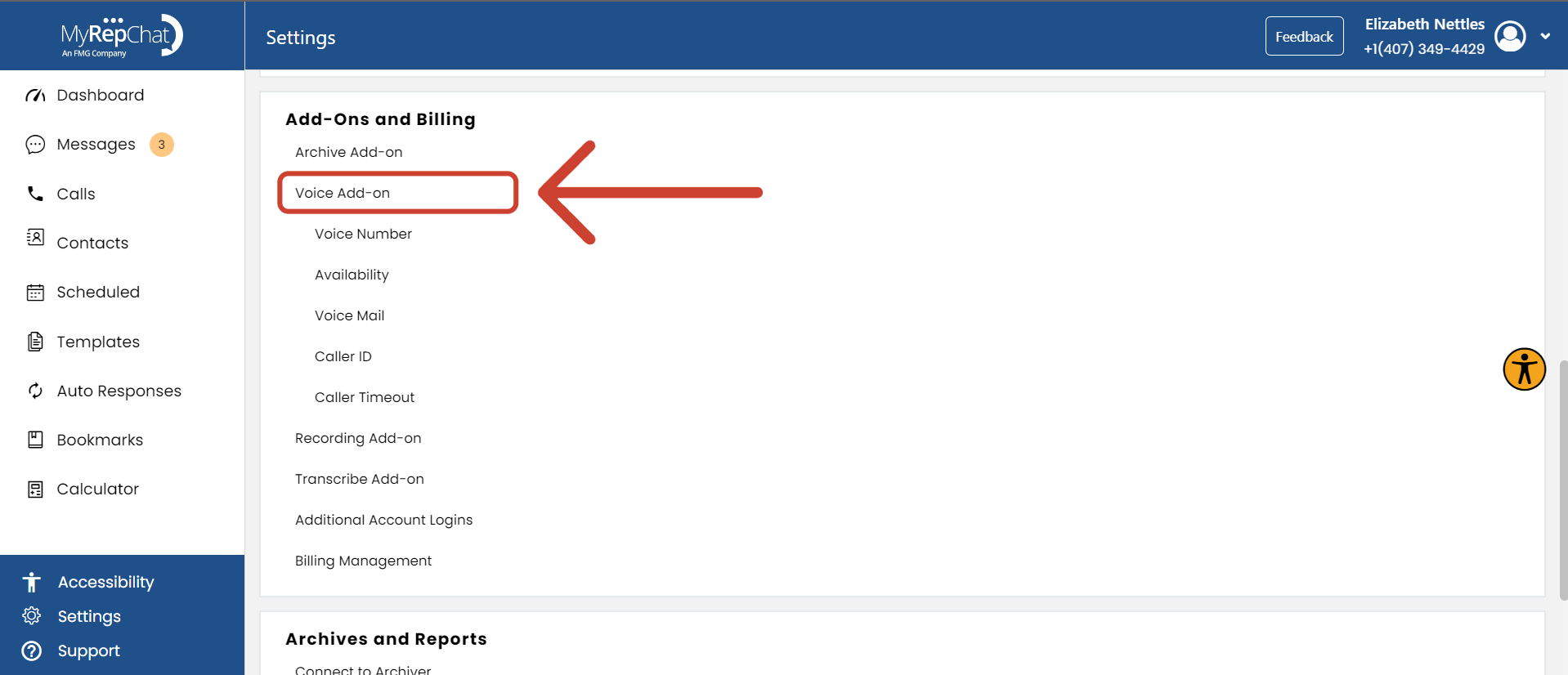
- Under Add-Ons and Billing, click the Voice Add-On tab.
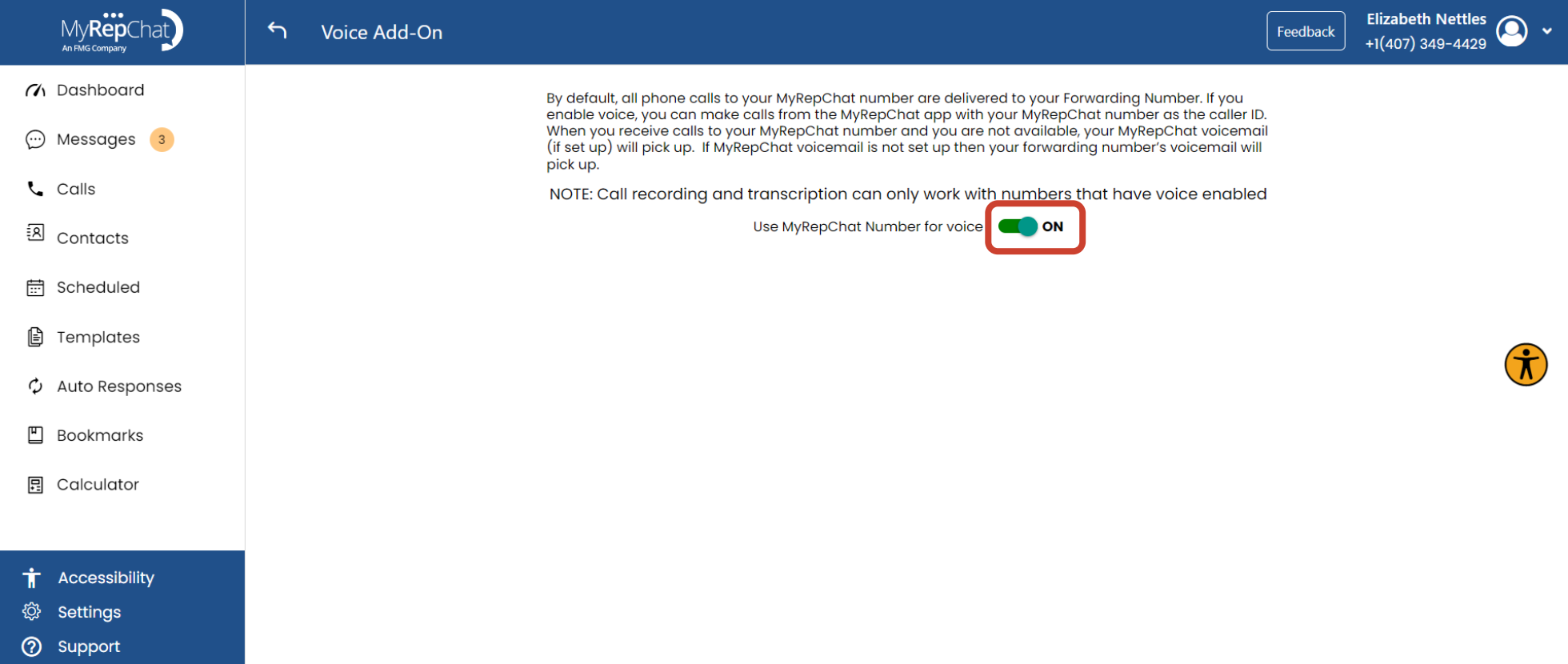
- Use the toggle to turn Voice on or off. Your monthly pricing for this add-on appears just beneath the toggle.
Voice Number
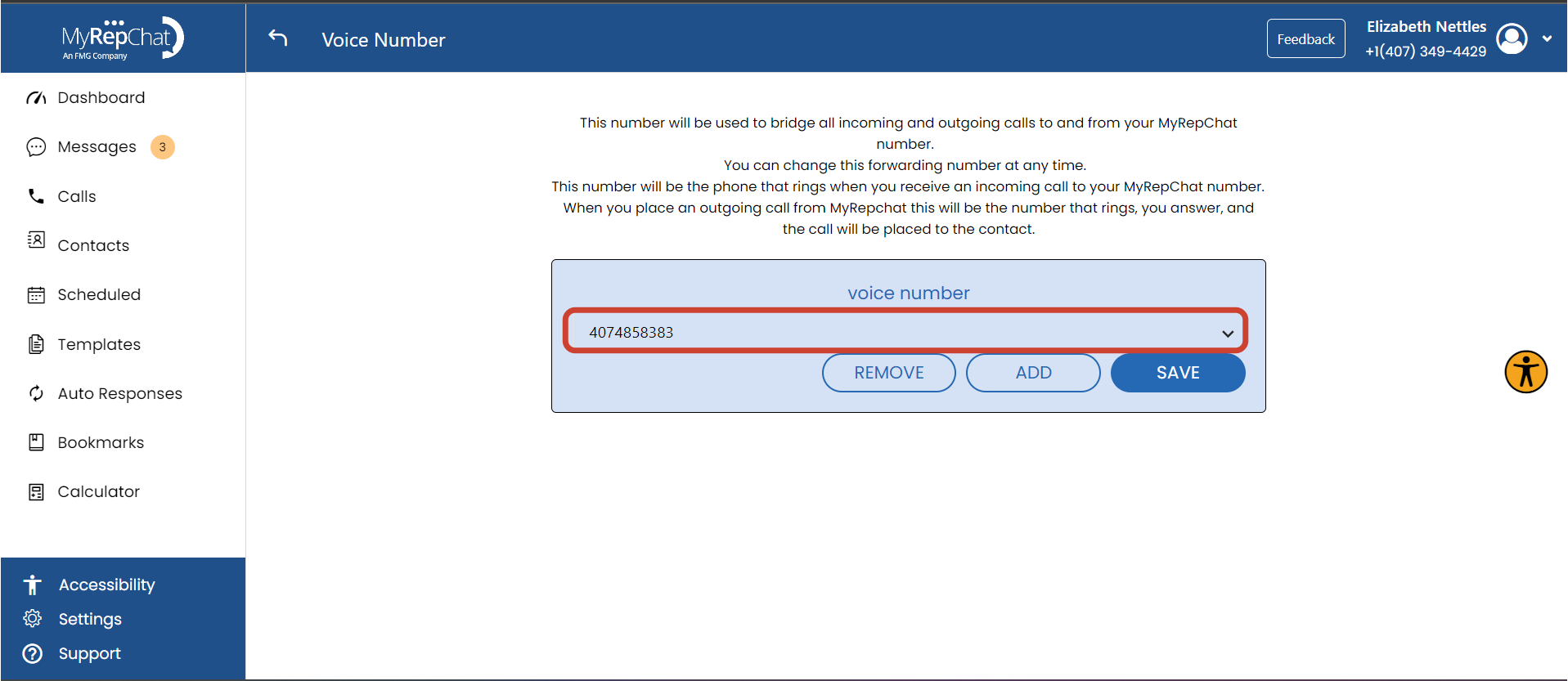
Your voice number is the number used to bridge all incoming and outgoing calls made on your MyRepChat number. When you receive a call, this number rings first. When you make an outgoing call, it rings this number first — once you answer, it dials the contact you're calling. You can change your forwarding (voice) number at any time.
How Do I Set It Up?
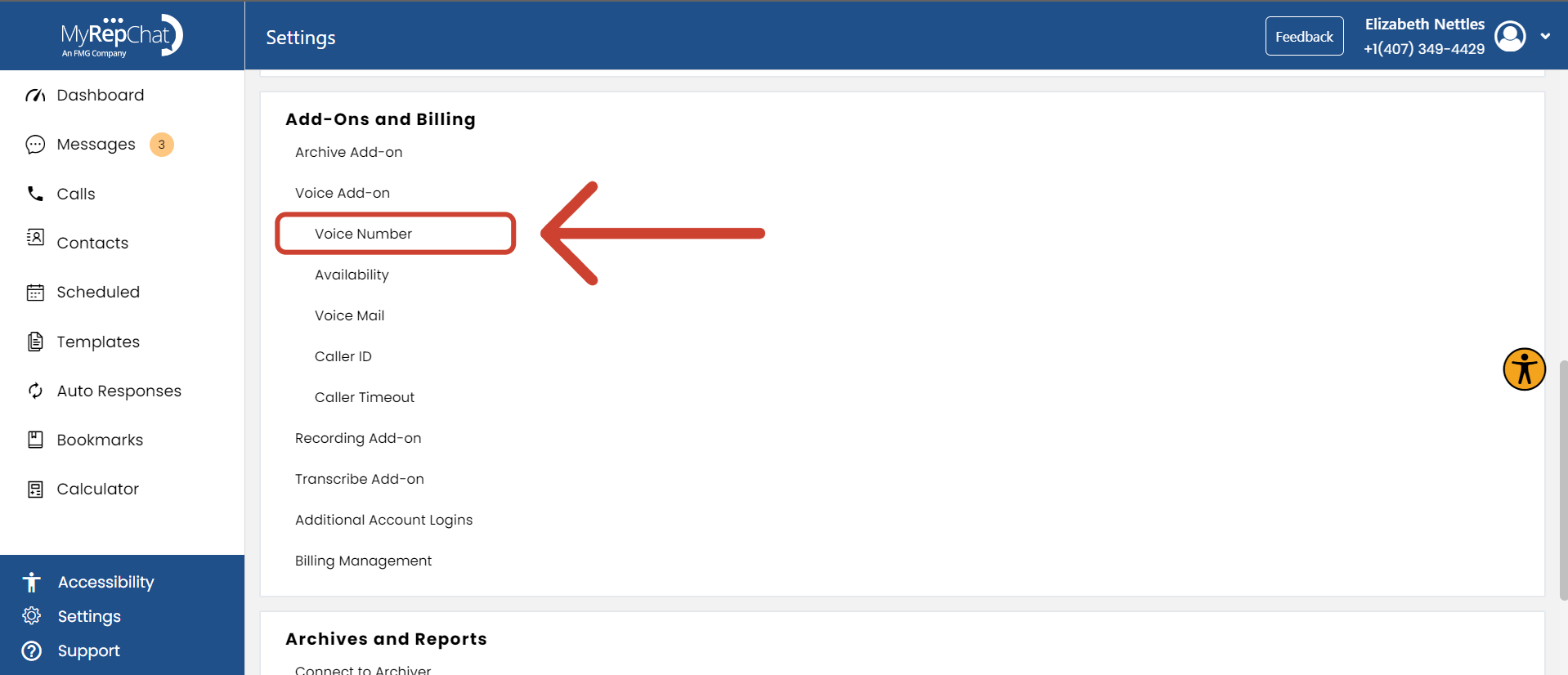
- Under Add-Ons and Billing, click the Voice Number tab.
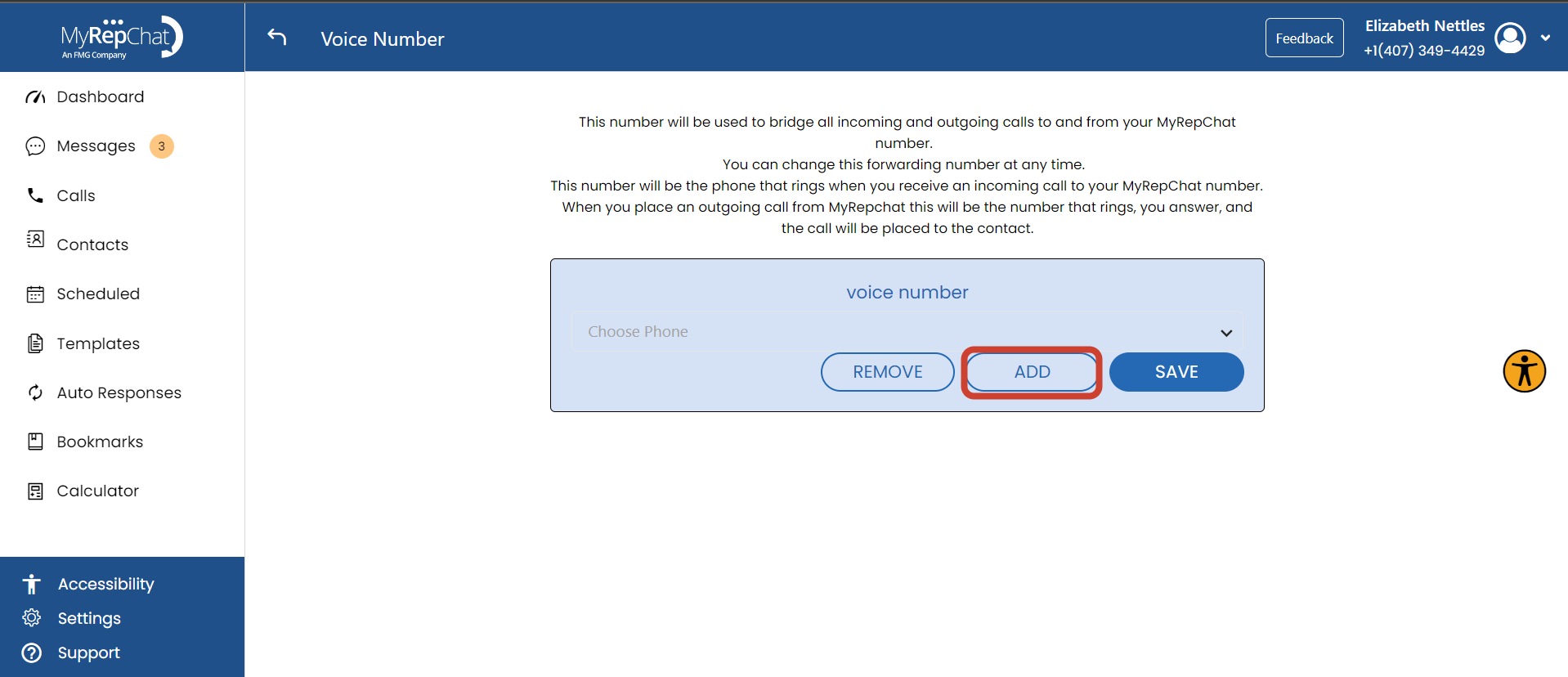
- Click Add to add a new voice/forwarding number.
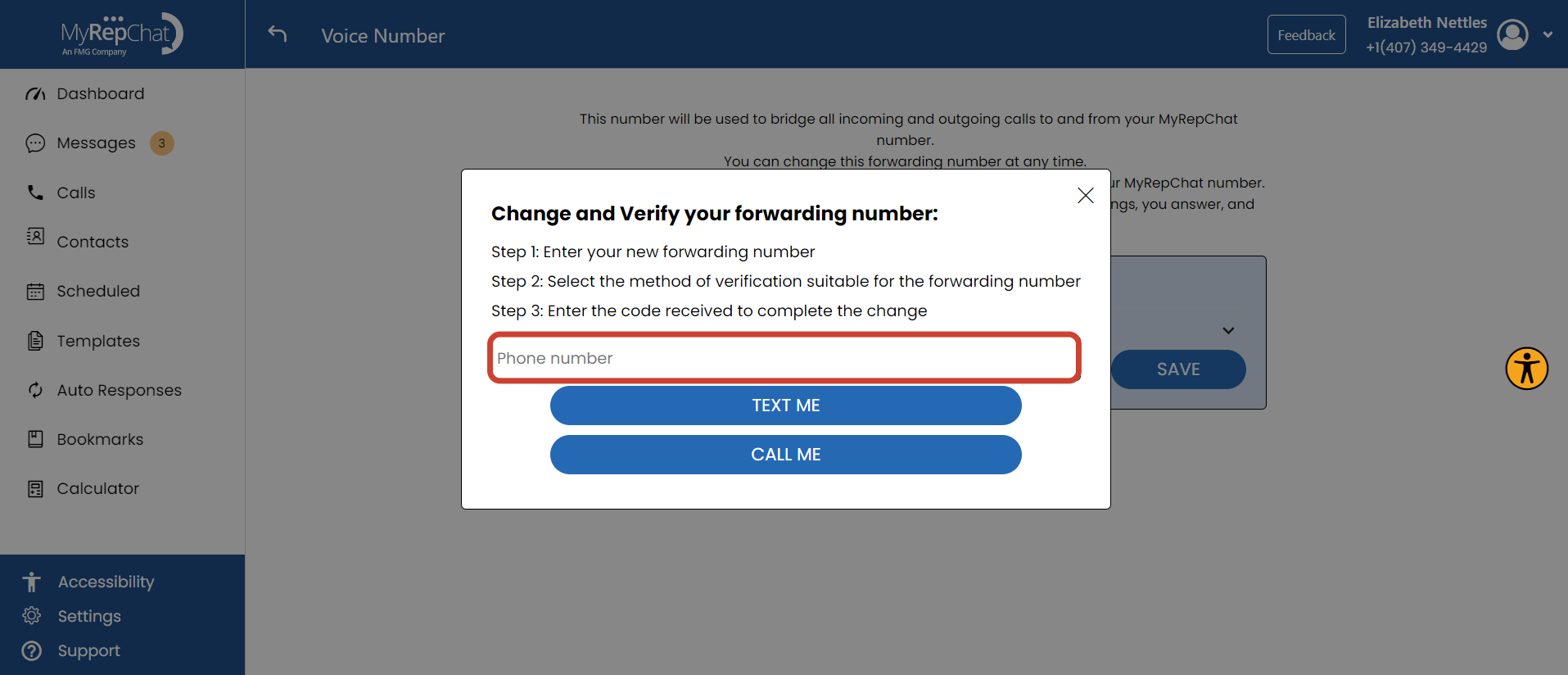
- Type your desired number in the Phone Number field.
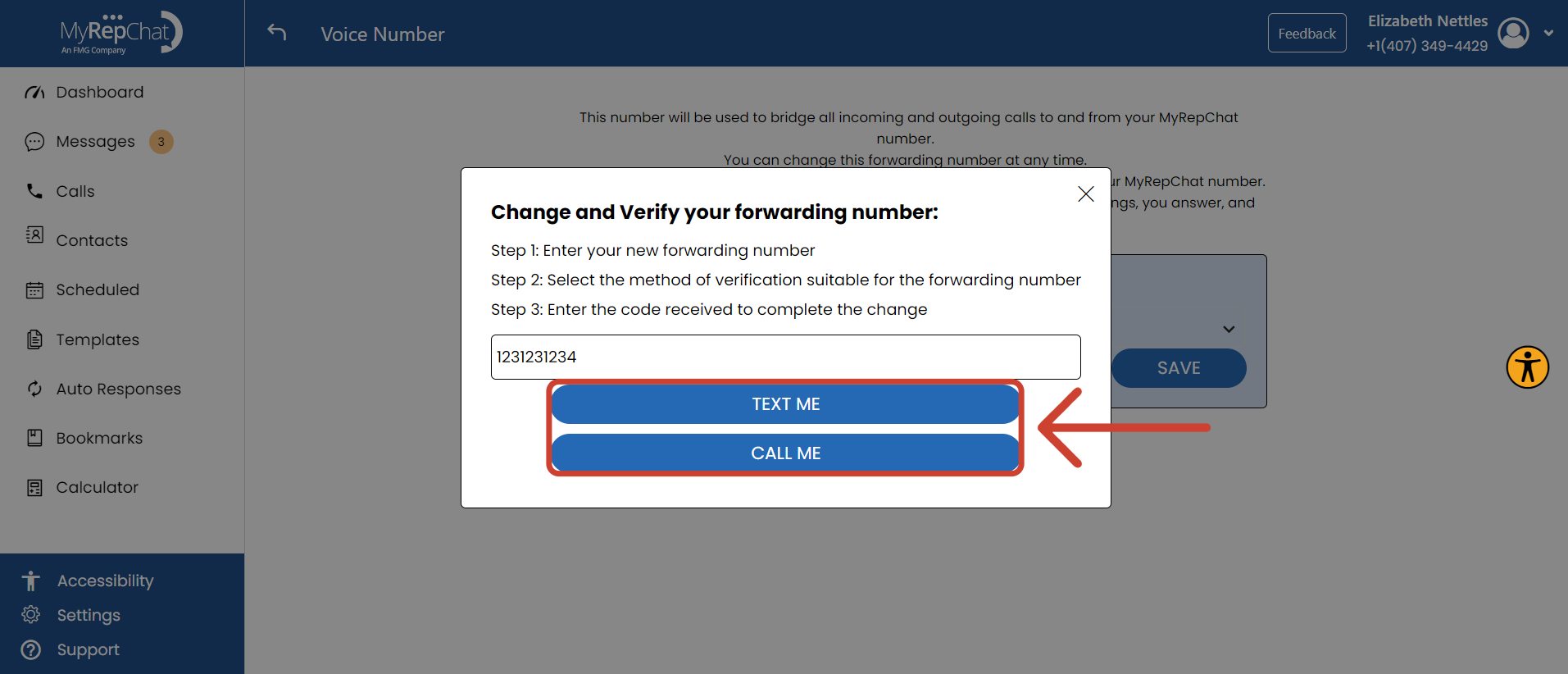
- Click Text Me or Call Me to receive a verification code.
- Click OK to close the confirmation pop-up.
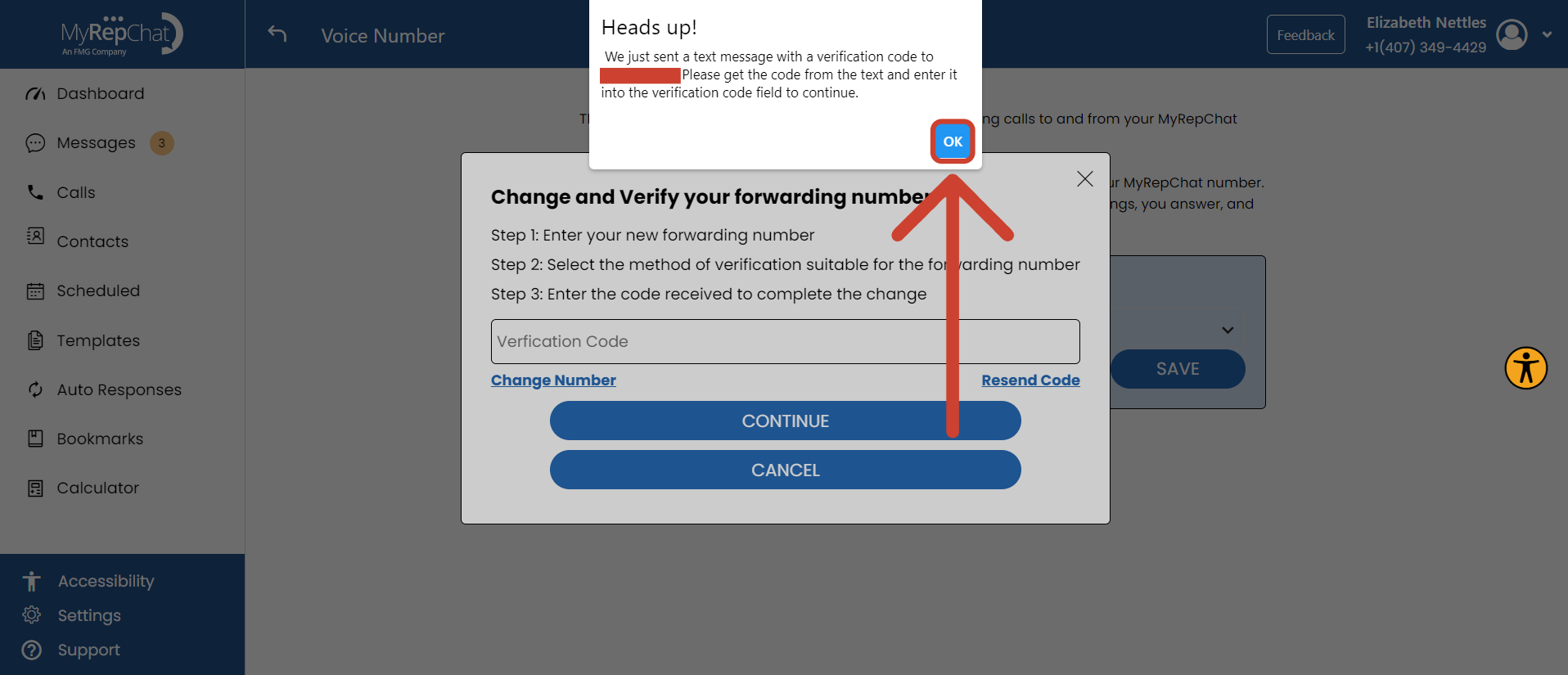
- Enter your verification code in the Verification Code field.
Didn't get a code? Click Resend Code. Want to use a different number? Click Change Number.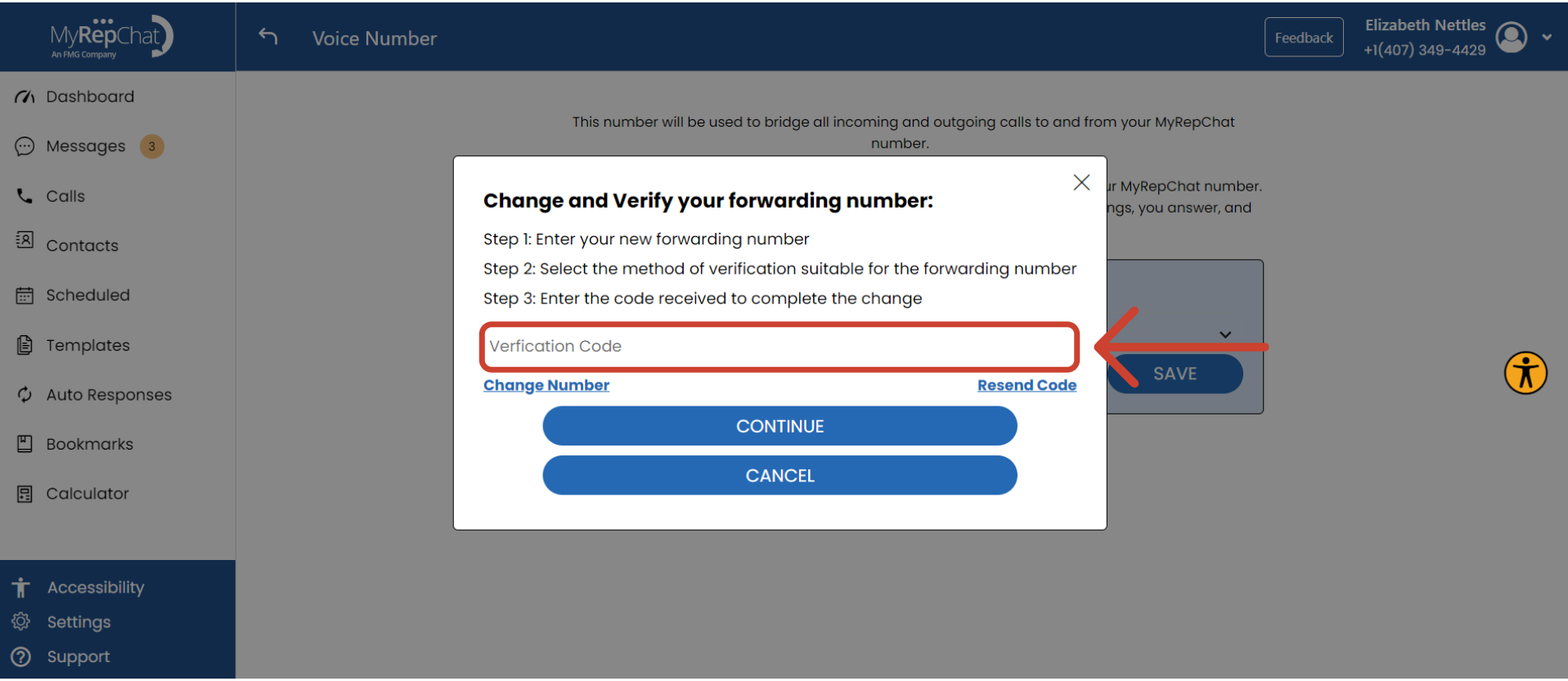
- Click Continue. Your number is now saved.
Availability
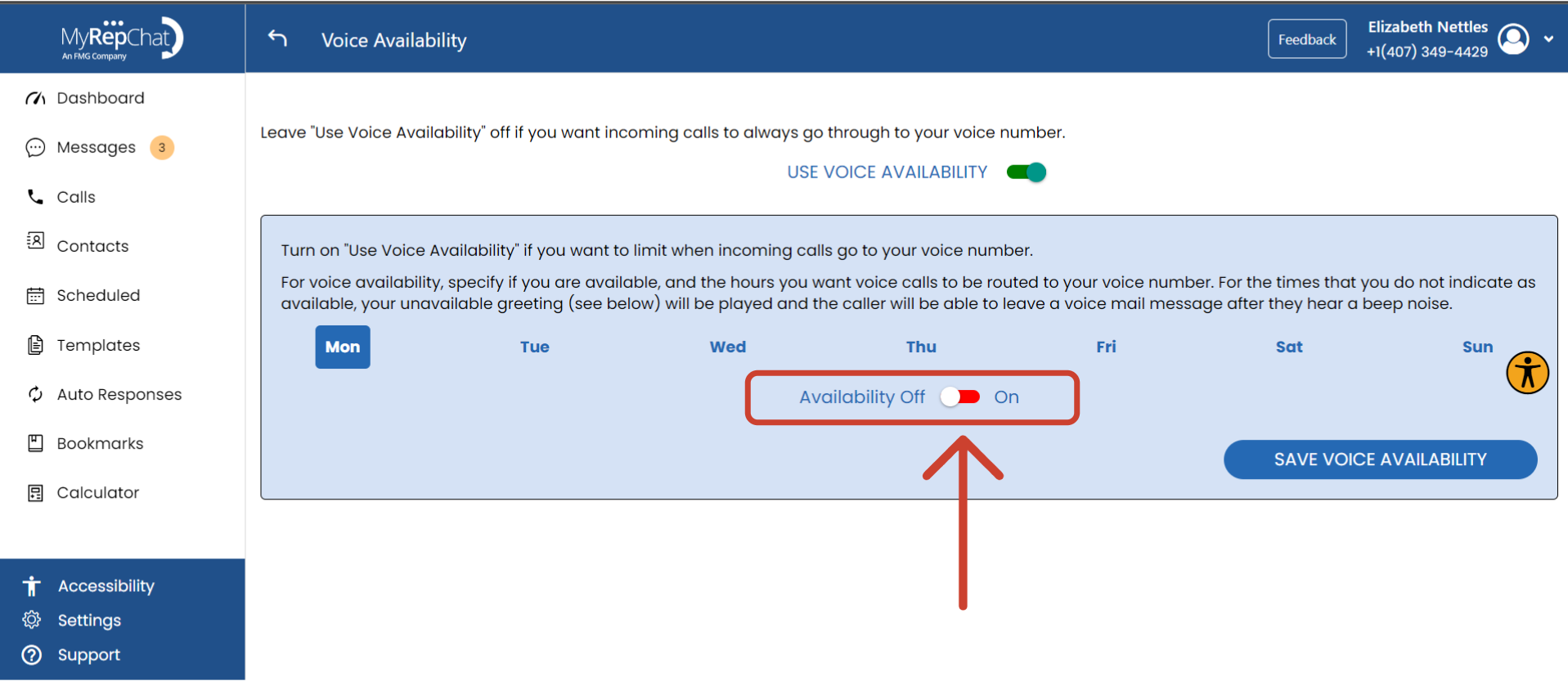
Availability controls whether incoming calls reach you or go straight to voicemail. When availability is off, calls go to voicemail. When it's on, you receive the calls. You can also set a recurring schedule to manage this automatically.
How Do I Set It Up?
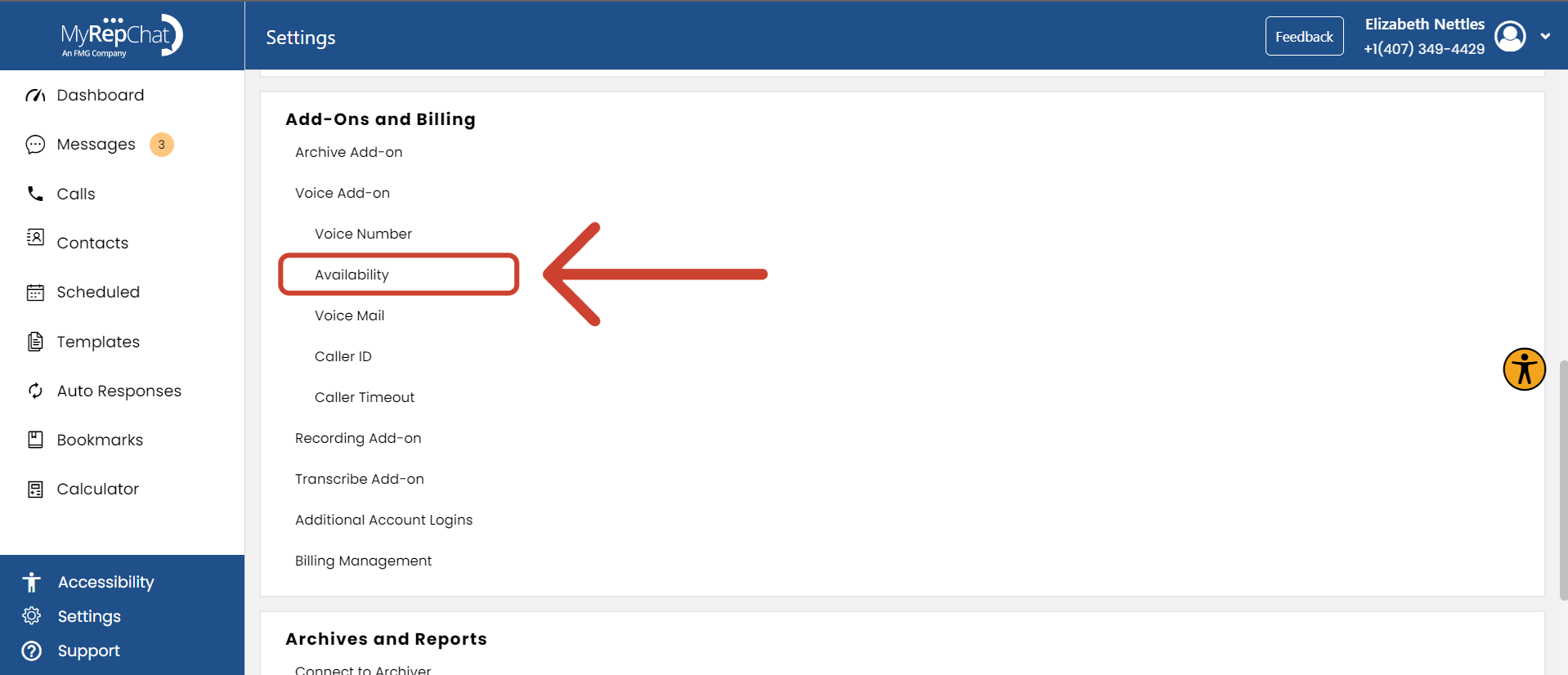
- Under Add-Ons and Billing, click the Availability tab.
- Use the toggle to turn availability on (to receive calls) or off (to send calls to voicemail).
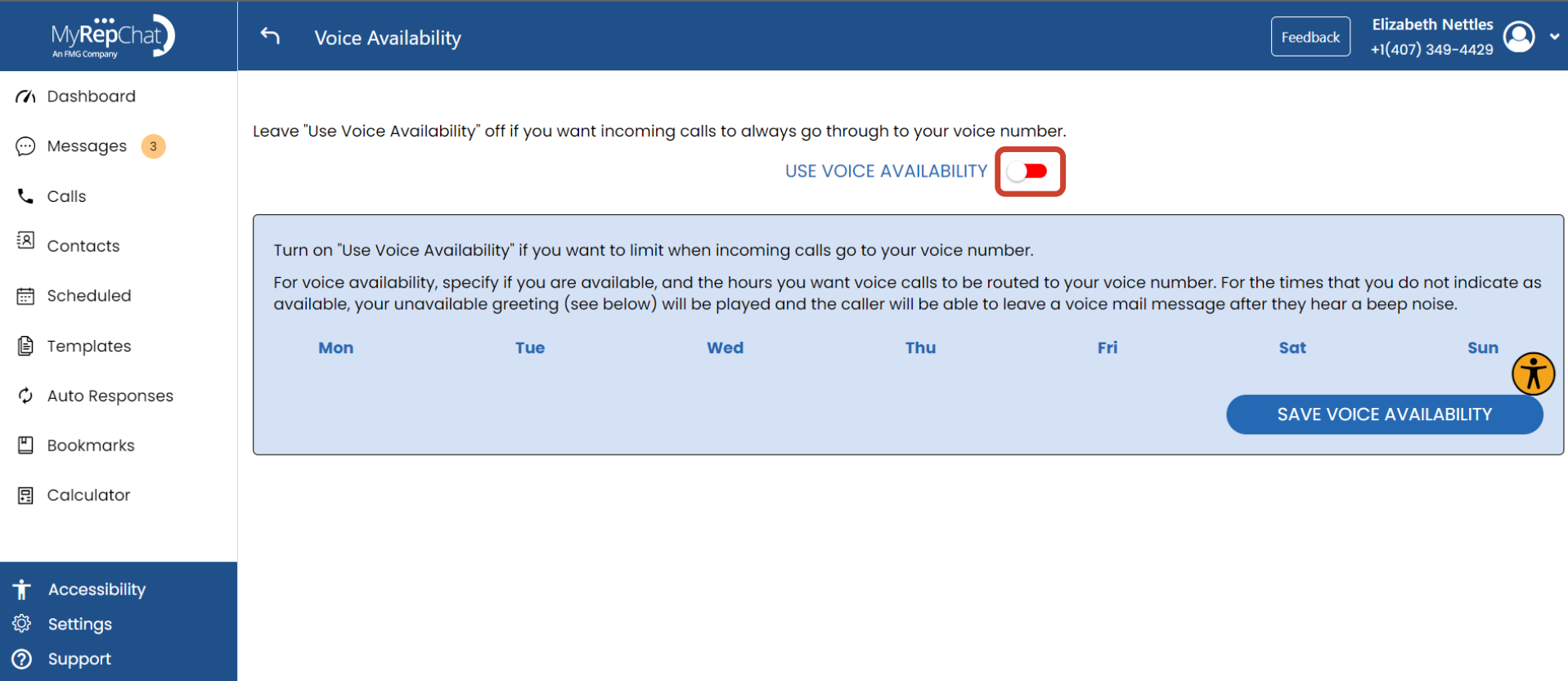
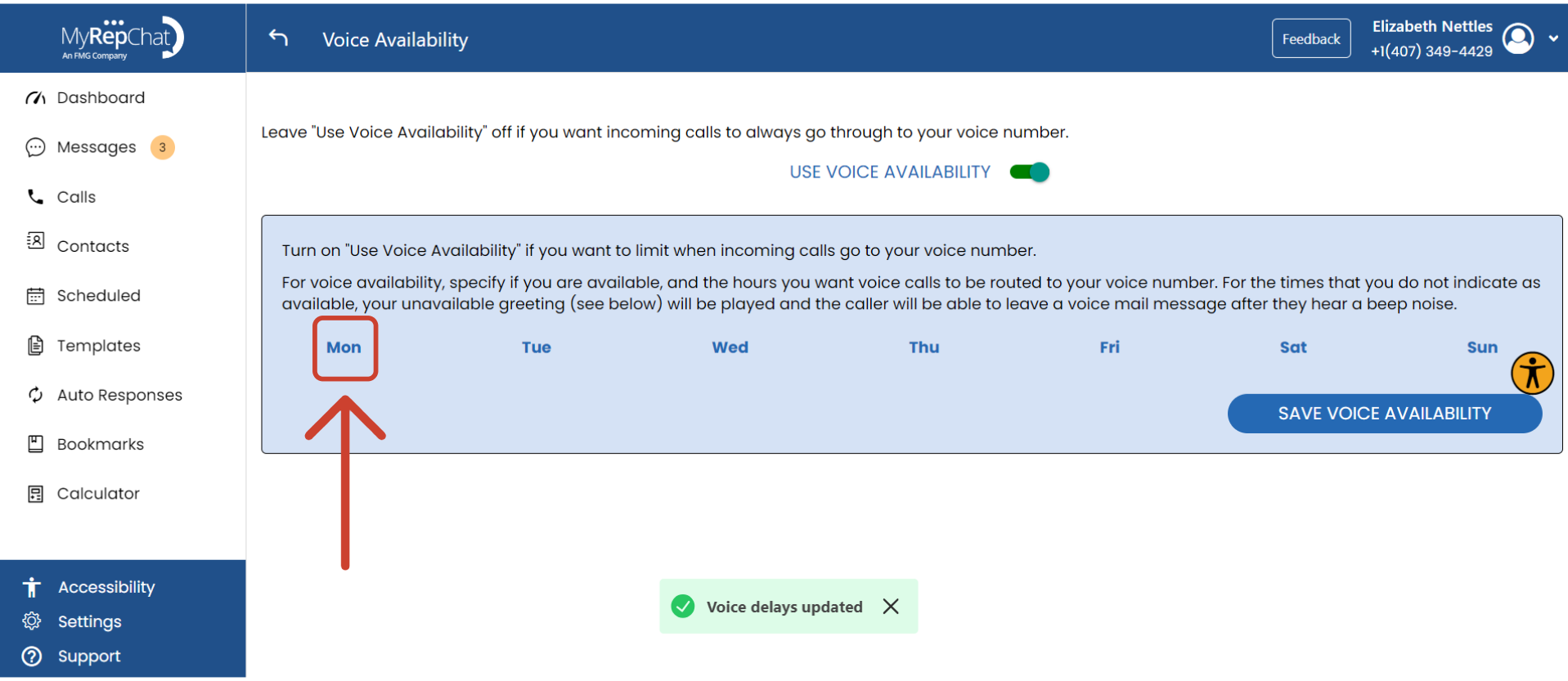
- To set a schedule for a specific day, click that day (e.g., Monday).
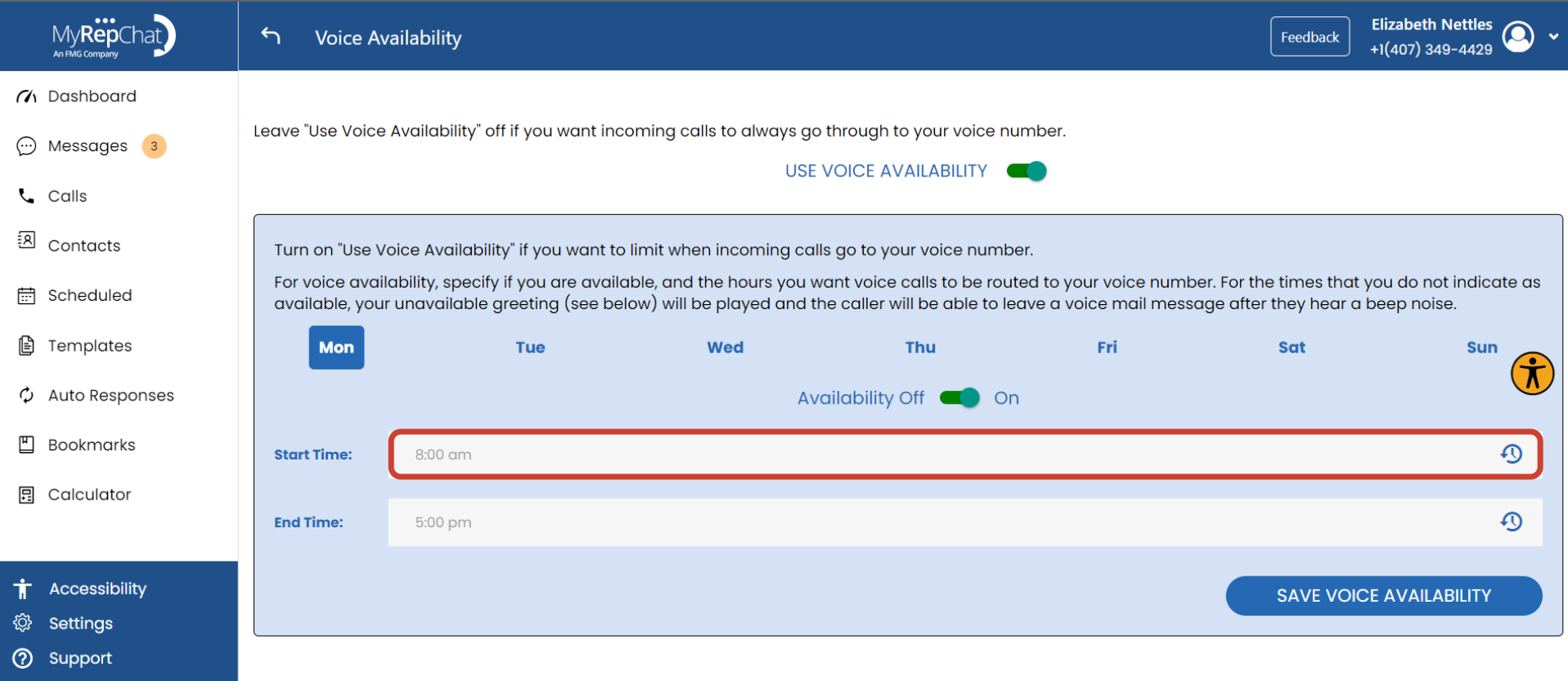
- Enter your Start Time for when you'll accept calls.
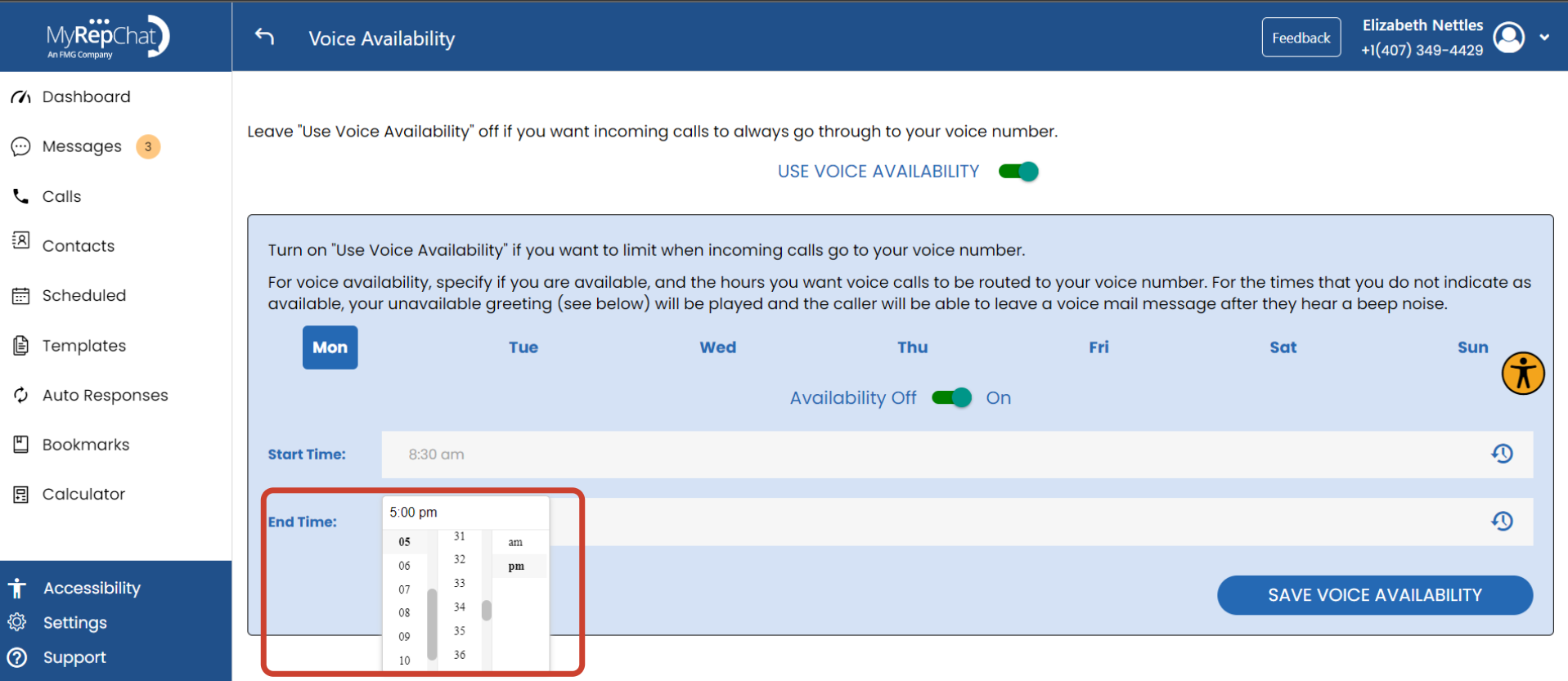
- Enter your End Time for when calls should switch to voicemail.
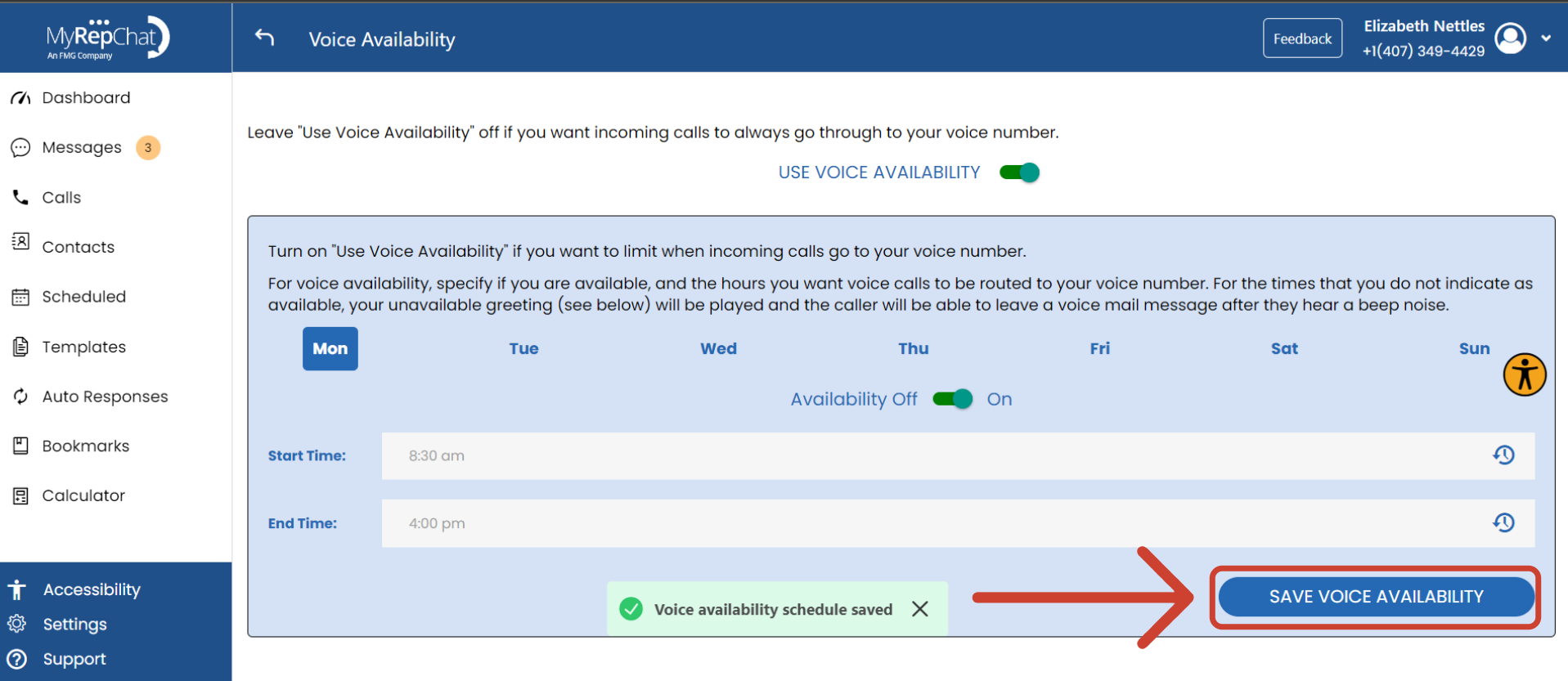
- Click Save Voice Availability.
- Repeat steps 3–6 for each remaining day of the week.
- To turn off your custom schedule entirely, use the Availability On/Off toggle above the calendar.
Voice Mail
Create a custom voicemail message for missed calls on your MyRepChat number. You can set a Voice Mail message (for calls you miss while available) and a separate Unavailable message (played when your availability is turned off). Each type can only have one recording at a time.
How Do I Set It Up?
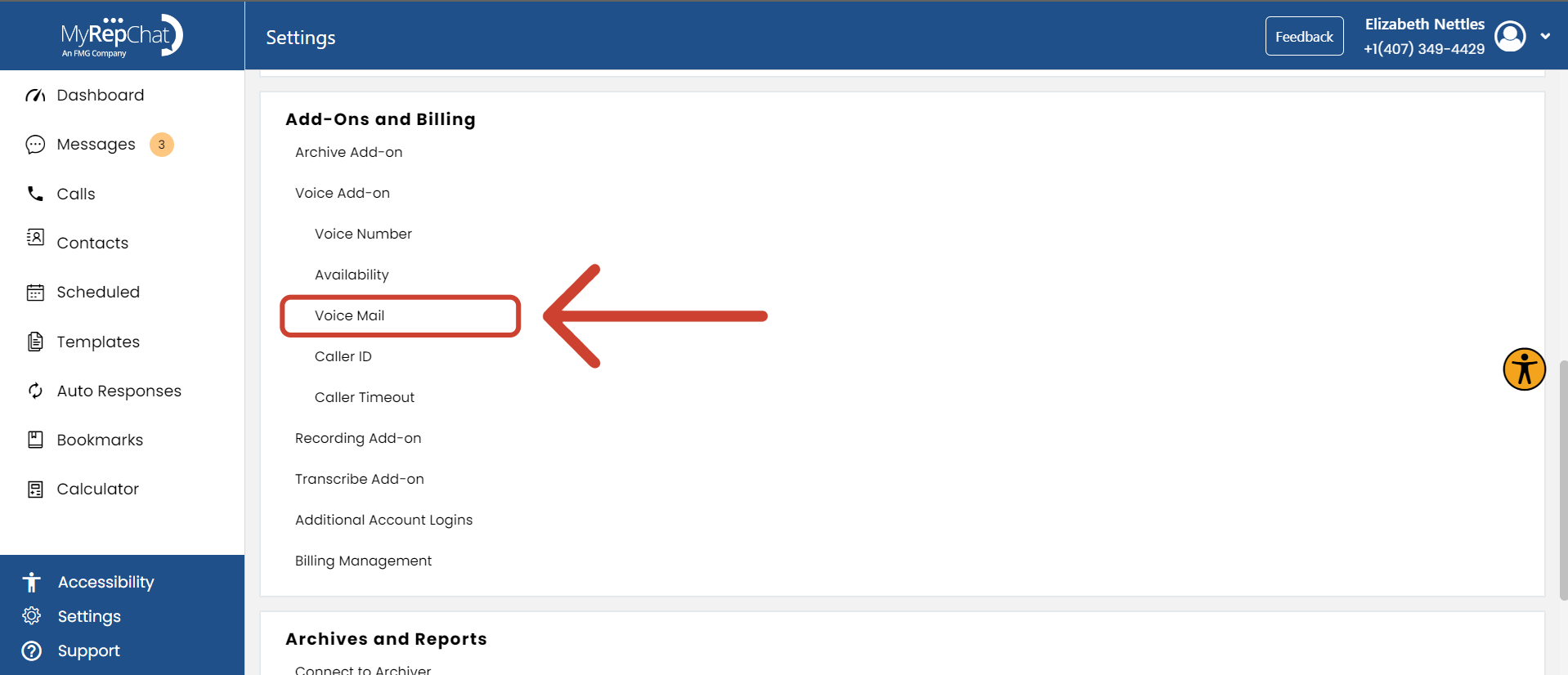
- Under Add-Ons and Billing, click the Voice Mail tab.
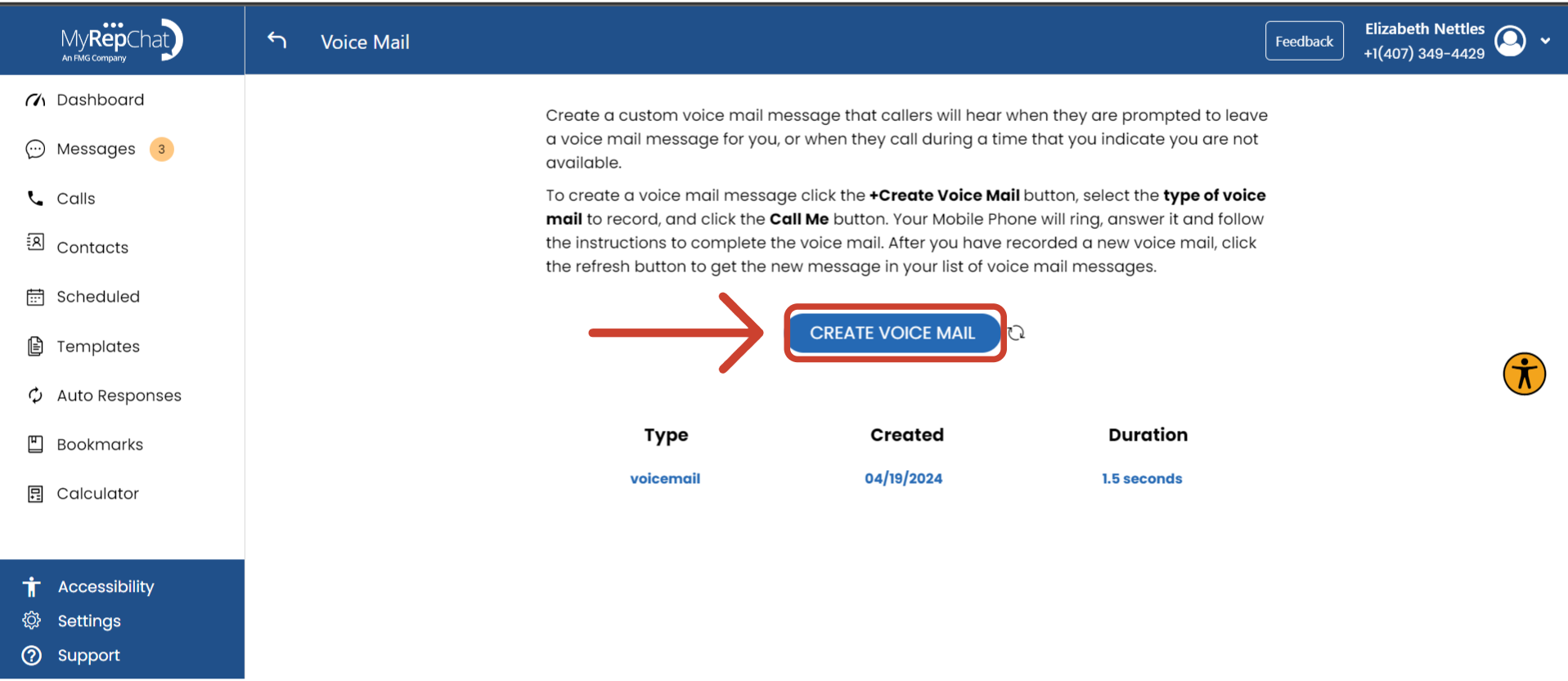
- Click Create Voice Mail.
- Select which message type to record — Voice Mail or Unavailable. We recommend starting with Voice Mail, since Unavailable isn't used by default.
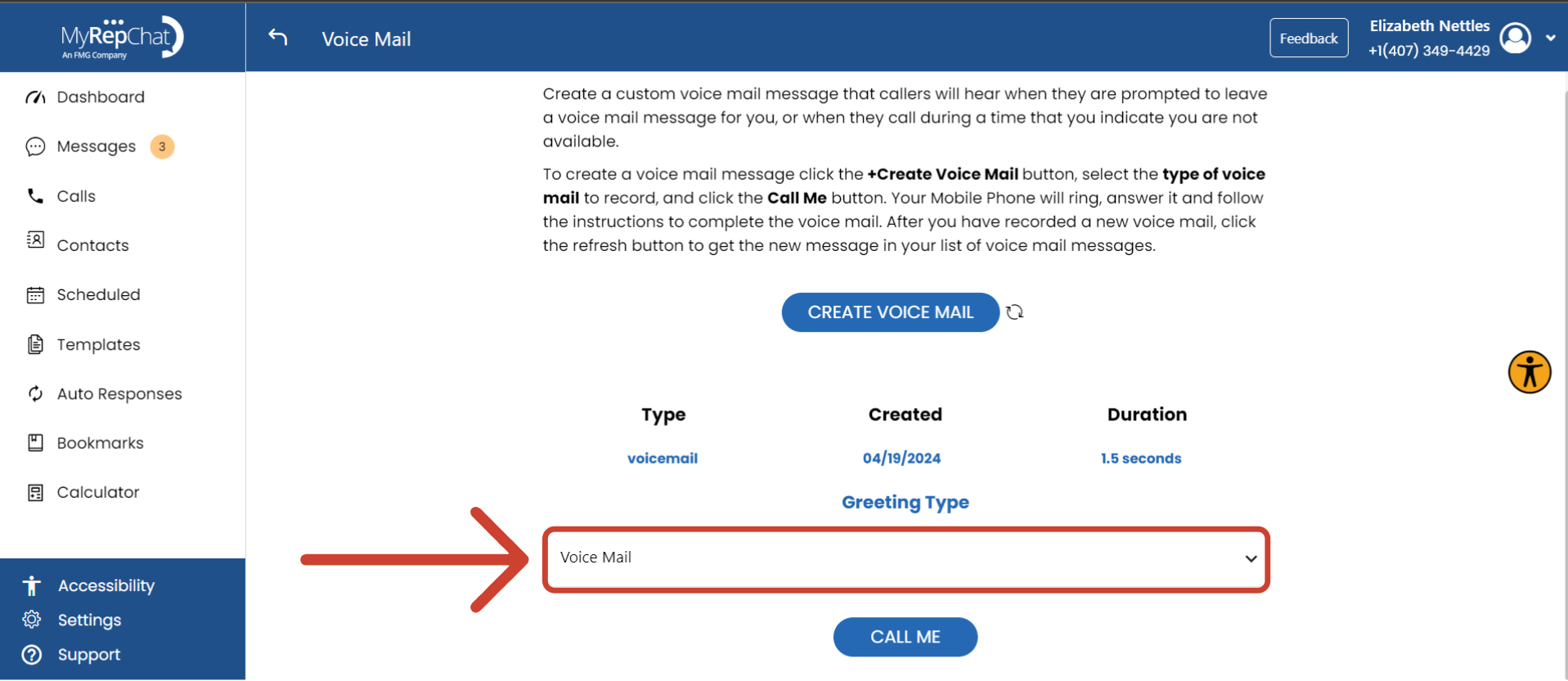
- Click Call Me. You'll receive a call to your forwarding number — record your message at the beep.
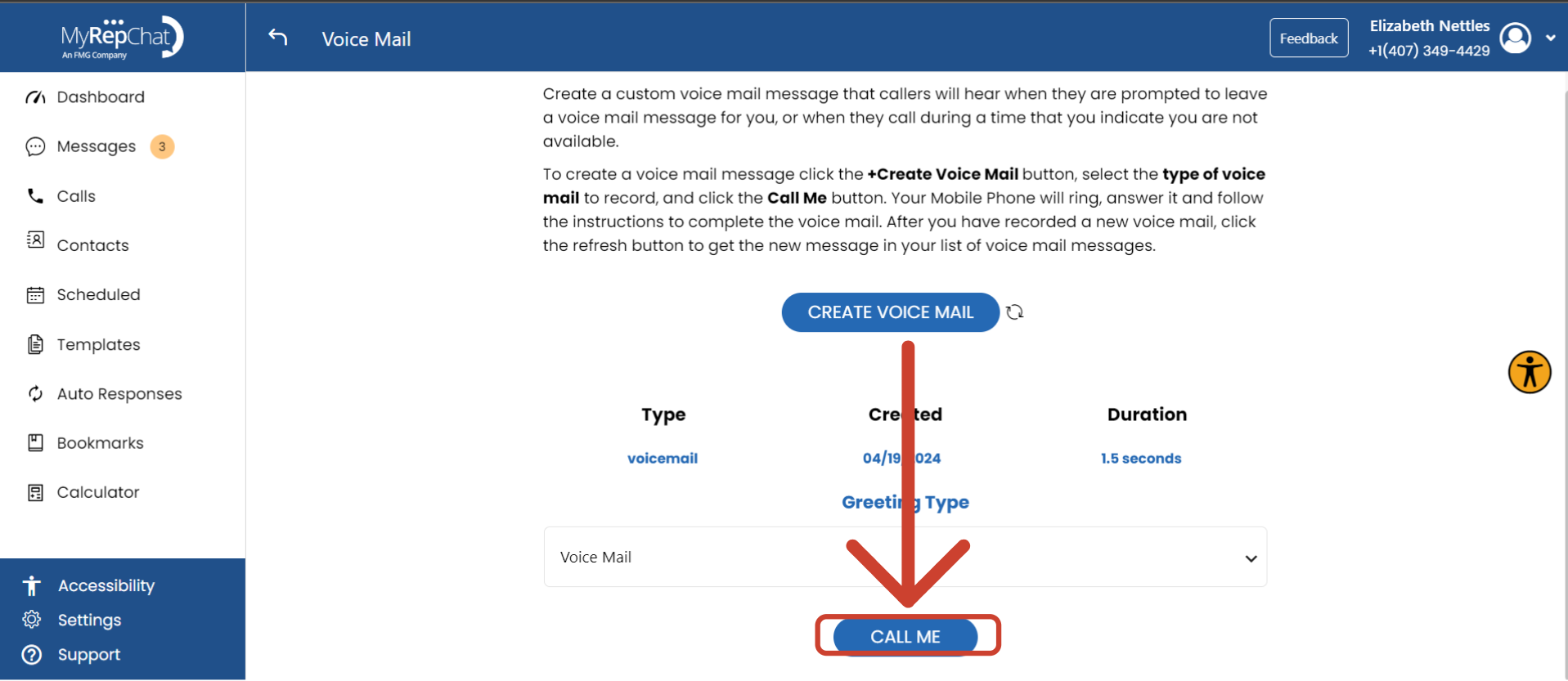
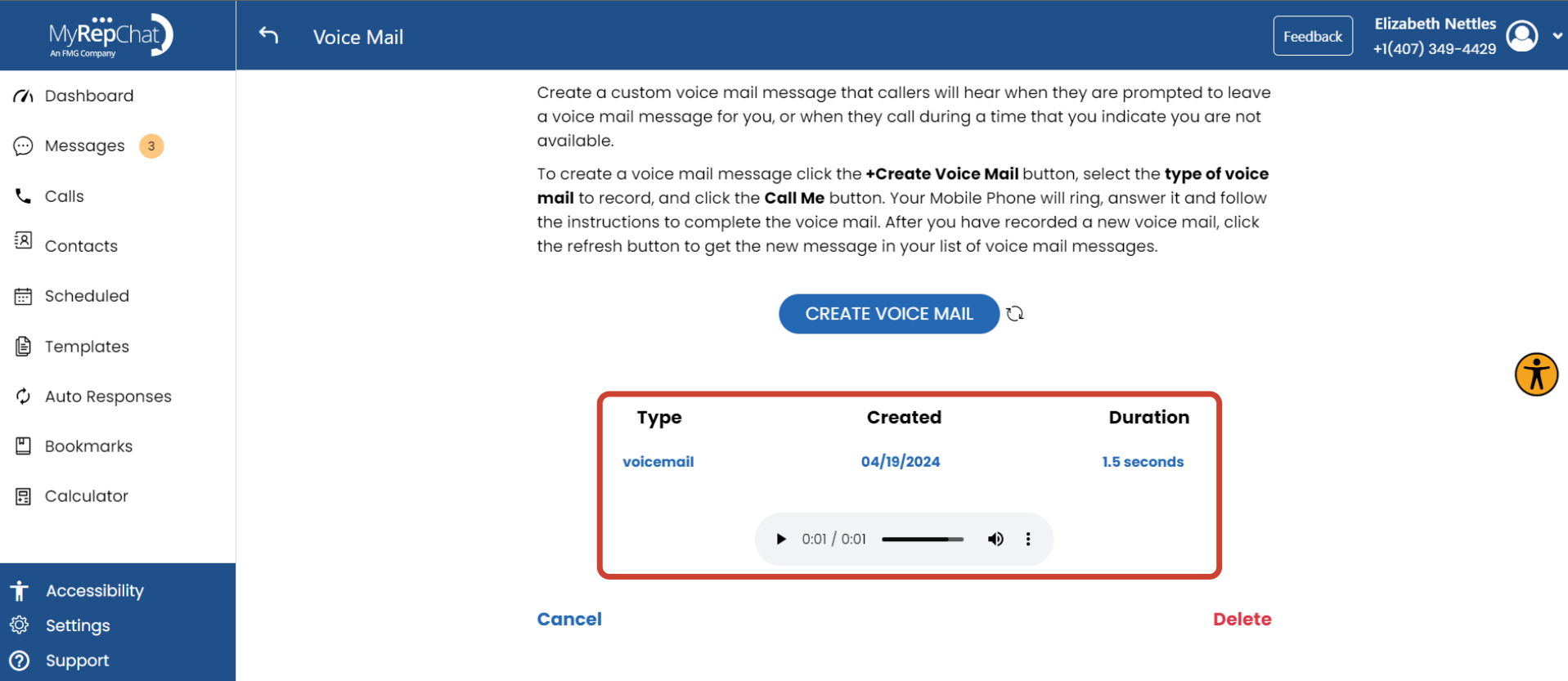
- Once finished, click the small Refresh button next to Create Voicemail.
- Click an existing voicemail to listen to it, or click Delete to remove one you no longer want.
Caller ID
Caller Timeout controls how long a MyRepChat call rings before it's sent to voicemail. This setting is rarely adjusted.
How Do I Set It Up?
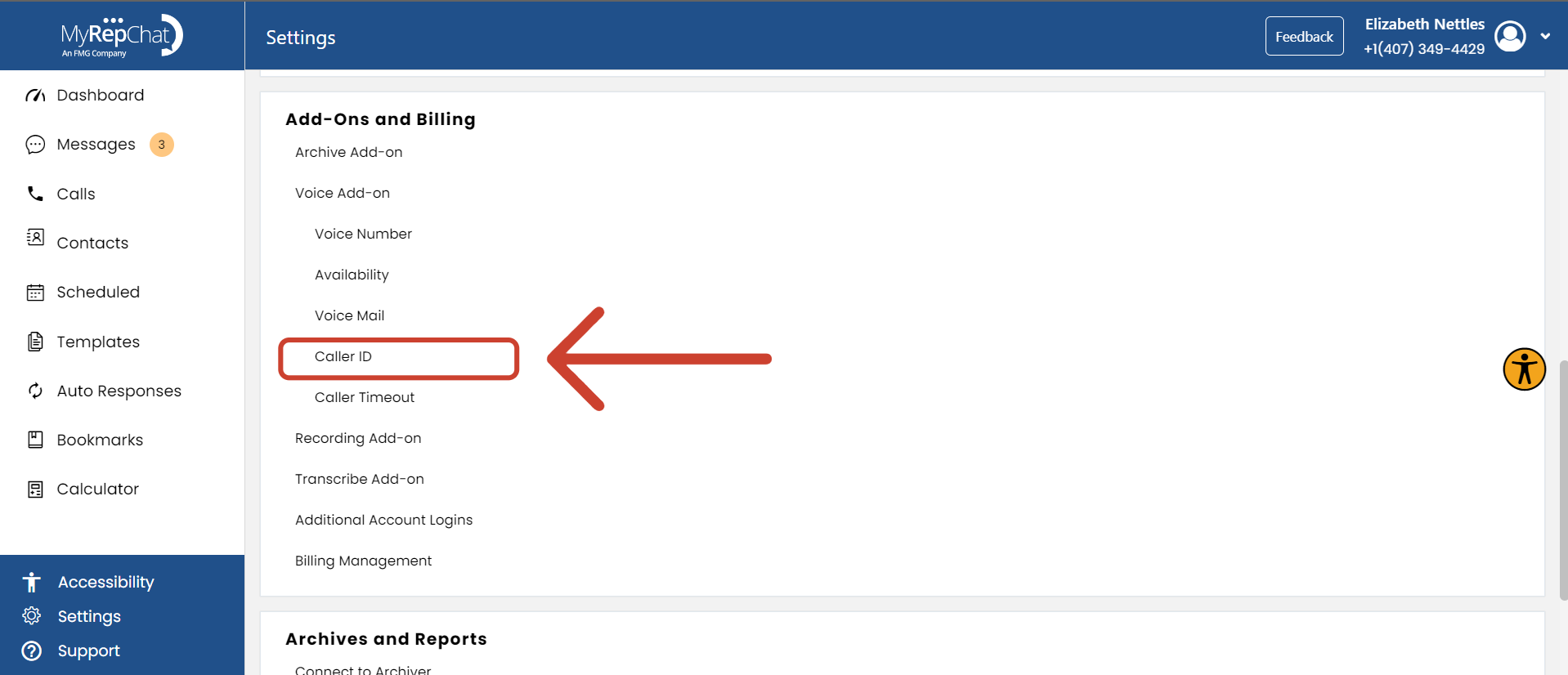
- Under Add-Ons and Billing, click the Caller ID tab.
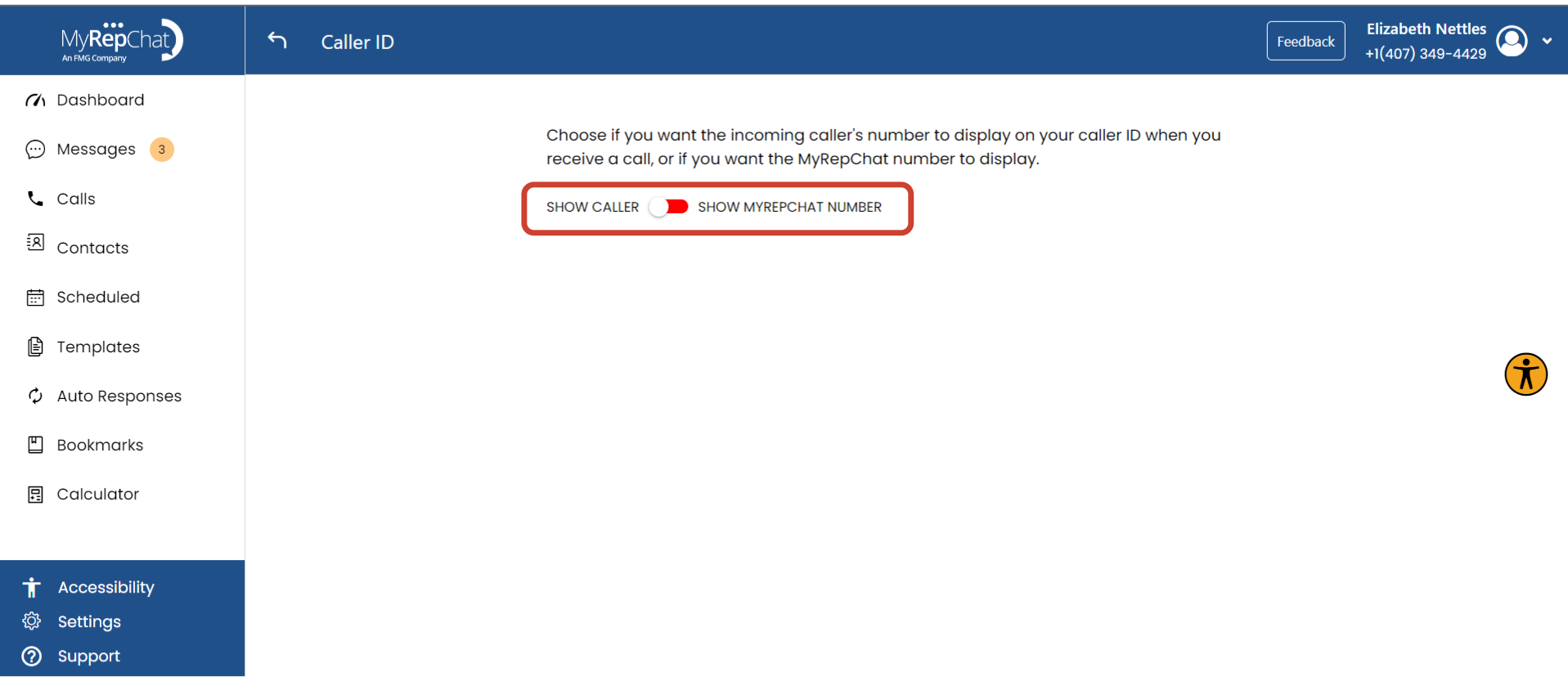
- Use the toggle to turn Caller ID on or off.
Caller Timeout
Caller Timeout controls how long a MyRepChat call rings before it's sent to voicemail. This setting is rarely adjusted.
Only change this setting if you're running into one of these situations:
- Your mobile phone's voicemail is answering calls instead of MyRepChat's voicemail — try a smaller number.
- Calls aren't ringing long enough for you to answer before hitting MyRepChat's voicemail — try a larger number.
Test as you adjust to make sure you land in the right spot without swinging too far the other way.
How Do I Set It Up?
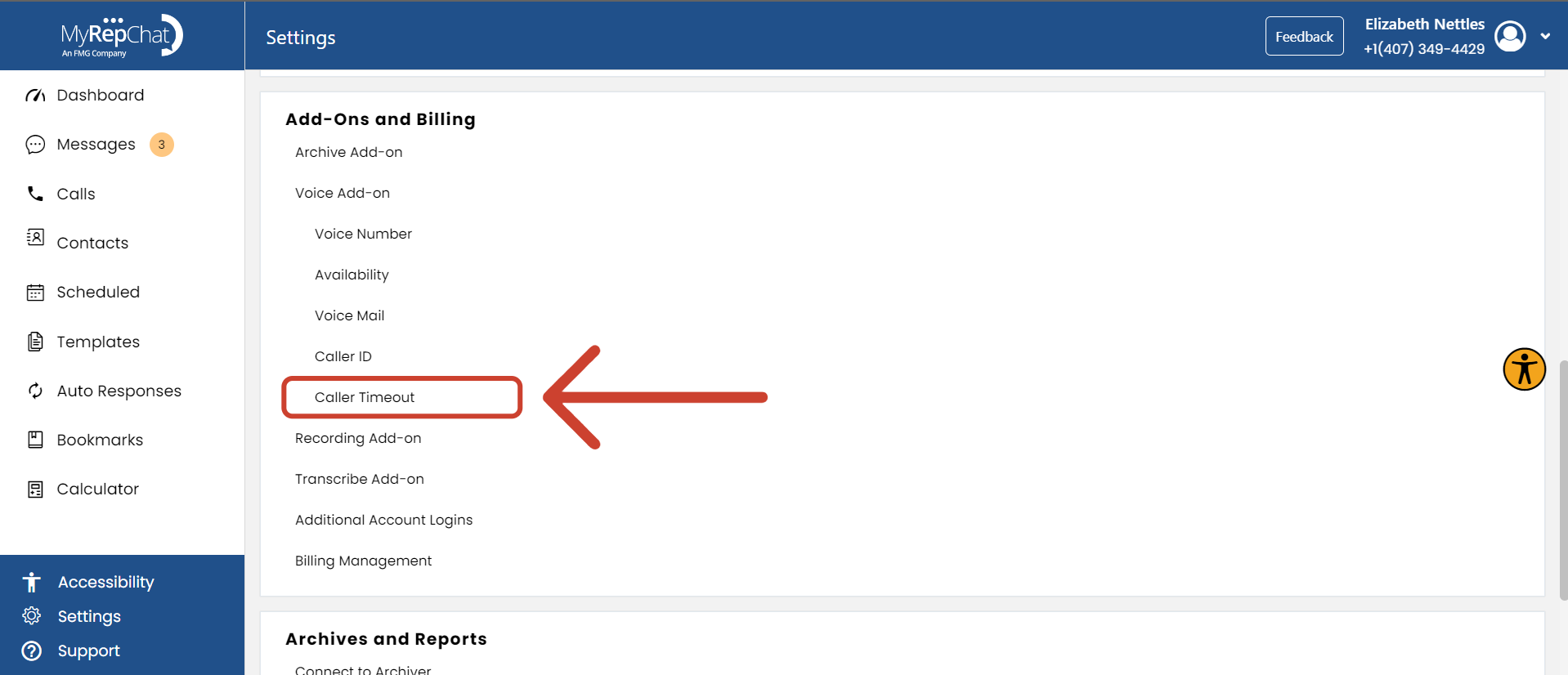
- Under Add-Ons and Billing, click the Caller Timeout tab.
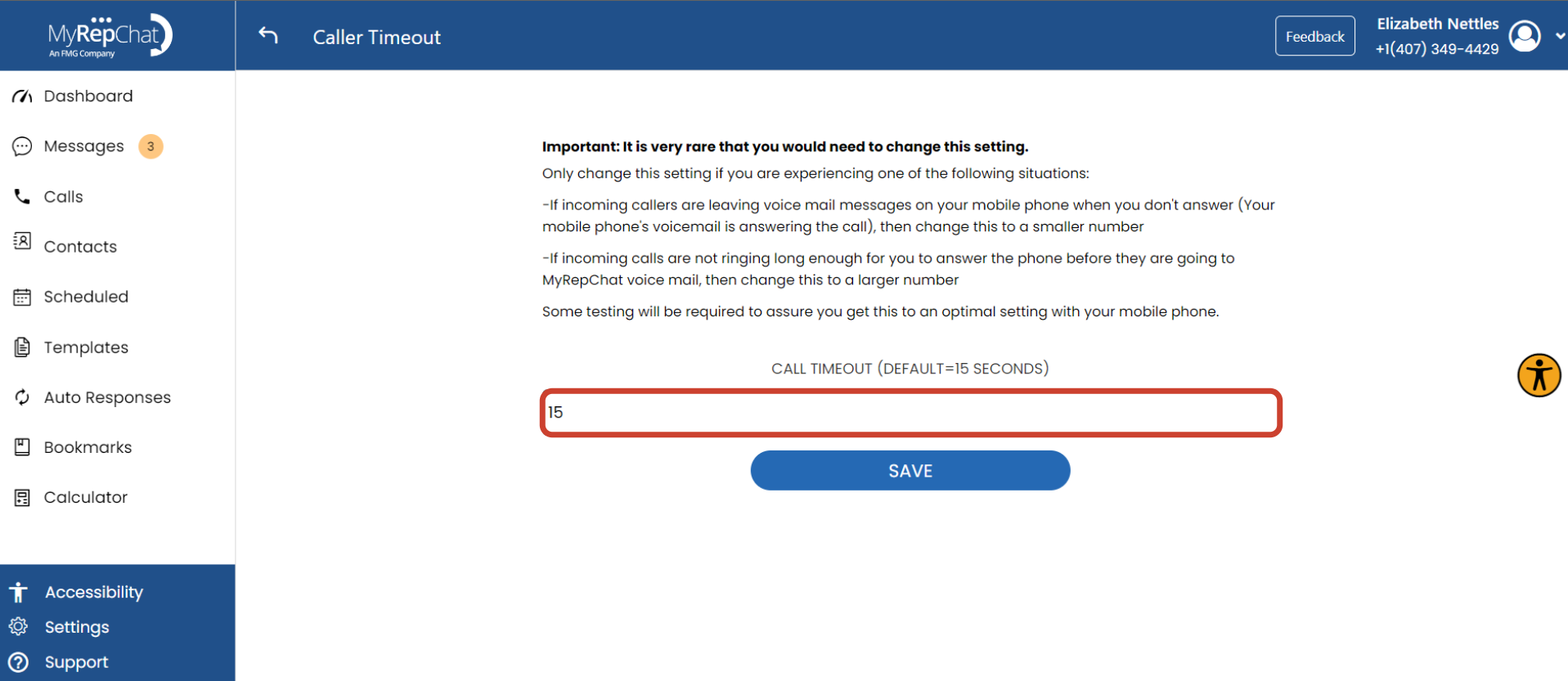
- Enter your desired number of seconds.
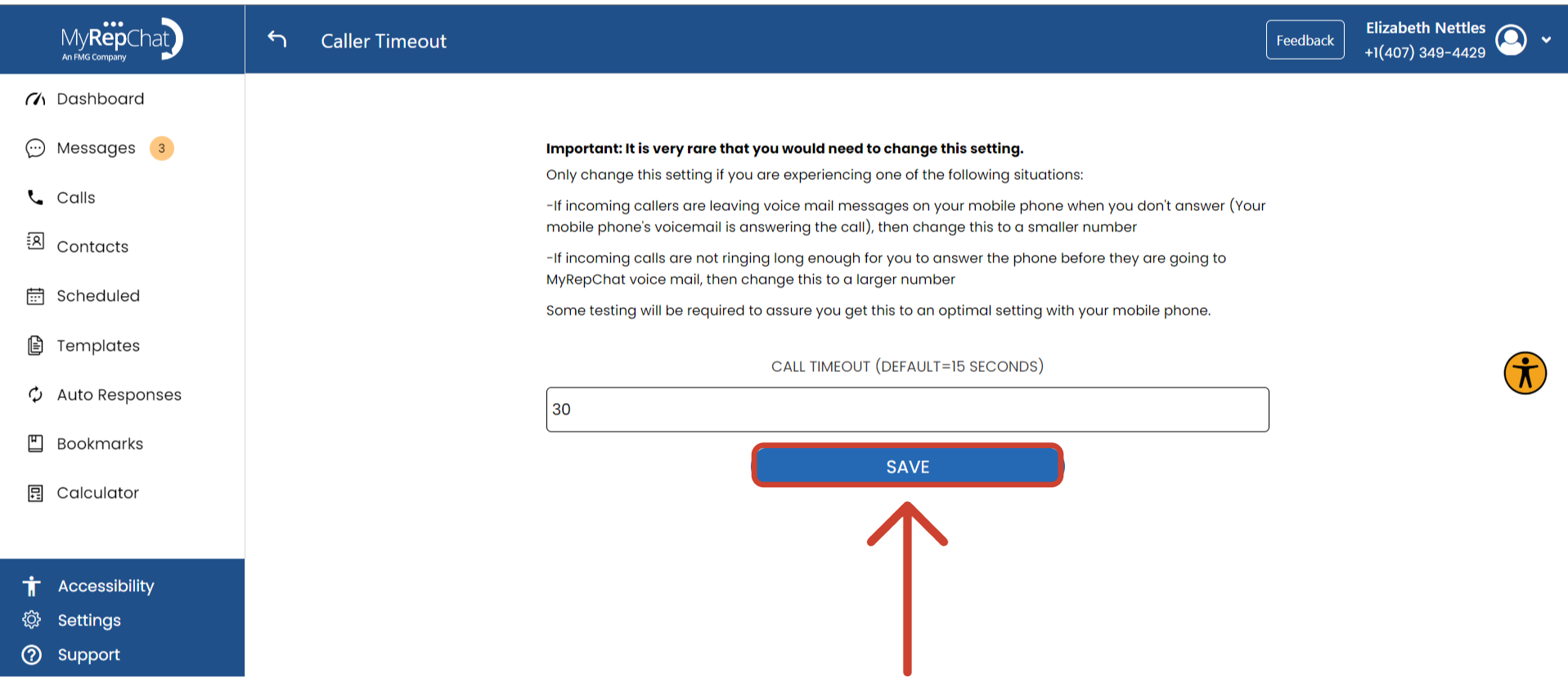
- Click Save.
Note: The default Caller Timeout is 15 seconds.
If your forwarding number's own voicemail picks up before MyRepChat does — or if the call is declined or automatically routed to voicemail — MyRepChat's voicemail won't be able to trigger correctly.