
Duplicate contacts are one of the most common issues in MyRepChat, but they're also easy to prevent and straightforward to fix.
Common causes of duplicate contacts
-
Adding CRM contacts manually: If you're connected to a CRM, don't also add those same contacts manually in MyRepChat. Doing both will create duplicates. Only create a contact manually if they don't exist in your CRM.
-
Shared phone numbers: If more than one contact record is tied to the same phone number, both contacts will appear in a message thread. The person physically in possession of that phone is the only one who will receive the communication, but the duplicate record will still show up on your end. Make sure each contact has a unique phone number in their record.
-
Connecting more than one CRM: MyRepChat is designed to work with one CRM at a time. If you connect more than one, any contacts that appear in both will be treated as duplicates. If you think you've accidentally connected your CRM twice, you can contact our Client Experience team at support@myrepchat.com to have the duplicate integration removed.
-
Messy contact fields: Watch your field mapping in both your CRM and MyRepChat: first name in the first name field, last name in the last name field, and mobile number in the mobile phone field. If your CRM has a client ID or account number column, hide or remove it before syncing, as MyRepChat doesn't have a matching field, and it can cause errors.
-
CSV imports with too many columns: When importing a CSV file, keep it simple: first name, last name, and mobile number are usually all you need. Avoid extra columns, client IDs, or commas within fields. The fewer and more accurate the columns, the cleaner your import will be. You can always add additional contact information manually in MyRepChat after the import.
-
Importing more contacts than you need: When importing from a CRM or your phone contacts, only bring over the contacts you actually want in your MyRepChat account. Importing everything can bring in personal contacts, contacts with missing information, contacts with multiple numbers, and records with fields MyRepChat doesn't recognize, all of which can lead to duplicates or errors.
How to fix duplicate contacts (Desktop)
The Duplicates tab is only available in the web app.
-
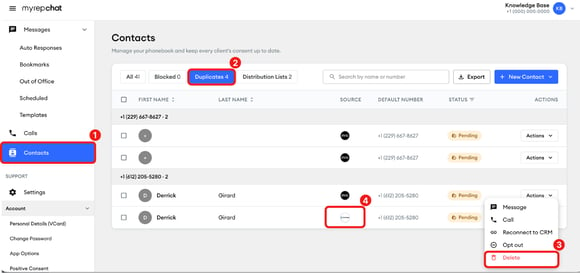
In the left menu, click Contacts.
-
At the top of your contacts list, click Duplicates. This shows contacts that share any phone number, including office or other numbers, not only the default number.
-
Duplicates are grouped by phone number. Click Actions next to the contact you don't want to keep, then select Delete. Your conversation history isn't lost because conversations are saved with the phone number, not the contact.
-
When choosing which contact to keep, keep the one with your CRM logo in the Source column. That's the contact connected to your CRM, so your texts can be sent there as notes.
Best practices to stay clean going forward
-
Before creating a contact manually, search for them in MyRepChat first to make sure they don't already exist.
-
After adding new contacts in your CRM, search for them in MyRepChat right away to pull them over and ensure texts are logged as notes from the start.
-
Review your contact list regularly and check your CRM for errors. MyRepChat will only ever be as clean as the data you bring into it.