
You can schedule a message from a conversation or from the Scheduled page. Use the Scheduled page if you want the message to repeat, for example, every week or every year.
How do I schedule a message from a conversation?
Messages scheduled from a conversation are sent once.
-
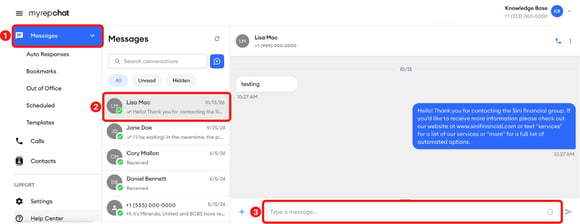
In the left menu, click Messages.
-
Click the conversation.
-
Type your message.
-
Click the clock icon in the message box.

-
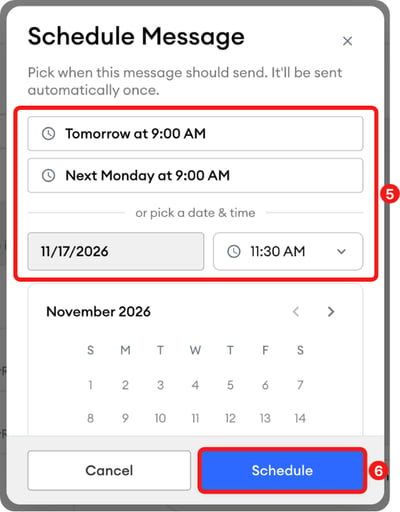
On the Schedule Message pop-up, choose Tomorrow at 9:00 AM or Next Monday at 9:00 AM, or pick a date and time.
-
Click Schedule.
How do I schedule a message from the Scheduled page?
-
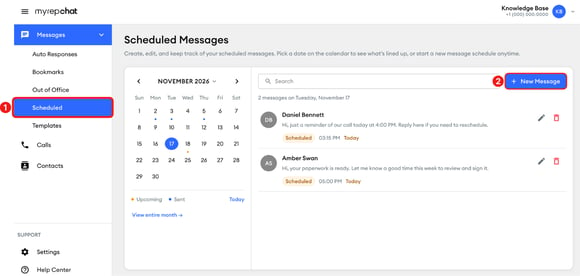
In the left menu, click Messages, then click Scheduled.
-
Click New Message.
-
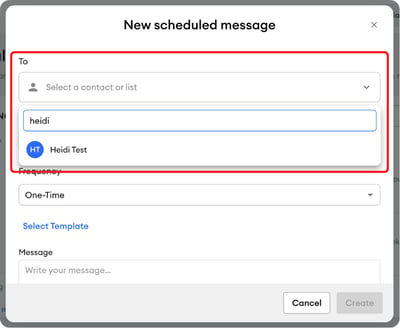
In the New scheduled message pop-up, under To, search and select a contact or distribution list.
-
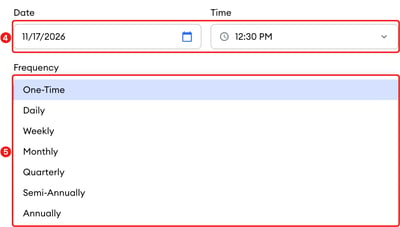
Choose a date and time.
-
Under Frequency, keep One-Time, or choose how often the message repeats from the dropdown: Daily, Weekly, Monthly, Quarterly, Semi-Annually, or Annually.
-
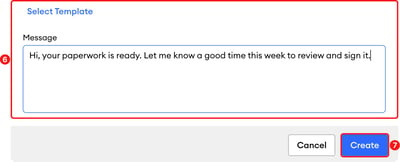
Type your message, or click Select Template to use one of your templates.
-
Click Create.
To see or change your scheduled messages, see How do I check scheduled messages? (Desktop).